
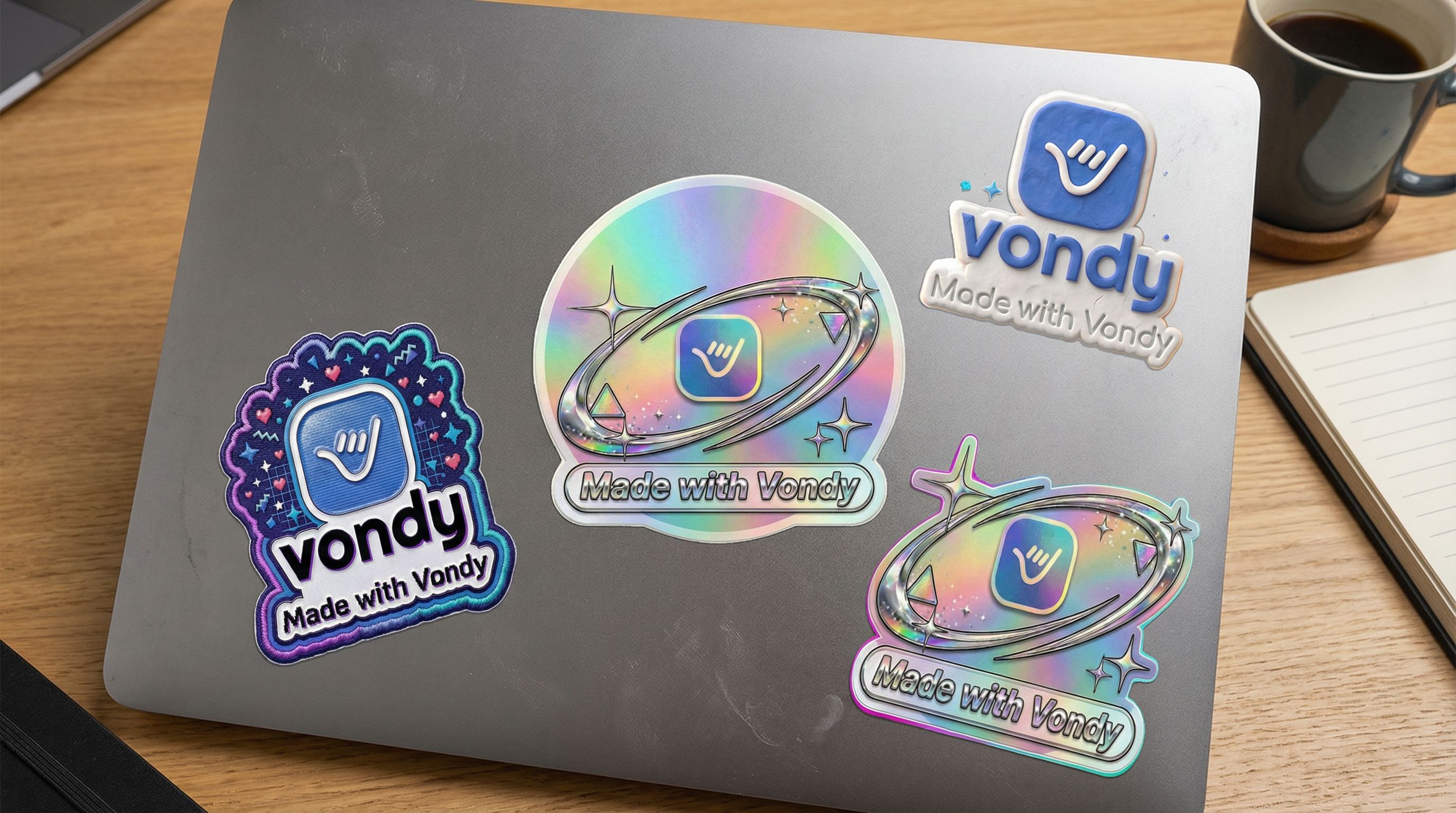
Custom stickers are everywhere: laptop stickers, water bottles, packaging for small businesses, and sticker packs for messaging apps. Traditional sticker-making requires design software like Photoshop, searching for templates, finding the right fonts, and hours of iteration. Then you need to export at high-resolution with a transparent background before sending to print.
AI works as a sticker maker that simplifies the entire process. Describe the sticker design you want, generate multiple concepts, and export print-ready files. You can even add QR codes or make photo edits to personalize designs. In this tutorial, we created "Made with Vondy" branded stickers, exploring everything from holographic Y2K aesthetics to cozy knitted patches.
Step 1: Generate Sticker Concepts
Start by generating multiple sticker design concepts. Using AI image generators, you can explore different styles quickly without committing to one direction.
We generated four variations of a "Made with Vondy" branded sticker with holographic, retro aesthetics:
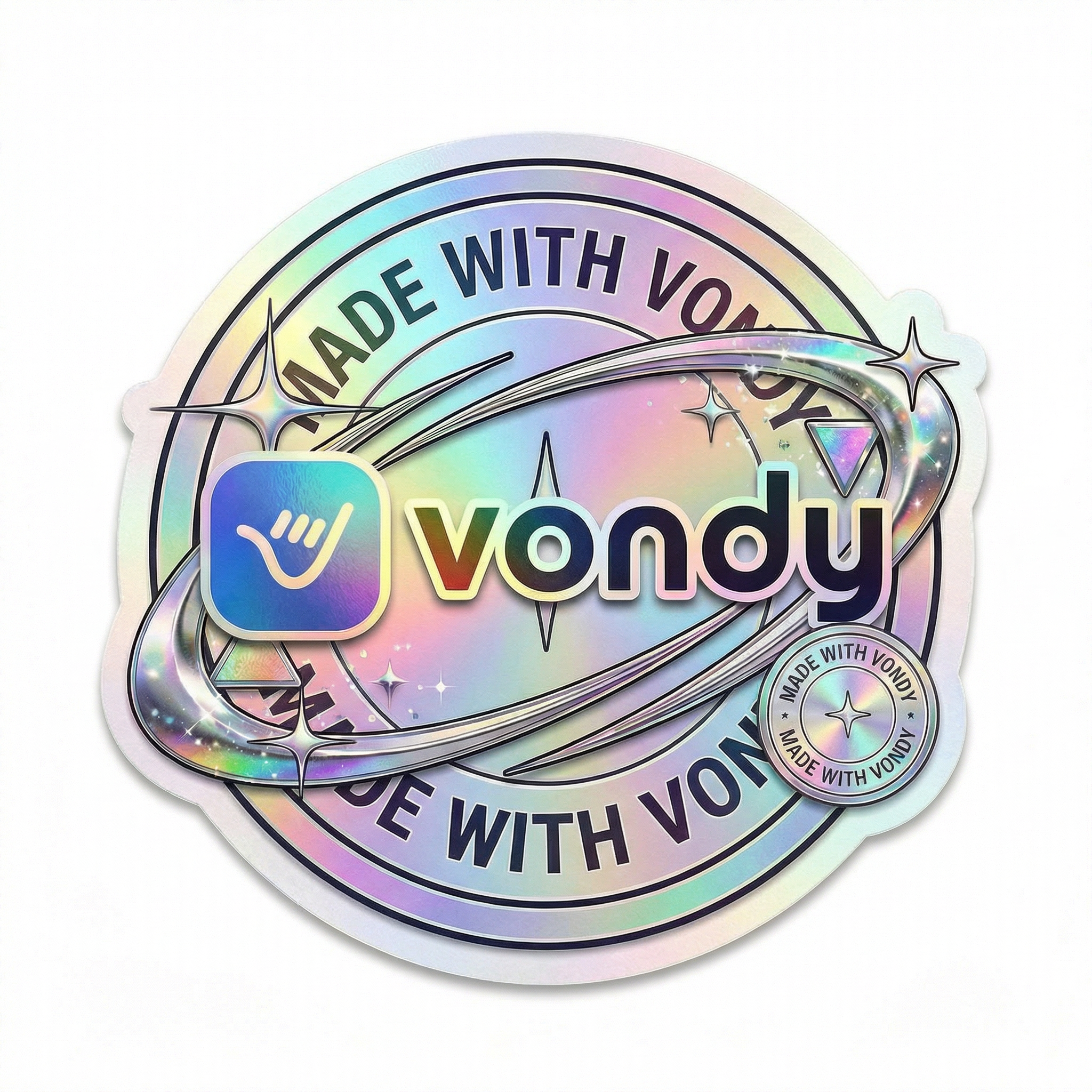
Holographic Seal
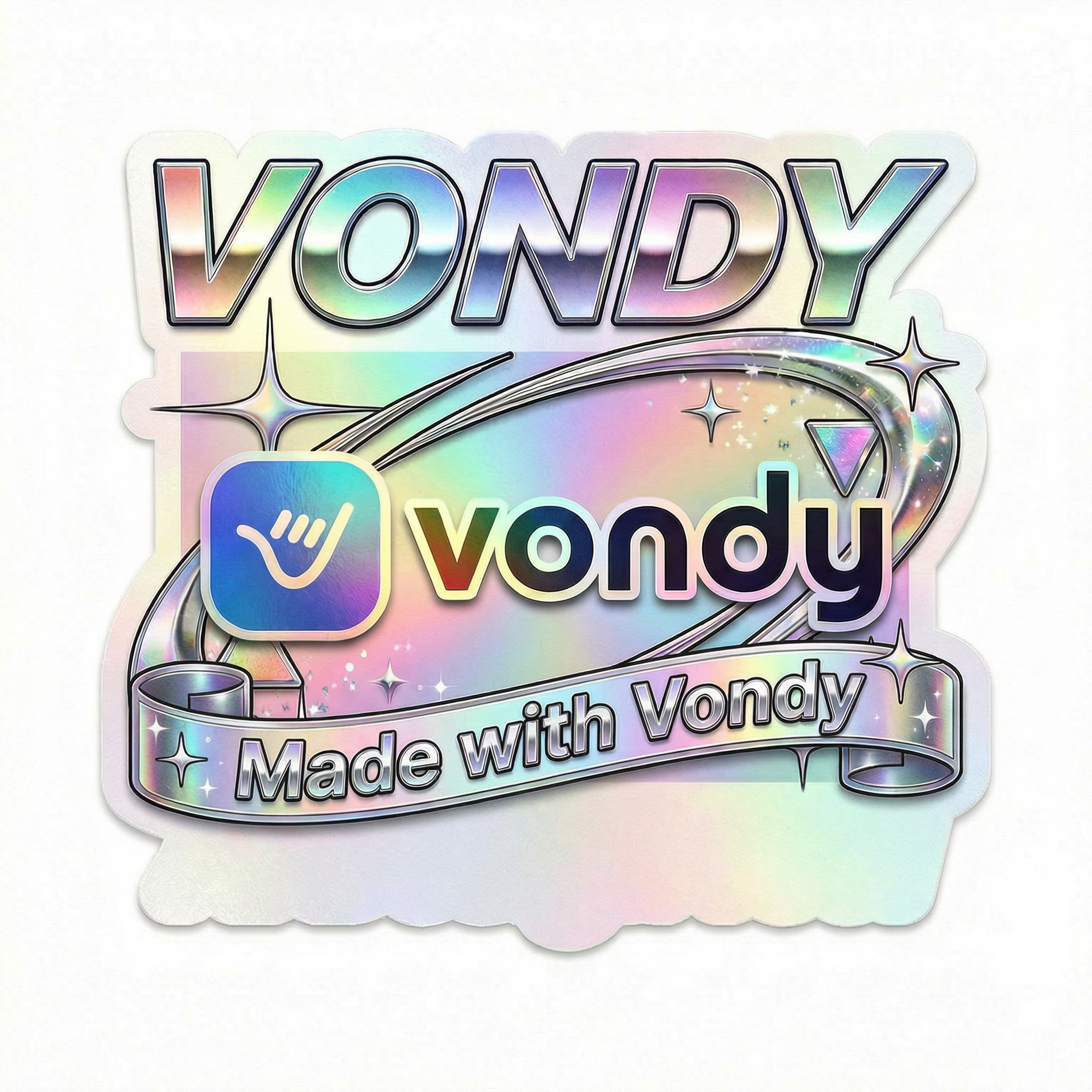
Chrome Ribbon
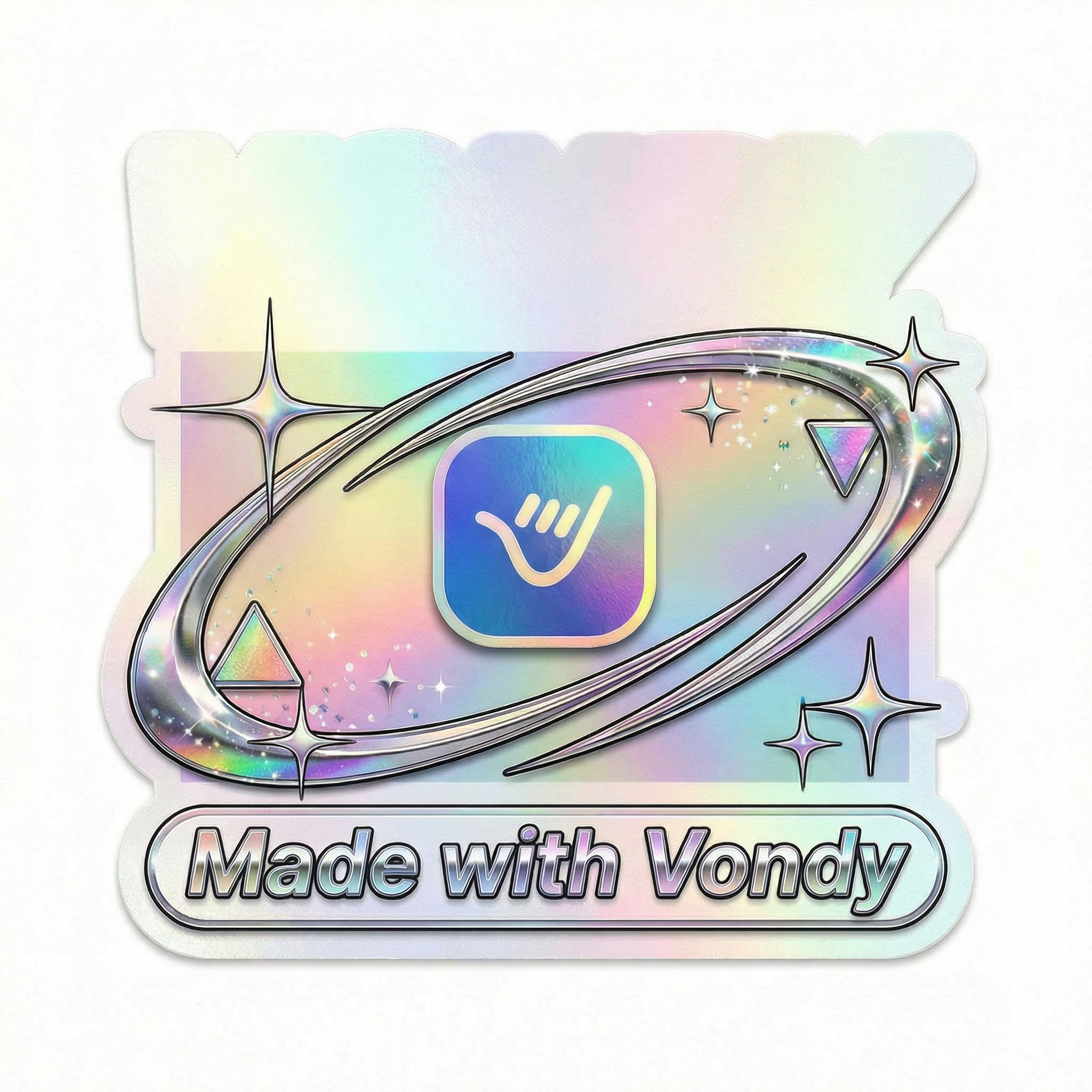
Holographic Swooshes

Arched Collectible
[Subject] sticker, die-cut style with white border, [aesthetic] design, holographic/retro elements, clean edges suitable for cutting, transparent background, bold outlines, print-readyStep 2: Explore Style Variations
Once you have a concept, transform it into different materials and aesthetics. This is where AI for graphic design excels. The same sticker can become a puffy 3D clay style, a cozy knitted patch, or an enamel pin.

Clay Puffy Style

Knitted Patch

Paper Craft

Enamel Pin
Each style suits different use stickers scenarios. The Clay Puffy style works great for playful branding. The Knitted Patch feels handmade and personal. Enamel Pin designs translate well to actual pin production.
Step 3: Create Sticker Sheets
For print stickers, you'll want to arrange multiple designs on sticker sheets. First, remove backgrounds to get transparent PNG files. Then arrange them on a sheet layout with cutting guides.
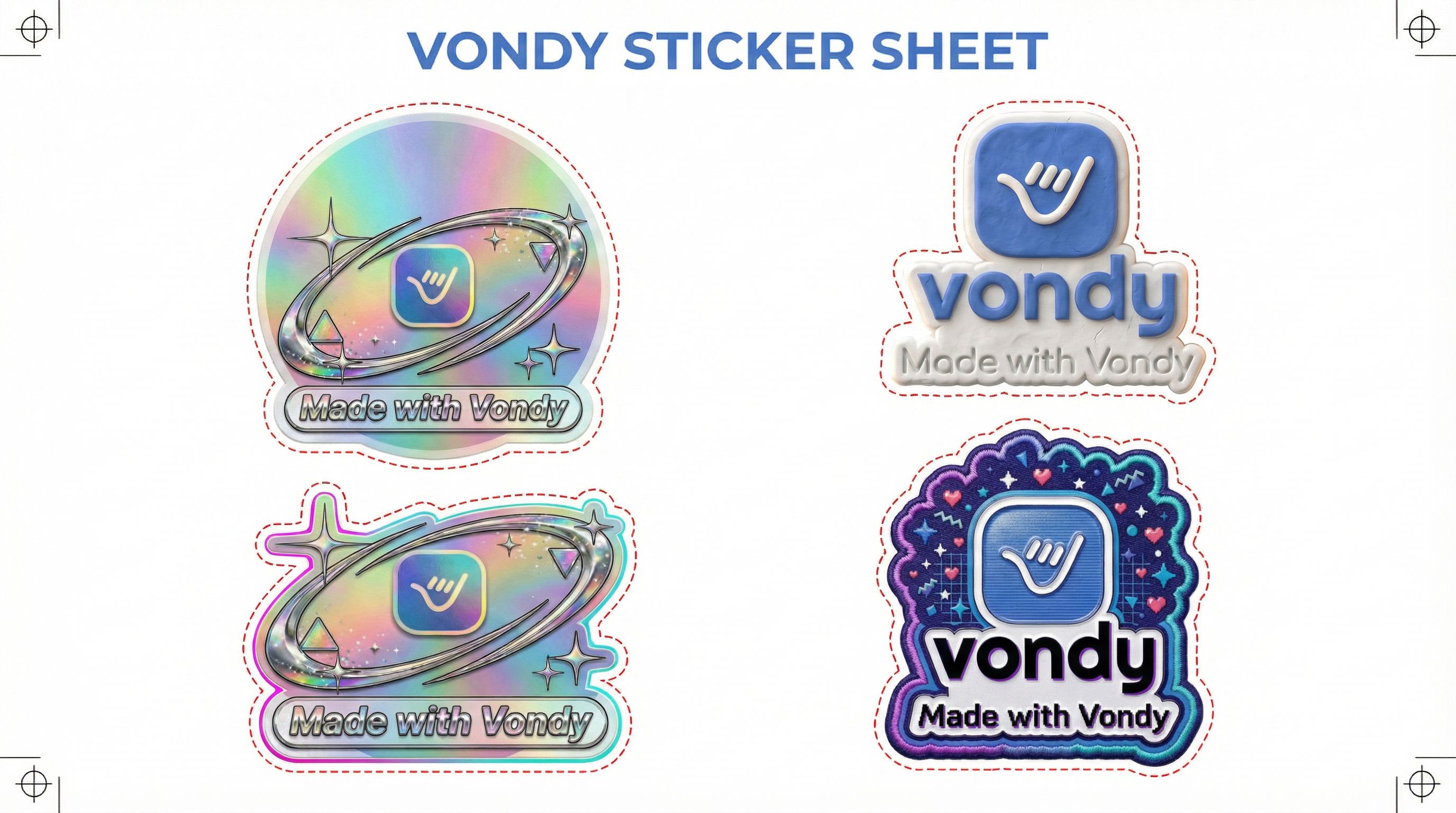
Print-ready sticker sheet
Sticker Types for Printing
- Die-cut stickers: Custom shapes cut around your design
- Kiss-cut sticker: Cut through vinyl but not backing paper
- Vinyl stickers: Weather-resistant, durable for outdoor use
- Holographic: Iridescent rainbow finish
Export your designs as high-resolution PNG files (300 DPI minimum) for professional printing. For DIY stickers at home, you can use sticker paper with an inkjet printer and cut out your own stickers. Once printed, the sticky side adheres to most surfaces. For extra durability, some creators cover their stickers with clear packing tape before cutting.
FAQ
What file format should I use for stickers?
Export as PNG with transparent background for die-cut stickers. PNG preserves clean edges and transparency. JPEG works for sticker sheets with white backgrounds but doesn't support transparency. Most print services accept both PNG and high-resolution JPEG files.
Can I make stickers for iOS messaging apps?
Yes. iOS and iPad sticker packs require PNG images with transparent backgrounds. Generate your stickers, remove backgrounds, and package them according to Apple's sticker pack guidelines. The same designs work for other messaging platforms.
How do I make stickers for my small business?
For small businesses, create branded stickers featuring your logo or tagline. Generate concepts, pick your favorite, and order from a print service like Sticker Mule or print DIY stickers using sticker paper. High-quality branded stickers work great as packaging inserts or giveaways.
What resolution do I need for high-quality stickers?
Aim for 300 DPI at your intended print size. For a 3-inch sticker, that means at least 900x900 pixels. AI generators typically output high-resolution images suitable for print. Always check the pixel dimensions before sending to a print service.

Create Your Own Stickers
All the AI design tools used in this tutorial are available on Vondy. Generate custom stickers, remove backgrounds, and prepare print-ready files.
Start creating
Continue Learning