
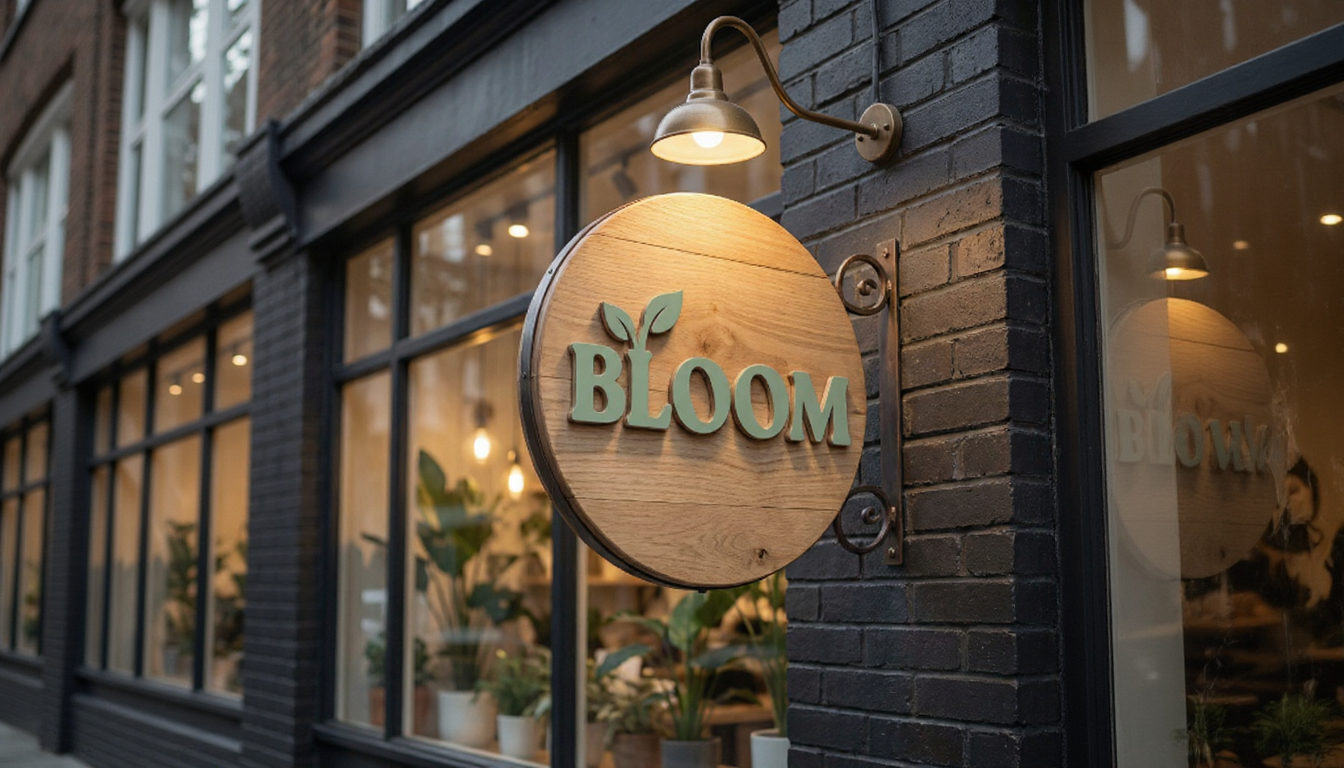
Creating a professional logo used to require either expensive design agencies or deep expertise in design tools like Adobe Illustrator. Today, AI image generators have changed the game - you can go from brand concept to polished business logo in an afternoon, with high quality results that rival what a professional designer would create.
But here's what most people get wrong: they treat AI like a magic logo button. Type "make me a logo" and hope for the best. That rarely works. Unlike free logo makers that recycle logo templates, the real power of AI logo generators comes from understanding the workflow - how to guide the AI through concept exploration, selection, refinement, and visualization. Tools like Canva offer drag-and-drop simplicity with pre-made layouts, but AI lets you create a truly unique logo from your specific brand identity.
In this guide, we'll walk through the complete logo design process using real examples from actual projects. You'll learn how to craft prompts that generate diverse design ideas, refine your chosen design with precision edits, create style variations, and visualize your new logo on real-world mockups - all using AI. Whether you're a small business owner creating your first brand identity or a designer exploring rapid prototyping, this workflow will help you create the perfect logo and save you hours.
What You'll Learn
- How to define your brand identity before generating concepts
- Prompt techniques that generate diverse, usable logo concepts
- Using annotation-based editing to fix specific design issues
- Creating style variations from a single selected concept
- Generating photorealistic mockups to visualize your logo in context
Understanding Logo Types
Before diving into generation, understand the different logo types. Each serves different purposes, and knowing which to request will dramatically improve your results. The best AI logo generators and logo creator tools can create any of these styles - but you need to ask for the right one. Unlike Canva's logo templates that limit you to preset layouts, AI lets you specify exact fonts, logo colors, and design elements.
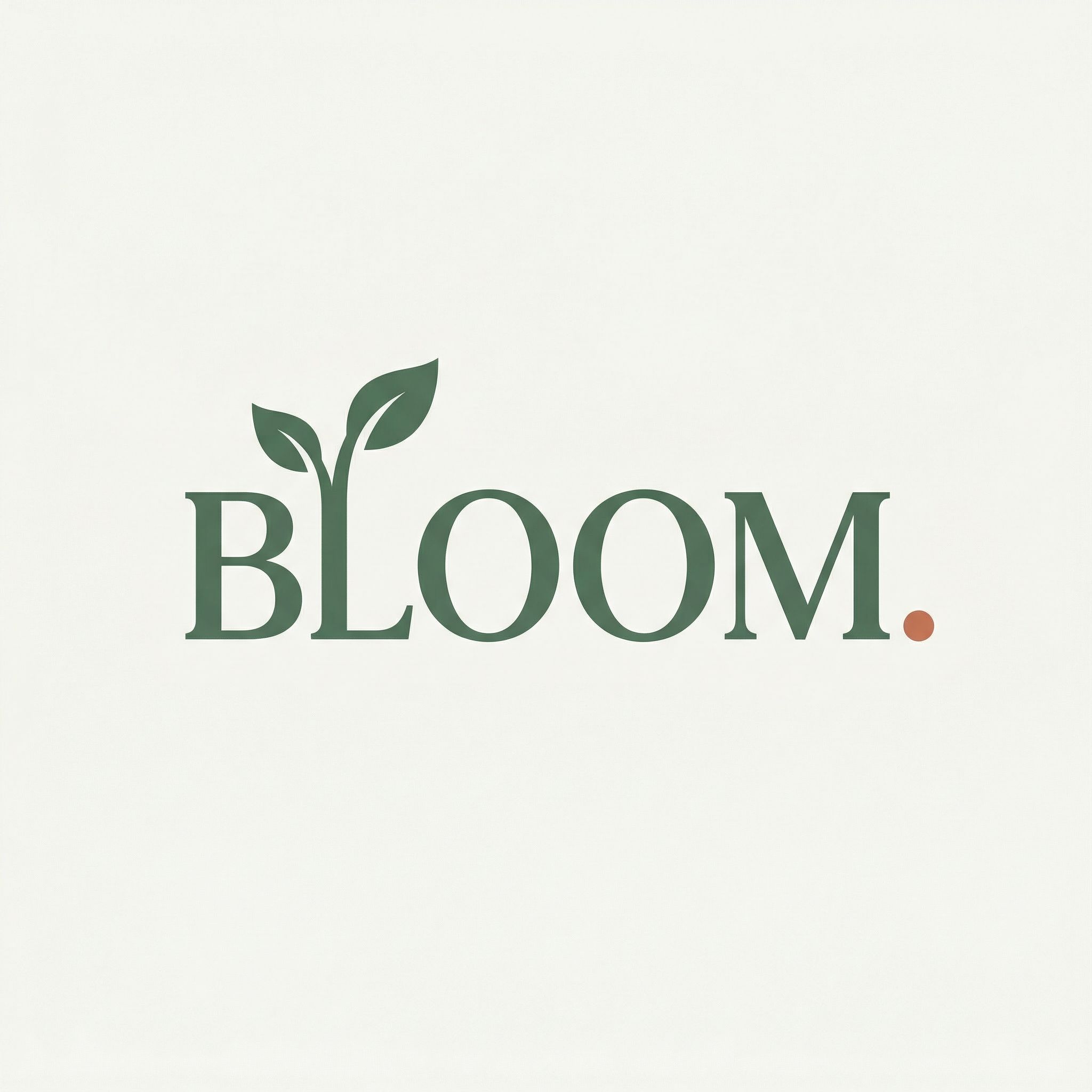
Wordmark / Logotype
Your company name or business name styled with custom fonts and typography. Best for brands with distinctive, memorable names.
Elegant wordmark logo for "[Brand Name]" in custom serif typography with subtle ligatures, flat vector, no gradients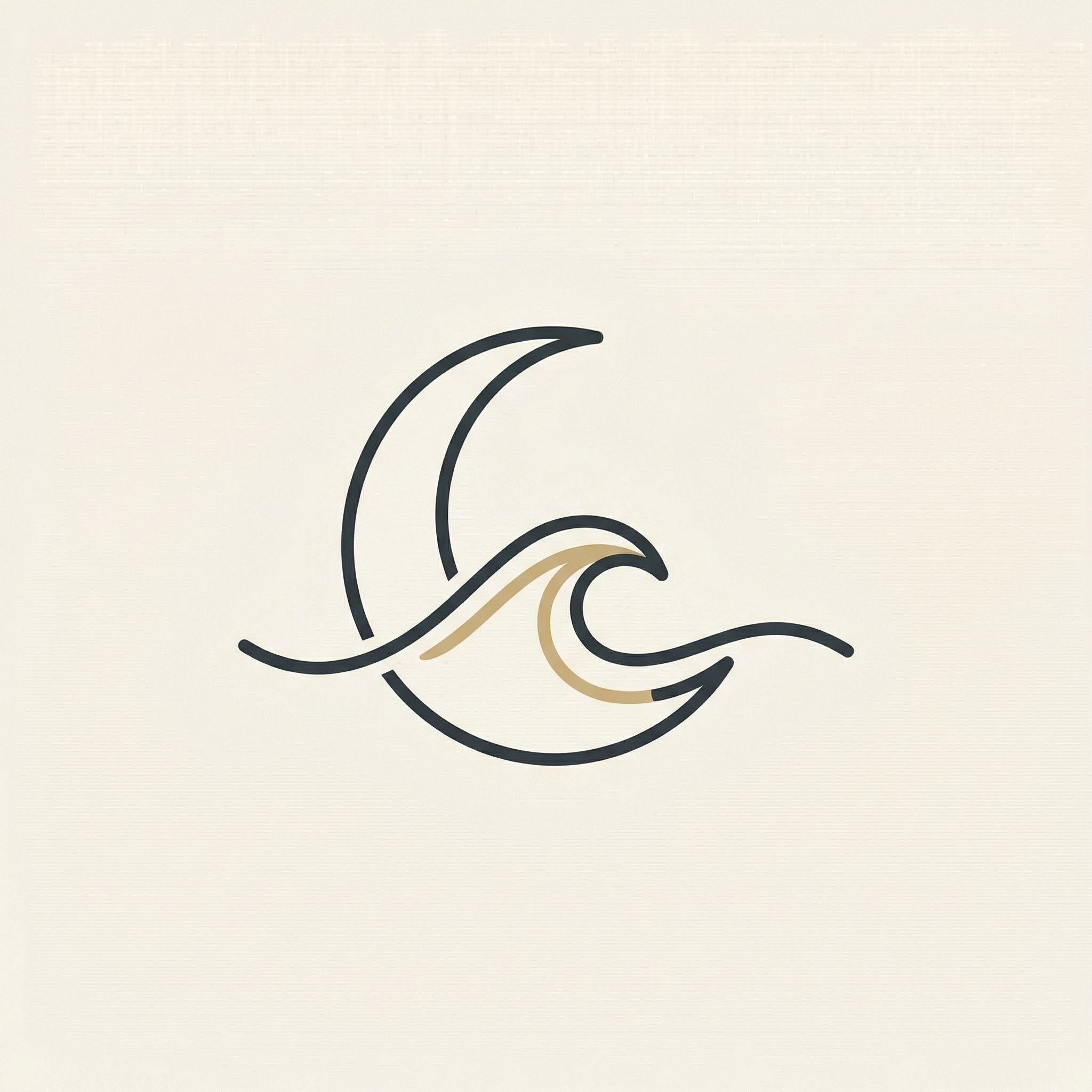
Symbol / Icon Mark
A standalone graphic symbol without text. Best for versatility across social media, app icons, and favicons.
Logo symbol only, ultra-minimal elegant mark, clean geometric lines, no text, flat vector, centered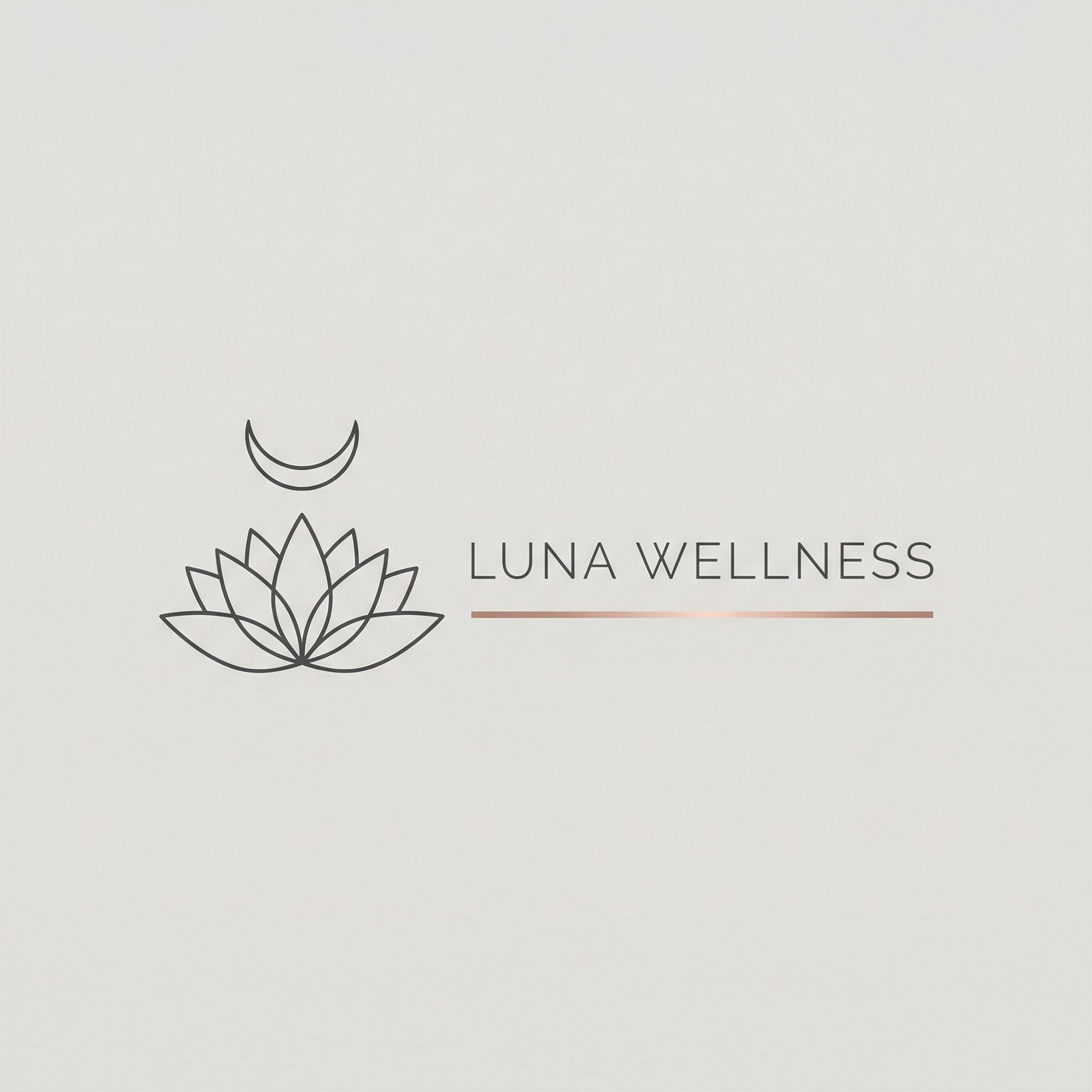
Combination Mark
Symbol plus wordmark together. The most versatile - elements can be used separately or together.
Logo with icon to the left of wordmark "[Brand Name]", minimal style, horizontal layout, flat vector
Lettermark / Monogram
Initials or abbreviated letters styled as a logo. Best for long business names or compact marks.
Elegant monogram combining letters [X] and [Y] with interlocking design, flat vector, no gradientsFor most new brands and small businesses, we recommend starting with a combination mark or symbol - they give you flexibility as your brand grows. You can always use the symbol alone for social media profiles or create a minimalist version for small sizes. The best logo is one that works across all contexts.
Step 1: Define Your Brand Identity
Before you generate a single image, you need clarity on your brand. The better you define these elements, the more effective your prompts will be. Whether you're using an AI logo generator, a logo editor, or even Canva, having a clear brand kit makes the design process much smoother.
Brand Elements to Define
- • Brand name, company name, and tagline
- • Industry/category (spa, tech, bakery, etc.)
- • Target audience and positioning
- • Core values and personality traits
- • Visual style preferences (minimalist, vintage, modern)
Color & Style Guidance
- • Logo colors and color palette preferences
- • Font preferences (serif, sans-serif fonts)
- • Symbol/icon direction (abstract, literal)
- • Reference logos you admire
- • What to avoid (clichés, competitor similarity)
Example: Luna Wellness
For our walkthrough, we'll create a logo for Luna Wellness - an elegant, minimal spa brand. Key attributes: lunar/moon themes suggesting calm and cycles, warm ivory and deep charcoal palette with champagne-gold accents, sophisticated serif or thin sans typography, symbol-forward with optional wordmark. Target: premium wellness seekers.
Step 2: Generate Initial Concepts
Now the fun begins. Use an AI logo generator to create multiple distinct concepts in parallel. The key is prompt diversity - don't just generate the same idea four times. Explore different logo types: wordmarks, monograms, emblems, and abstract symbols. For high-quality logo design, we recommend Nano Banana Pro - it excels at clean typography and flat vector aesthetics.
Logo concept for "[Brand Name]" - [industry/description]. [Logo type]: [specific design direction]. [Visual style instructions]. Color palette: [colors]. [Format instructions: flat vector, no gradients, centered, etc.]Here are the four initial concepts we generated for Luna Wellness, each exploring a different direction:
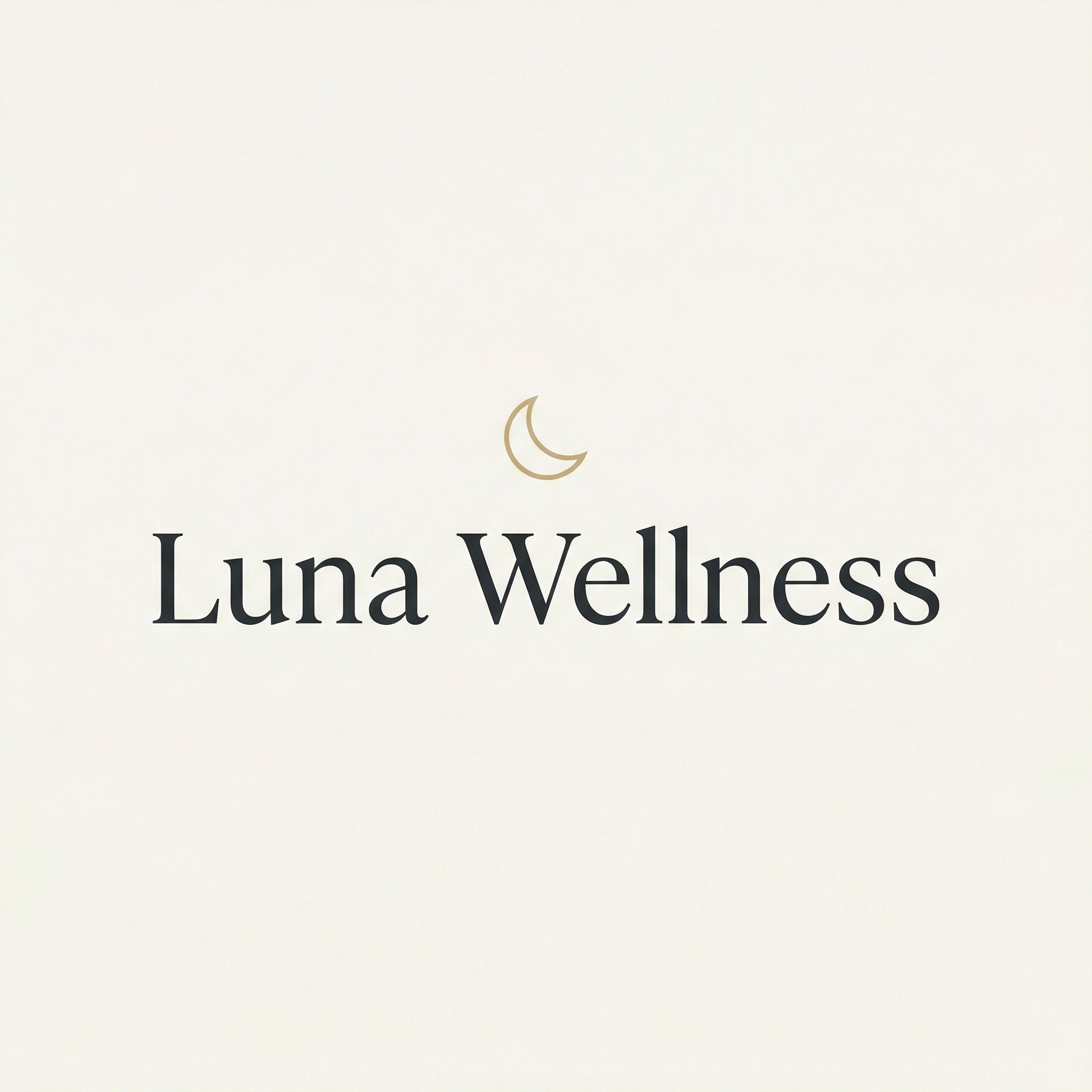
Elegant Wordmark
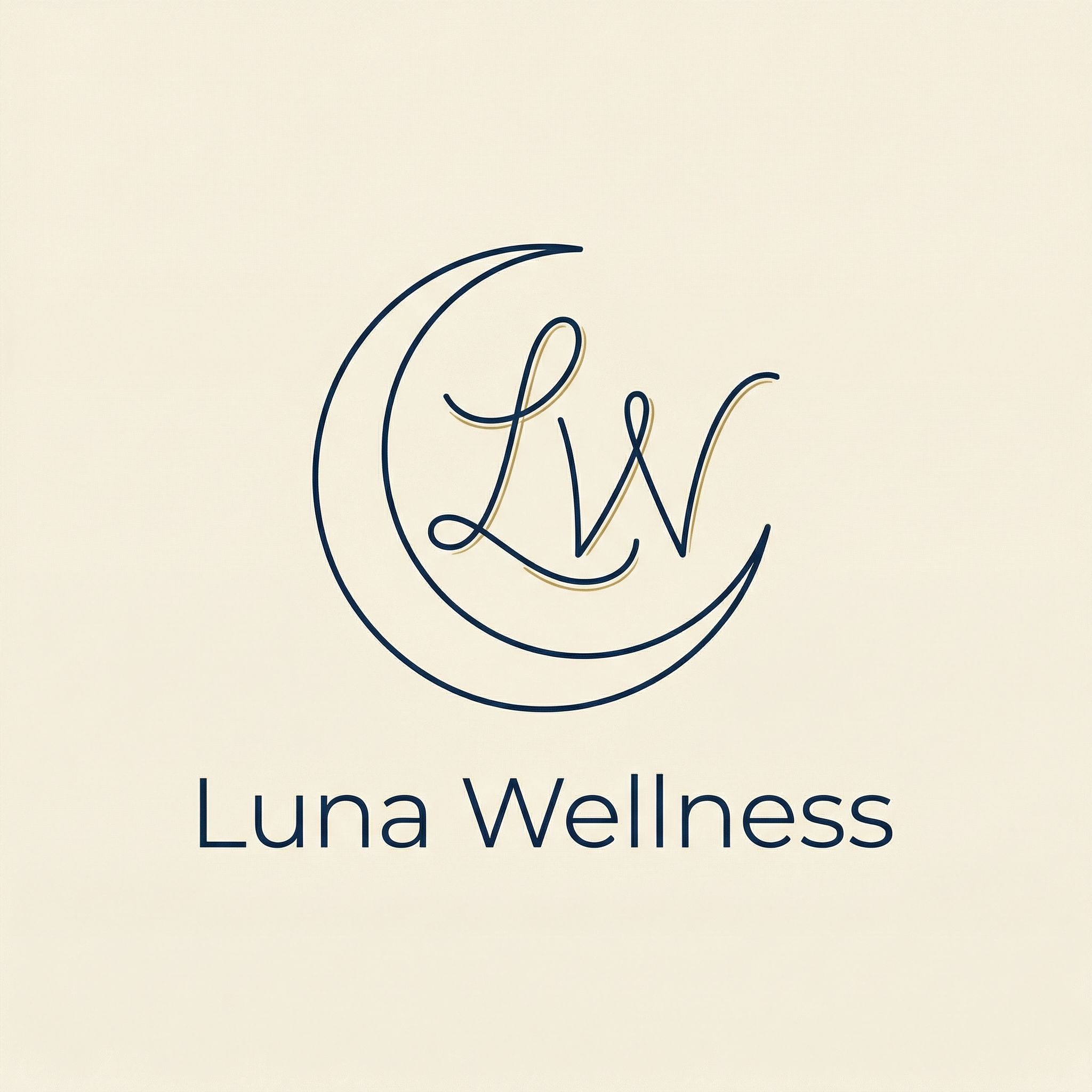
Monogram L+W
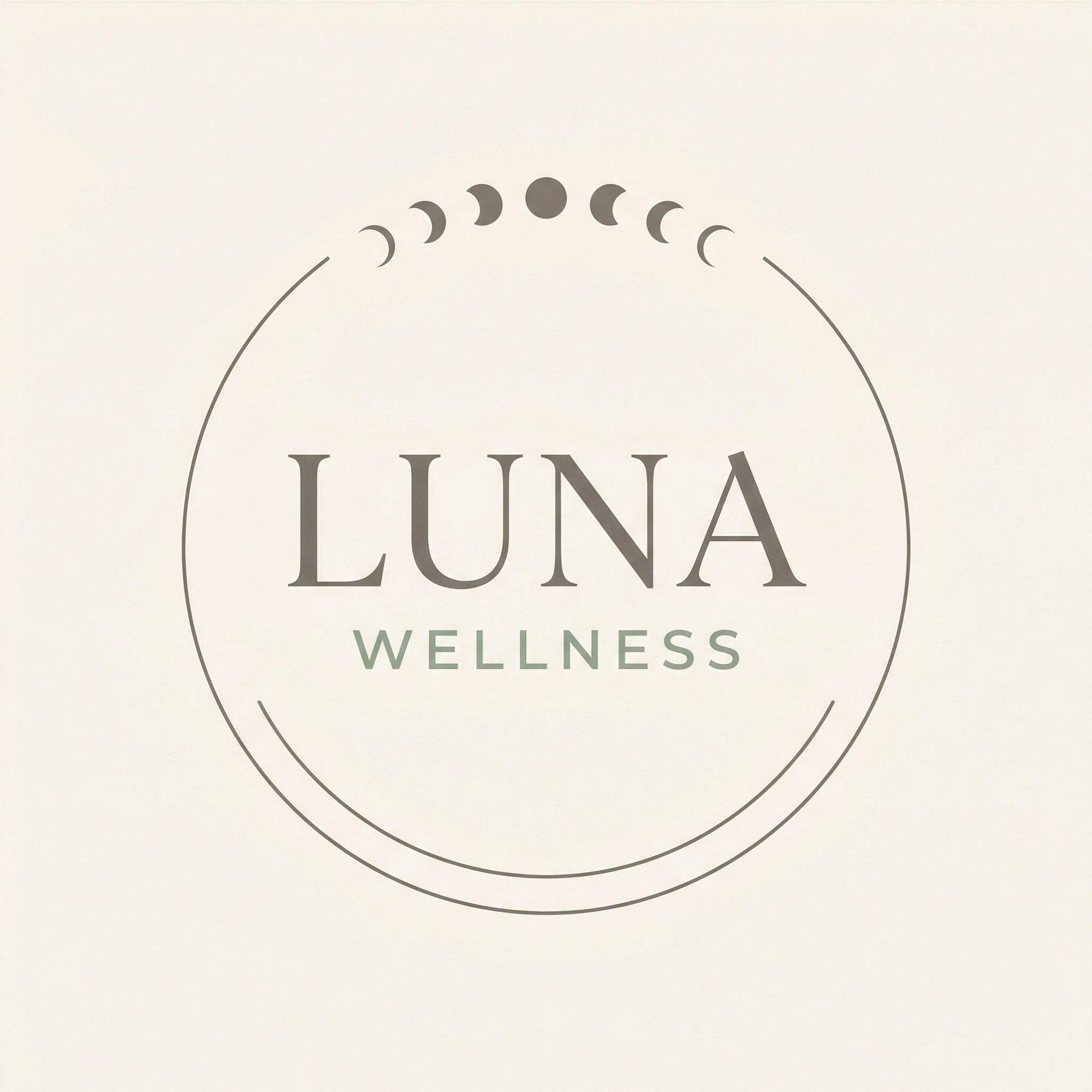
Moon Phases Emblem
Lotus + Moon
Prompt Tips for Better Concepts
- • Always specify "flat vector" and "no gradients" for clean, quality logo output
- • Include "centered composition" and "lots of whitespace" for balance
- • Describe the logo type explicitly: wordmark, monogram, emblem, symbol
- • Reference specific fonts and typography: serif fonts, sans-serif, geometric, modern transitional
- • Add "no mockup" if you want a clean logo without context
Exploring Symbol-Only Marks
After reviewing initial concepts, we decided to explore symbol-only marks for maximum versatility. These work great as app icons, favicons, and social media avatars. We generated four variations focused purely on the icon:
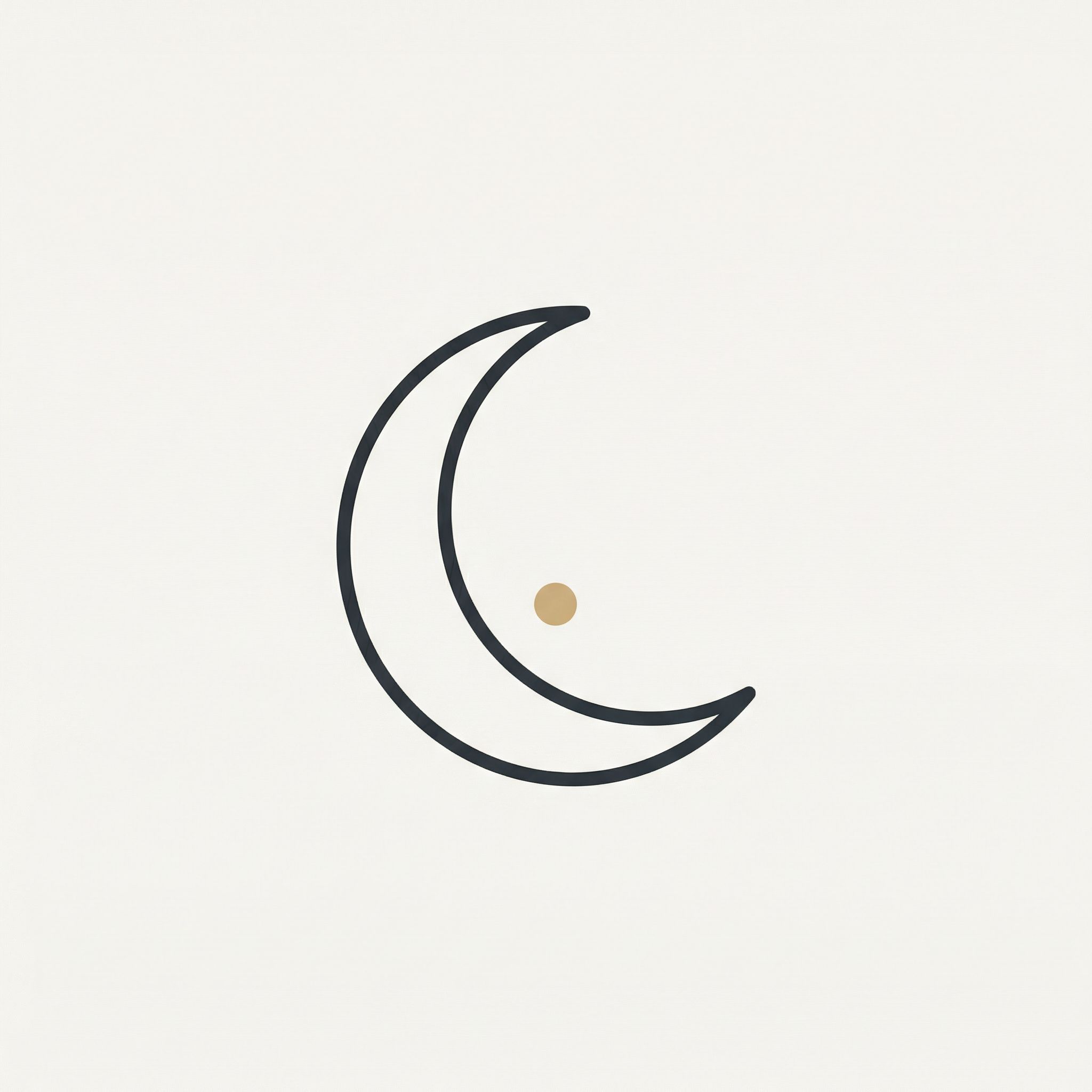
Crescent Arc + Dot
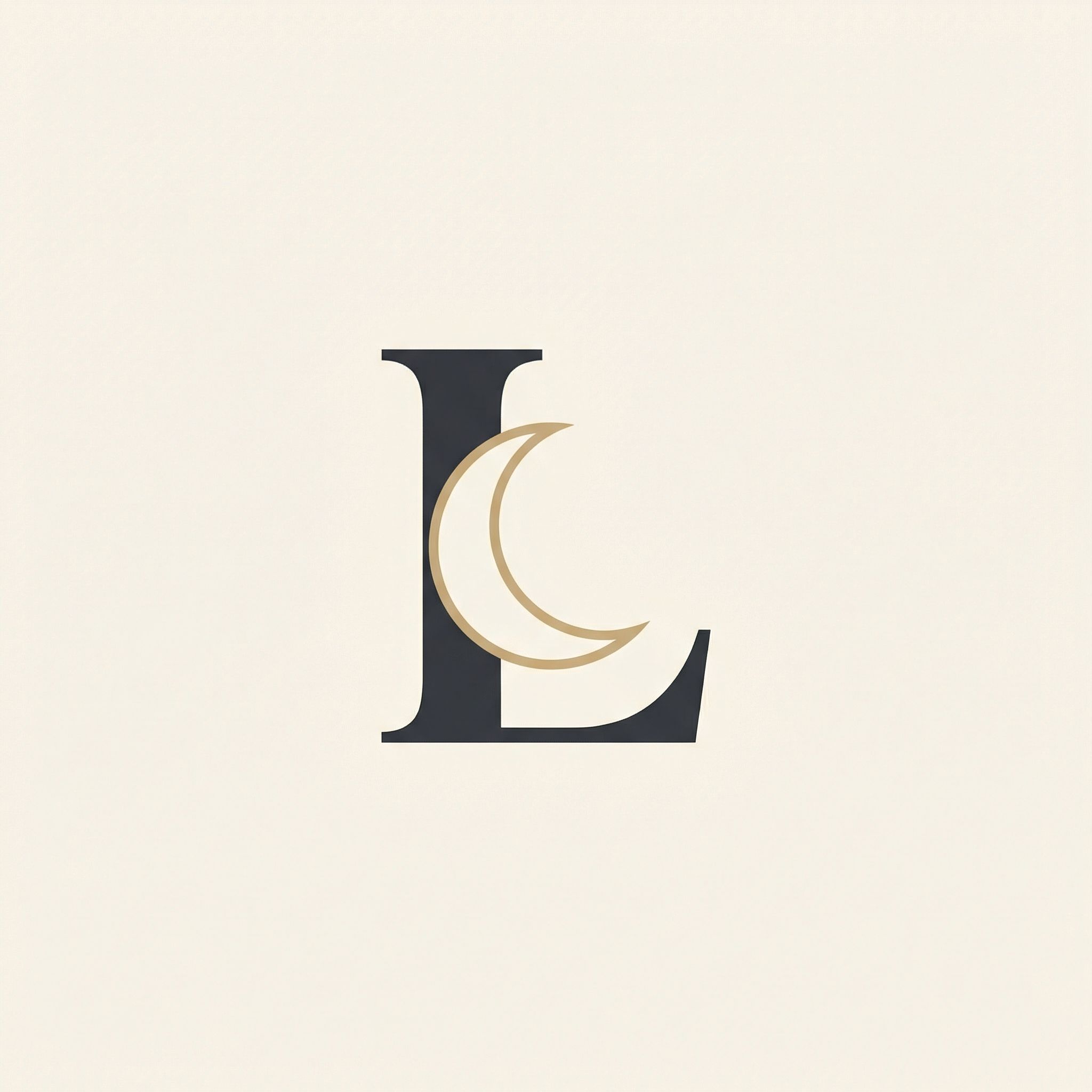
L Monogram Moon
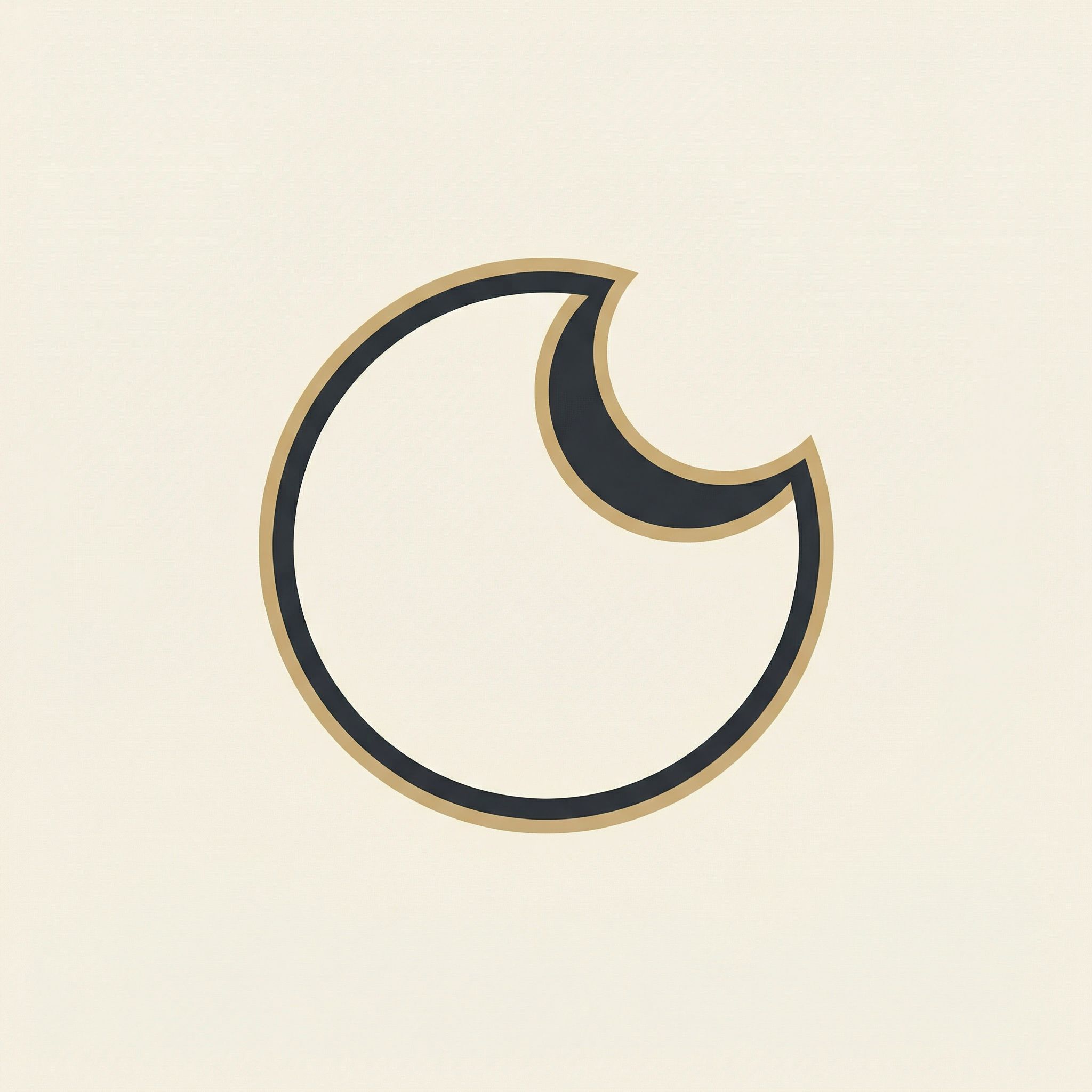
Circular Seal
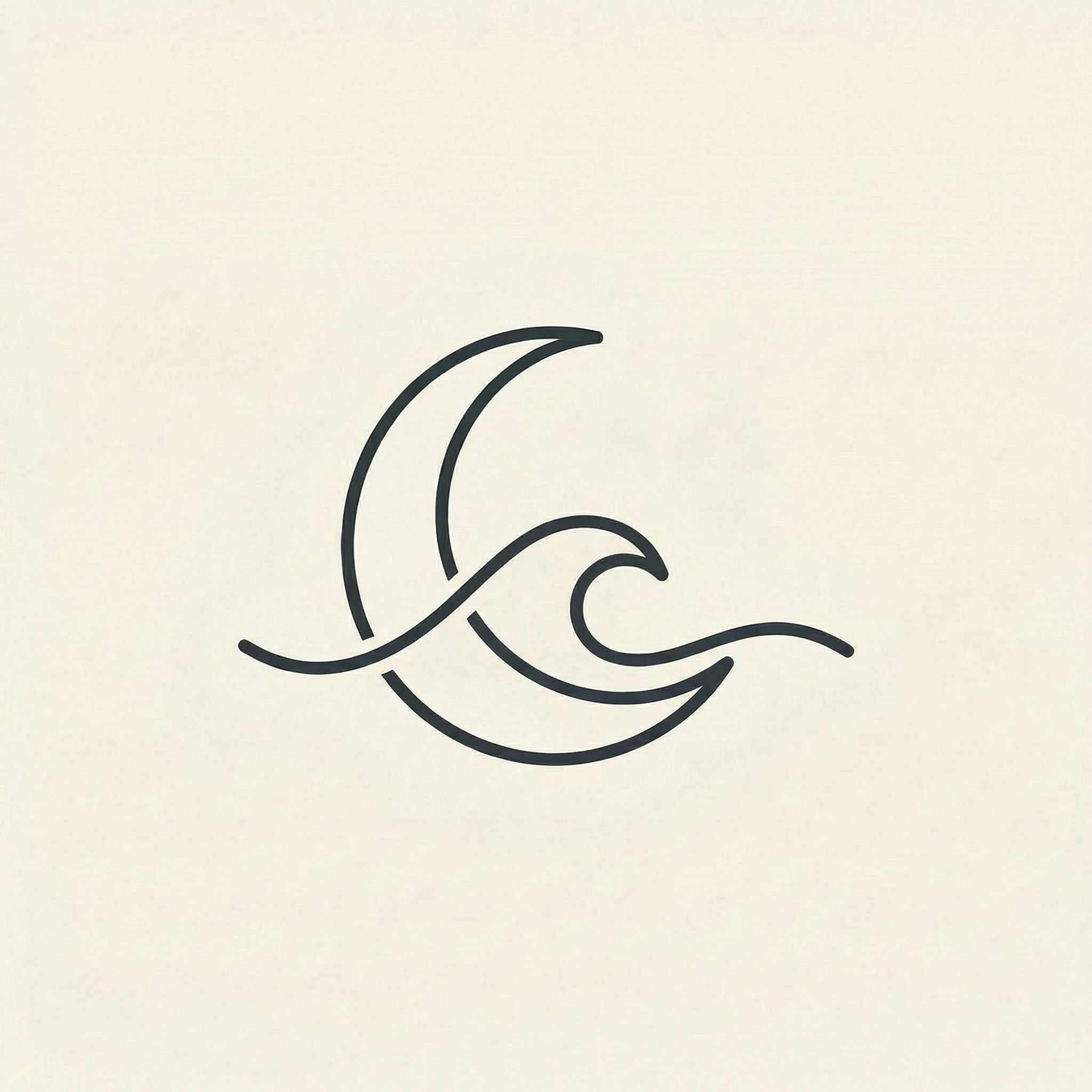
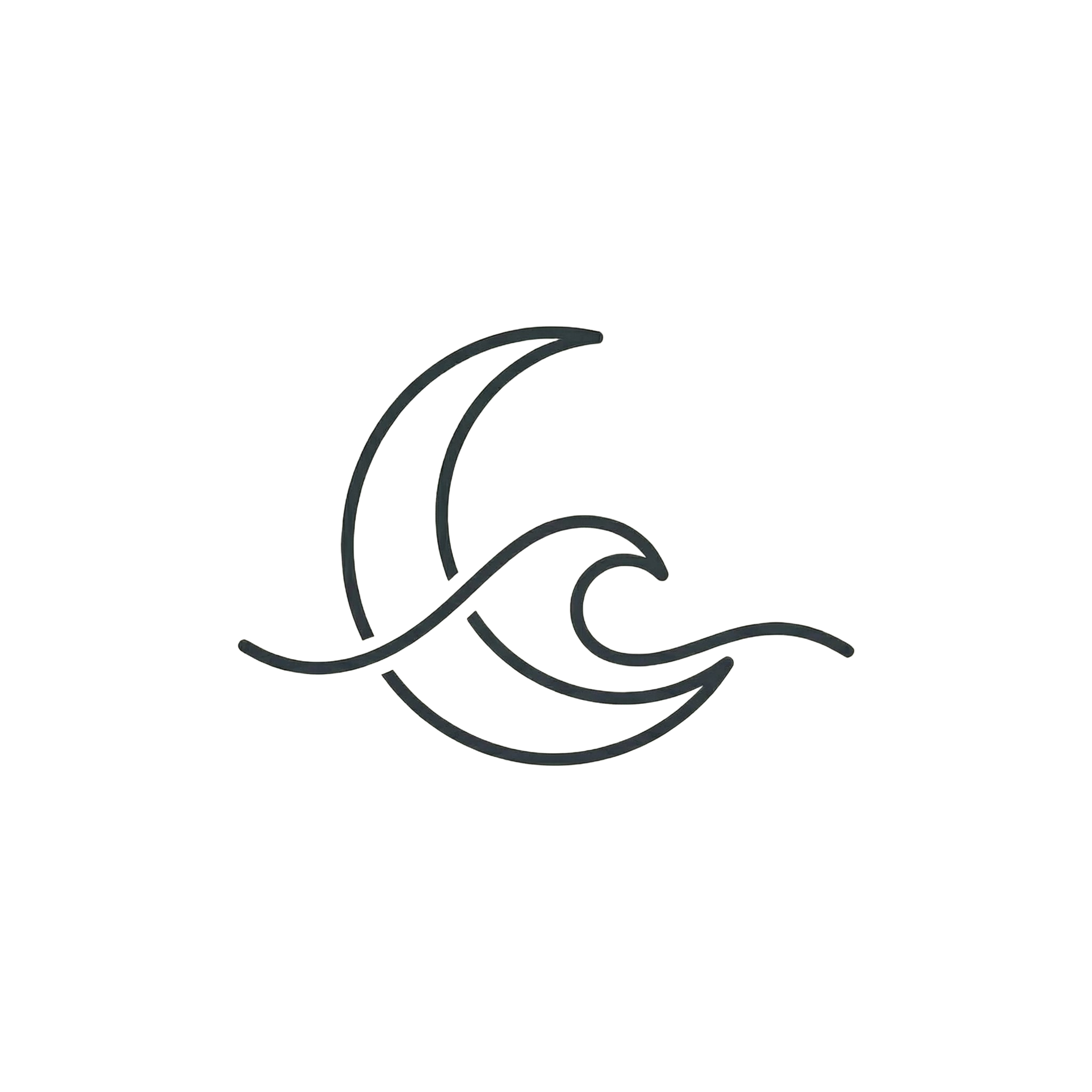
Crescent + Wave
We selected the Crescent + Wave symbol - it captures both the lunar theme and a sense of flowing calm that fits the wellness brand perfectly. Now it's time to refine your own logo with tweaks and edits.
Step 3: Refine Your Design
AI-generated logos often need refinement. Maybe there's an unwanted element, a line that doesn't connect properly, or a detail that feels off. This is where AI-powered image editing and logo editor tools shine. Unlike Canva where you're limited to their logo templates and preset design elements, AI lets you make precise tweaks to your original logo.
Our selected symbol had a small issue: an unwanted beige line where the inner crescent didn't connect cleanly. We used annotation-based editing to fix it precisely.
Refinement Steps
1. Original Selection
Has minor line issue
2. Annotation Edit
Click for before/after
3. Background Removed
Click for before/after
Edit the original image according to the numbered annotations shown in the reference image: remove the beige line and extend the inner dark line of the crescent to meet the rest of it (like the outer one)Pro Tip: Annotation-Based Editing
When you need to fix a specific area, use annotation tools to circle or highlight the problem zone and describe exactly what to change. This gives the AI precise guidance instead of hoping it understands your vague description. Most AI image editors support this workflow.
Step 4: Create Style Variations
Once you have a refined logo, you may want to explore style variations. This is especially useful for brands that need different looks for different contexts - or if you want to present multiple options to a client.
Let's look at the Craft & Co bakery logo as an example. Starting from a rustic stamp design, we generated variations across completely different visual styles:
Original Concepts
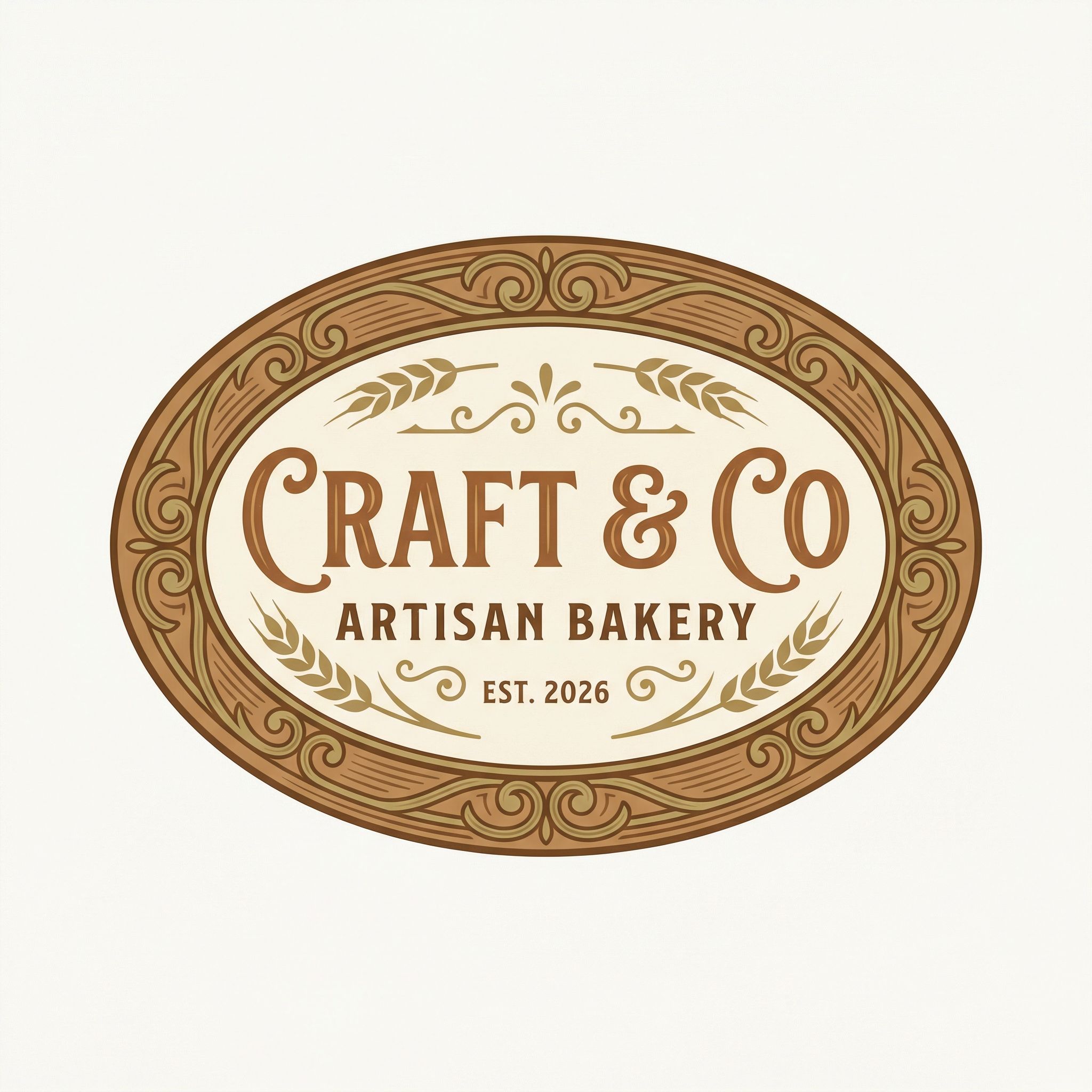
Vintage Oval Badge
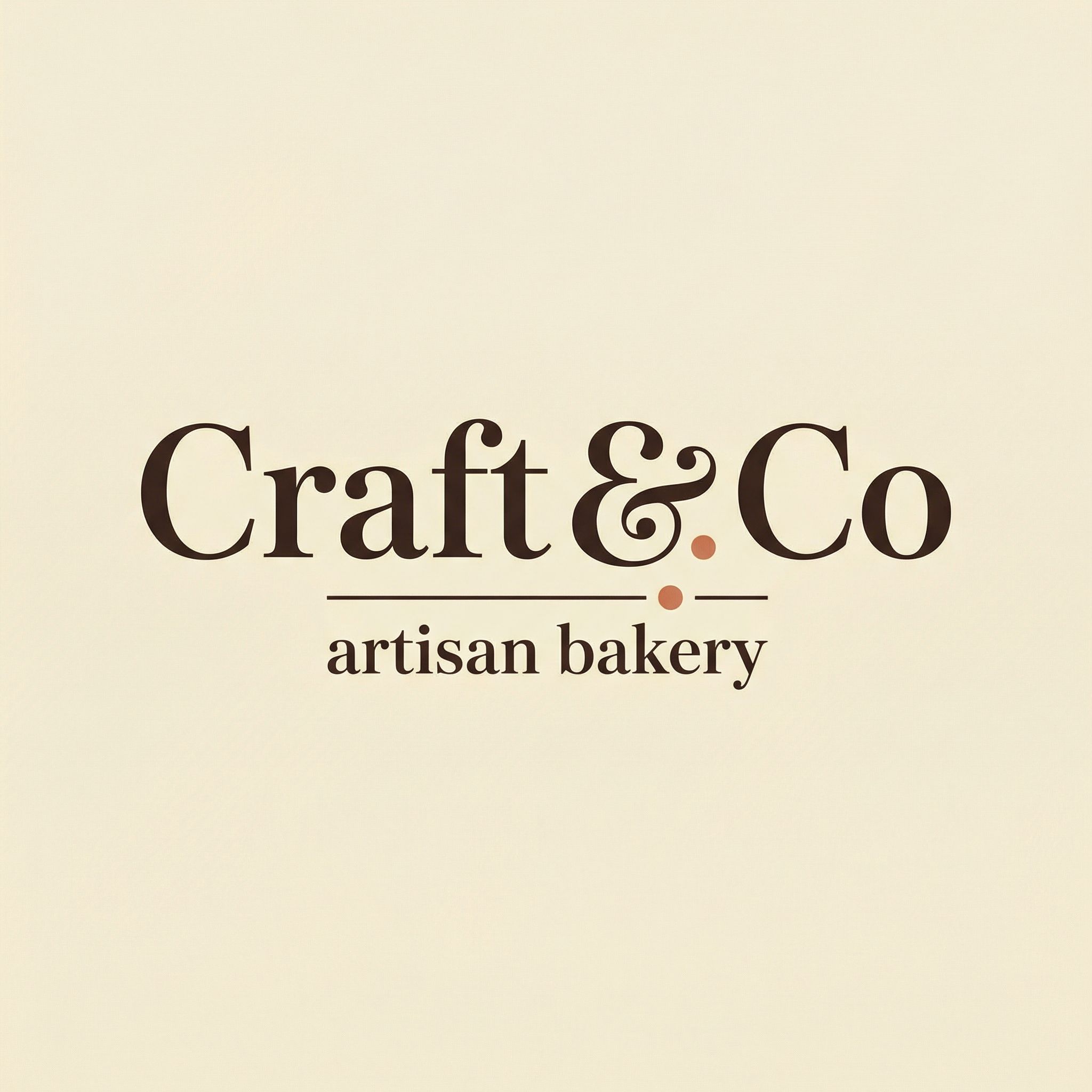
Elegant Wordmark
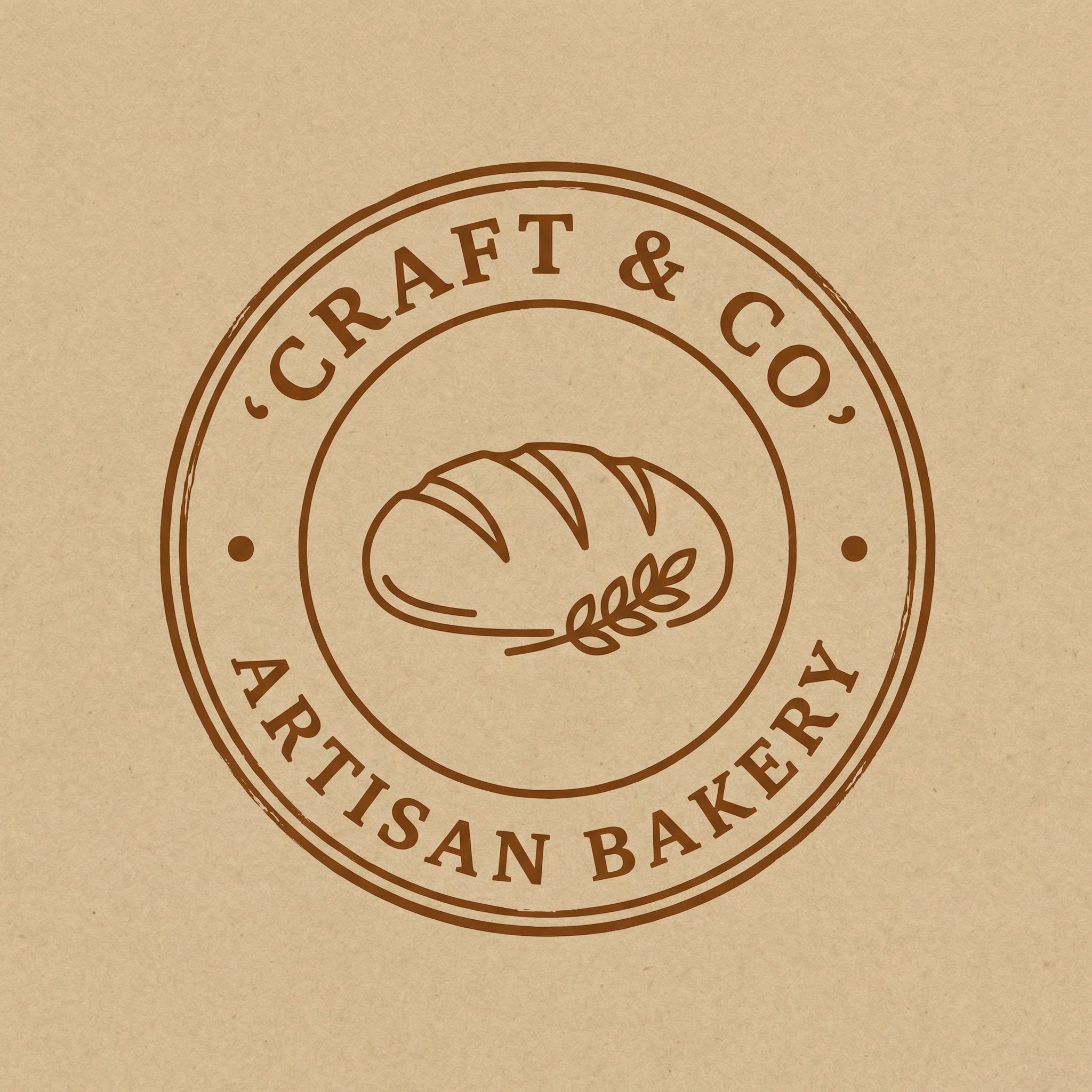
Rustic Stamp
Monogram Crest
Style Variations from Rustic Stamp
Click any variation to see the before/after comparison:
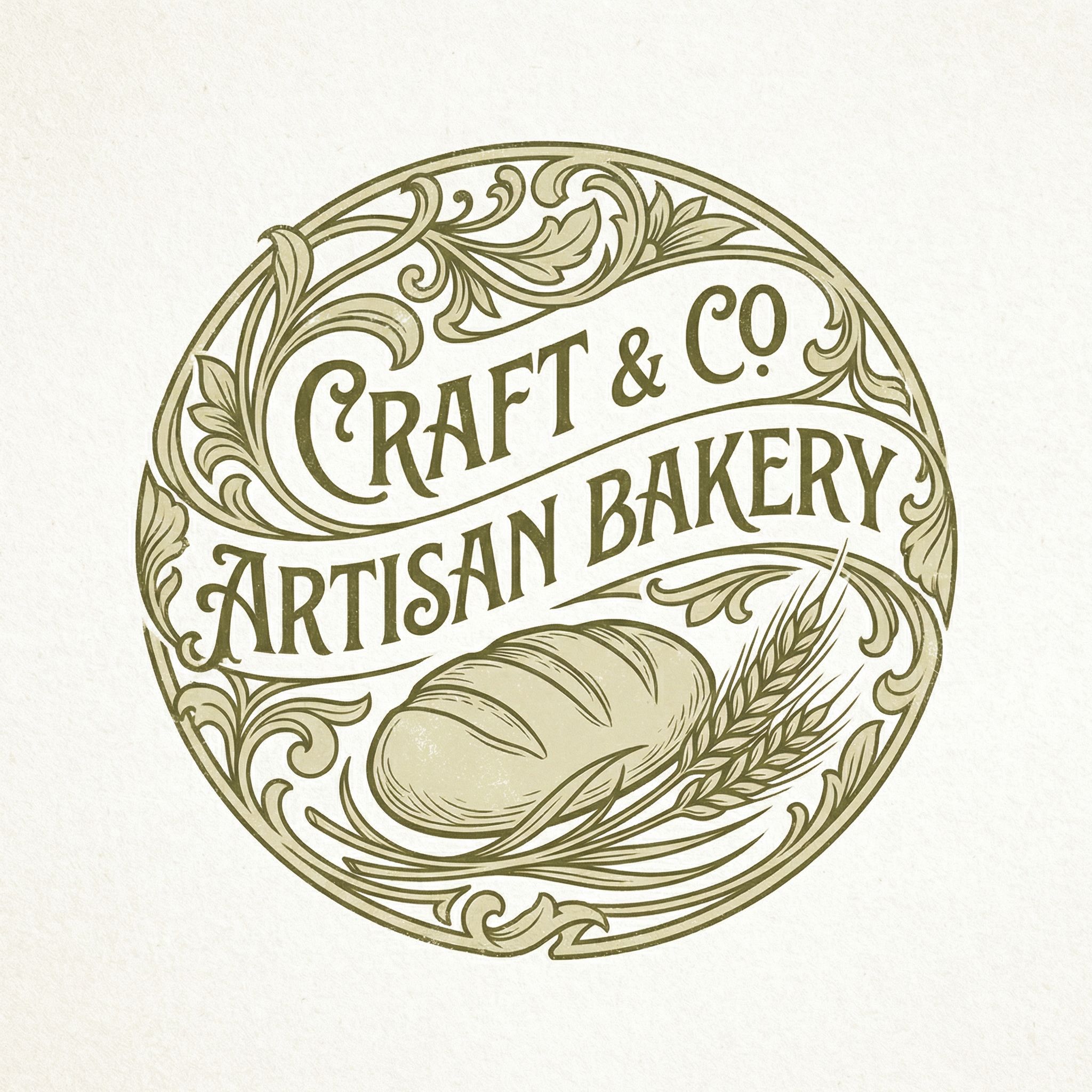
Art Nouveau
Click for before/after
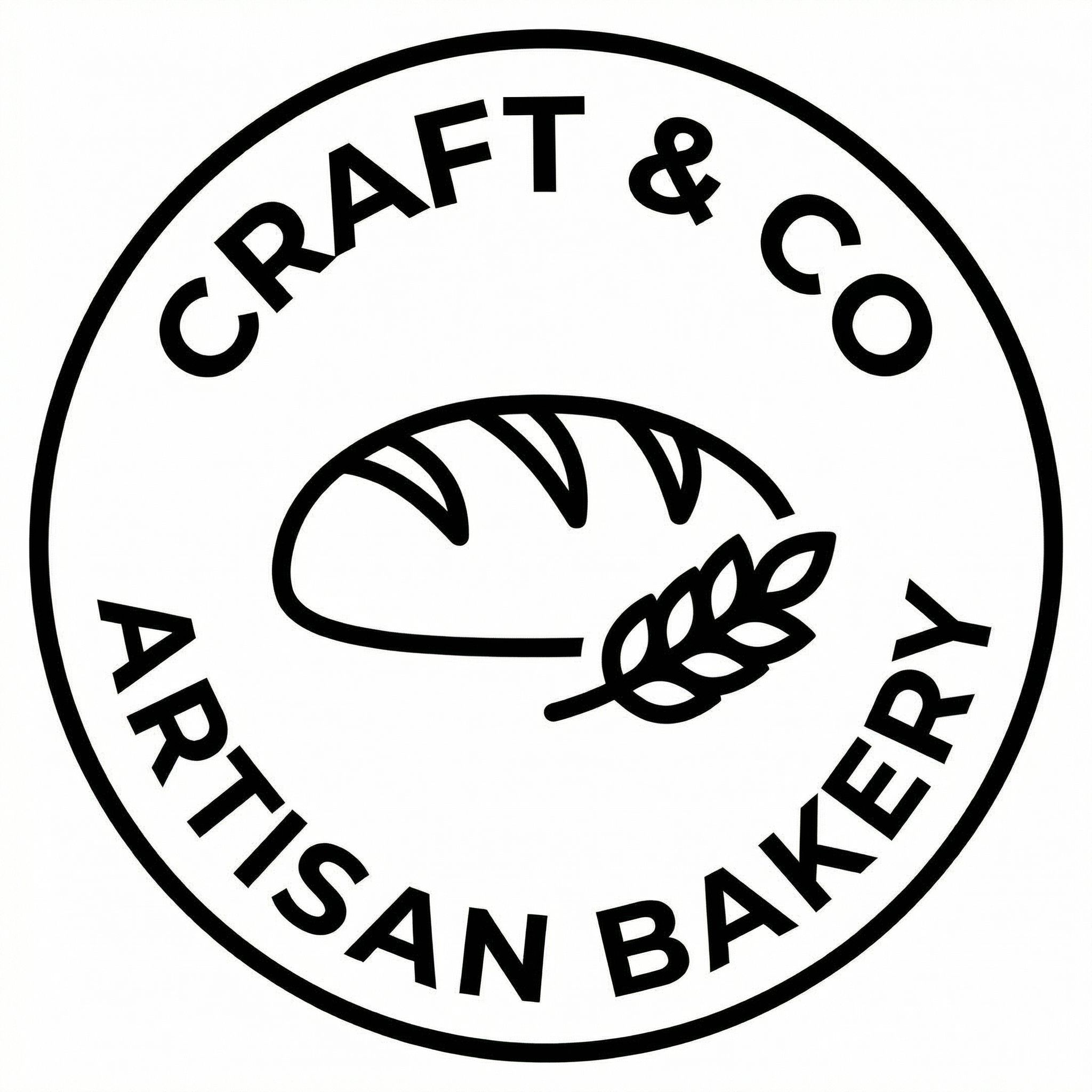
Swiss Minimalist
Click for before/after
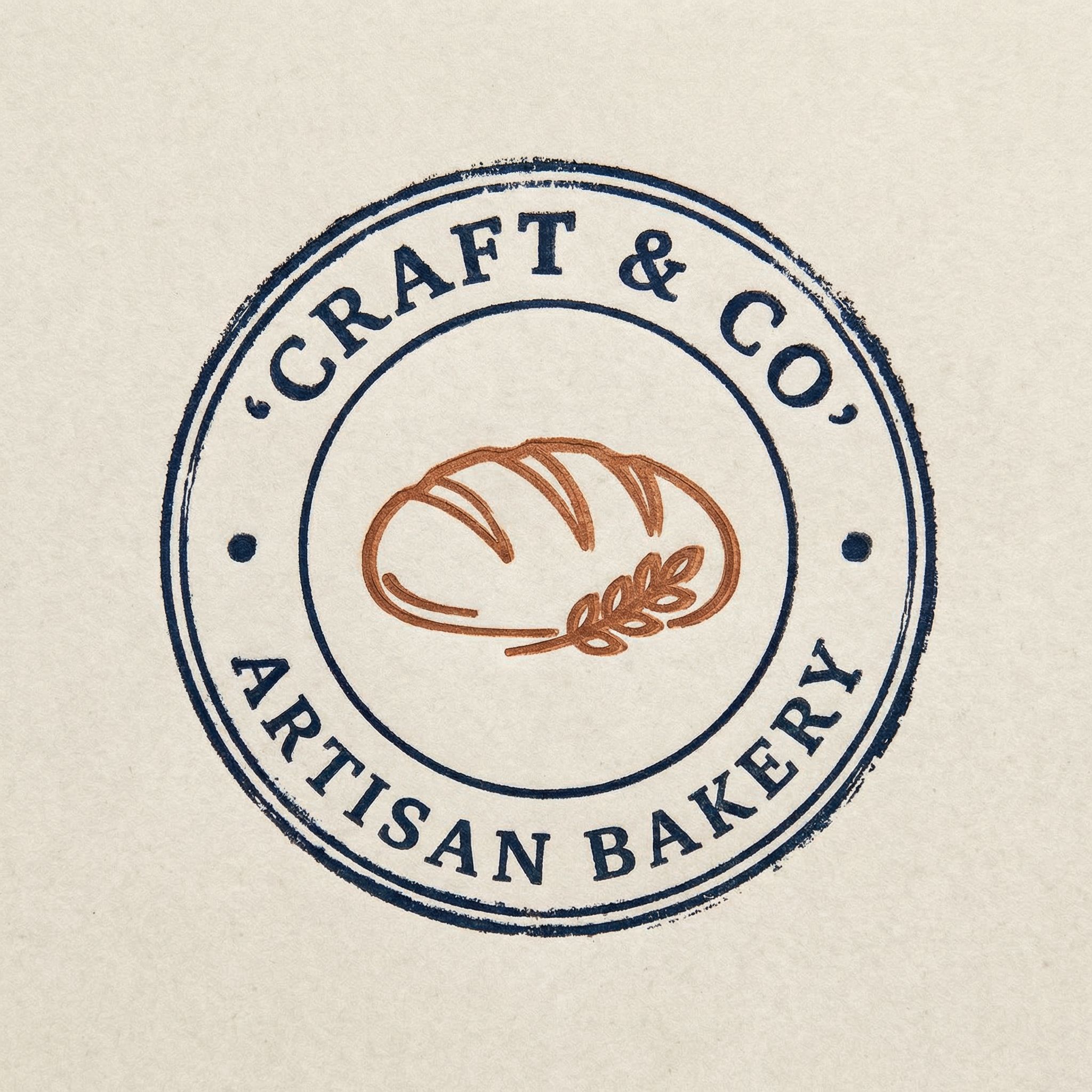
Letterpress
Click for before/after
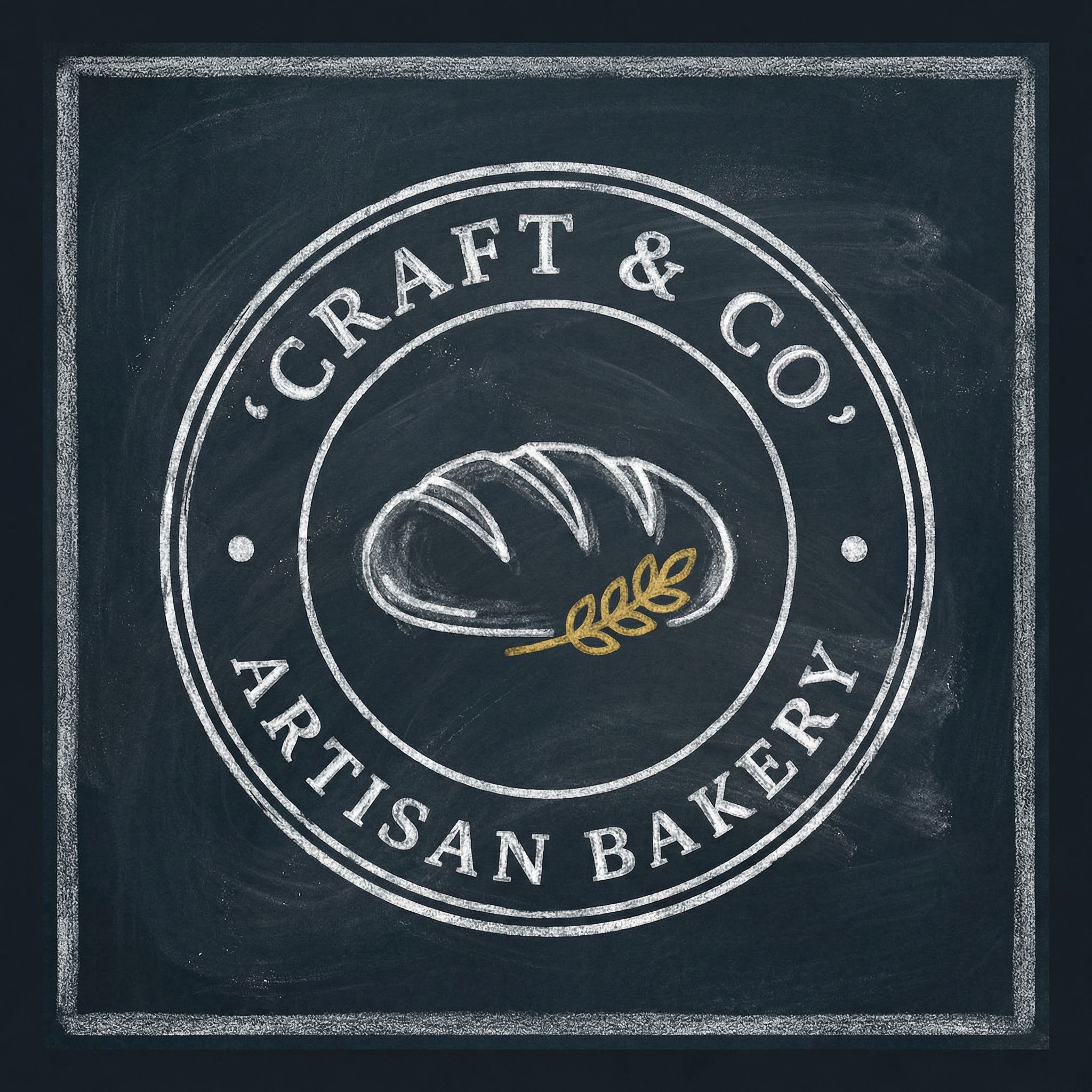
Chalkboard
Click for before/after
Reimagine the stamp logo in an Art Nouveau style: replace the circular border with flowing botanical flourishes, keep the same text content, and redraw the loaf and wheat with elegant curving linework; use a muted olive and cream two-color palette on textured off-white paper.Notice how each variation maintains the core identity (circular stamp, bread icon, brand name) while completely transforming the visual style. This is the power of using AI for graphic design - rapid exploration of versions of your logo that would take hours manually. Canva's drag-and-drop templates can't match this flexibility.
Example 2: Bloom Wordmark Variations
Here's another example - the Bloom botanical brand wordmark transformed through different style directions. Click any variation to see the before/after comparison:
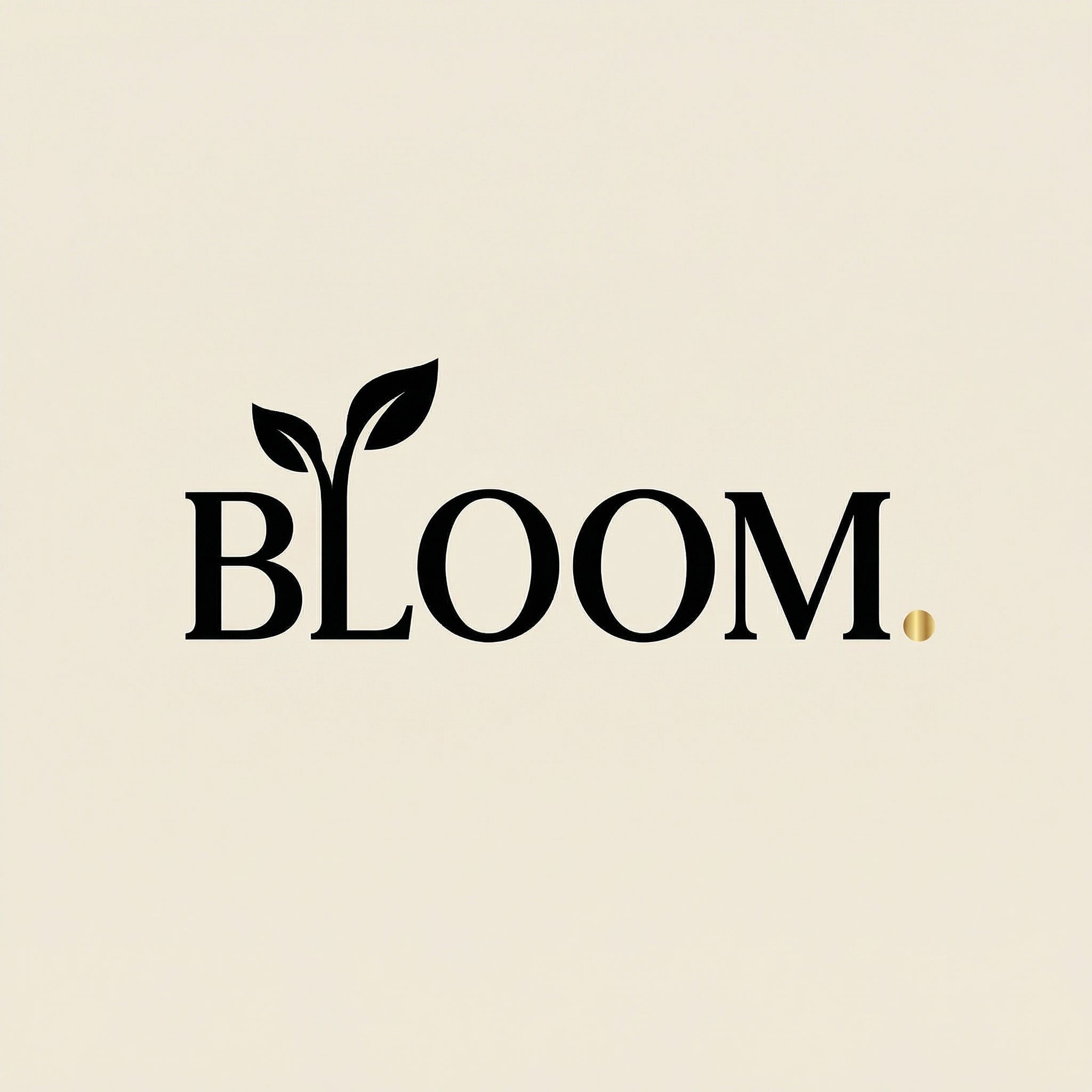
Luxury Editorial
Click for before/after
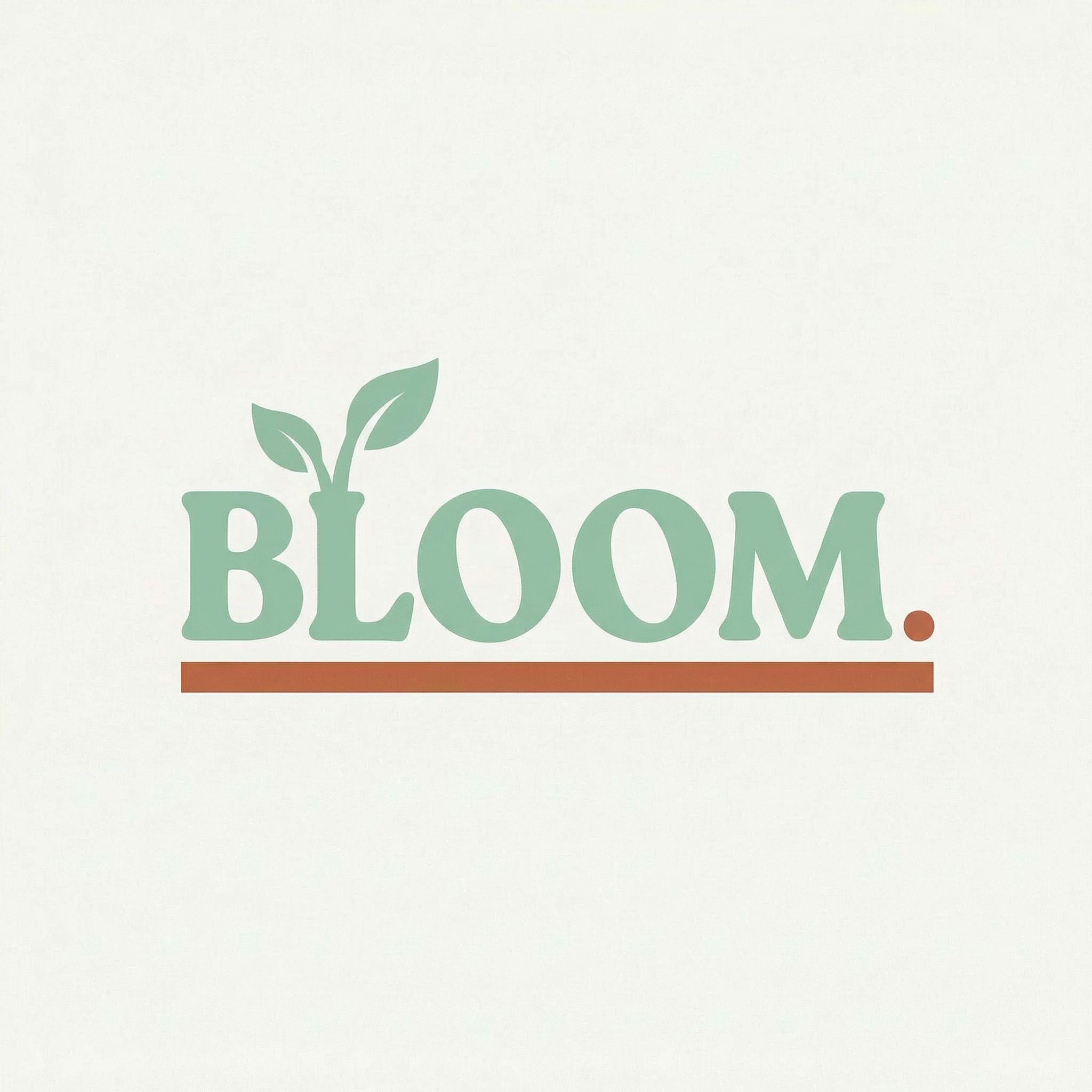
Mid-Century Modern
Click for before/after
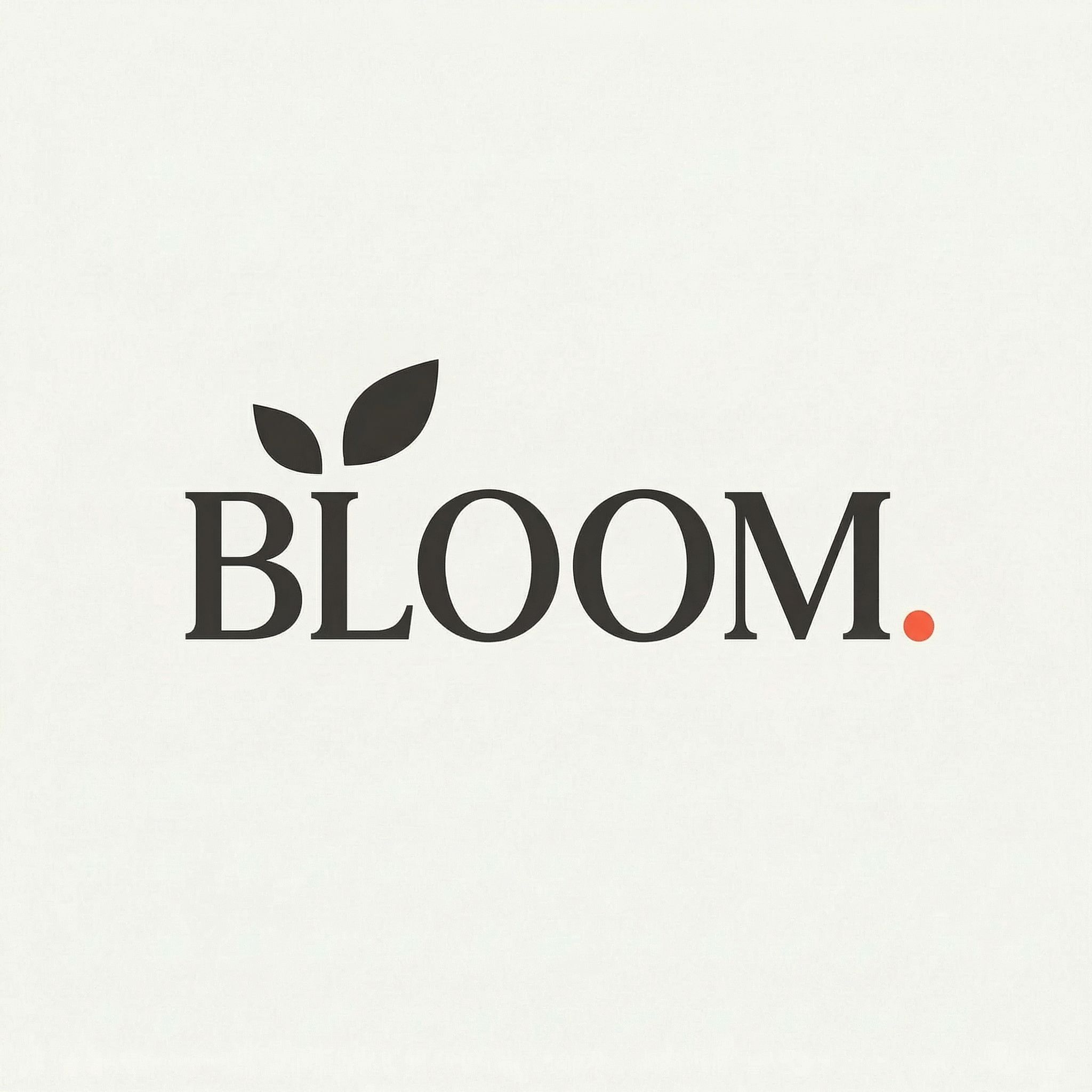
Japanese Minimalism
Click for before/after
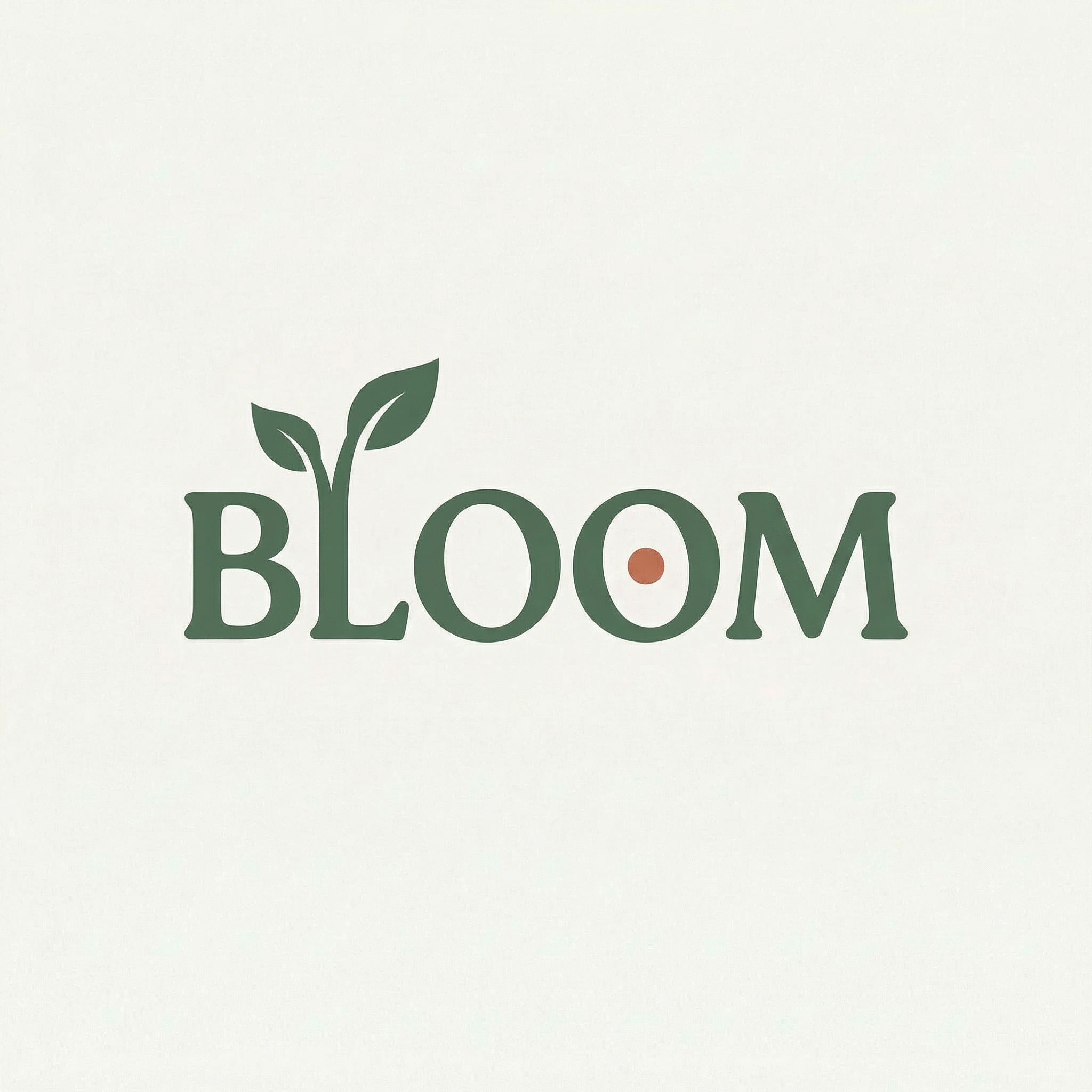
Botanical Organic
Click for before/after
Step 5: Visualize with Mockups
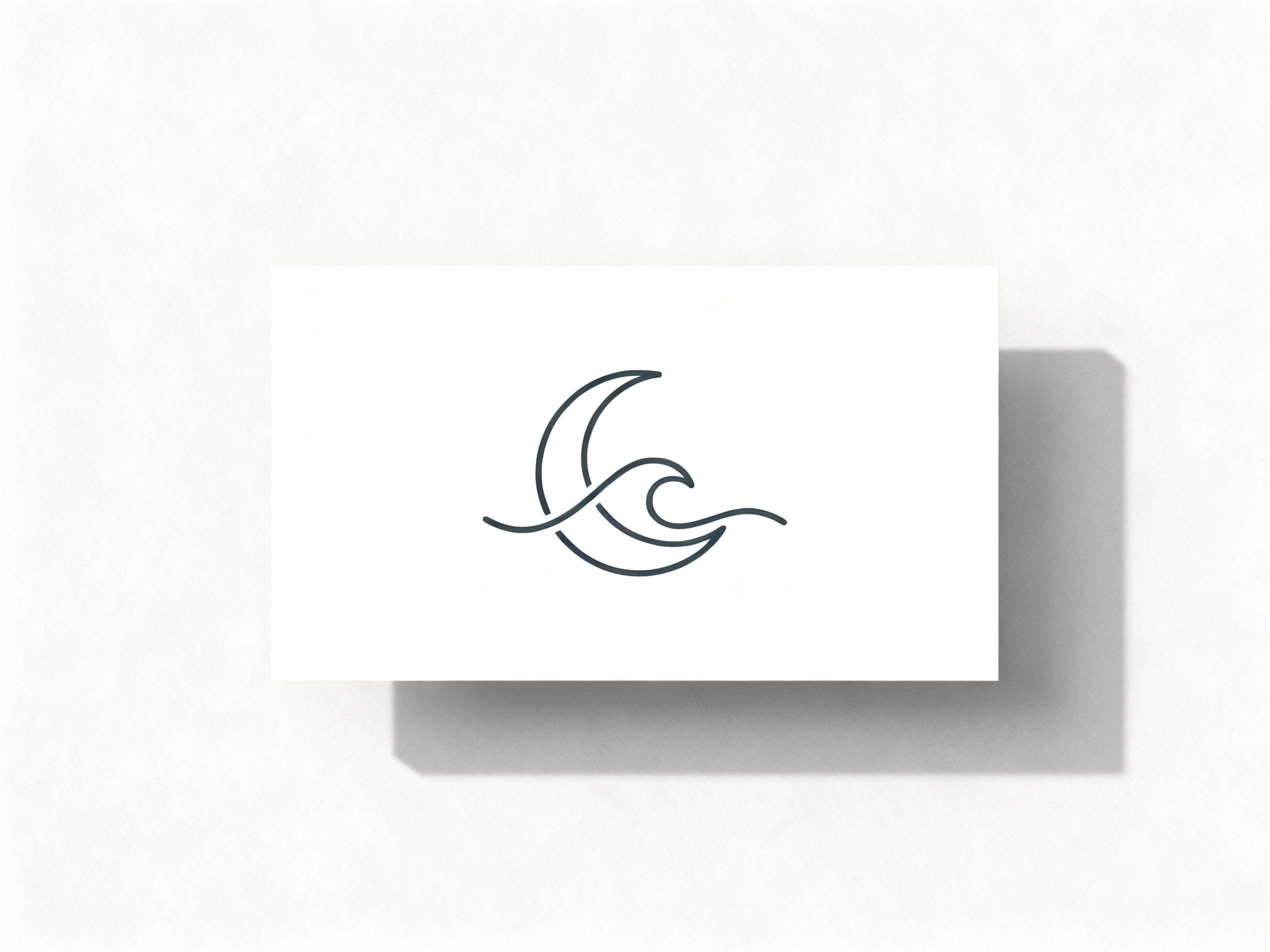
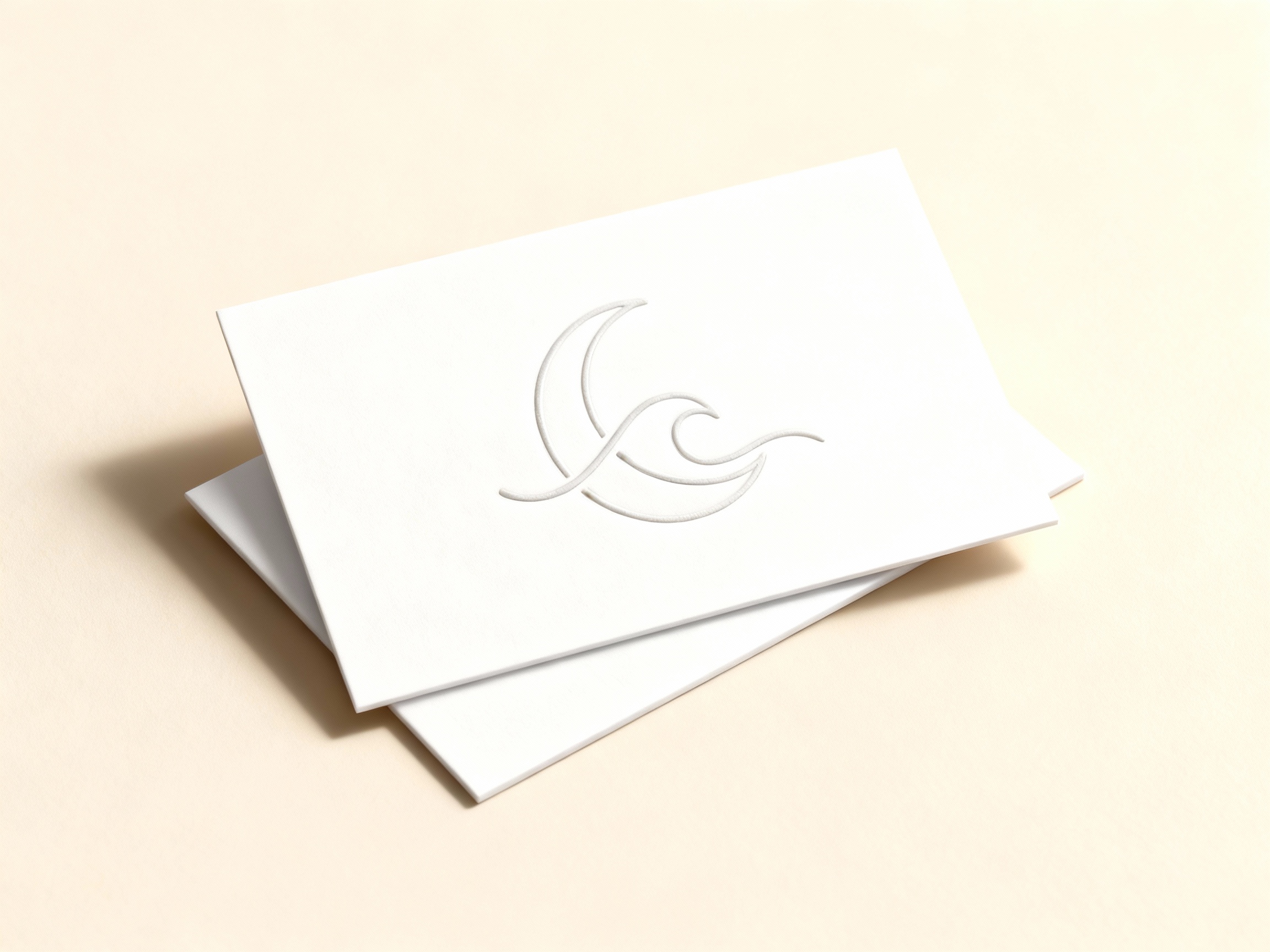
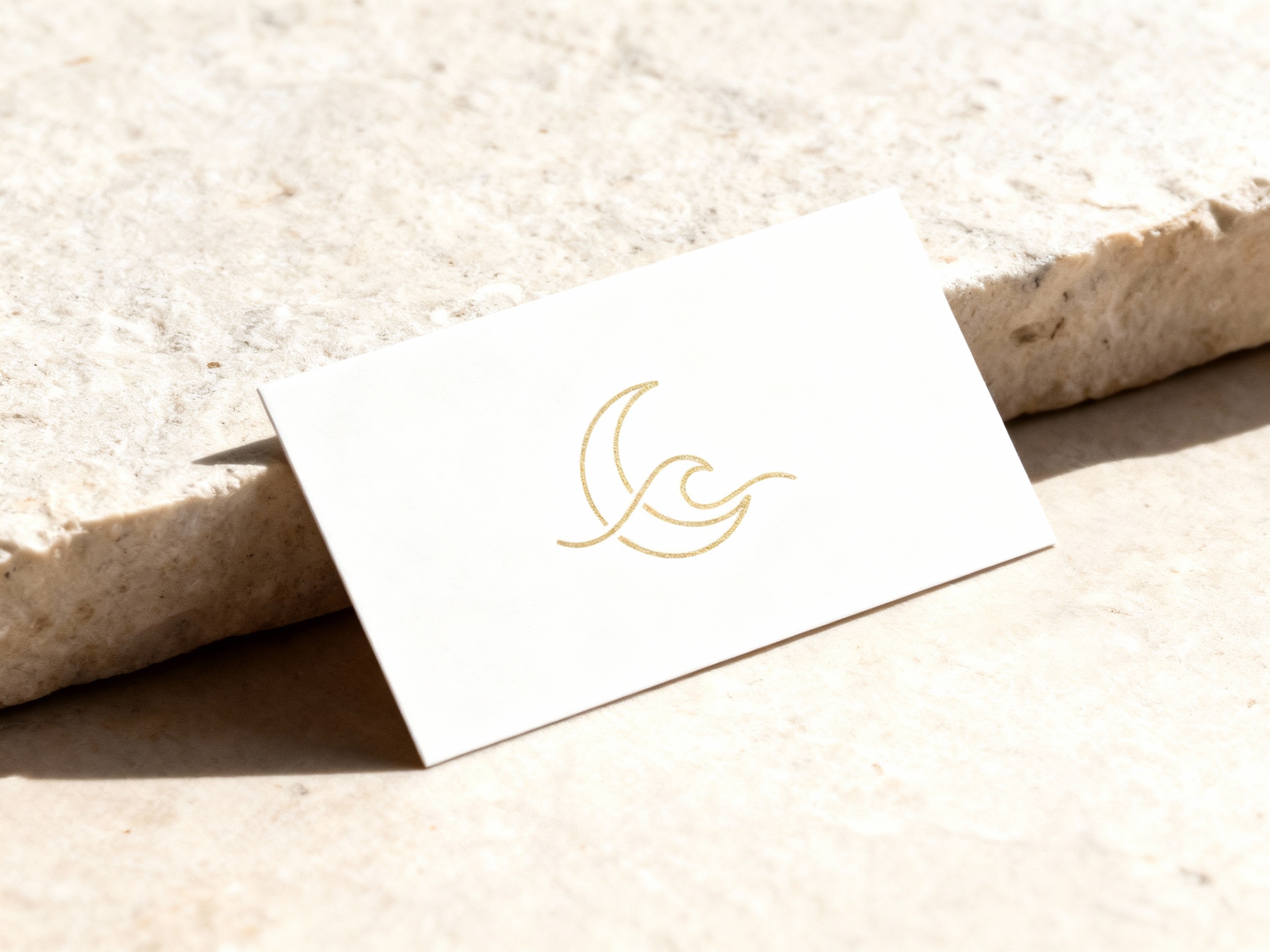
A logo in isolation tells only part of the story. To truly evaluate your own logo design - and to present it to clients or stakeholders - you need to see it in context. AI image generators excel at creating photorealistic mockups that show your new logo on business cards, storefronts, product packaging, and social media profiles.
The key is using image-to-image generation: attach your transparent background PNG and prompt the AI to place it on a specific mockup type. Models like Seedream are particularly good at creating high-quality, photorealistic mockups with accurate lighting and shadows.
Business Card Mockups
Clean White Card
Stacked Cards
Angled Gold Foil
Adding Contact Information
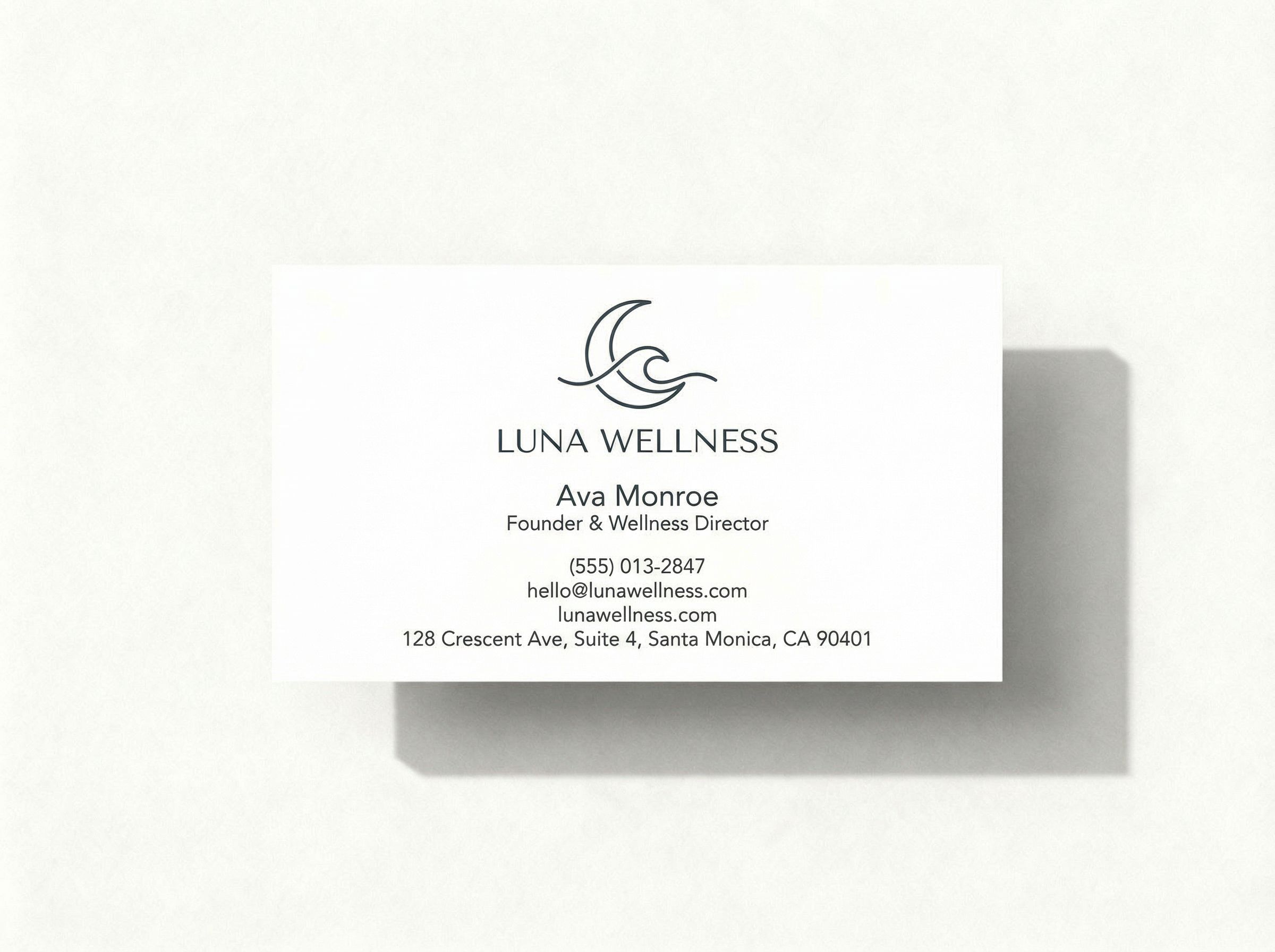
Once you have mockups, you can use image editing to add text - transforming a logo-only card into a complete business card design. Click to see the before/after:
Business Card Front
Click for before/after
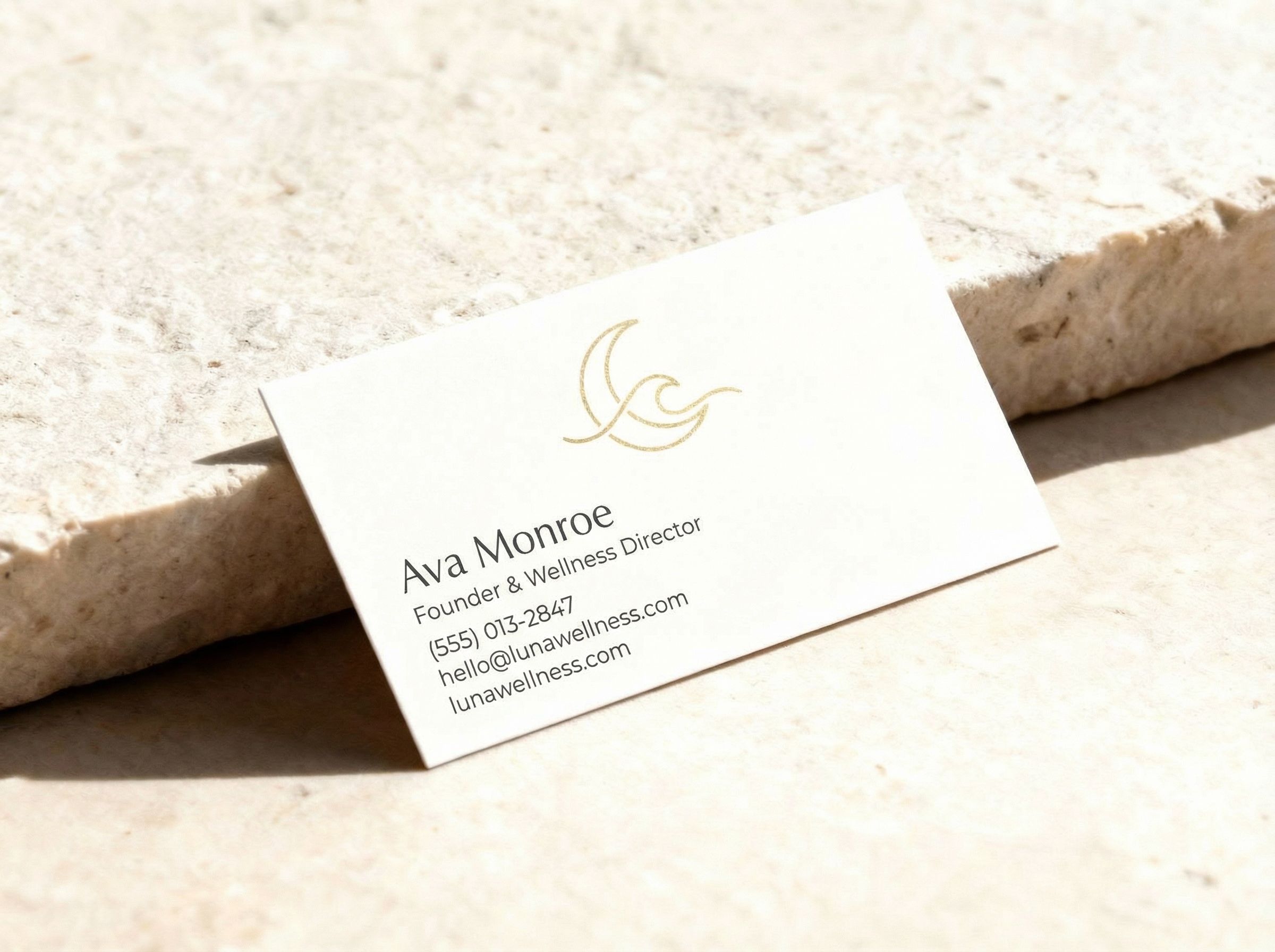
Angled with Contact
Click for before/after
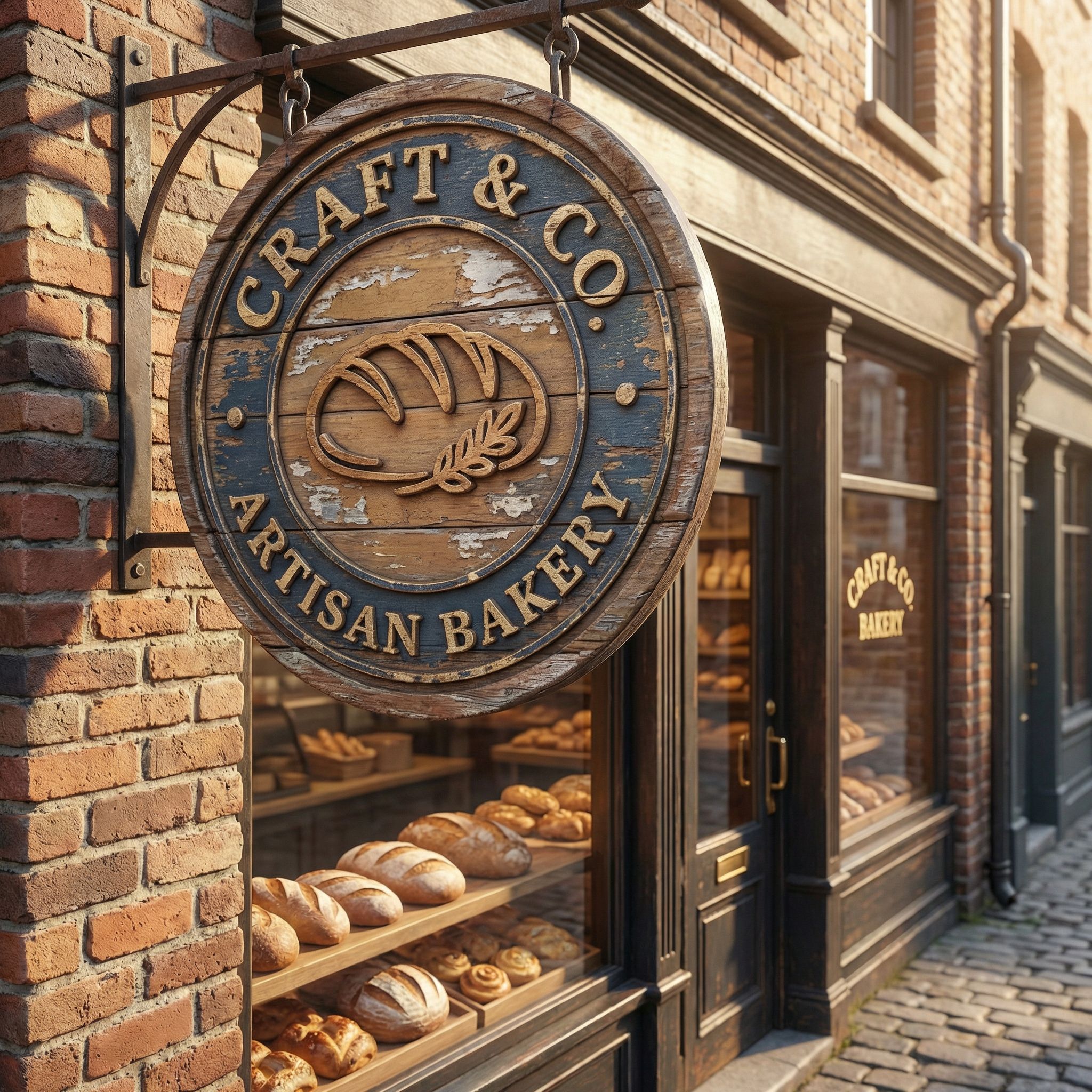
Storefront Visualization
For brands with physical locations, seeing the logo on a storefront sign is invaluable. Here's the Craft & Co letterpress logo visualized on a realistic storefront:
Mockup Ideas to Try
- • Business cards (various angles)
- • Letterhead and envelopes
- • Storefront signage
- • Product packaging
- • Apparel (t-shirts, caps)
- • Social media profile pictures
- • Website header mockups
- • Vehicle wraps
Step 6: Export & Finalize
With your logo refined and visualized, it's time to prepare your logo files. For professional use, you'll need multiple file formats to cover all use cases - from your brand kit to marketing materials:
PNG (Transparent)
For web, presentations, and overlay use. Use the background removal tool to get a clean transparent background PNG. Essential logo files for your brand kit.
High-Resolution JPG
For print materials and large format. Request 2K or higher resolution during generation. Keep multiple versions of your logo.
SVG Vector File
For truly scalable logos, you may want to trace your AI output into vector file format using design tools like Adobe Illustrator or Figma.
Important: Vector Conversion
AI-generated logos are raster images (pixels). For infinite scalability - essential for large signage or print - consider tracing your final logo into true vector format. Many designers use this AI-to-vector workflow: generate the concept with AI, then recreate it precisely in Illustrator or Figma.
Pro Tips for Professional Logo Design
Before you finalize your custom logo, run through this checklist. These best practices will ensure your logo works across all use cases and maintains professional quality.
- Test at small sizes
Scale your logo down to 32x32 pixels (favicon size). If details disappear or it becomes unreadable, simplify the design. A good logo should be recognizable at any size.
- Create a black and white version
Generate your logo in pure black and white. This tests whether it relies too heavily on logo colors and ensures it works for single-color printing like embroidery or engraving. A good logo works without color.
- Test with mockups before committing
Generate business cards, social media profiles, and storefront mockups. Seeing your logo in context reveals issues you'd never notice in isolation.
- Build a brand kit
Document your color schemes (exact hex codes), fonts, and logo variations in a brand kit. This ensures consistency as you create marketing materials and social media content. Canva offers brand kit features that work well with your logo files.
- Get multiple logo files
Export PNG with transparent background for web, high-resolution JPG for print, and consider tracing to SVG vector file for infinite scalability. Your logo files should include all formats you'll need for business cards, social media, and print.
Frequently Asked Questions
Can I trademark an AI-generated logo?
Yes, in most jurisdictions you can trademark an AI-generated logo. Trademark law protects the use of a mark in commerce - it doesn't require human authorship. However, copyright protection for purely AI-generated images is more complex and varies by country. For maximum protection, consider having a designer refine your AI concept, which adds human creative input.
How do I get a transparent background?
Most AI image generators output JPG or PNG with backgrounds. To get a transparent PNG, use a background removal tool after generation. On Vondy, select your generated logo and use the "Remove Background" action - it takes about 5 seconds and produces a clean PNG with transparent background, perfect for overlaying on marketing materials.
What resolution do I need for print?
For high-quality print materials like business cards and brochures, you need at least 300 DPI (dots per inch). At standard business card size (3.5" × 2"), that means roughly 1050 × 600 pixels minimum. For large format printing like banners or signage, request 2K or 4K resolution during generation. Better yet, trace your logo to vector SVG format for infinite scalability.
How does AI logo generation compare to Canva or free logo makers?
Template-based tools like Canva and free logo makers give you pre-designed logo templates with drag-and-drop layouts to customize. AI logo generators create original concepts from scratch based on your description. The advantage of AI: truly unique logos instead of templates thousands of others might use. The advantage of Canva and logo templates: guaranteed clean vectors, consistent quality, and easy pricing. Many designers now use AI for design ideas, then recreate their favorite concept in vector design tools for the best of both worlds.
What if I don't like any of the generated concepts?
Iterate! Refine your prompt with more specific direction and make small tweaks. If concepts are too complex, add "minimalist" and "simple." If they're too generic, add specific style references or unique elements. Try different logo types (wordmark vs symbol). Generate in batches of 4 - you'll rarely love the first set. The best results come from 2-3 rounds of generation with tweaks to your prompts between each.

Create Your Logo with Vondy
All the AI tools used in this guide are available on Vondy. Generate concepts, refine designs, and create mockups in one unified workspace.
Start creating
Continue Learning