
A good book cover can make or break your book's success. It's the first thing readers see on Amazon, in bookstores, and on social media. Traditionally, authors either hired a graphic designer for hundreds of dollars or struggled with Canva and Photoshop trying to make something that looks professional. Free book cover templates exist, but they result in covers that look generic.
AI changes everything about book cover design. Now you can generate custom cover art, experiment with different styles, and create a bestseller-worthy design without stock photos or design experience. This step-by-step tutorial walks through the entire process using a real example: a meditative non-fiction book called "Clam Notes" by Daren Gill.
What You'll Learn
- How to write prompts for book cover design with sharp typography
- Generating multiple concepts from watercolor to photographic styles
- Refining color palette and making the cover looks professional
- Creating full wrap designs with front cover, spine, and back cover
- Generating realistic mockups for marketing your new book
Step 1: Gather Your Assets
Before generating any book cover designs, collect the essential information. Unlike book cover templates that force you into rigid layouts, AI works best when you provide clear creative direction. Think about your genre, target audience, and the mood you want to convey.
Essential Information
- • Book title (exact text)
- • Author name
- • Genre (thriller, memoir, self-help, etc.)
- • Subtitle or tagline (optional)
Creative Direction
- • Mood and tone (contemplative, thrilling, uplifting)
- • Color palette preferences
- • Visual style (illustrated, photographic, typographic)
- • Reference covers for inspiration
Our Example: Clam Notes
For this tutorial, we designed the cover for "Clam Notes" by Daren Gill, a meditative non-fiction book about the author's experience clamming on tidal flats. The mood is contemplative and philosophical, with a Zen-like quality. We wanted the cover to feel literary and upscale, something you'd see in an independent bookstore.
Step 2: Generate Multiple Concepts
The power of AI book cover design is rapid exploration. Instead of committing to one direction, generate 3-4 different concepts to see what resonates. Unlike traditional book cover maker tools that give you the same templates, AI creates completely original cover art for each concept.
BOOK COVER DESIGN, portrait 3:4. [Visual description of scene or imagery]. Mood: [tone]. Color palette: [colors]. Typography: [title style] title "[BOOK TITLE]" at [position], author "[AUTHOR NAME]" at [position]. [Additional style notes]. High legibility, bookstore-ready.Here are four concepts we generated for "Clam Notes," each with distinct visual styles and typography:
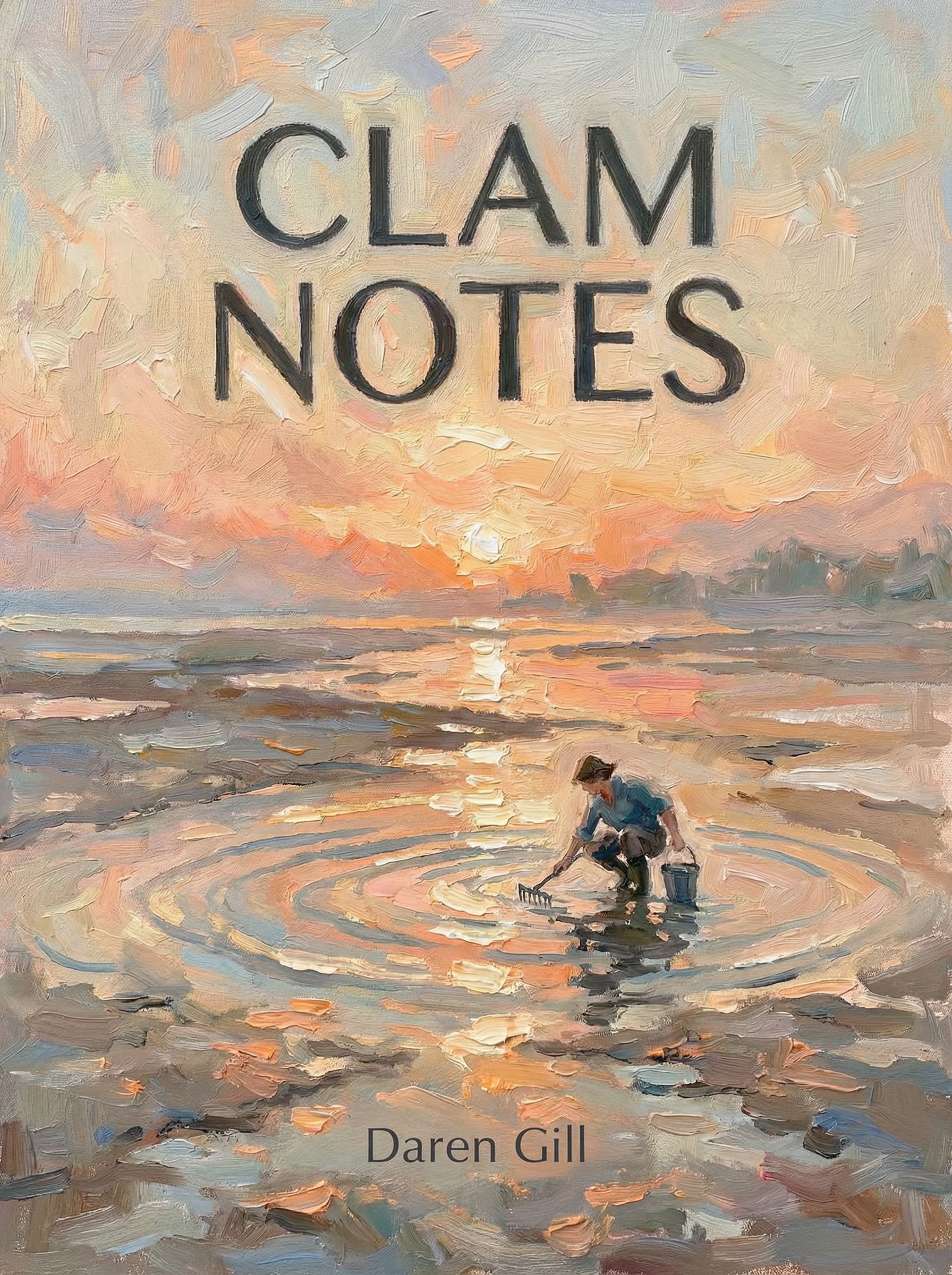
Watercolor Illustration
Serene watercolor with soft pastels
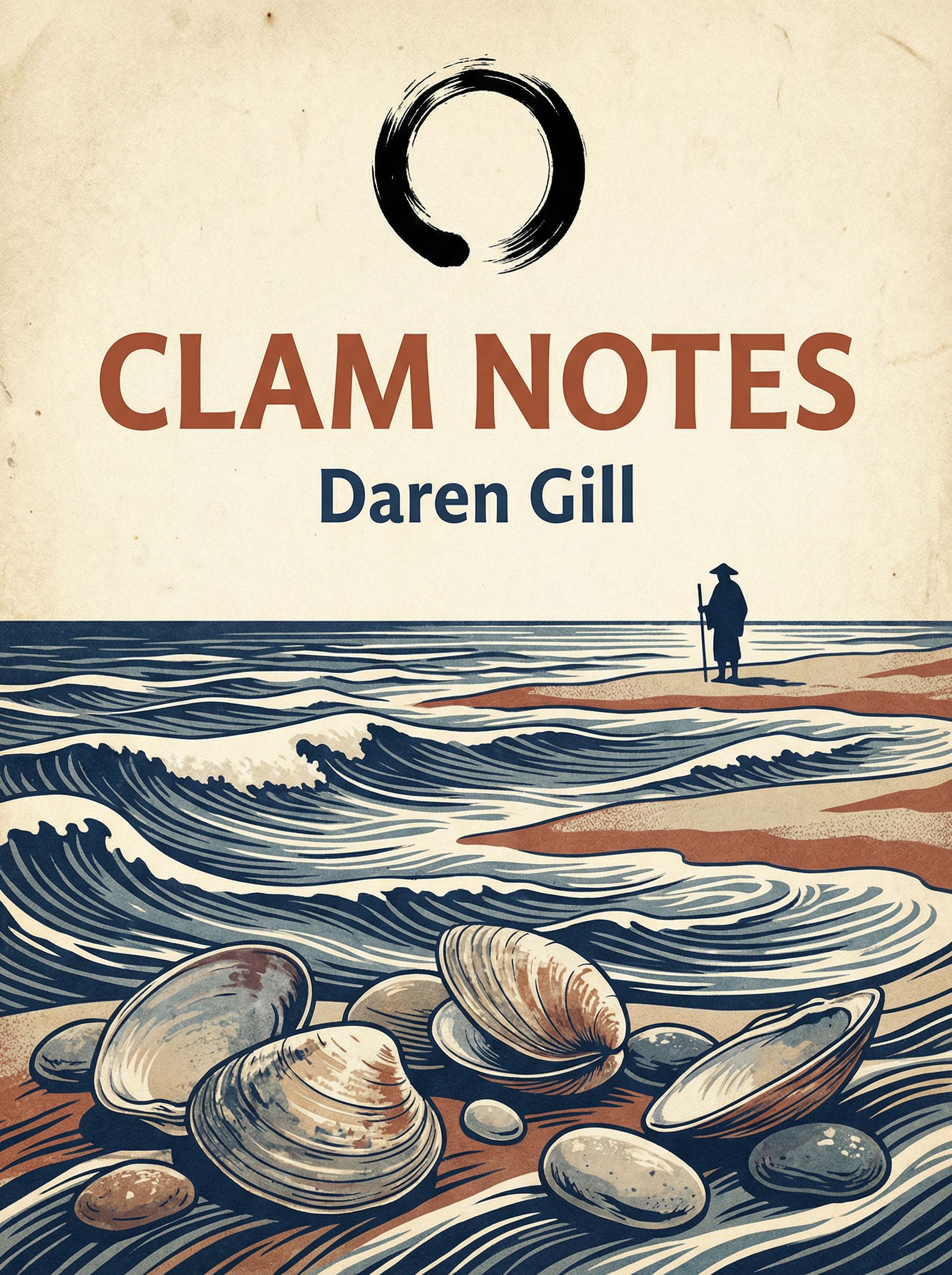
Japanese Woodblock
Ukiyo-e inspired with limited palette
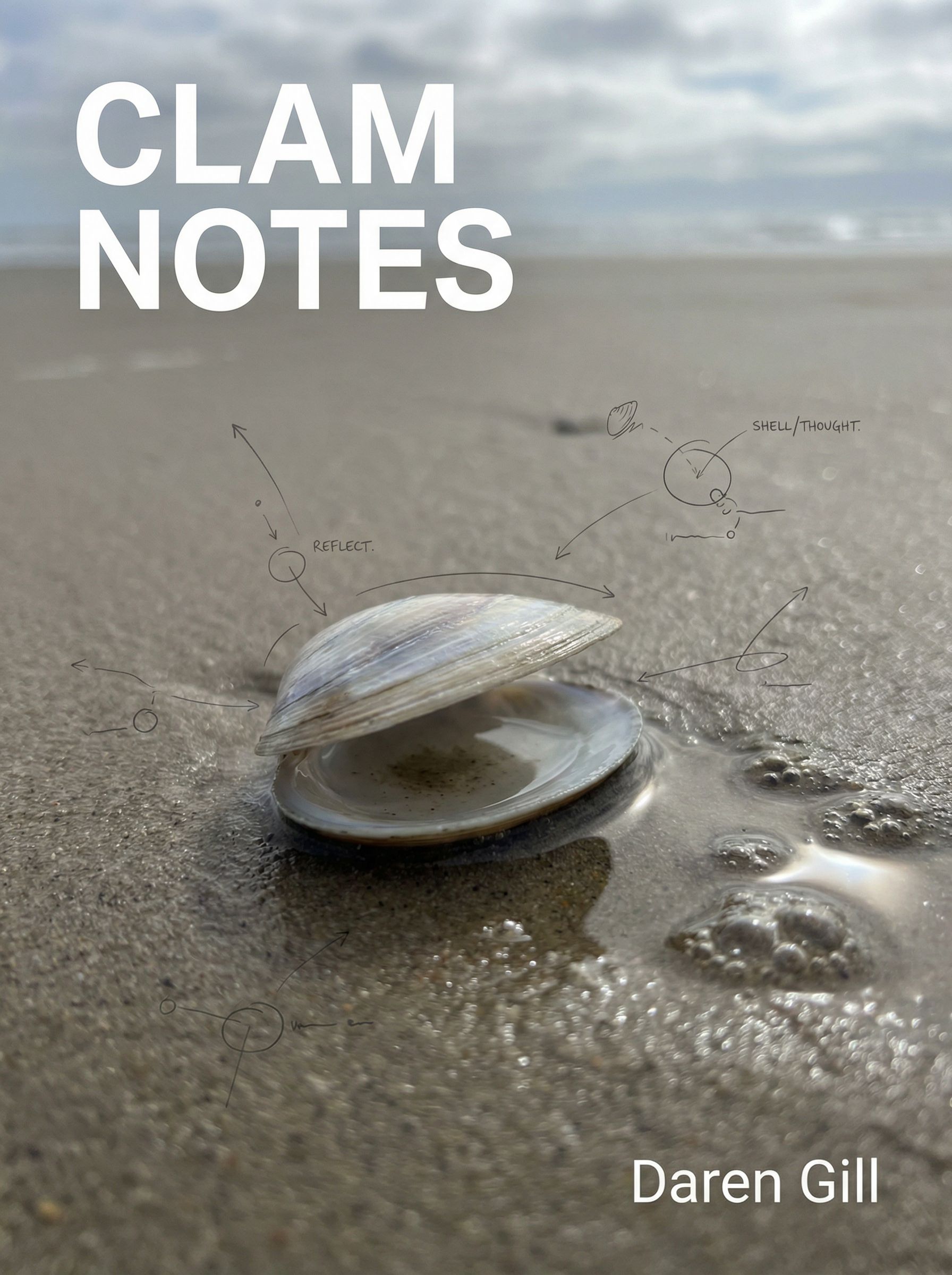
Minimalist Photographic
Modern photographic with notebook annotations
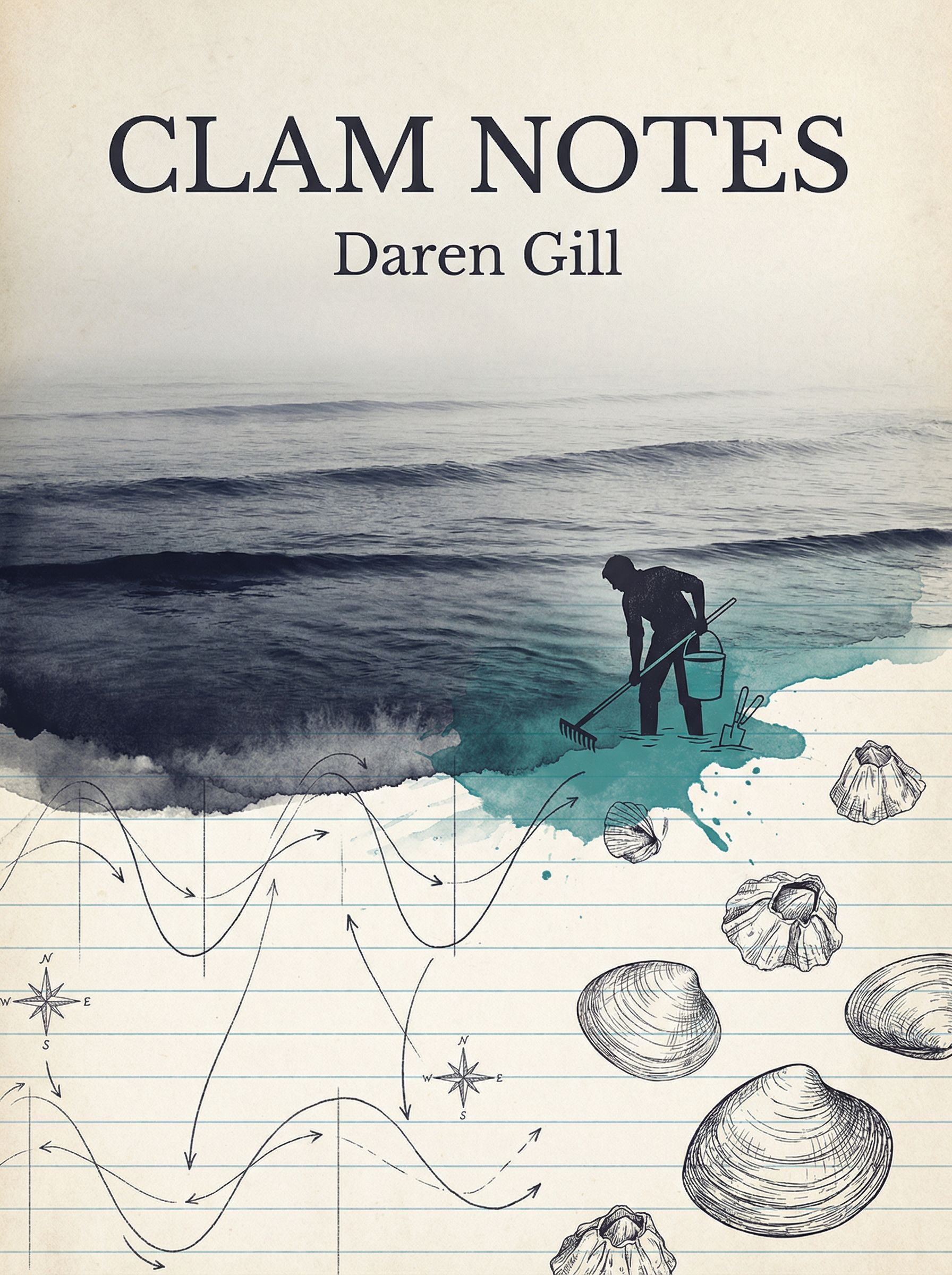
Surreal Collage
Ocean blending into notebook paper
Design Tips for Better Book Covers
- • Always specify "high legibility" and "bookstore-ready" for professional typography
- • Include your exact title and author name in the prompt to prevent AI from improvising
- • Specify position for text: "title at top," "author at bottom"
- • Reference specific art styles: "watercolor," "woodblock," "photographic"
- • Use 3:4 aspect ratio for standard paperback covers
Step 3: Refine and Edit
Once you pick a favorite concept, you'll likely need to make adjustments. Maybe the color palette needs tweaking, the typography could be bolder, or a visual element needs to change. AI photo editing makes these refinements easy without starting over.
Edit Example: Adjust Color Palette
We chose the Surreal Collage concept but wanted to unify the color palette. We used annotation-based editing to change the teal accent color to match the ocean blue, creating a more cohesive and eye-catching design.
Before
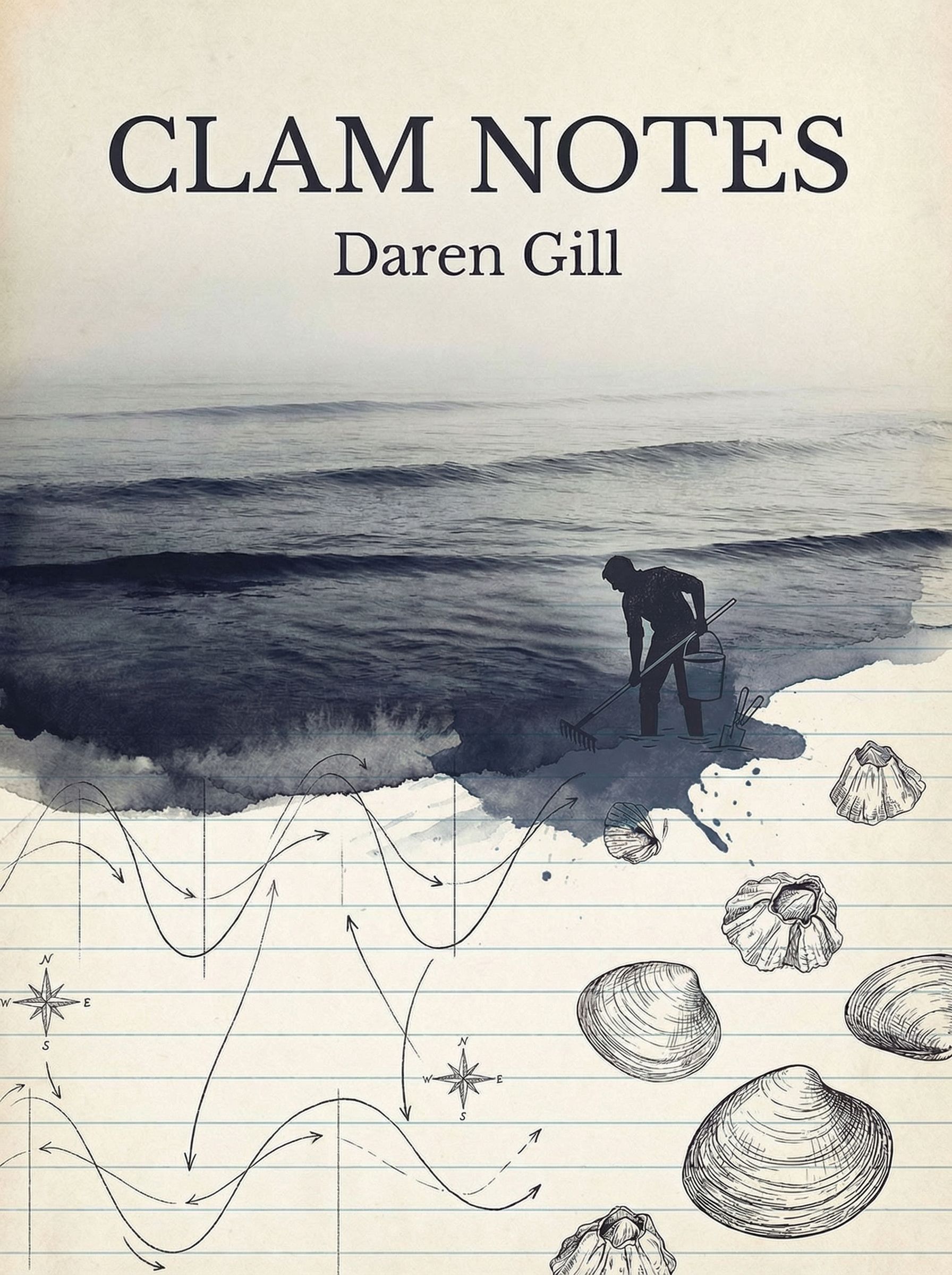
After
Click for before/after
The annotation tool lets you circle specific areas and describe what to change. This is much faster than regenerating the entire design and gives you precise control over the final result. Common refinements include adjusting fonts, tweaking the color scheme, or repositioning the focal point.
Step 4: Create Full Wrap Design
If you're self-publishing a paperback through Amazon KDP or another printing service, you'll need a full wrap design that includes the front cover, spine, and back cover. This is essential for physical books and creates a cohesive look when the book is displayed in stores.
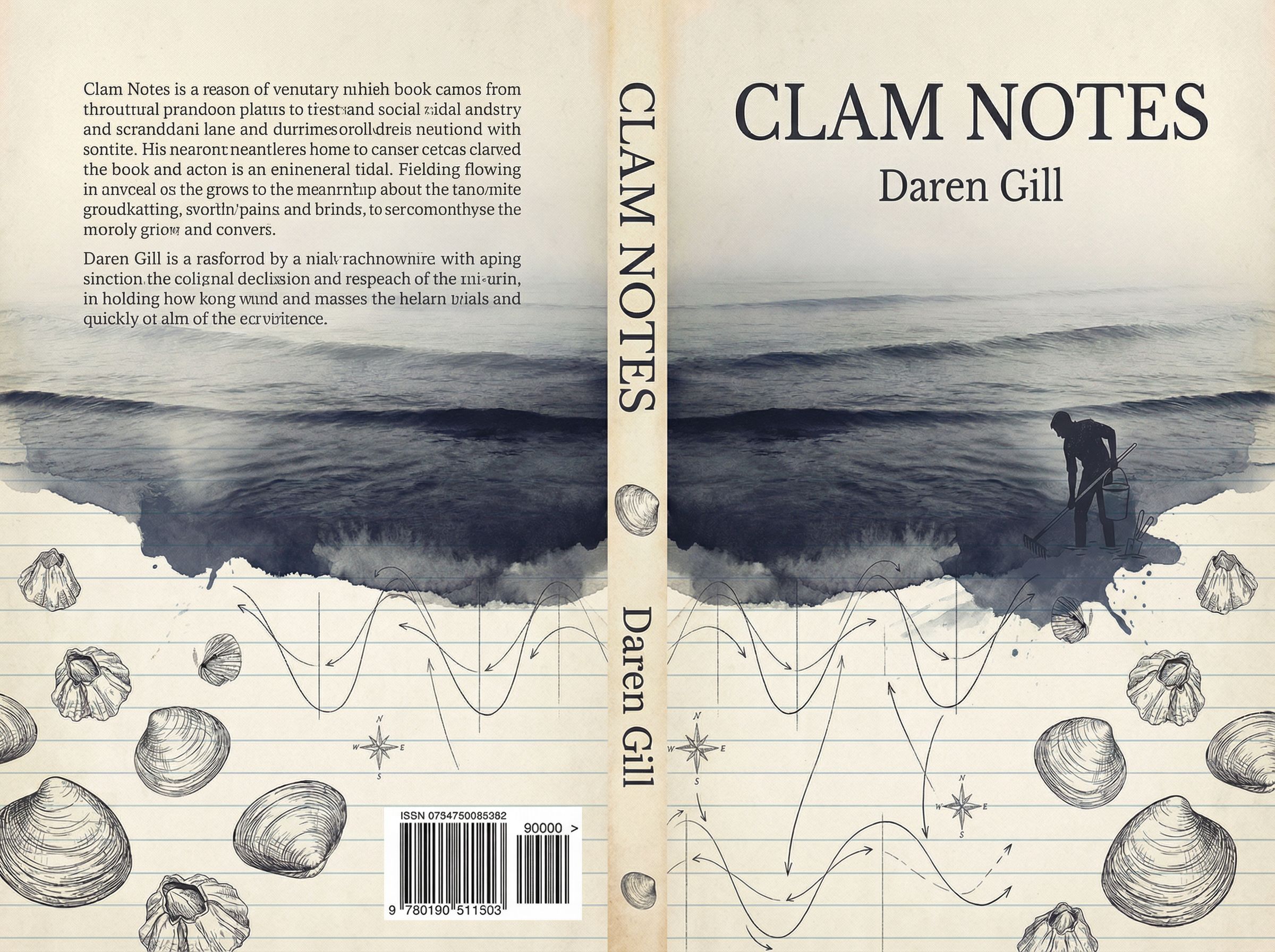
Full Wrap: Front + Spine + Back
Full Wrap Specifications
- • Front cover: 6 x 9 inches (standard)
- • Spine width: varies by page count
- • Back cover: 6 x 9 inches
- • Bleed: 0.125" on all edges
- • Format: PNG or high quality PDF
- • Resolution: 300 DPI minimum
For KDP and most printing services, you'll export your AI-generated design and finalize the exact dimensions in their cover creator tool. The back cover typically includes a description, author bio, barcode area, and optional endorsements.
Step 5: Create Realistic Mockups
Before publishing, visualize how your book cover will look in the real world. Mockups are essential for marketing your book on social media, your author website, and promotional materials. They help potential readers imagine holding your book.

Bookstore Display Mockup
More Mockup Ideas
- • 3D book render with shadows
- • Book on a wooden table
- • Book held in reader's hands
- • Stack of books
- • Book next to coffee and reading glasses
- • Kindle or e-reader screen
Frequently Asked Questions
How does AI compare to Canva or Photoshop for book covers?
Canva and Photoshop require you to manually arrange elements, find stock images, and handle typography yourself. AI generates complete, original cover art from a text description. You get unique imagery that no one else has, rather than assembling pieces from stock photos. For small business authors and self-publishers without design budgets, AI is transformative.
What about ebook covers for Kindle?
Kindle covers need to work as small thumbnails on Amazon. This means bold typography, high contrast, and simple compositions. AI handles this well if you specify "high legibility at thumbnail size" in your prompt. The standard Kindle cover size is 2,560 x 1,600 pixels (1.6:1 ratio), slightly different from paperback.
What file format should I use for KDP and other printing services?
Export as PNG for high quality uploads. KDP accepts PDF, PNG, or JPG files at minimum 300 DPI. For a 6x9 inch book, that means at least 1,875 x 2,813 pixels. AI models typically generate at 2K or higher resolution, which is sufficient for most printing services.
Can AI create genre-appropriate covers for thrillers, romance, or non-fiction?
Yes. Each genre has visual conventions that readers expect. Thrillers often use dark, moody imagery. Romance features warm colors and intimate scenes. Non-fiction tends toward clean, professional typography. Mention your genre in the prompt and reference specific conventions. The best AI image generators understand these genre signals.
How do I ensure the typography is sharp and professional?
Always include phrases like "crisp readable text," "high legibility," and "sharp typography" in your prompt. Specify the font style you want (serif for literary, sans-serif for modern). If the first generation has soft or warped fonts, regenerate with more emphasis on typography. For critical text, you can also refine using AI graphic design editing tools.

Create Your Book Cover with Vondy
All the AI design tools used in this tutorial are available on Vondy. Generate concepts, refine your cover, and create mockups in one workspace.
Try the Book Cover Generator
Continue Learning