
Business cards remain one of the most important tools for making a lasting impression at networking events and professional meetings. Traditional business card makers and online templates can work, but you end up with the same designs everyone else uses. Free business card templates in Microsoft Word or PowerPoint lack the polish of professional business cards.
AI changes the design process completely. Instead of dragging elements around business card templates, you describe what you want and get a custom business card design in seconds. This step-by-step tutorial walks through creating professional business cards from scratch, using a real example we made for Vondy.
What You'll Learn
- How to write prompts for business card designs with sharp fonts
- Generating multiple concepts from minimal to gradient styles
- Editing contact info and creating eye-catching style variations
- Exporting high-quality PNG files for printing services
- Creating realistic mockups to preview your own business cards
Step 1: Gather Your Assets
Before generating any business card designs, collect everything you need. Having clear inputs leads to better results. Think about your brand colors and what contact info to include. The standard business card size is 3.5 x 2 inches, which AI handles automatically.
Visual Assets
- • Your logo (PNG with transparent background)
- • Brand colors or color scheme reference
- • Headshot (optional, for personal branding)
- • QR code linking to your website or social media
Contact Info
- • Full name and job title
- • Company name
- • Email, phone, website
- • Location or social handles
Our Example: Vondy Business Card
For this tutorial, we designed business cards for Rohit Das, Co-Founder at Vondy. We uploaded the Vondy logo and specified the contact details: email, phone, website, and location. The goal was to create professional business cards that feel on-brand and premium.
Step 2: Generate Multiple Concepts
The power of AI business card design is rapid exploration. Instead of committing to one direction, generate 3-4 different concepts to see what resonates. Unlike traditional design templates or business card templates, each AI concept can be completely unique. This is where AI outshines any business card maker tool.
Design a premium business card for [name], [title] at [company]. Use the attached logo exactly. Show BOTH SIDES on one flat canvas (left=Front, right=Back). Style: [aesthetic]. Include contact info: [email], [phone], [website], [location]. Keep typography sharp and readable. US business card size 3.5x2in with bleed guides.Here are four concepts we generated, each with distinct typography and visual style:
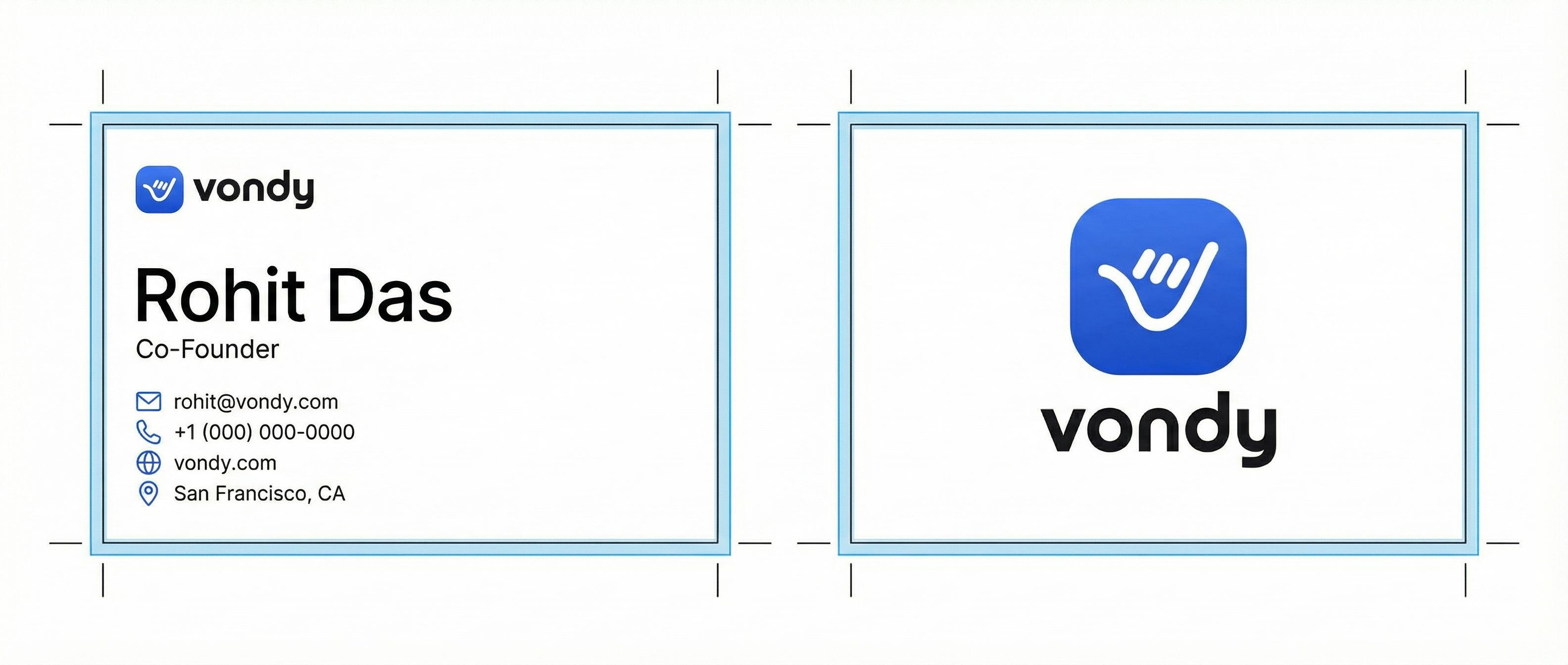
Minimal White + Blue
Clean white background with blue accent
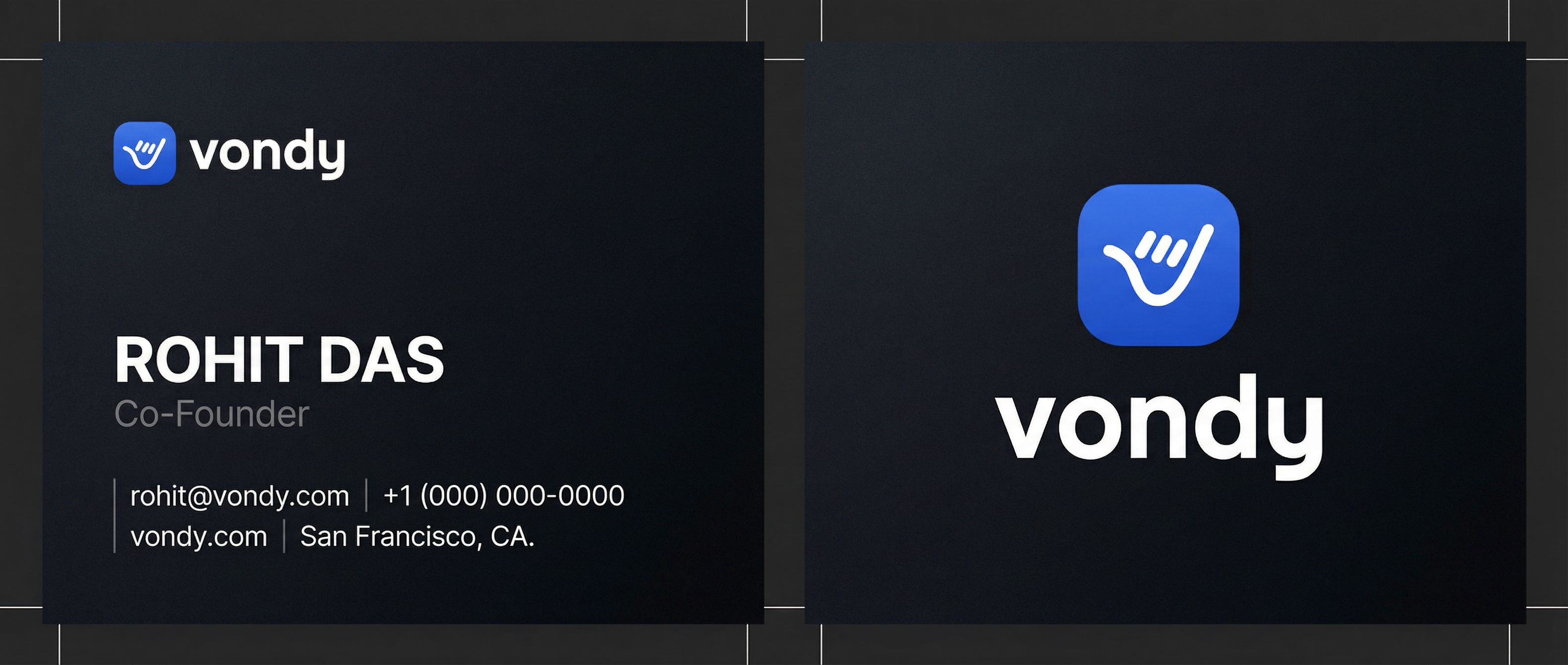
Dark Premium
Sleek dark background with white text
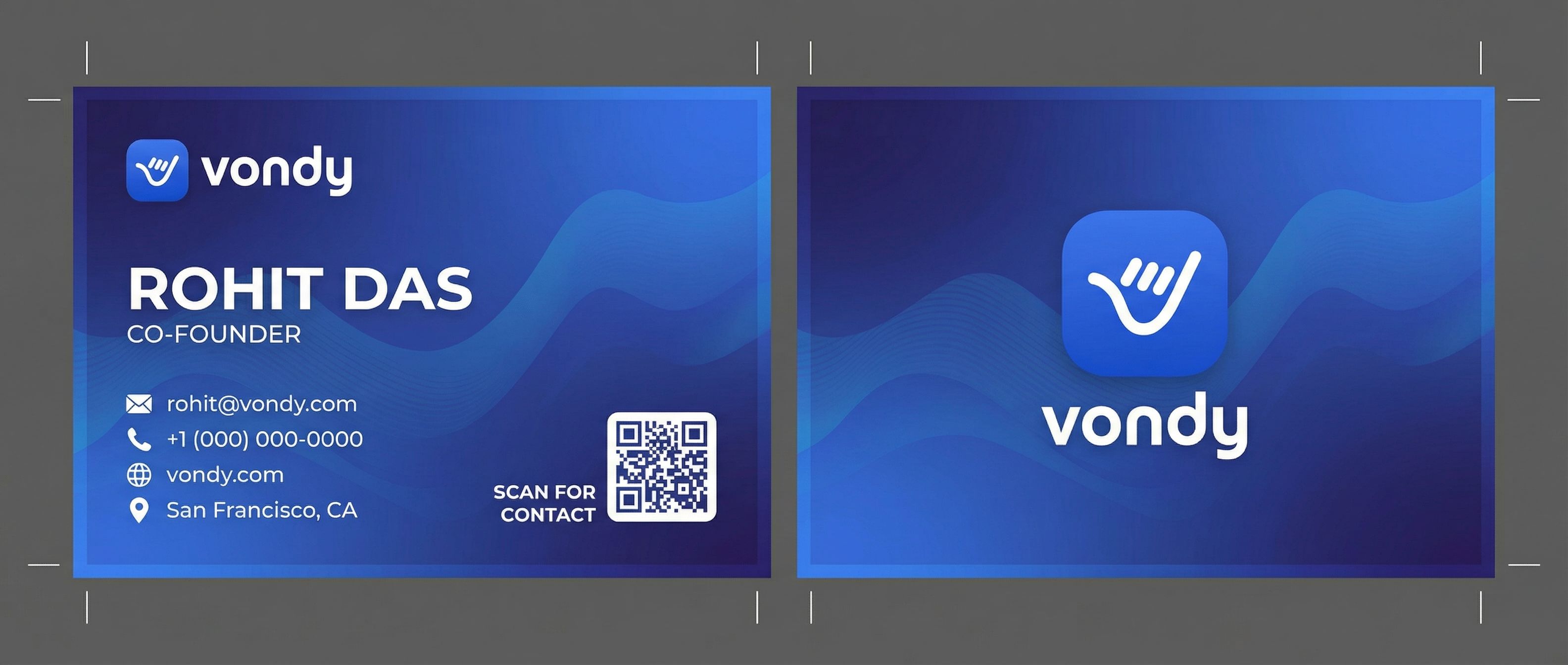
Gradient + QR Code
Vibrant gradient with QR code placeholder
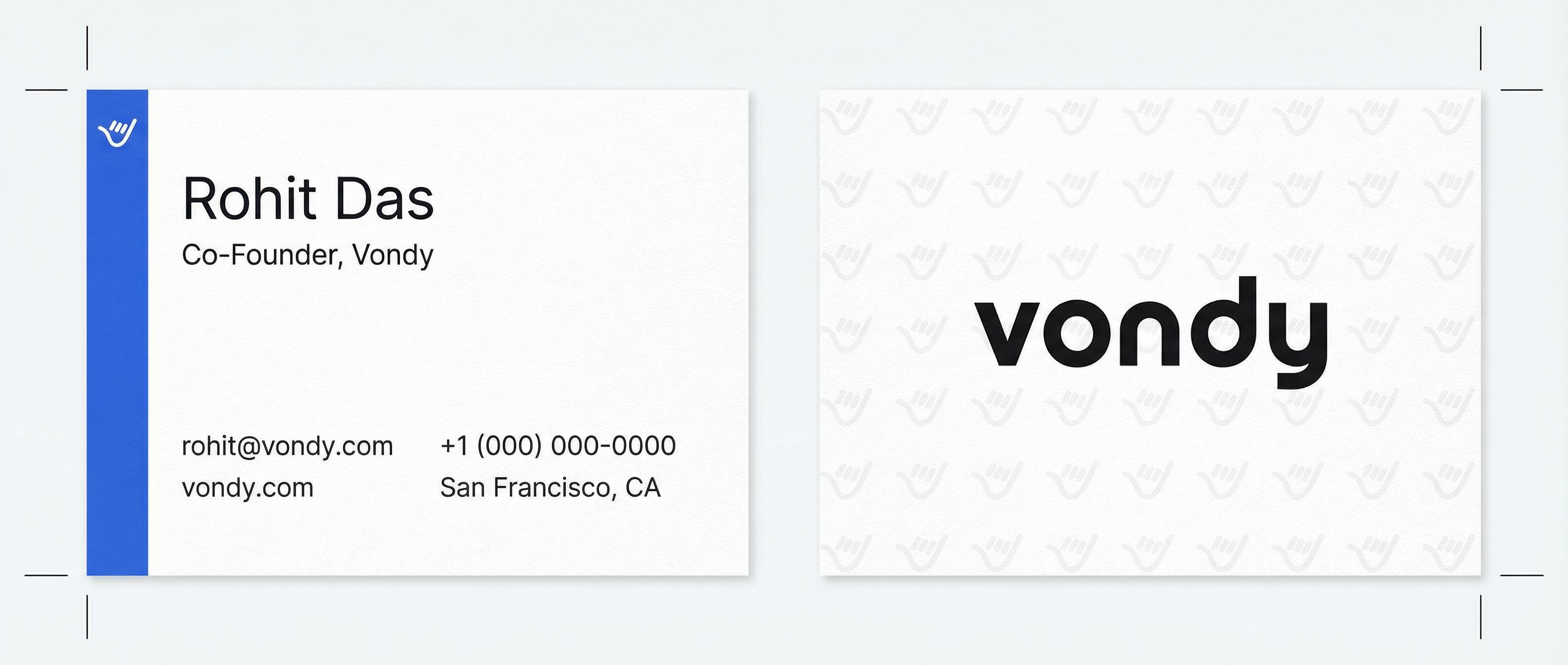
Vertical Accent Strip
Ultra-minimal with vertical blue strip
Design Tips for Better Business Cards
- • Always specify "keep typography sharp and readable" for crisp fonts
- • Include your exact contact info in the prompt to prevent AI from improvising
- • Request "both sides on one canvas" to see front and back together
- • Mention specific aesthetics: "minimalist," "dark premium," "gradient"
Step 3: Refine and Edit
Once you pick a favorite concept, you'll likely need to make small edits. Maybe the location is wrong, a phone number needs updating, or you want to tweak the color scheme. AI photo editing makes these refinements easy without starting over.
Edit Example: Change Location
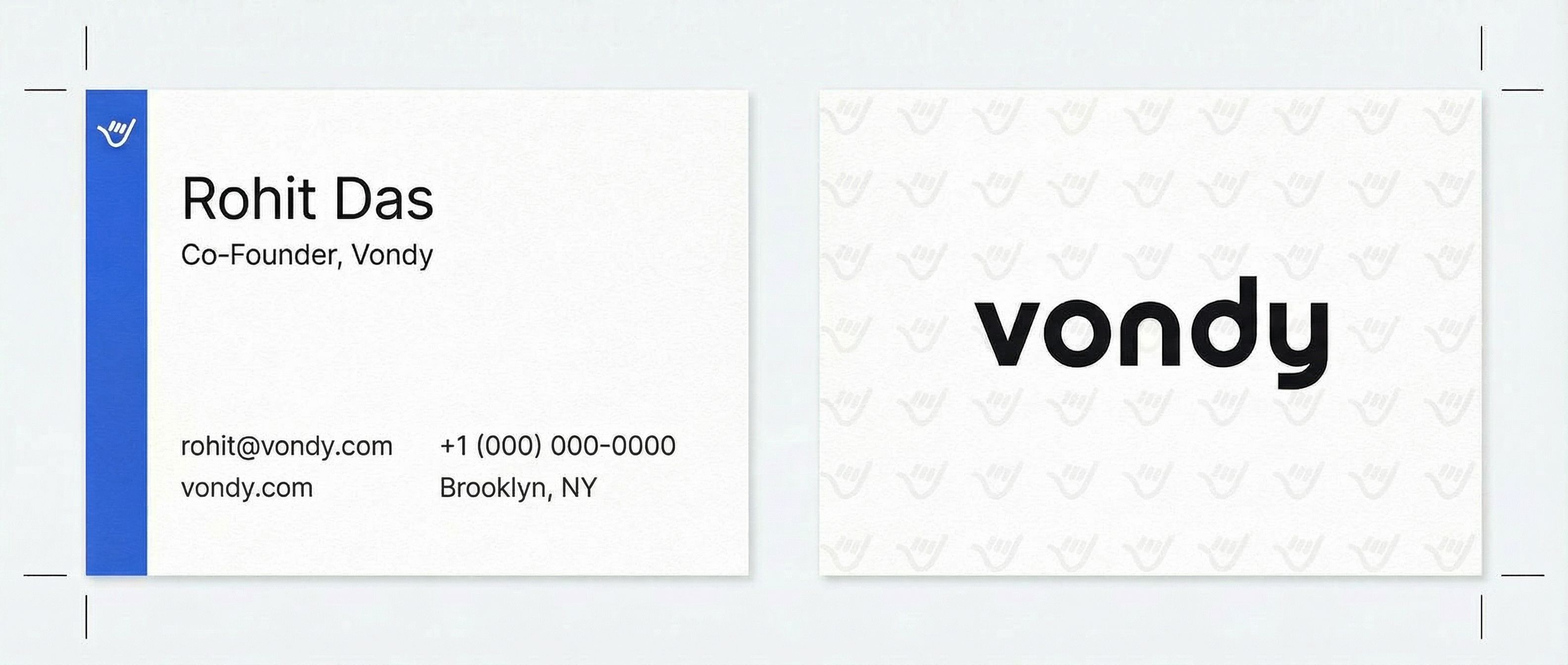
We chose Concept 4 (vertical accent strip) and used annotation-based editing to change the location from "San Francisco, CA" to "Brooklyn, NY".
Before
After
Click for before/after
The annotation tool lets you circle or highlight specific areas and describe what to change. This is much faster than regenerating the entire design and gives you precise control over edits.
Step 4: Create Style Variations
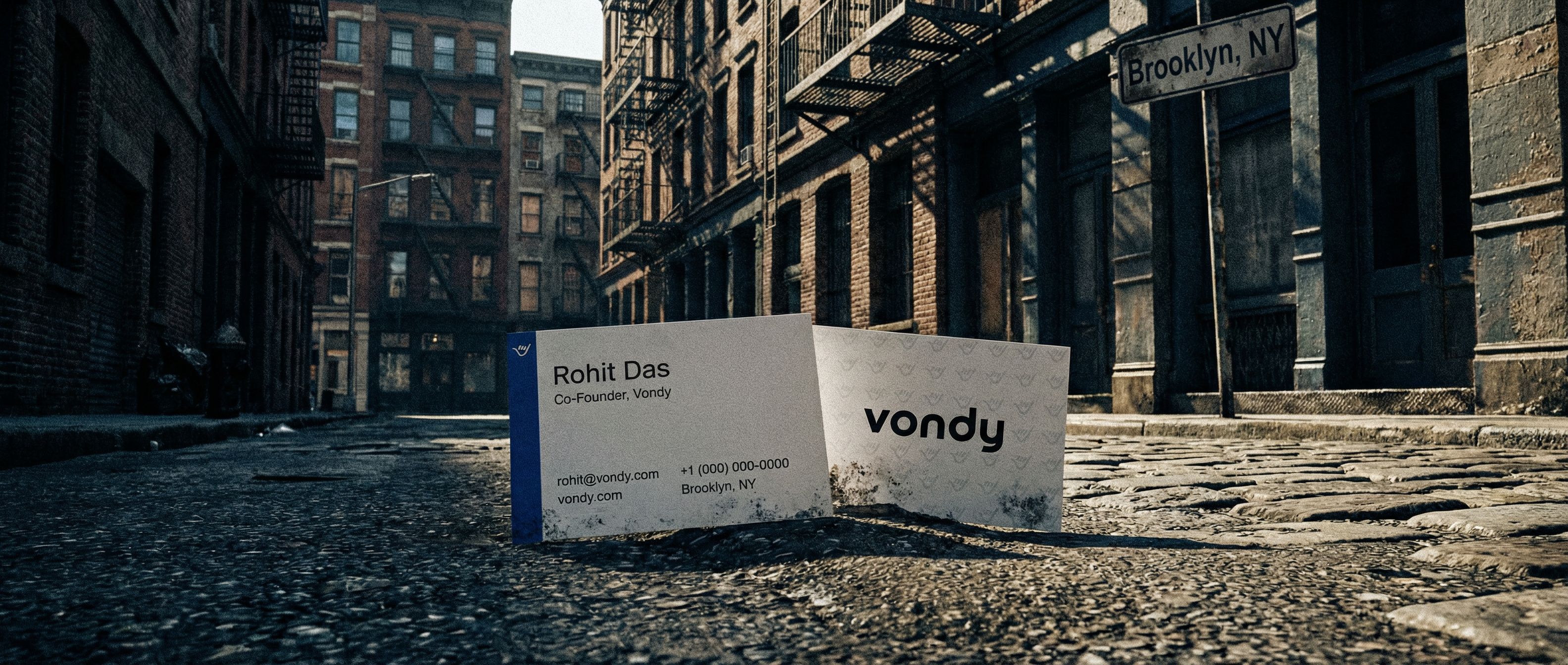
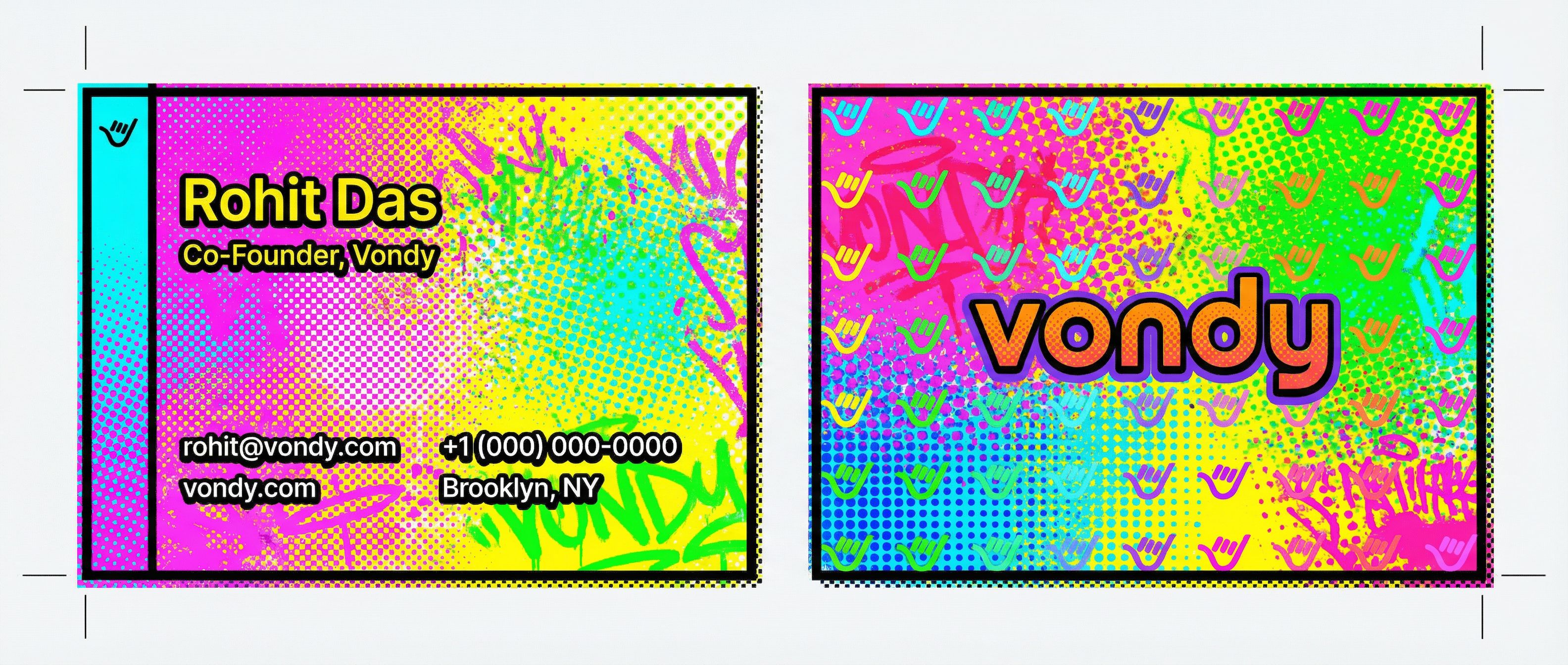
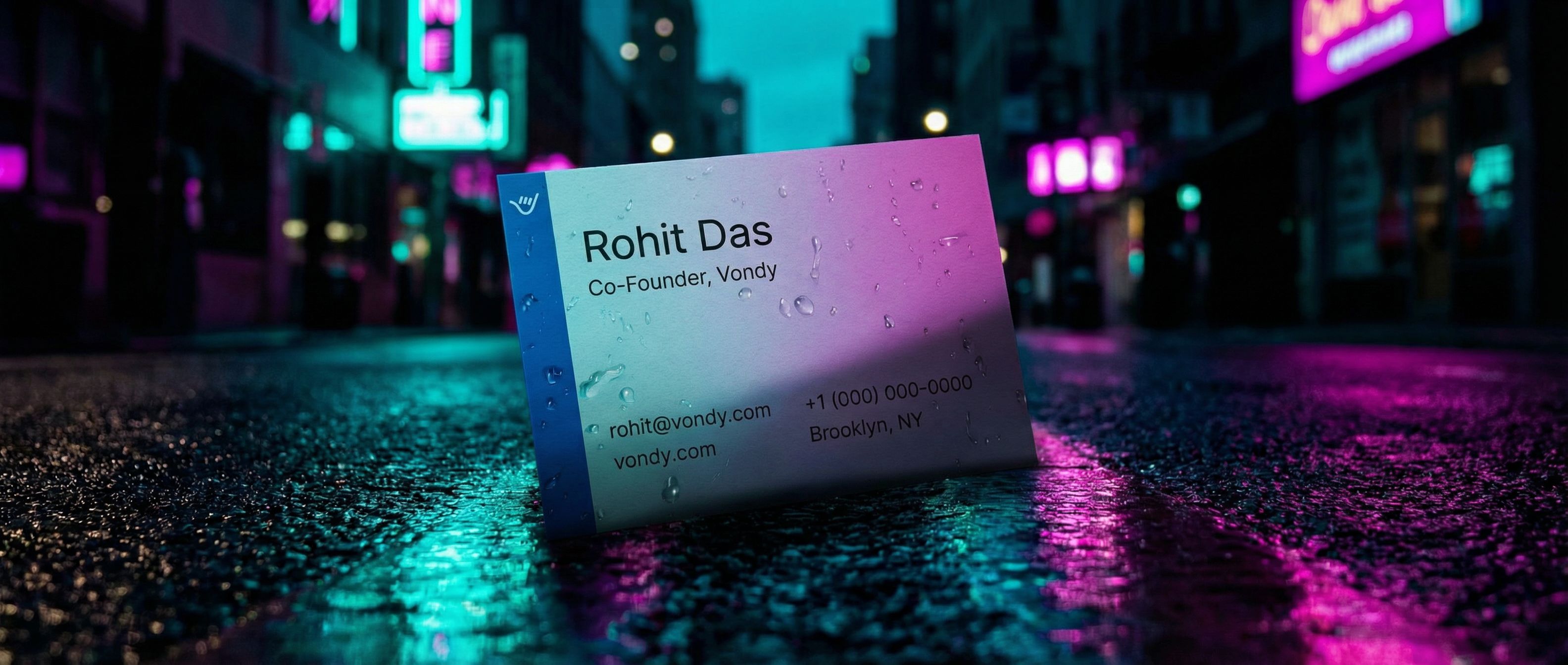
Once you have a layout you like, try different visual styles while keeping the same content. This is perfect for A/B testing or exploring creative directions for special events. You can transform a clean minimal card into pop art, watercolor, or cinematic styles.
NYC Street
Pop Art
Cinematic Night
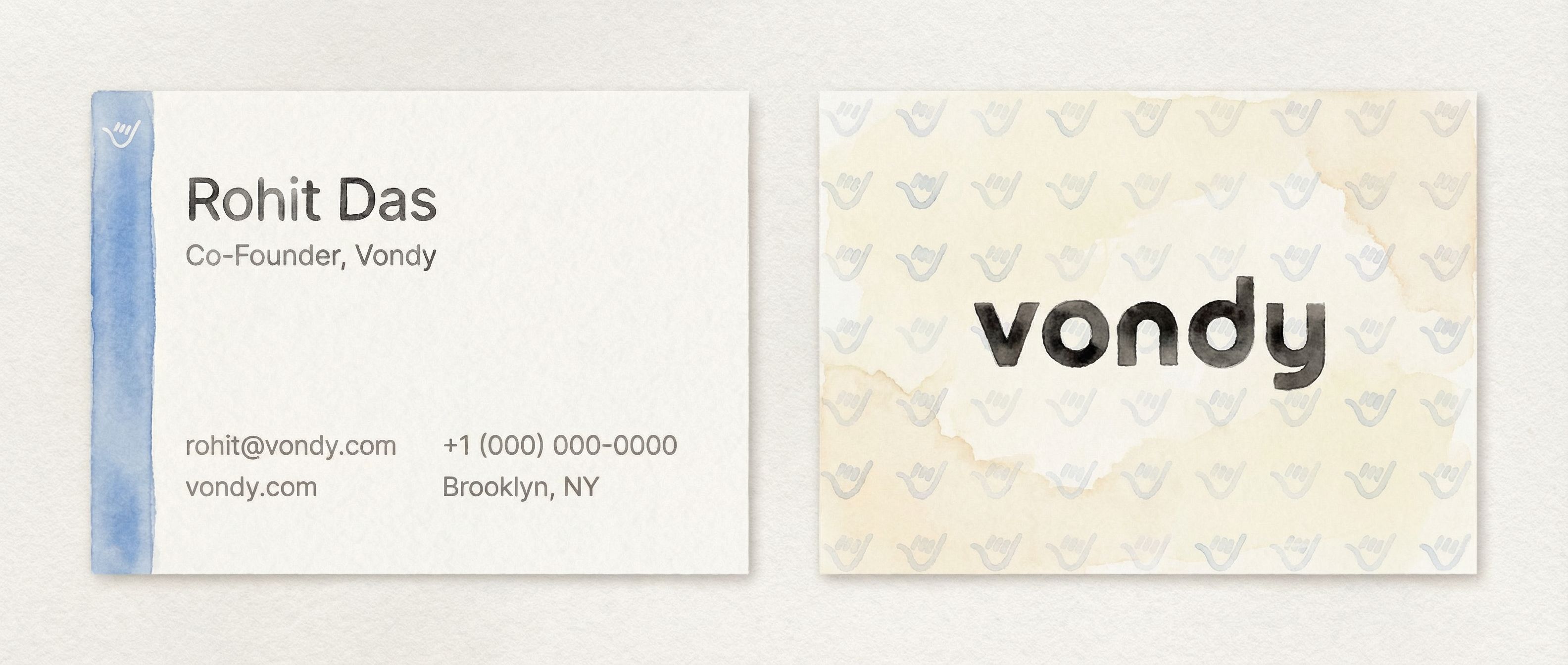
Watercolor
Each variation maintains the same contact info but transforms the visual aesthetic completely. This is the power of using AI image generators for graphic design. For most professional contexts, stick with the clean original, but creative industries might appreciate a bolder style.
Step 5: Export Print-Ready Files
Before sending to printing services, you need separate high-quality files for the front and back. Most print business cards services require individual files at 300 DPI or higher. We cropped each side from our two-up canvas and upscaled to print resolution.
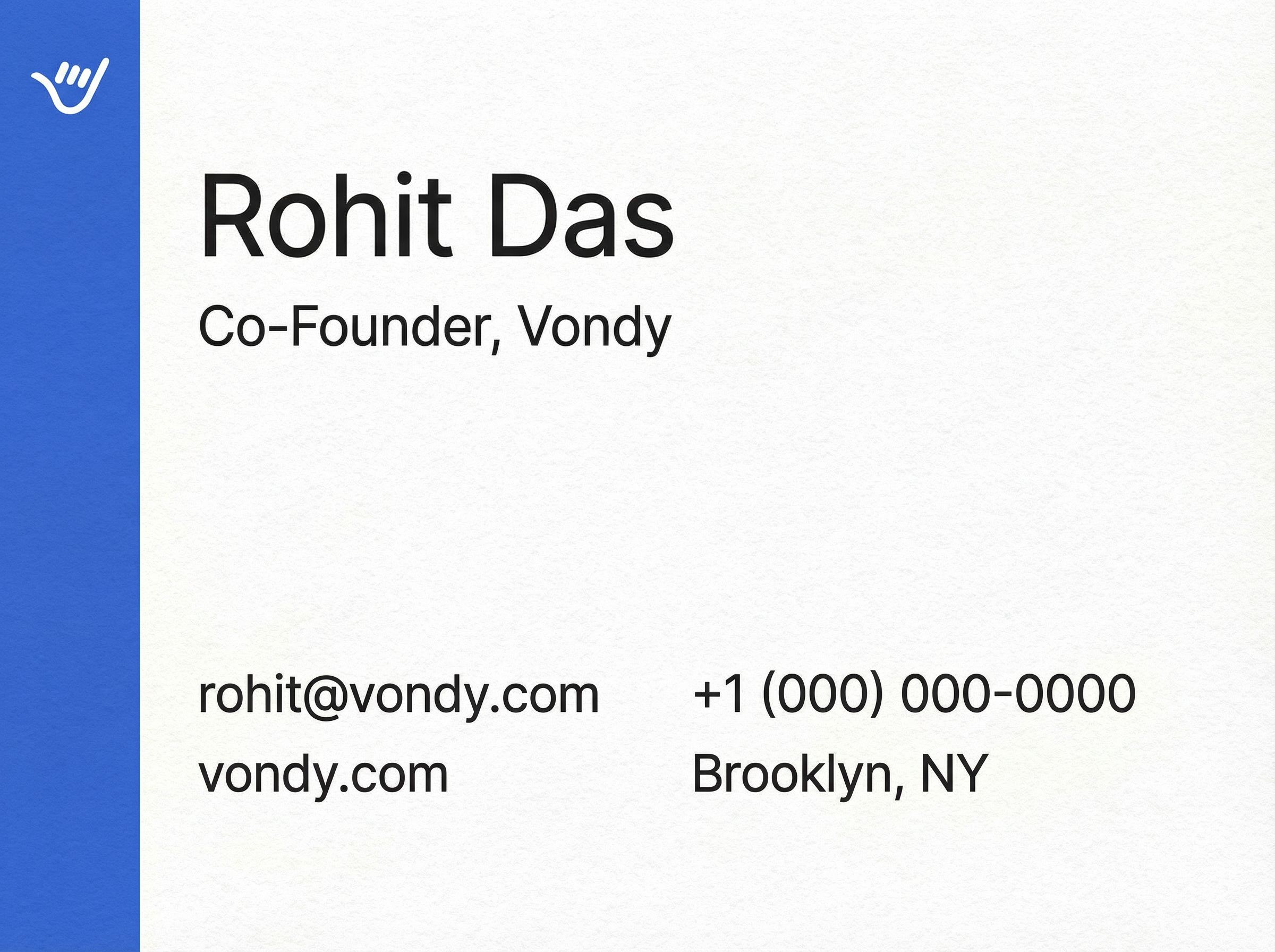
Front Side
Name, title, contact info
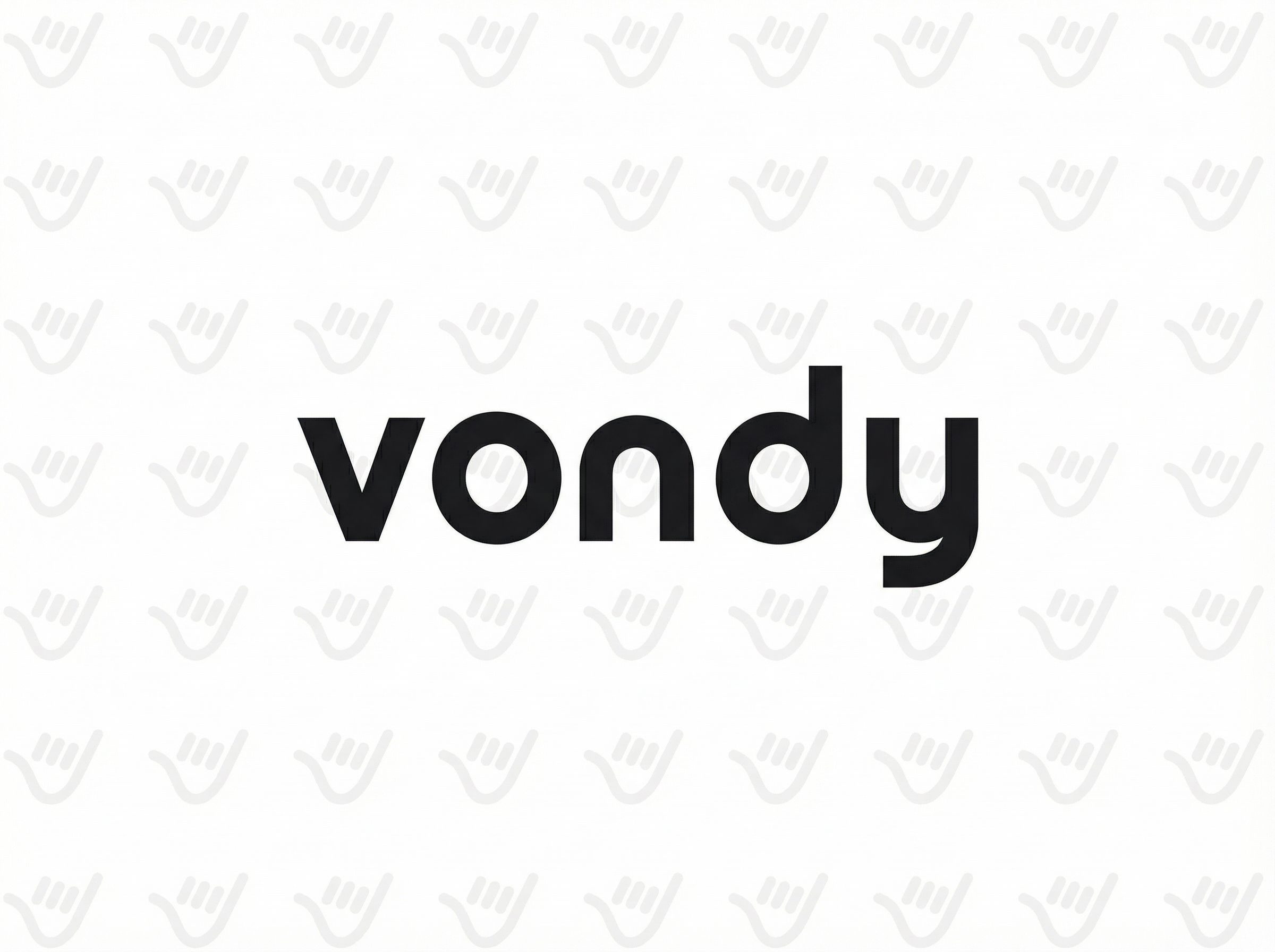
Back Side
Logo pattern and wordmark
Print Specs for Business Cards
- • Standard size: 3.5 x 2 inches
- • Resolution: 300 DPI minimum
- • Bleed: 0.125" on all sides
- • Format: PNG or high-quality JPG
- • Paper stocks: matte, gloss, or uncoated
- • Common upgrades: spot UV, foil stamping
Step 6: Create Realistic Mockups
Before printing, visualize how your custom business card will look in the real world. AI mockups help you see the final result and make better decisions. They're also great for marketing presentations or sharing concepts with stakeholders before committing to a print order.
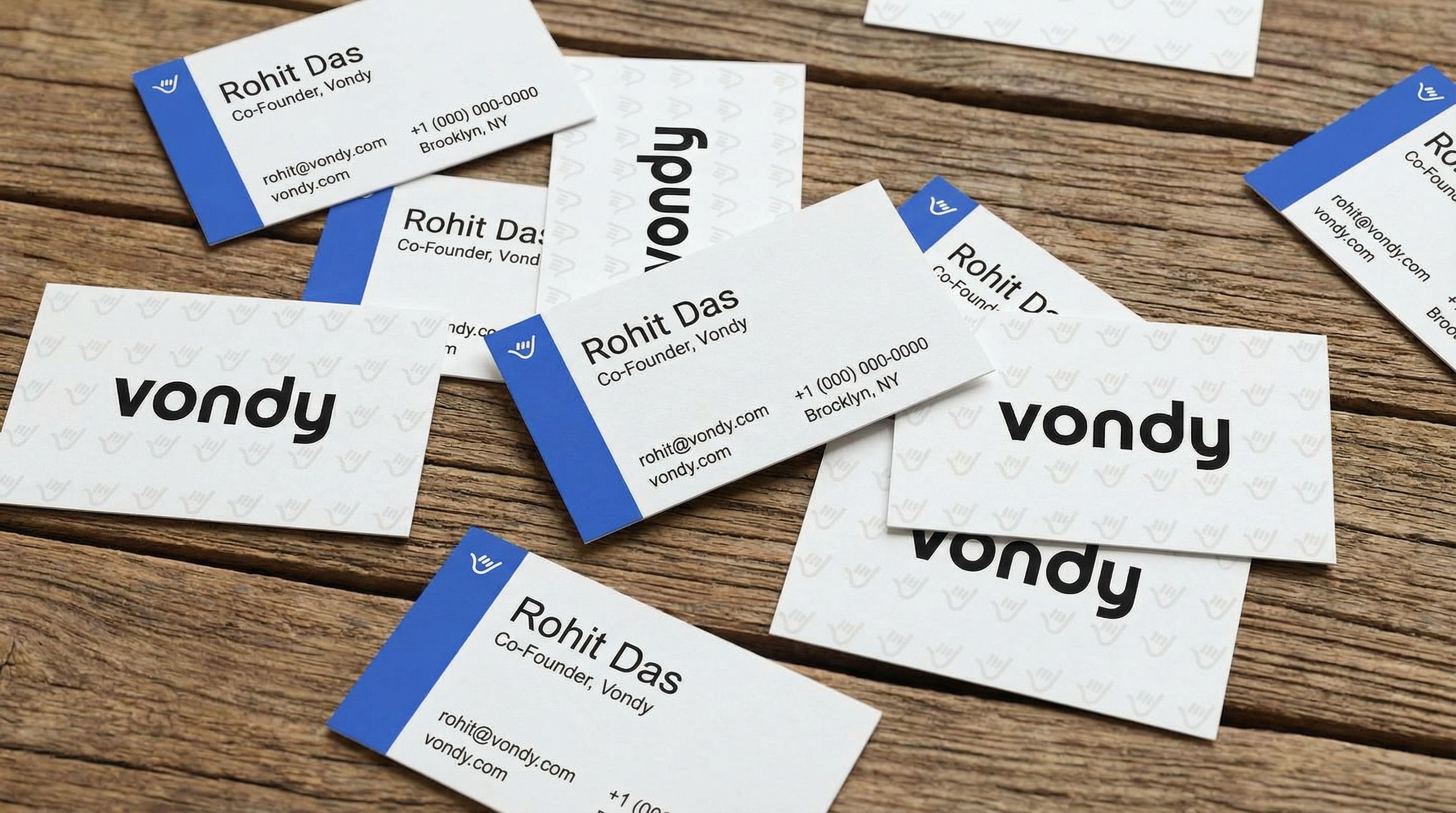
Cards Scattered on Wood Surface
More Mockup Ideas
- • Card held between fingers
- • Stack of cards on marble desk
- • Card in a leather cardholder
- • Cards next to laptop and coffee
- • Card being handed to someone
- • Cards fanned out on white background
Frequently Asked Questions
How does AI compare to traditional business card makers?
Traditional business card templates give you fixed layouts where you swap in your own text and logo. AI creates original designs from scratch based on your description. You get a truly custom business card instead of something built from the same templates everyone else uses. For small business owners without design budgets, this is a first impression game-changer.
What about digital business cards?
Digital business cards are growing in popularity, especially with QR codes. You can use AI to design cards that include a QR code linking to your LinkedIn, website, or digital vCard. The same design process works, just include "QR code placeholder" in your prompt. Many professionals now use both print and digital versions.
What file format should I use for printing?
For high-quality printing, export as PNG for lossless quality or JPG for smaller file sizes. Most printing services want at least 300 DPI at the final print size. For a standard 3.5 x 2 inch card, that means roughly 1050 x 600 pixels minimum, but higher is better. We recommend upscaling to at least 2x that resolution.
Can I use AI for real estate or non-profit business cards?
Absolutely. AI works for any industry, including real estate agents, non-profits, and creative professionals. Just adjust your prompt to include industry-specific elements like headshots for agents, mission statements for non-profits, or portfolio links for creatives. The customization options are unlimited.
How do I get the sharpest text on my business cards?
Always specify "keep typography sharp and readable" in your prompt. Generate at the highest resolution available, then upscale before printing. For critical text like your company name and contact info, check the result at 100% zoom before sending to print. If fonts look soft, try regenerating with "crisp vector-like typography" in your prompt.

Create Your Business Cards with Vondy
All the AI design tools used in this tutorial are available on Vondy. Generate concepts, refine designs, and export print-ready files in one workspace.
Start creating
Continue Learning