
Making collages used to mean hours in Photoshop or settling for basic templates in a free photo collage maker. Traditional tools like Adobe Lightroom are powerful but have a steep learning curve for beginners. Drag-and-drop apps work for simple grids, but they limit your creative options and often add watermarks unless you pay.
AI changes everything. Now you can create your own collage from your own photos with a single prompt. Describe the collage layout you want, upload your pictures, and let AI handle the composition. This tutorial walks you through the entire process using photos from a Japan trip.
What You'll Learn
- How to select and prepare photos for a digital collage
- Generating multiple collage layout concepts with AI
- Creating style variations from mixed media to watercolor effects
- How to add text and labels to your finished collage
- Resizing for Instagram, desktop wallpapers, and print
Step 1: Gather Your Photos
The first step in making collages is selecting your source images. Whether you're using your own photo library or stock photos, aim for 6-10 images with varied subjects. For a travel photo collage, mix landscapes, food, architecture, and candid moments. The variety makes your picture collage more interesting.
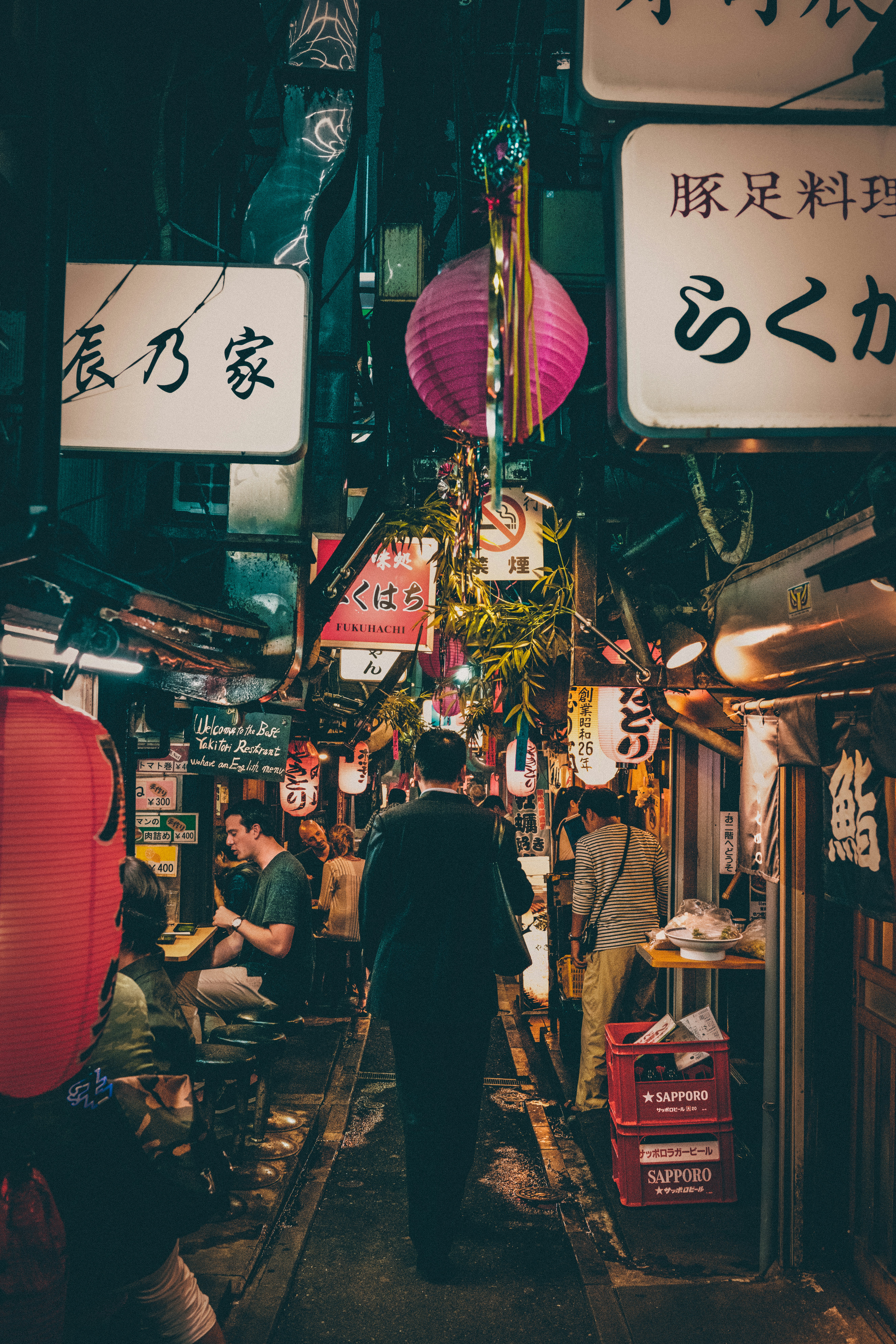
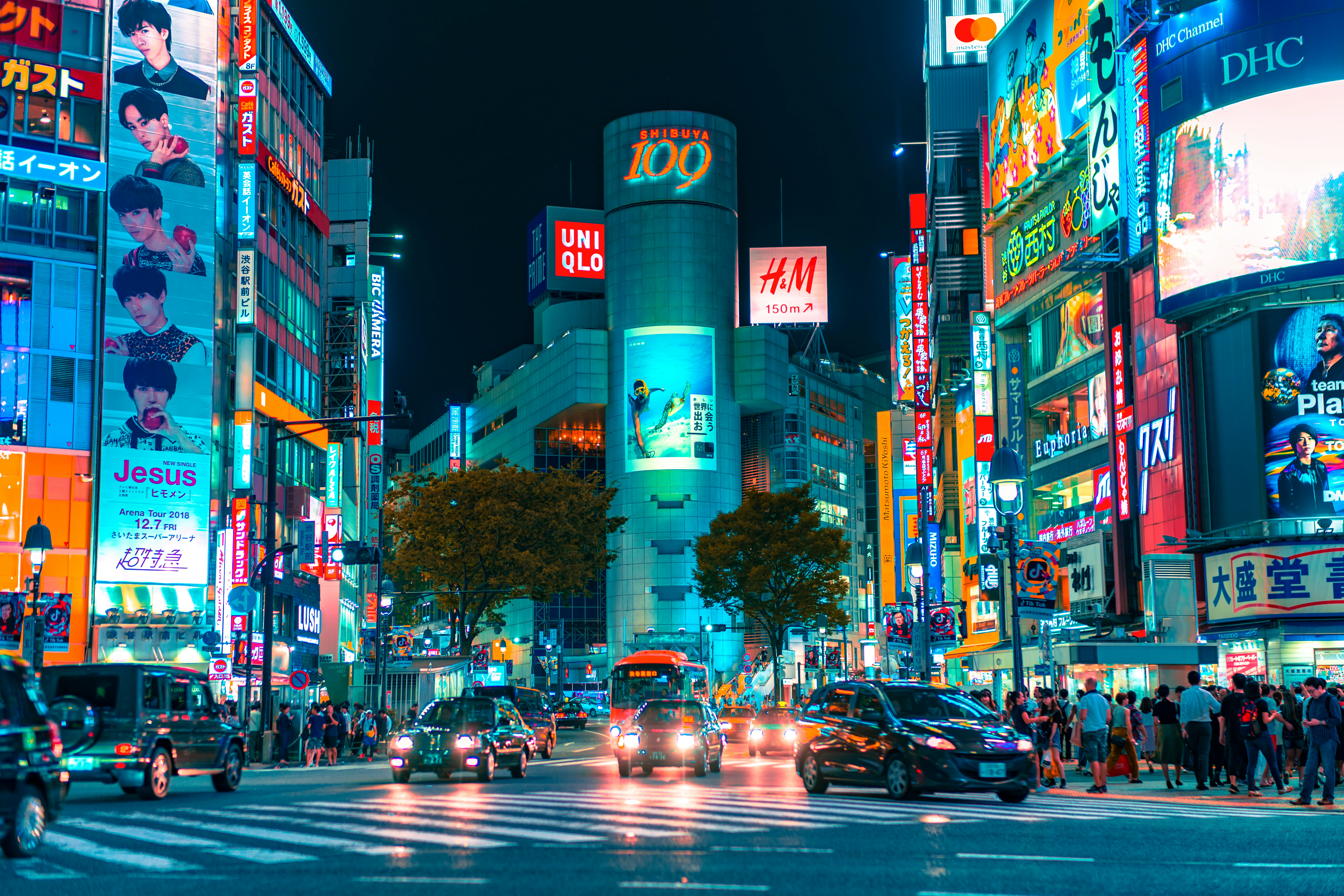
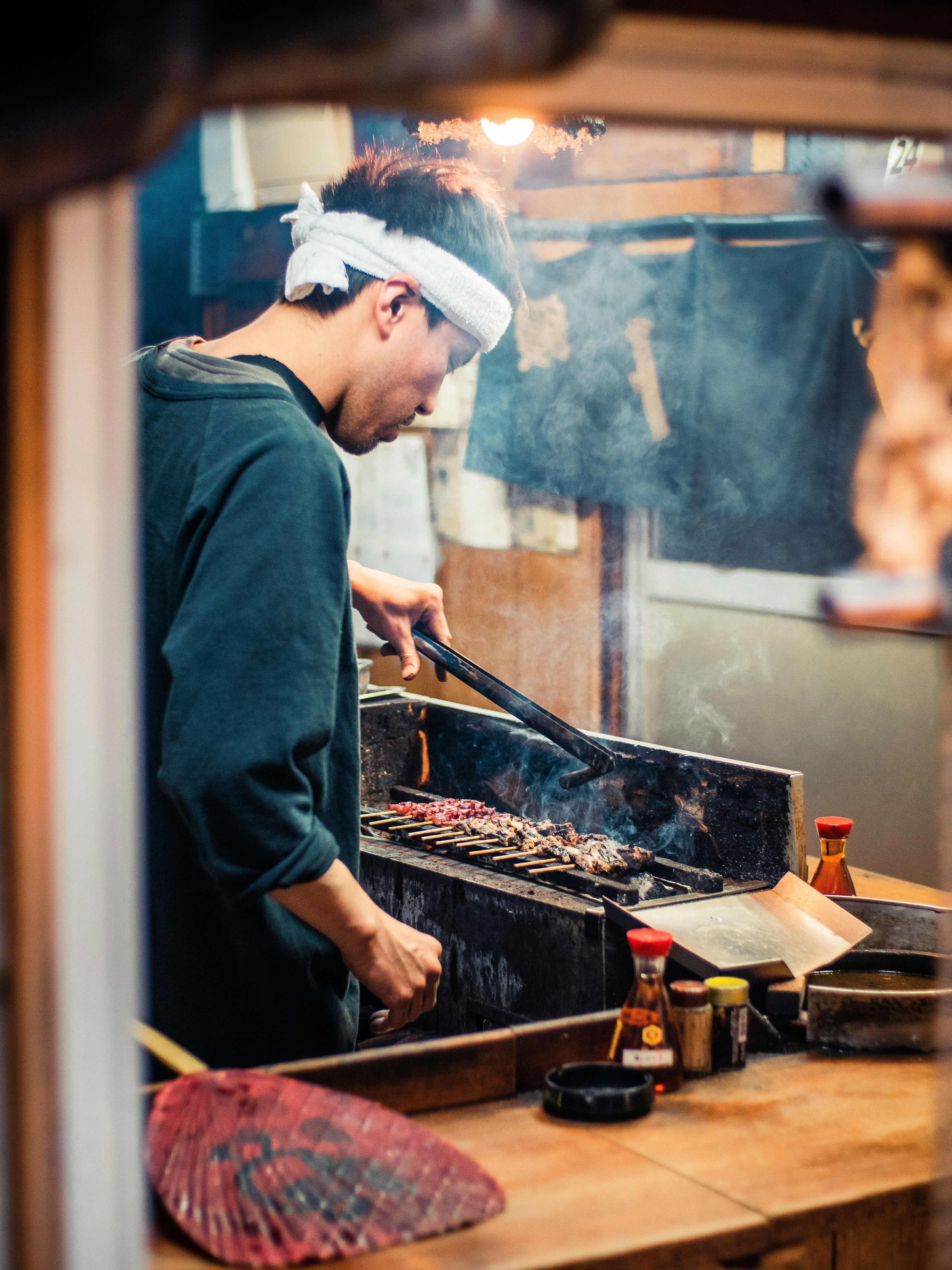
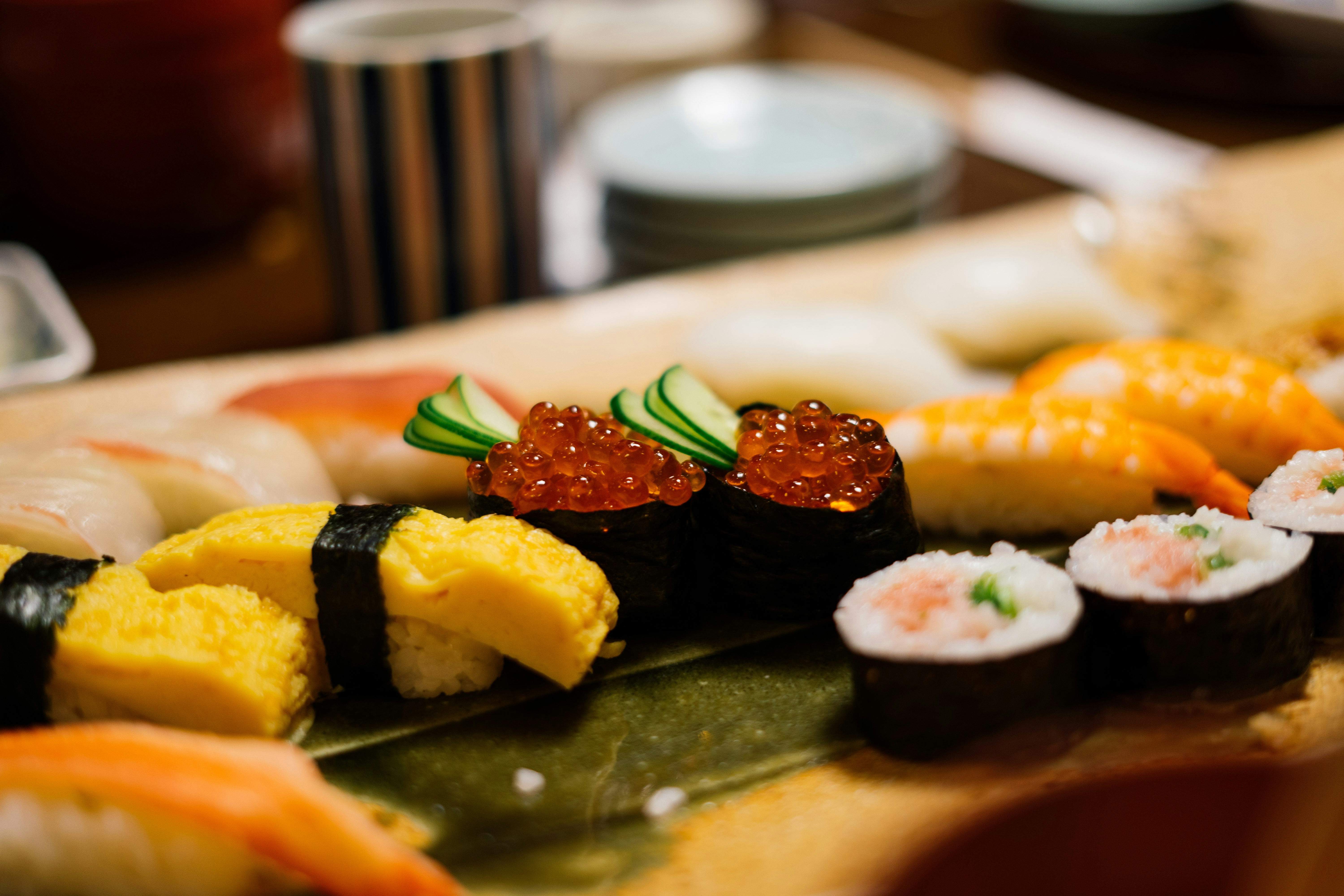

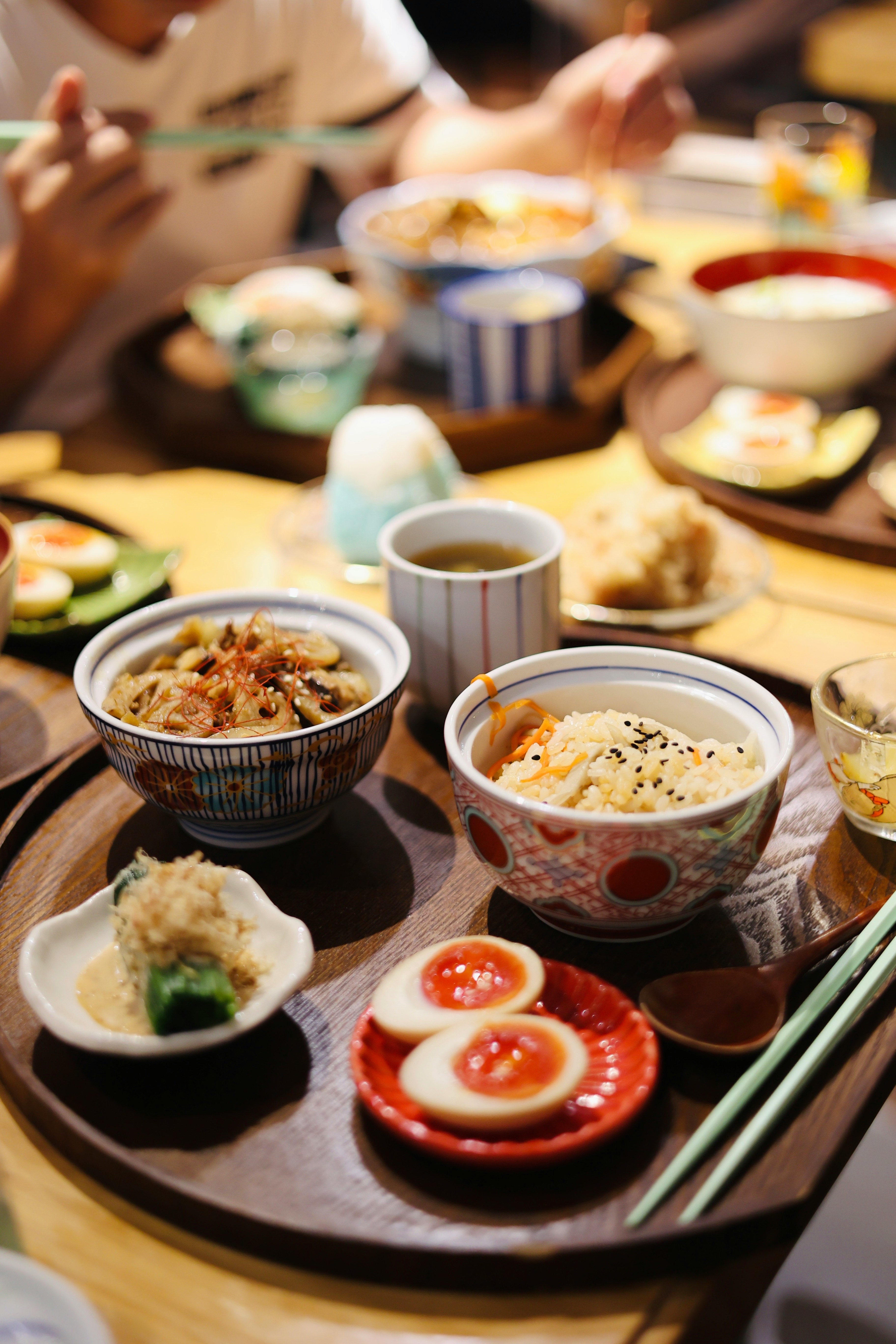
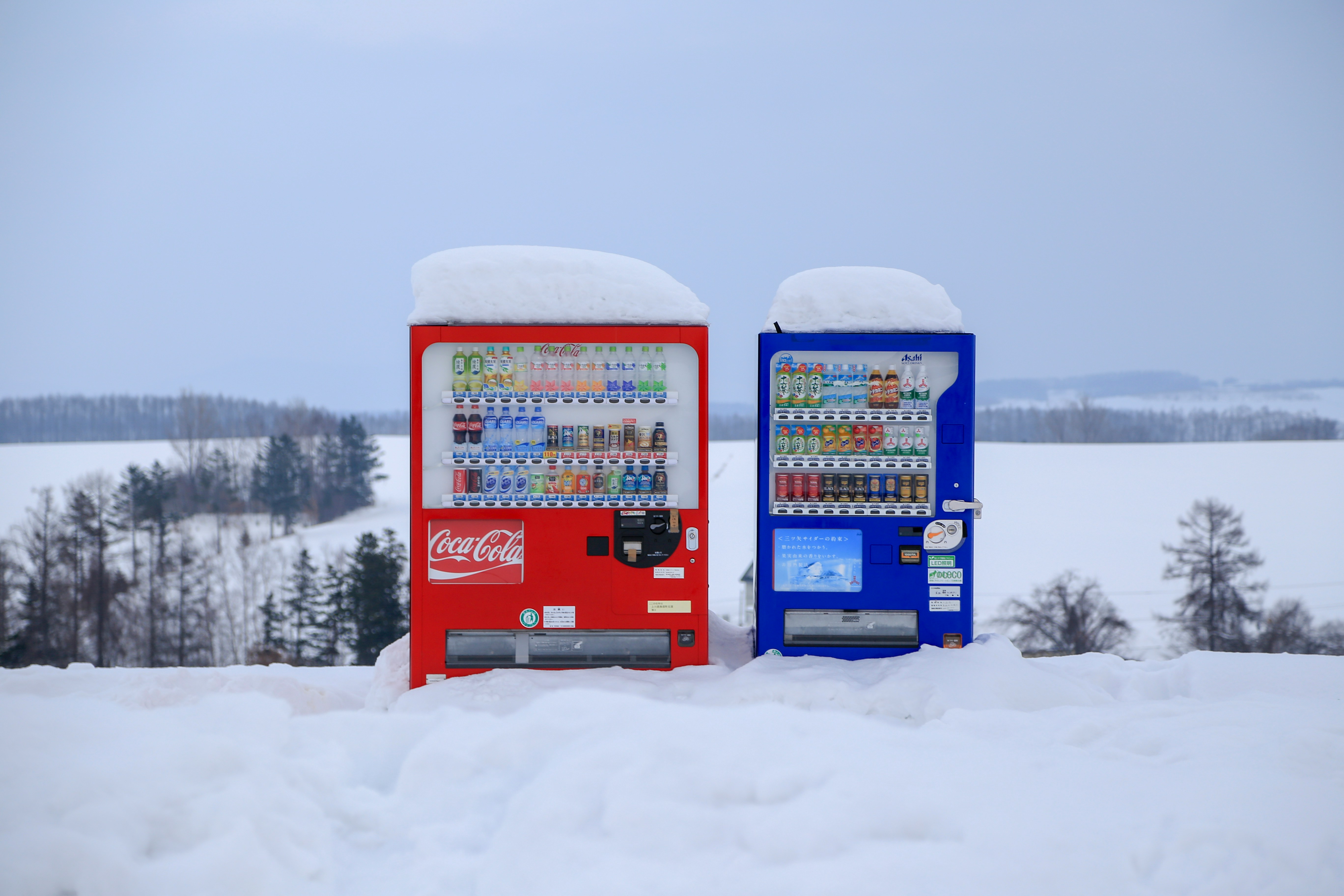
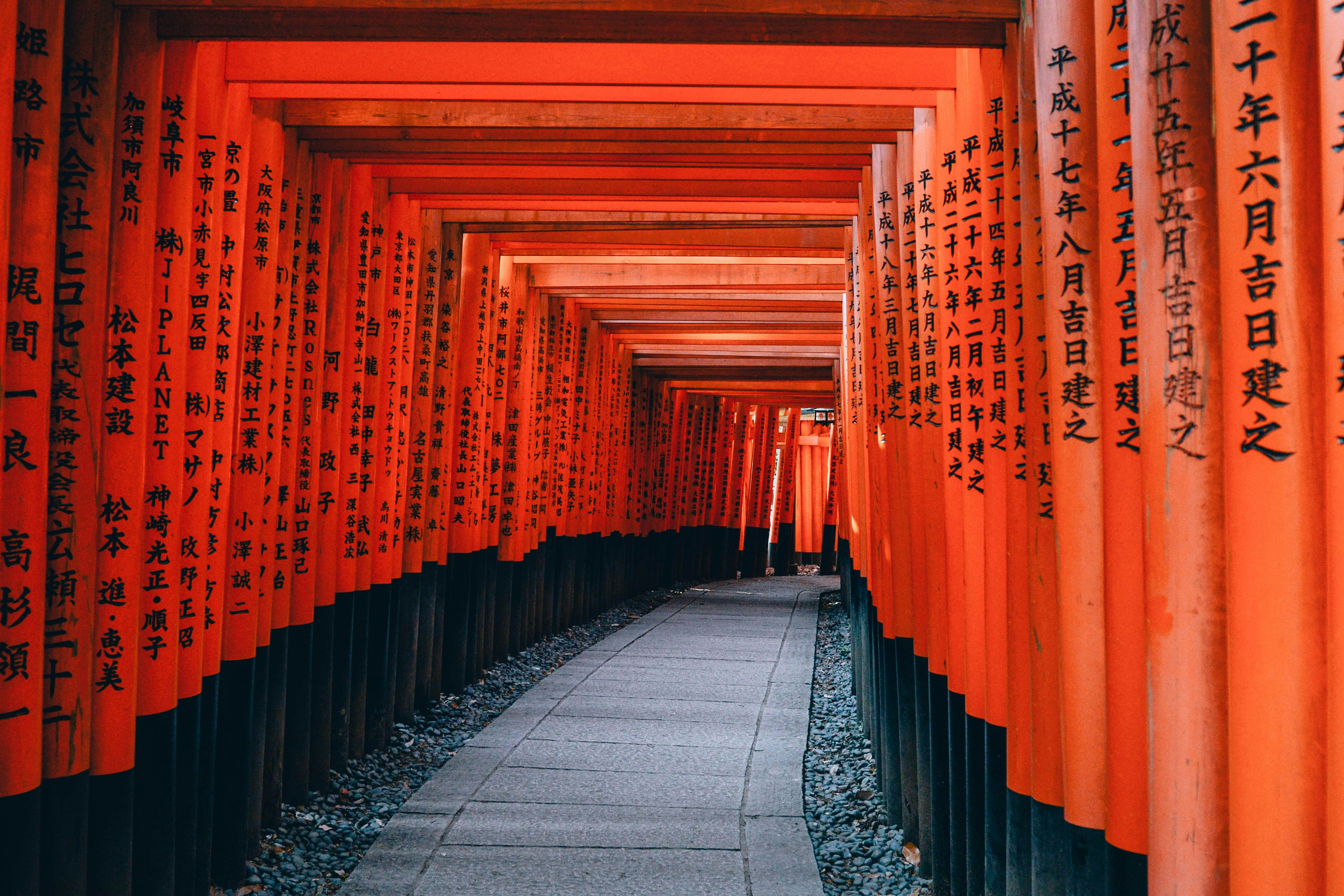
Our source photos from a Japan trip - click to enlarge
Good Photo Selection
- • Mix of orientations (portrait and landscape)
- • Varied subjects and compositions
- • High-quality images (at least 1080 pixels wide)
- • Consistent color palette or theme
Photo Prep Tips
- • Use photo editing to adjust exposure if needed
- • Cut out distracting backgrounds on key images
- • Consider image size and aspect ratios
- • Upload JPG or PNG for best results
Step 2: Generate Collage Concepts
This is where AI shines. Instead of manually arranging photos like you would in Photoshop or a basic photo album maker, you describe the collage layout you want and let AI handle composition. Try 2-3 different styles for your first collage to see what works best.
Create a [style] travel collage using the provided photos. Design: [layout description]. Background: [surface/texture]. Keep the photos exactly as-is - do not alter them. No text.Here are three concepts we generated using the same Japan trip photos. Each uses a different collage layout and aesthetic:
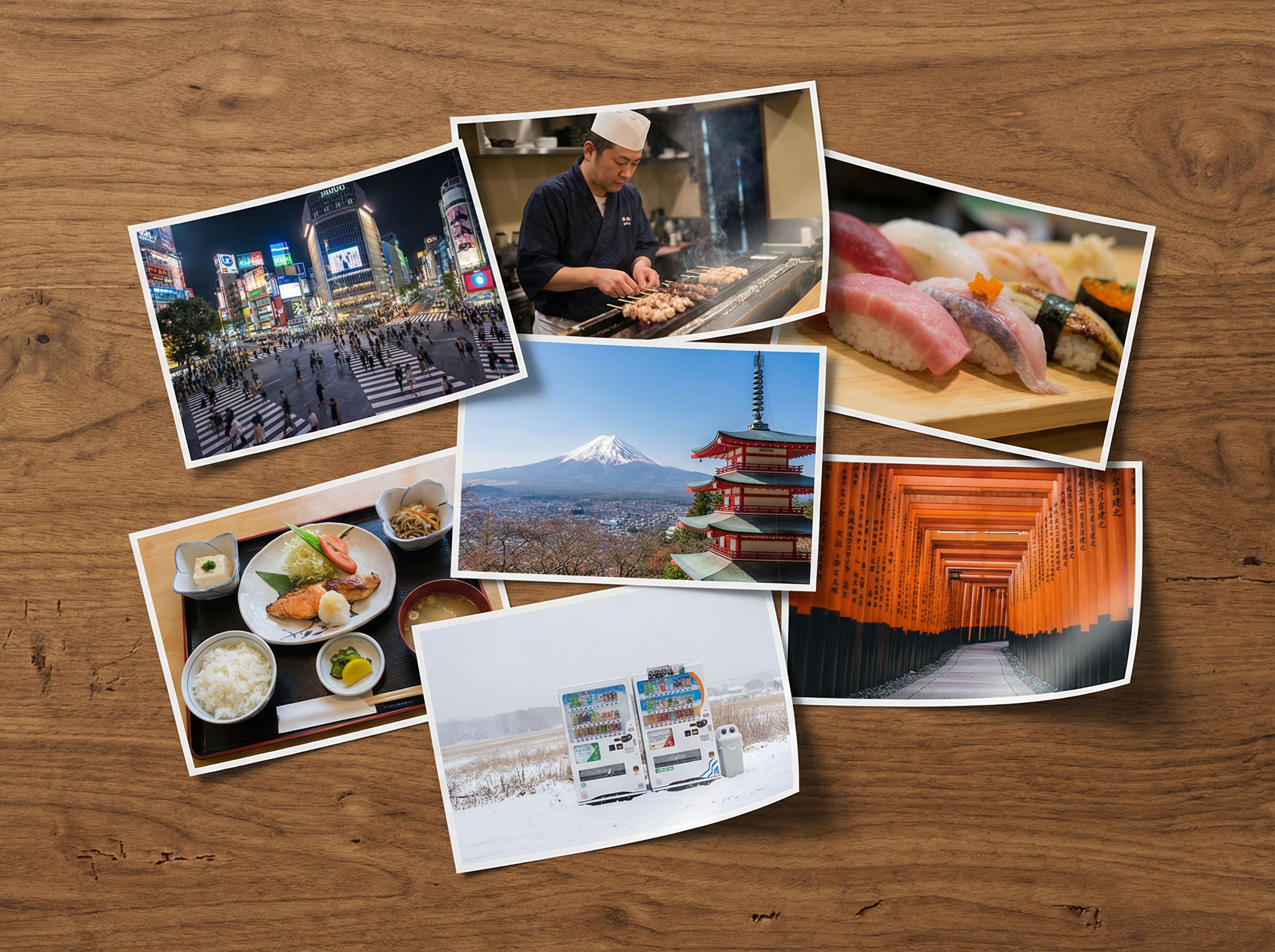
Organic Scatter
Photos spread naturally on wooden table
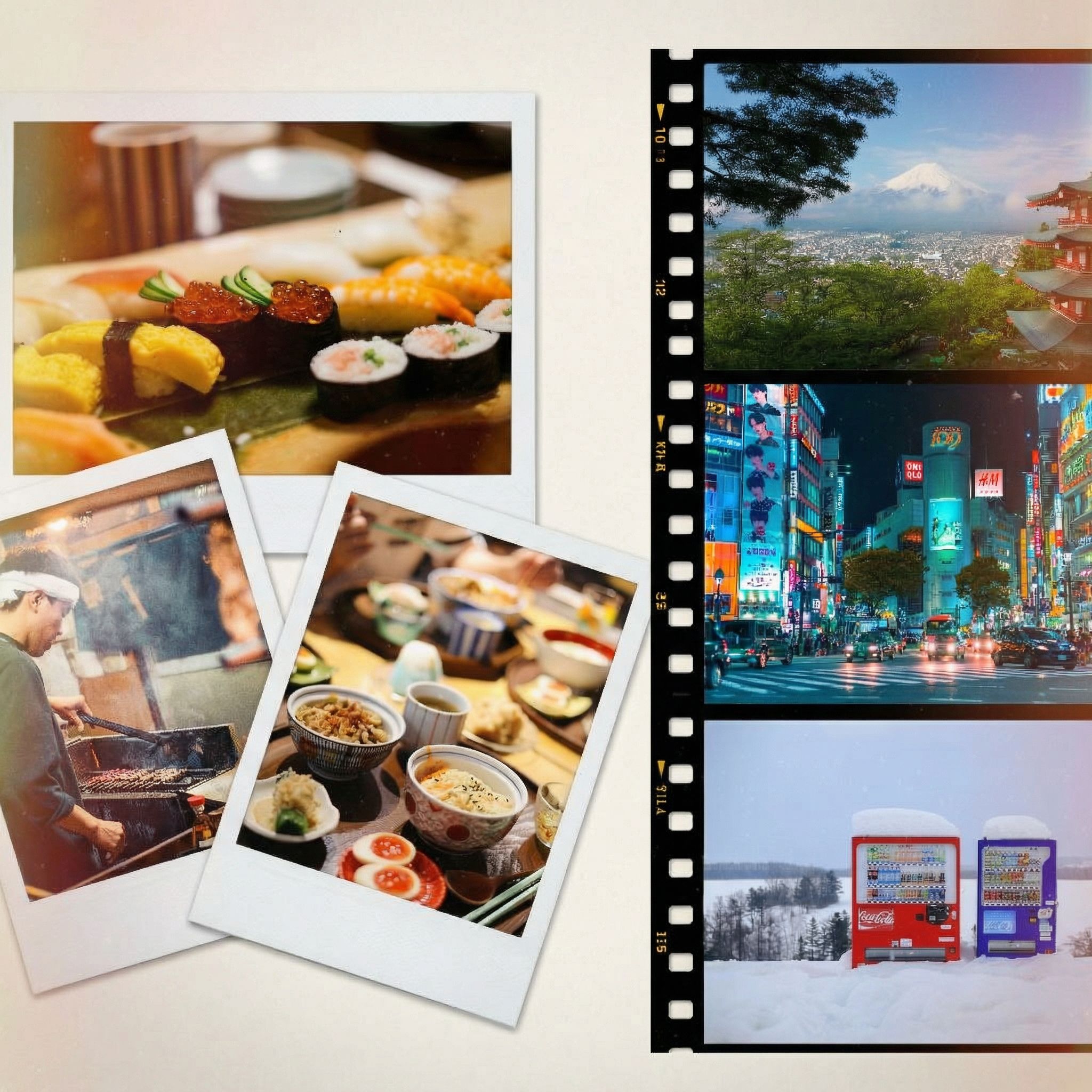
Polaroid & Film Strip
Polaroids + 35mm film strip nostalgia
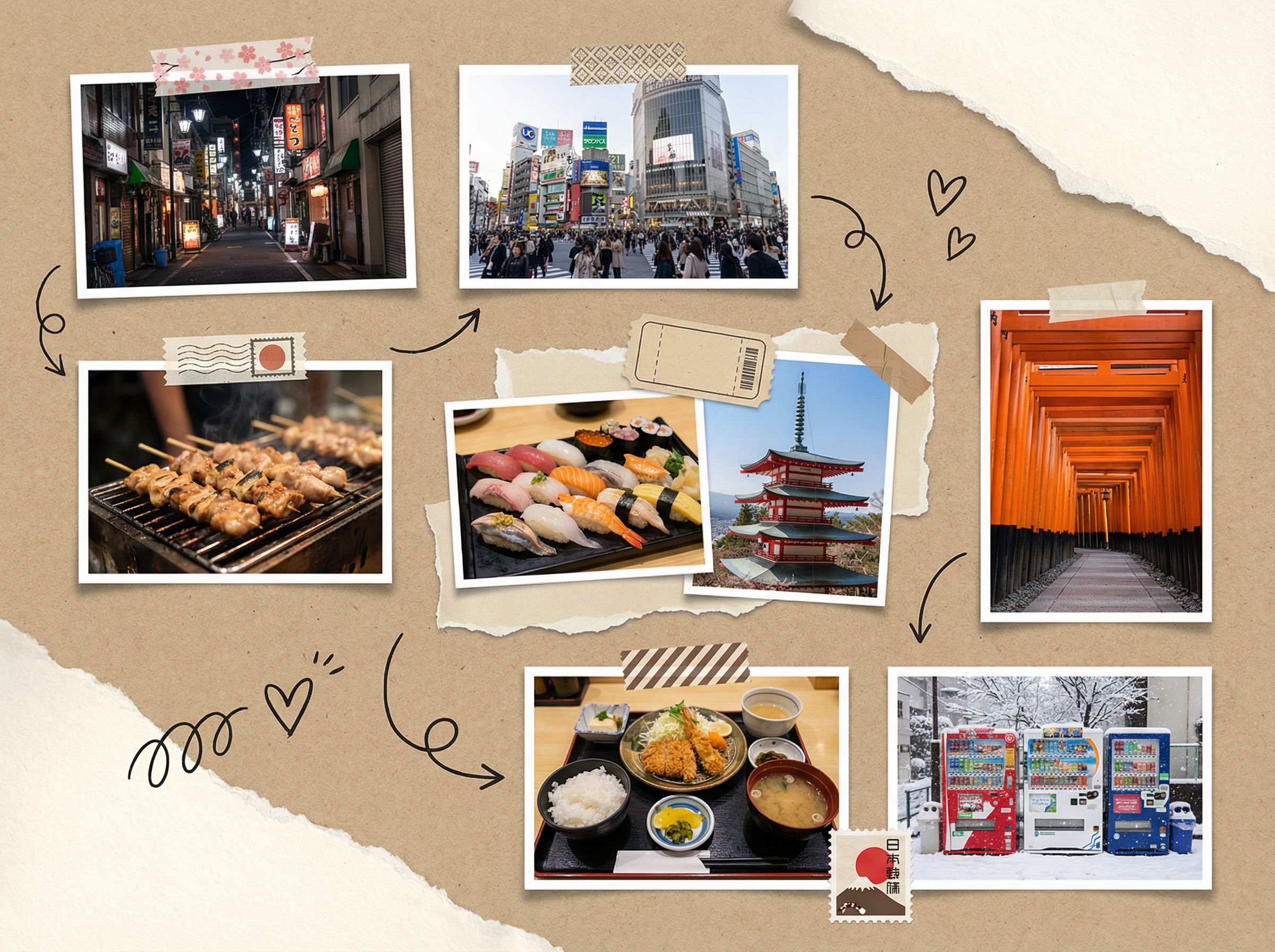
Mixed Media Scrapbook
Craft scrapbook with washi tape & stickers
More Collage Layout Ideas
- • Classic Grid: Clean rows and columns with consistent spacing
- • Heart Shape: Photos arranged in a heart for DIY gifts
- • Timeline: Chronological arrangement for event collages
- • Photo collage templates: Magazine-style layouts with varied sizes
Step 3: Create Style Variations
Once you pick a favorite layout, you can generate style variations while keeping the same composition. This is perfect for testing different moods. Maybe you want a vintage film look, or perhaps a clean modern style for social media. Unlike basic templates, AI lets you explore any aesthetic imaginable.
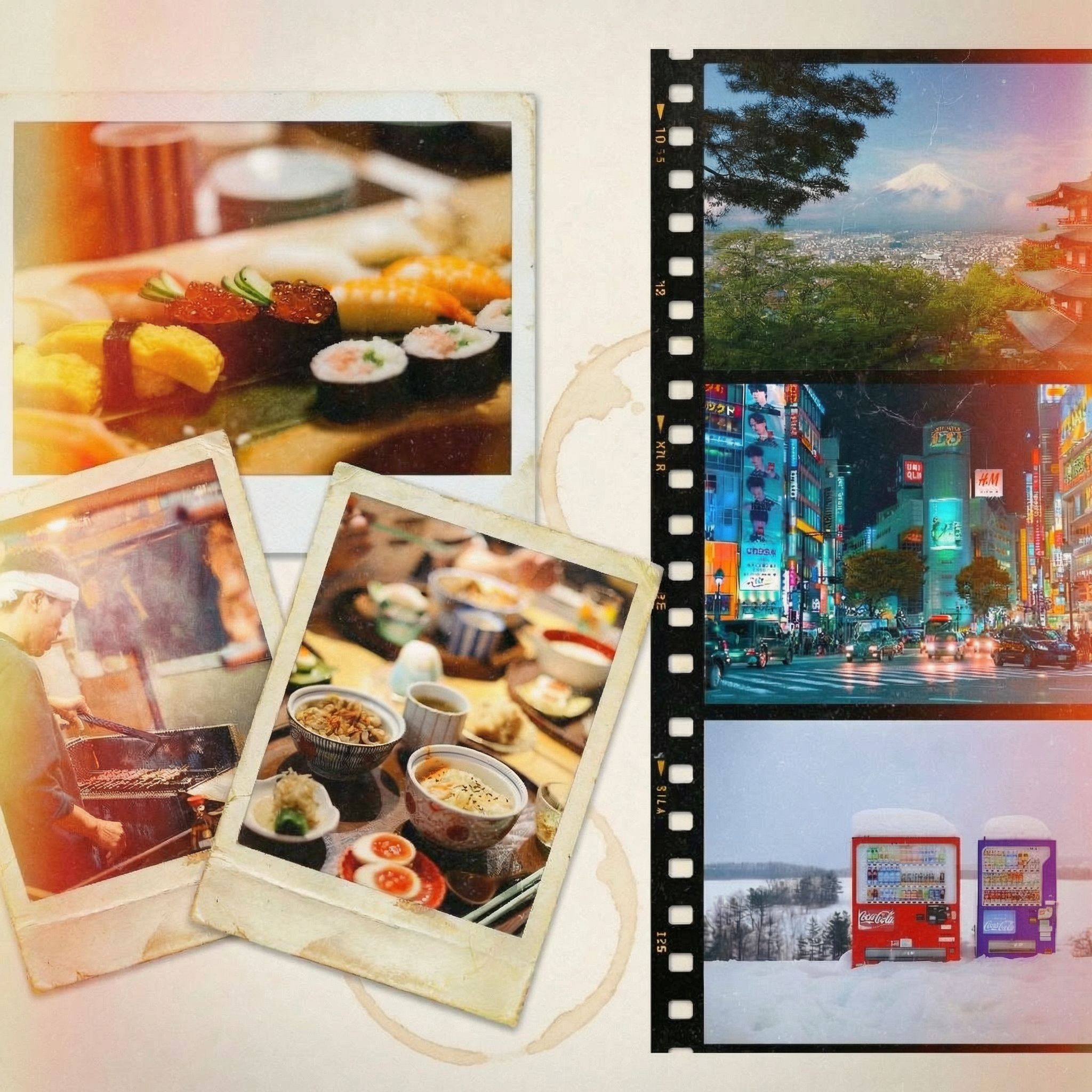
Sun-Faded 1970s
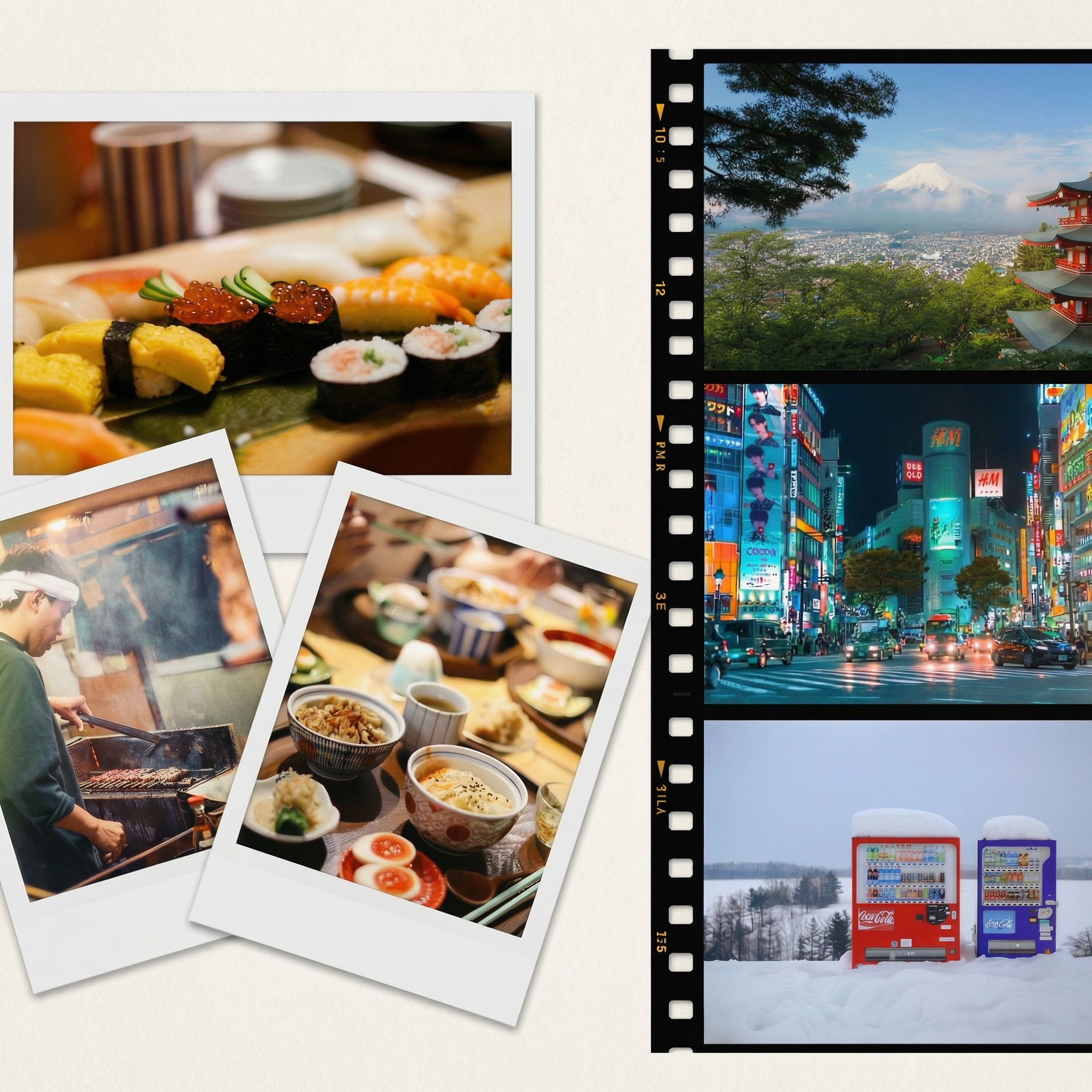
Clean Modern Editorial
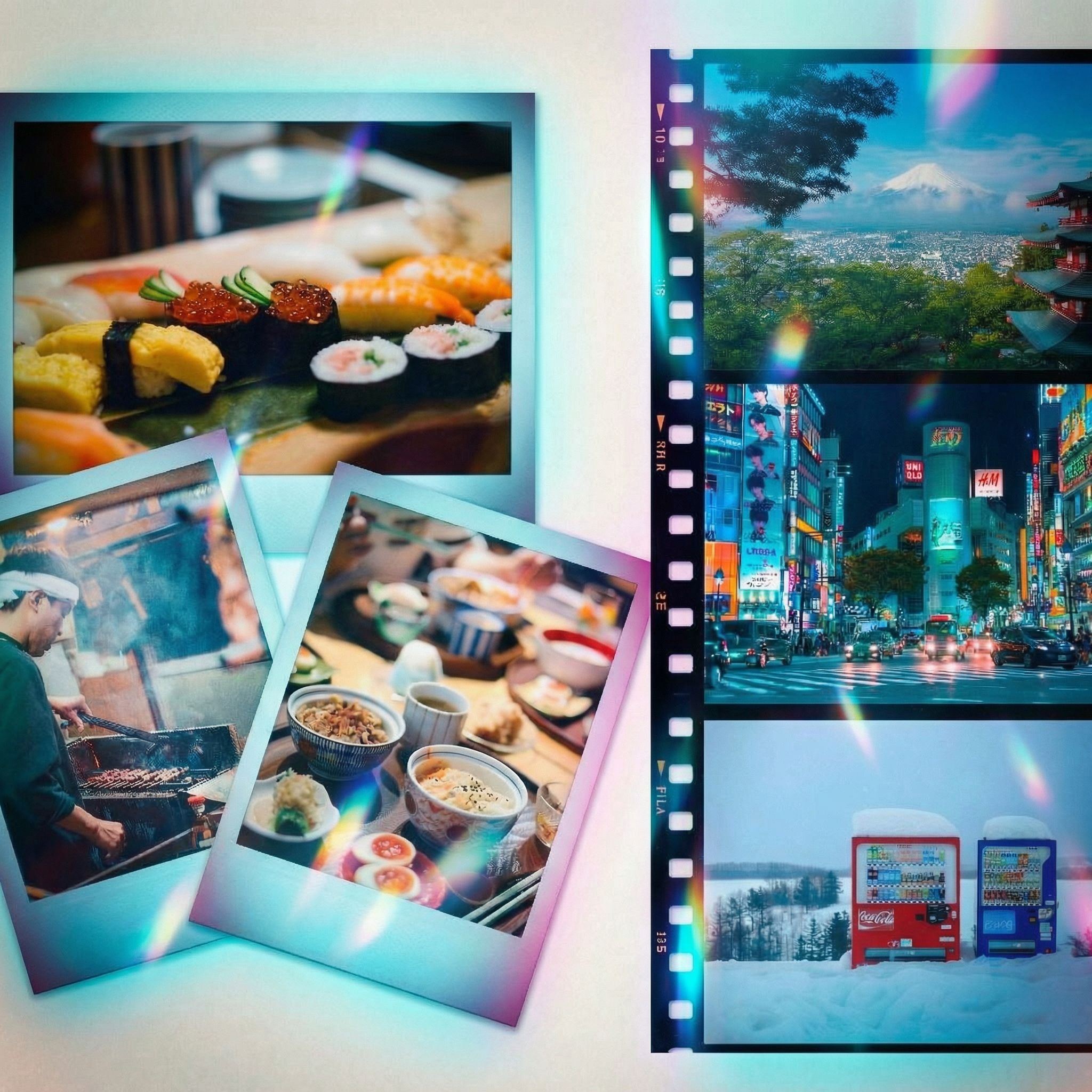
Neon Night Vibe
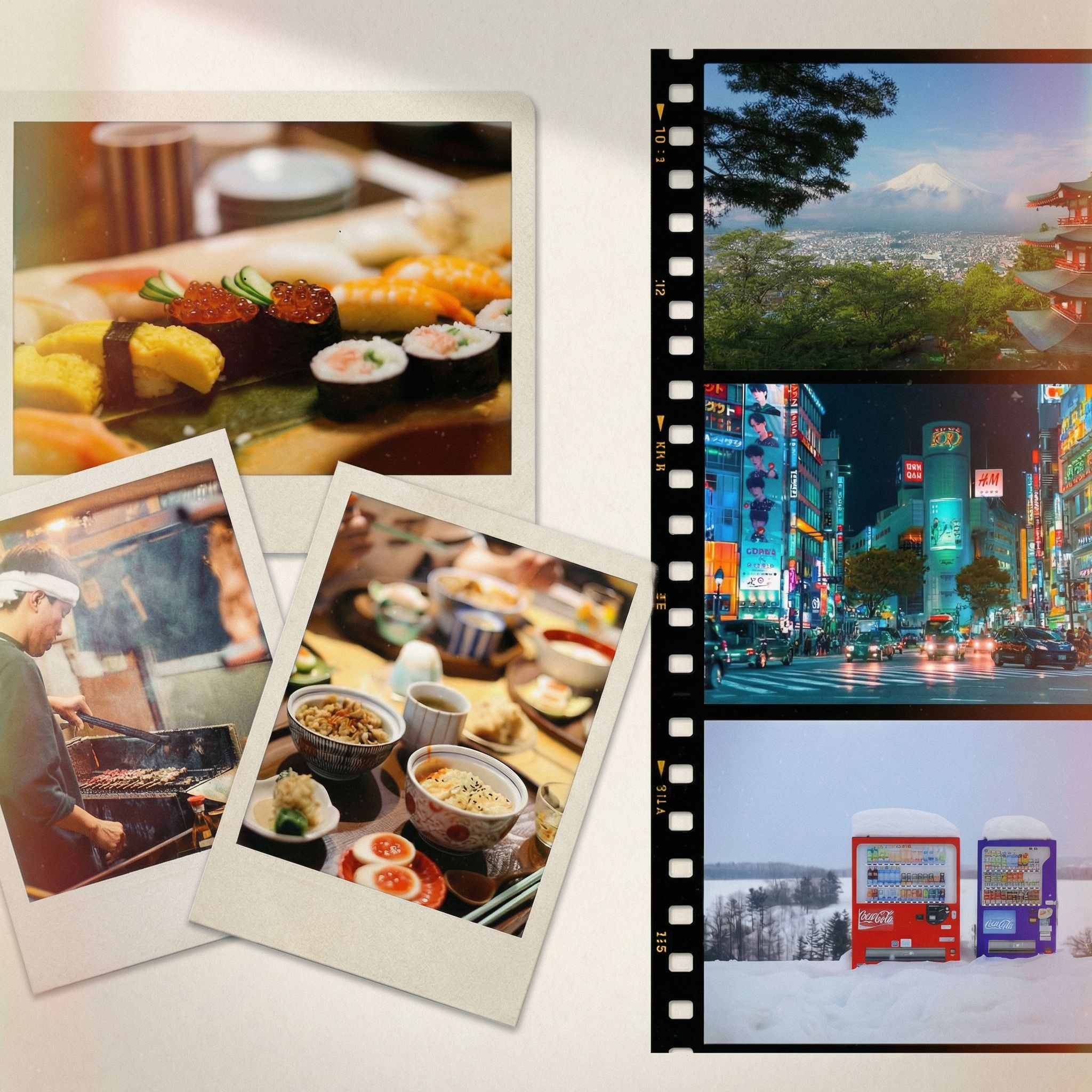
High-End Scrapbook
Each variation maintains the same photo arrangement but transforms the visual style. The 1970s version adds warm tones and light leaks. The neon version adds cyan and magenta glows. This is the power of using AI image generators for creative work.
Step 4: Add Text and Labels
Want to add text to your finished collage? You can use AI photo editing to add handwritten labels, dates, or captions. The AI will match the style of your collage, whether that means elegant fonts for a wedding album or playful lettering for a travel scrapbook.
Edit Example: Add Trip Label
Before
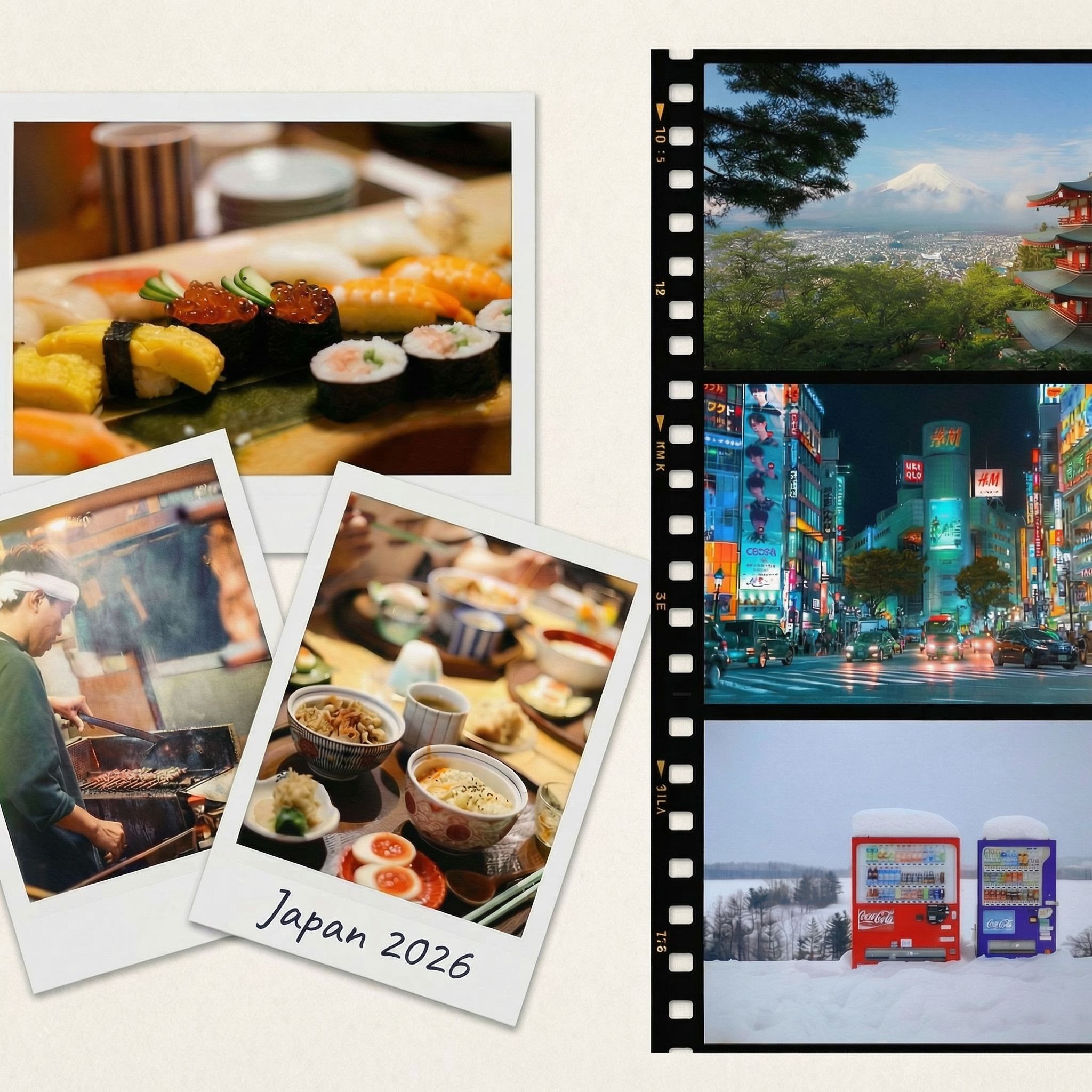
After
Click for before/after
We added a handwritten "Japan 2026" label to one of the polaroid frames. The AI matched the style to look like authentic marker lettering on the photo border. You can also add stickers, stamps, or decorative elements the same way.
Step 5: Resize for Different Platforms
A single collage can be adapted for multiple uses. AI can intelligently resize and extend your design to fit Instagram stories, desktop wallpapers, or any custom size. Unlike simple crop-and-stretch tools, AI fills new space with contextually appropriate content.
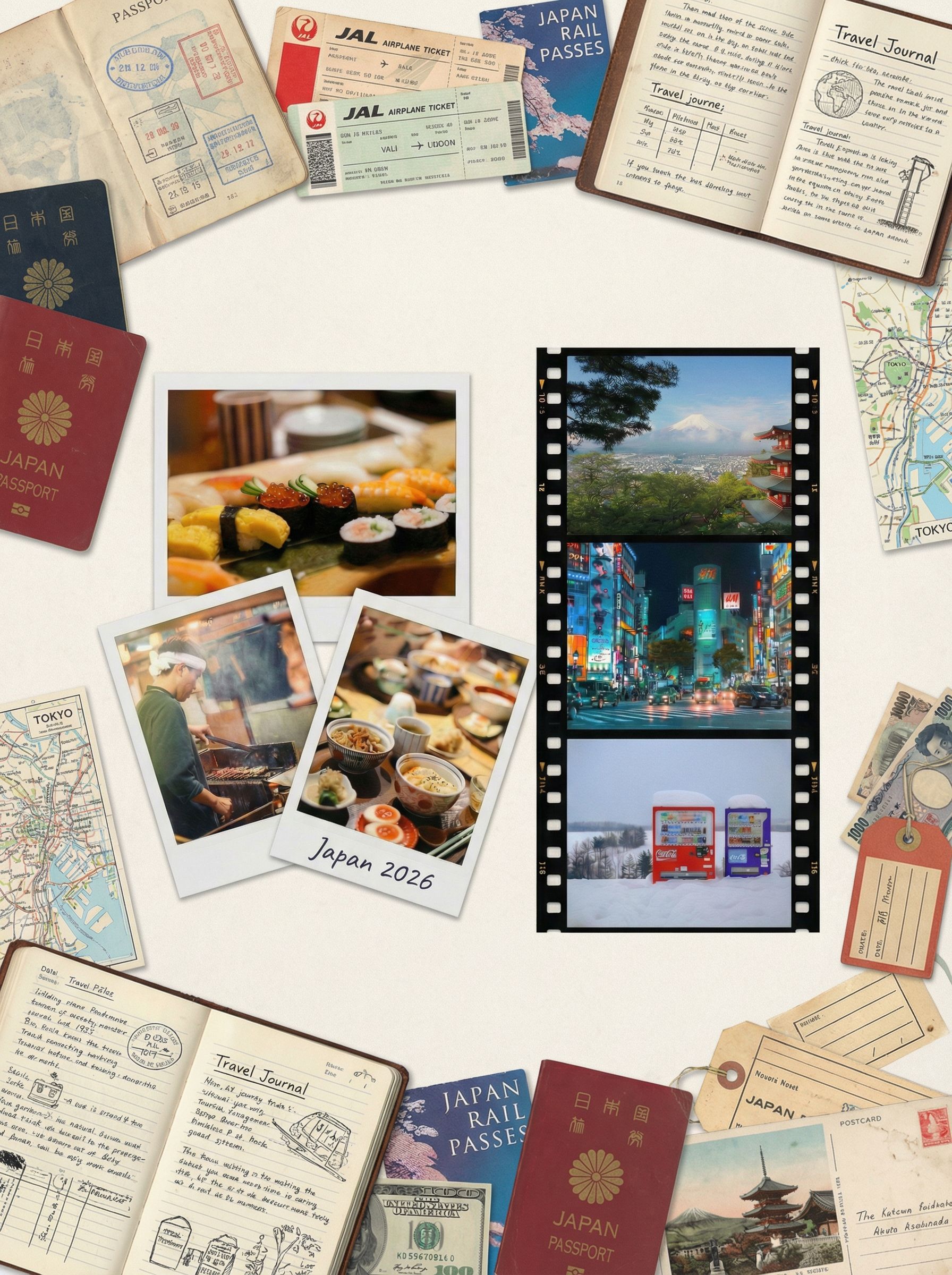
Instagram Story (3:4)
Vertical format for Instagram and phone wallpapers
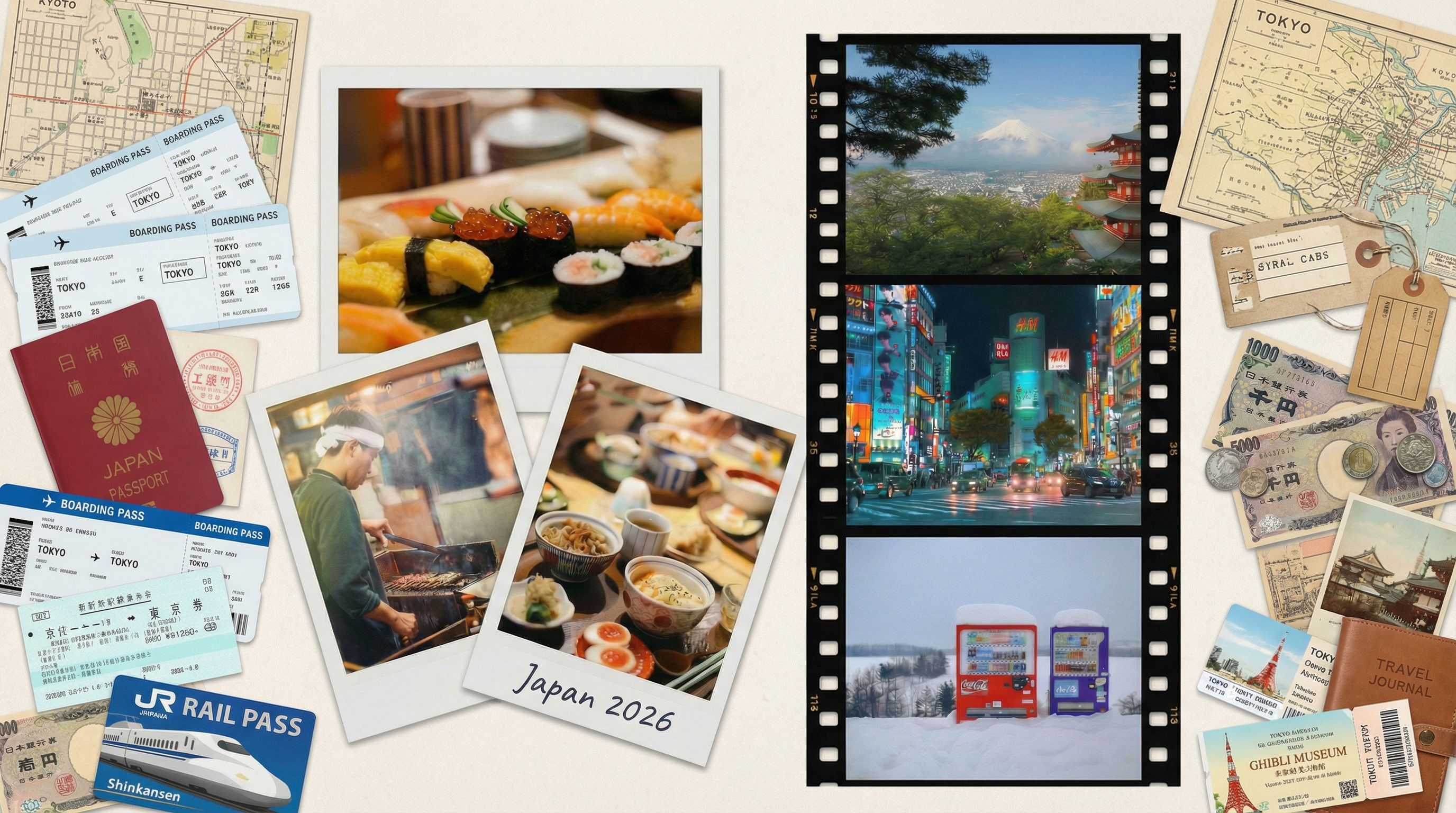
Desktop Wallpaper (16:9)
Perfect for desktop wallpapers and YouTube covers
When we resized the collage for desktop wallpaper (16:9), AI added travel items like tickets and stamps to fill the extra space. This maintains the aesthetic while adapting to the new image size. For social media, this means one design can work across all platforms.
Common Sizes
- • Instagram Feed: 1080x1080
- • Instagram Story: 1080x1920
- • Desktop Wallpaper: 1920x1080
- • Phone Wallpaper: 1080x2400
- • Print (8x10): 2400x3000
- • Print (4x6): 1200x1800
Step 6: Create Mockups
Before printing or sharing, visualize how your collage will look in context. AI mockups help you see the final result and make better decisions. They're also great for marketing or gift presentations.
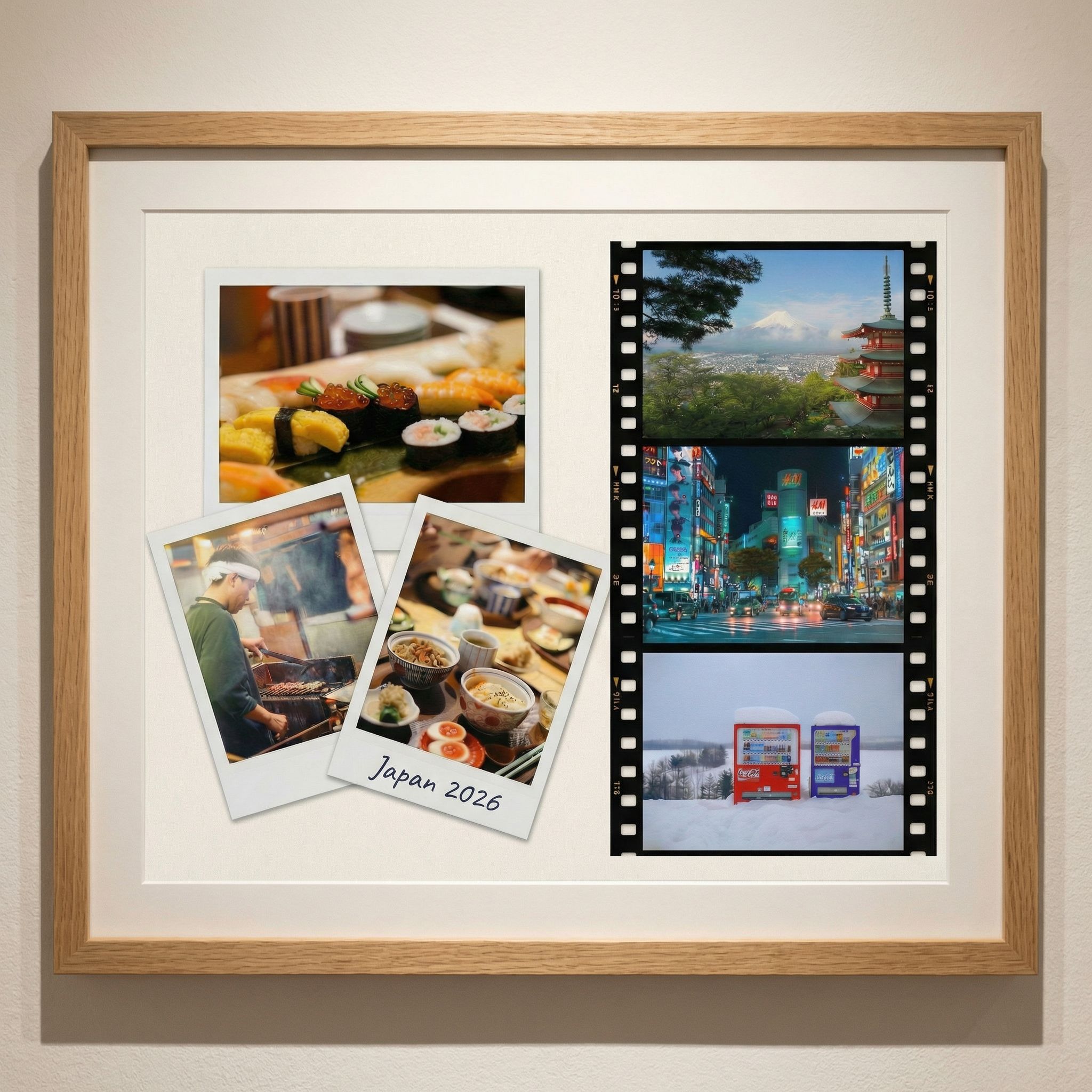
Framed on Wall Mockup
More Mockup Ideas
- • In a photo album or scrapbook
- • On a desk with coffee and stationery
- • As a phone or laptop wallpaper
- • Printed and held in hands
- • On a gallery wall with other art
- • As a canvas print on an easel
Frequently Asked Questions
How is this different from Canva or free photo collage makers?
Most free tools give you rigid templates with preset slots. You drag and drop photos into fixed positions. AI collage makers work differently. You describe the look you want, and AI creates a custom composition. There are no templates to choose from because every collage is generated fresh. This means unlimited creative freedom instead of picking from the same designs everyone else uses.
Can I use collages for commercial projects?
Yes, you can use collages for small business marketing, content creation, or personal projects. Just make sure you have rights to the source photos. If you use stock photos, check their license. Your own photos are always safe to use.
What about Android and iPhone apps?
Most Android and iPhone collage apps offer basic grid templates. They work for quick posts but lack creative control. Web-based AI tools like Vondy offer more sophisticated collage generation that works on any device. You get desktop-quality results without installing an app.
How do I get high-quality prints?
For high-quality prints, generate your collage at the largest available resolution (usually 2048 pixels or higher). Export as PNG for best quality. Standard photo print sizes like 4x6, 5x7, or 8x10 work well for most home printing. For larger prints, use a professional service that can handle higher pixel counts.

Create Your Collage with Vondy
All the AI tools used in this tutorial are available on Vondy. Upload your photos, generate layouts, and resize for any platform in one workspace.
Start creating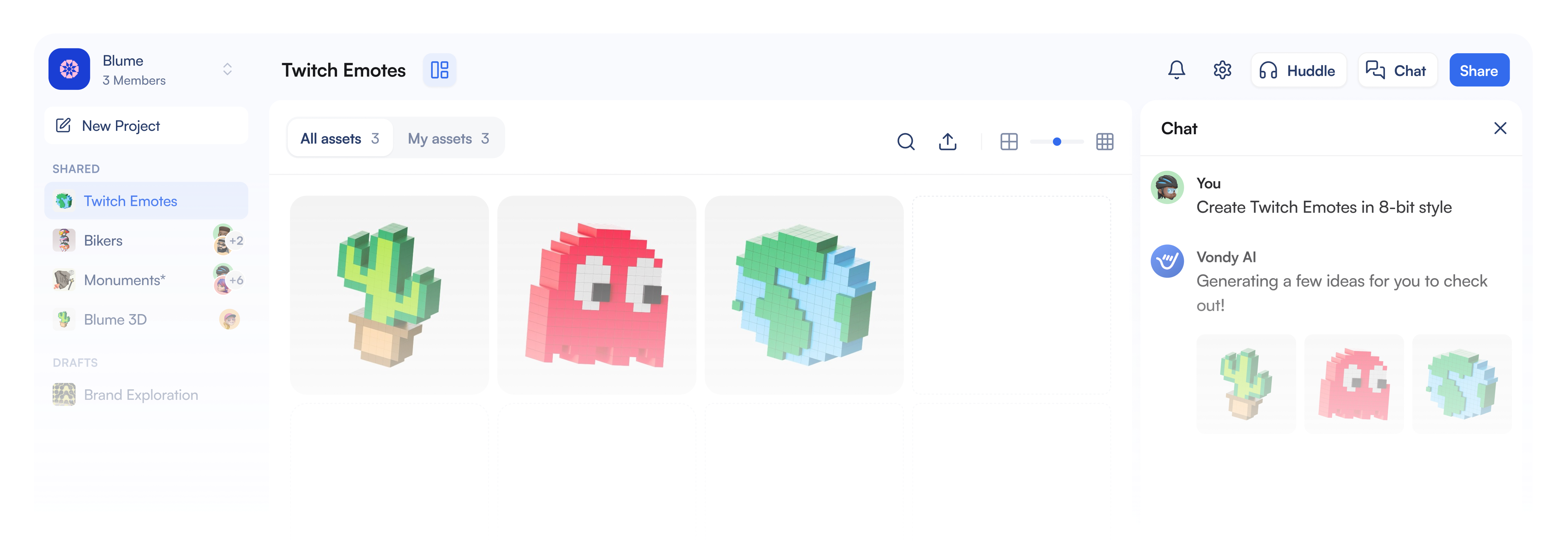
Continue Learning