
Whether you need an event flyer for a party, a professional flyer for your small business grand opening, or eye-catching flyers for a fundraiser, AI has made flyer design accessible to everyone. You no longer need expensive design tools or years of design experience to create stunning flyers that grab attention.
Traditional flyer makers like Canva offer drag-and-drop templates, but they limit you to ready-made templates that thousands of others use. AI image generators let you create a truly custom flyer from scratch, with unique typography, your own photos, and exactly the style you envision. This guide walks through the complete workflow using a demo project we created for fun, inspired by one of our favorite local restaurants.
What You'll Learn
- How to gather assets and write effective flyer prompts
- Generating multiple flyer design concepts in different styles
- Creating style variations from a single designed flyer
- How to resize flyers for social media platforms
- Creating realistic mockups to visualize printed flyers
Step 1: Gather Your Assets
Before generating any flyer design, collect the elements you want to include. The best flyer designs start with clear inputs. For our example, we're creating a grand opening flyer for Border Town, a Sonoran-style restaurant in Brooklyn.
Visual Assets
- • Your logo (PNG with transparent background)
- • High-quality images of your venue, product, or event
- • Brand colors and color palette reference
- • Any required fonts or typography style
Copy & Details
- • Headline and call-to-action text
- • Date, time, and location
- • Contact info or website
- • Any legal text or disclaimers
Our Example: Border Town (Fan Project)
For this tutorial, we created a fictional flyer campaign inspired by Border Town, one of our favorite Greenpoint restaurants. This is purely exploratory work to demonstrate the AI workflow, not an official project for the restaurant. We used publicly available photos and created sample copy to show how the process works.
Step 2: Generate Multiple Concepts
The power of AI flyer design is rapid exploration. Instead of committing to one design direction, generate 3-4 different concepts to see what resonates. For small business owners without design skills, this is a game-changer. You can explore professional flyer styles that would normally require hiring a graphic designer.
Design a vertical [event type] flyer for [business name]. Use the provided logo prominently. Incorporate the provided photo as [background/element]. Style: [modern/vintage/minimal]. Include this copy: [your text]. Typography: [font style preferences]. Keep text crisp and readable.Here are four concepts we generated for the Border Town opening flyer, each with a distinct visual approach:
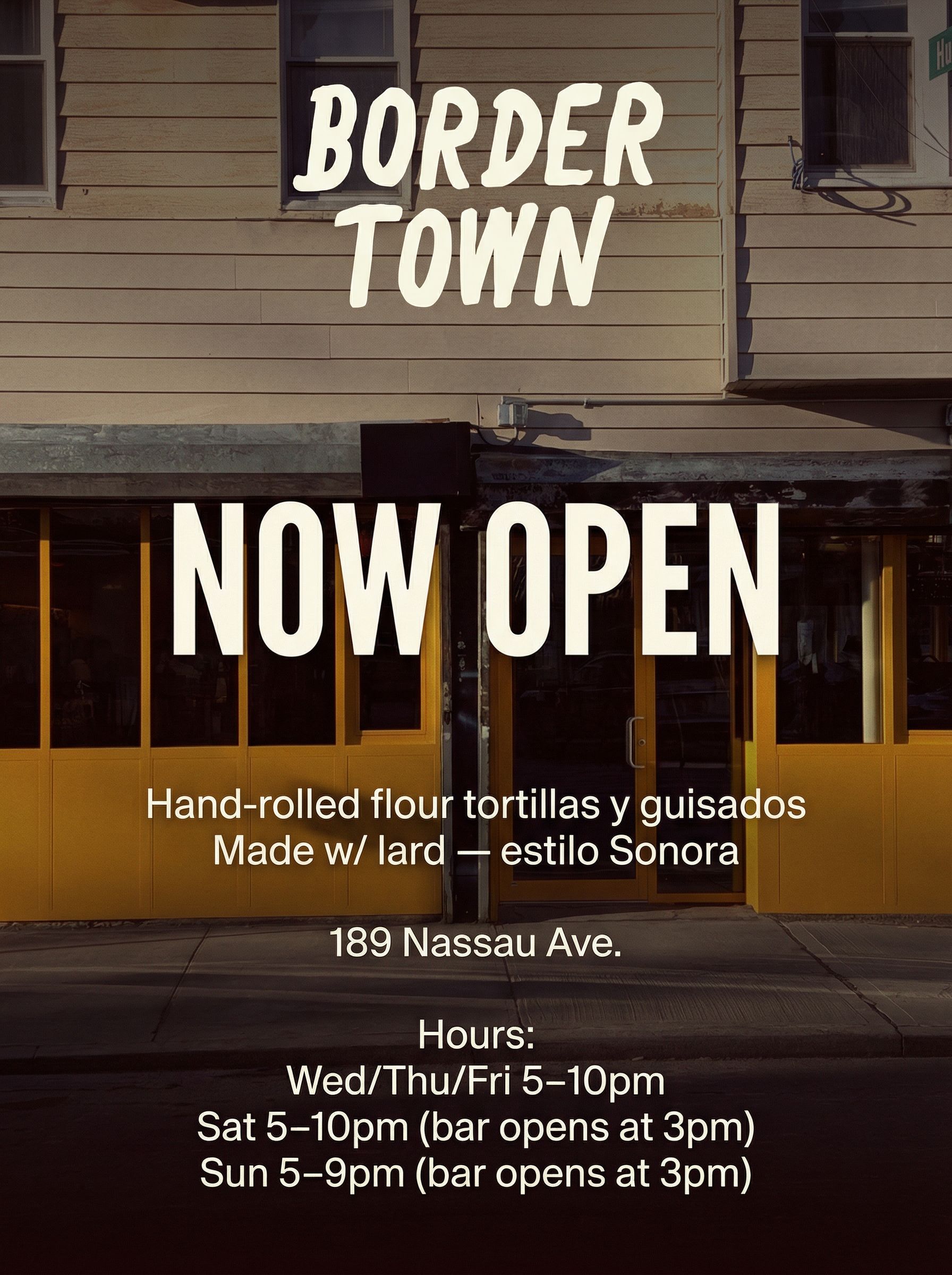
Modern Bold
Full-bleed photo background with gradient overlay
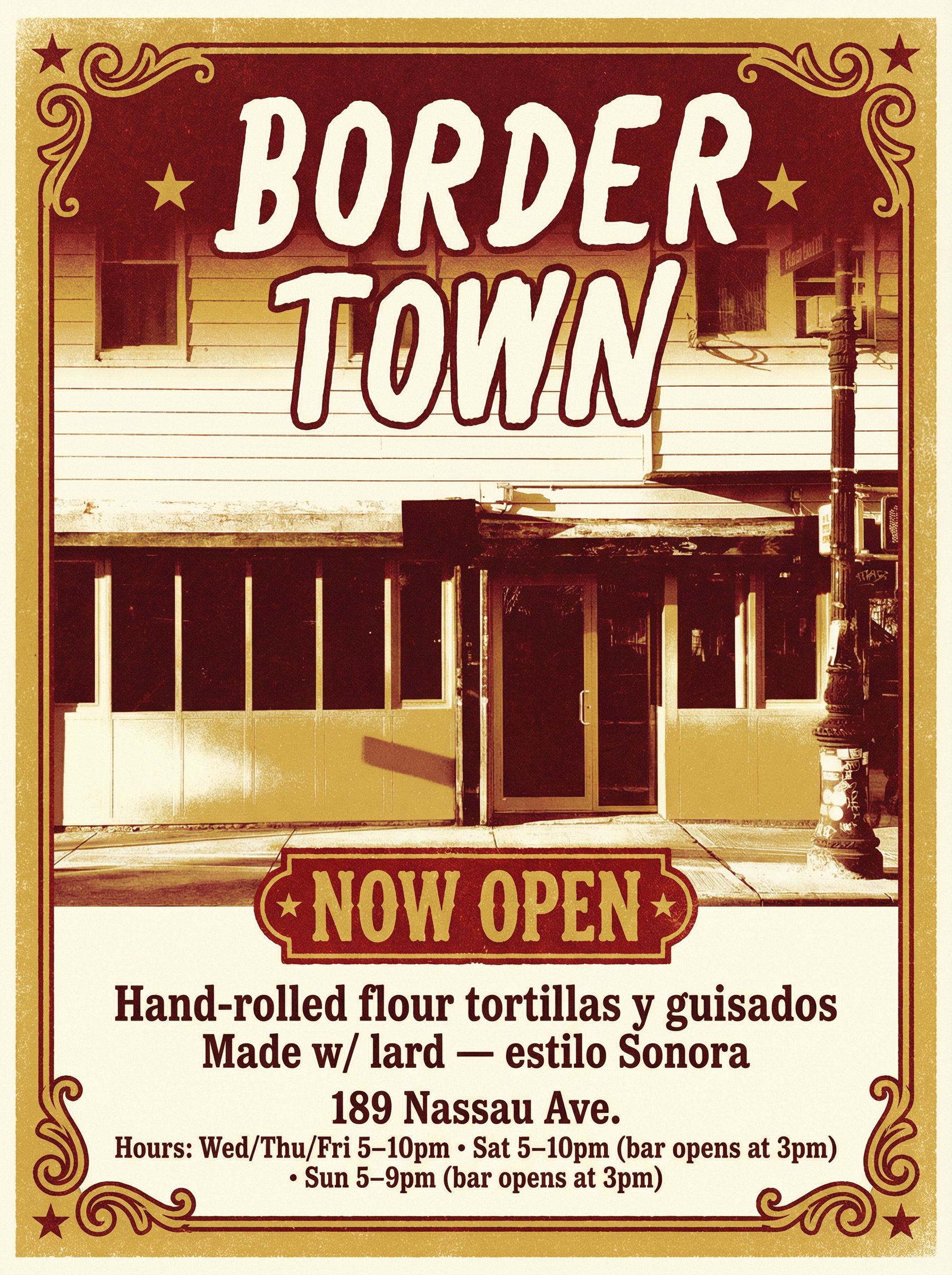
Vintage Western
Distressed print with ornamental frame
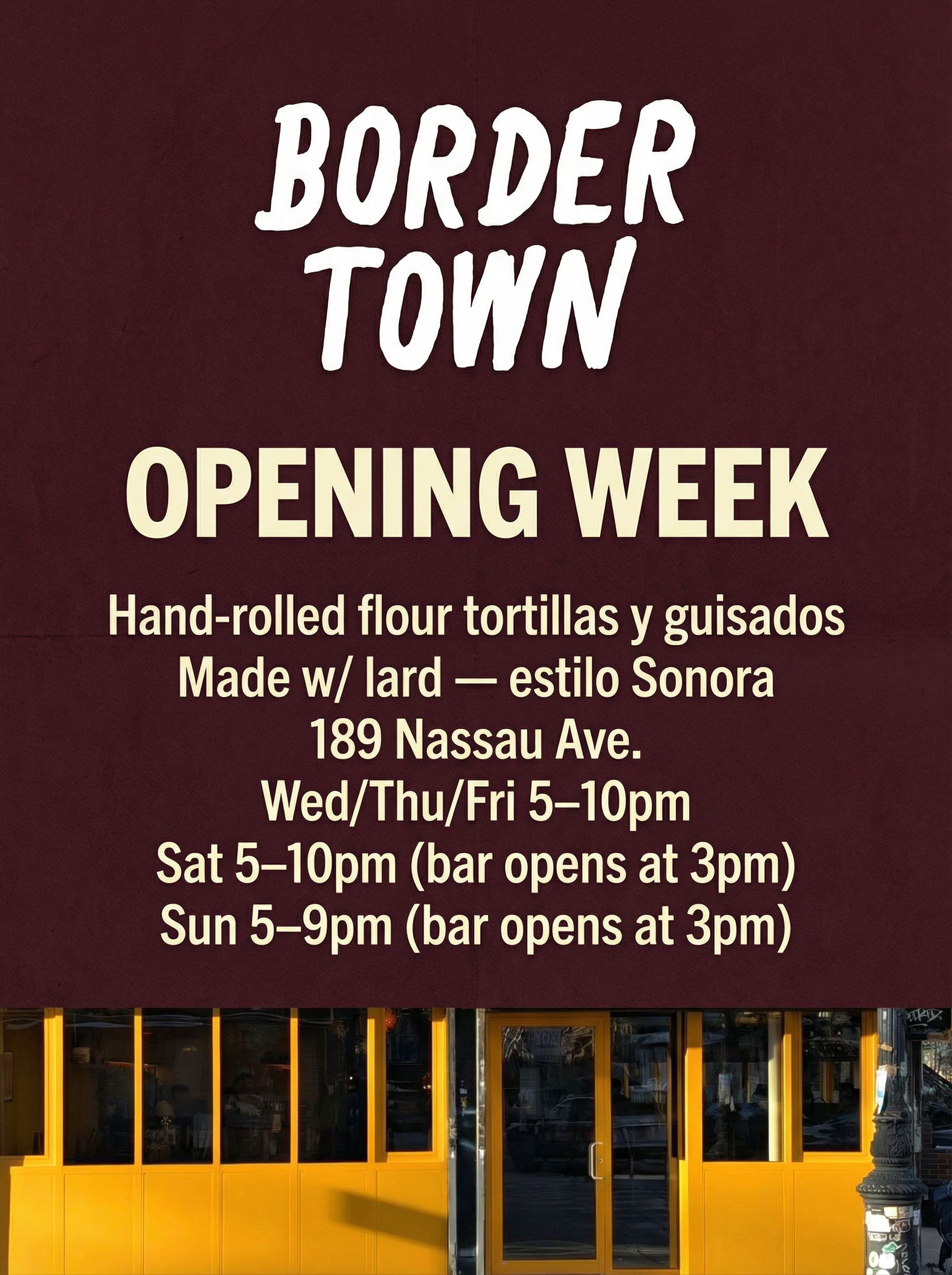
Minimal Typography
Clean typography on solid color
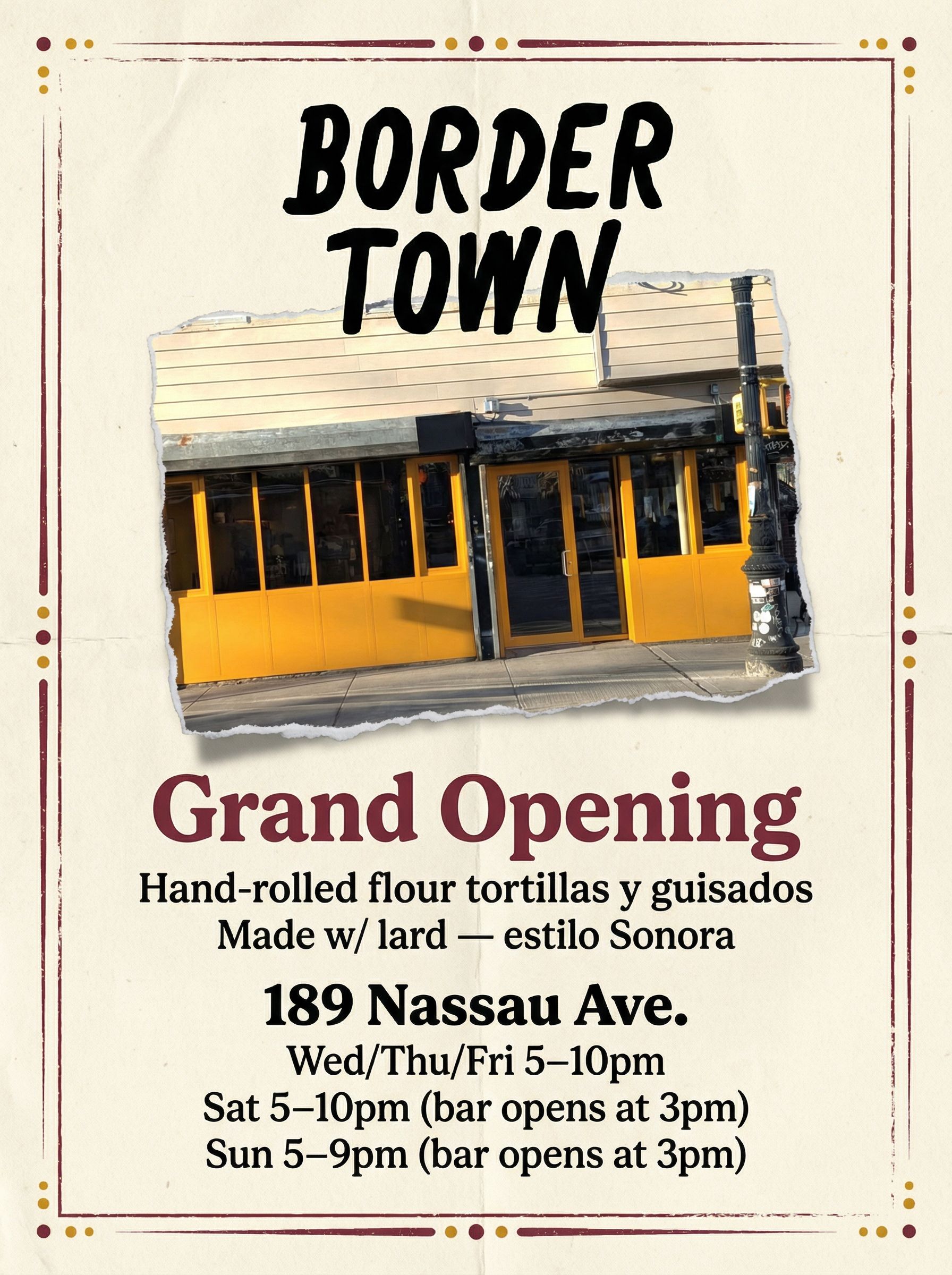
Collage Poster
Tactile collage with polaroid photo
Tips for Better Flyer Concepts
- • Always specify "keep text crisp and readable" to avoid warped fonts
- • Describe the flyer size and orientation (vertical 3:4 works well for print)
- • Reference specific design elements: borders, badges, photo treatments
- • Include your exact copy in the prompt for accurate typography
Step 3: Create Style Variations
Once you pick a favorite concept, you can generate style variations while keeping the same layout and content. This is perfect for A/B testing different color palettes or creating eye-catching flyers for different target audiences. We selected the Vintage Western concept and created three variations.
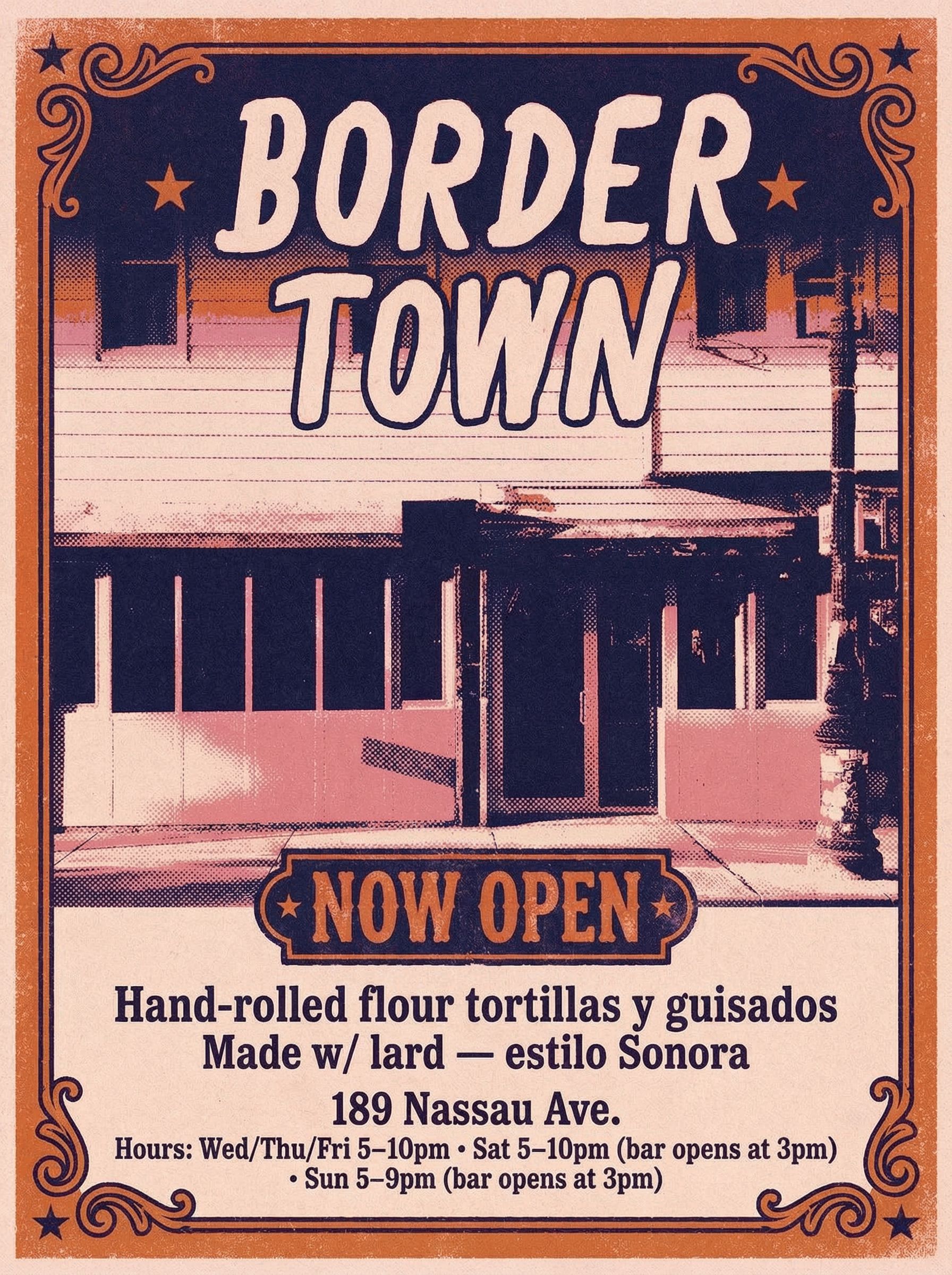
Desert Dusk Risograph
Click for before/after
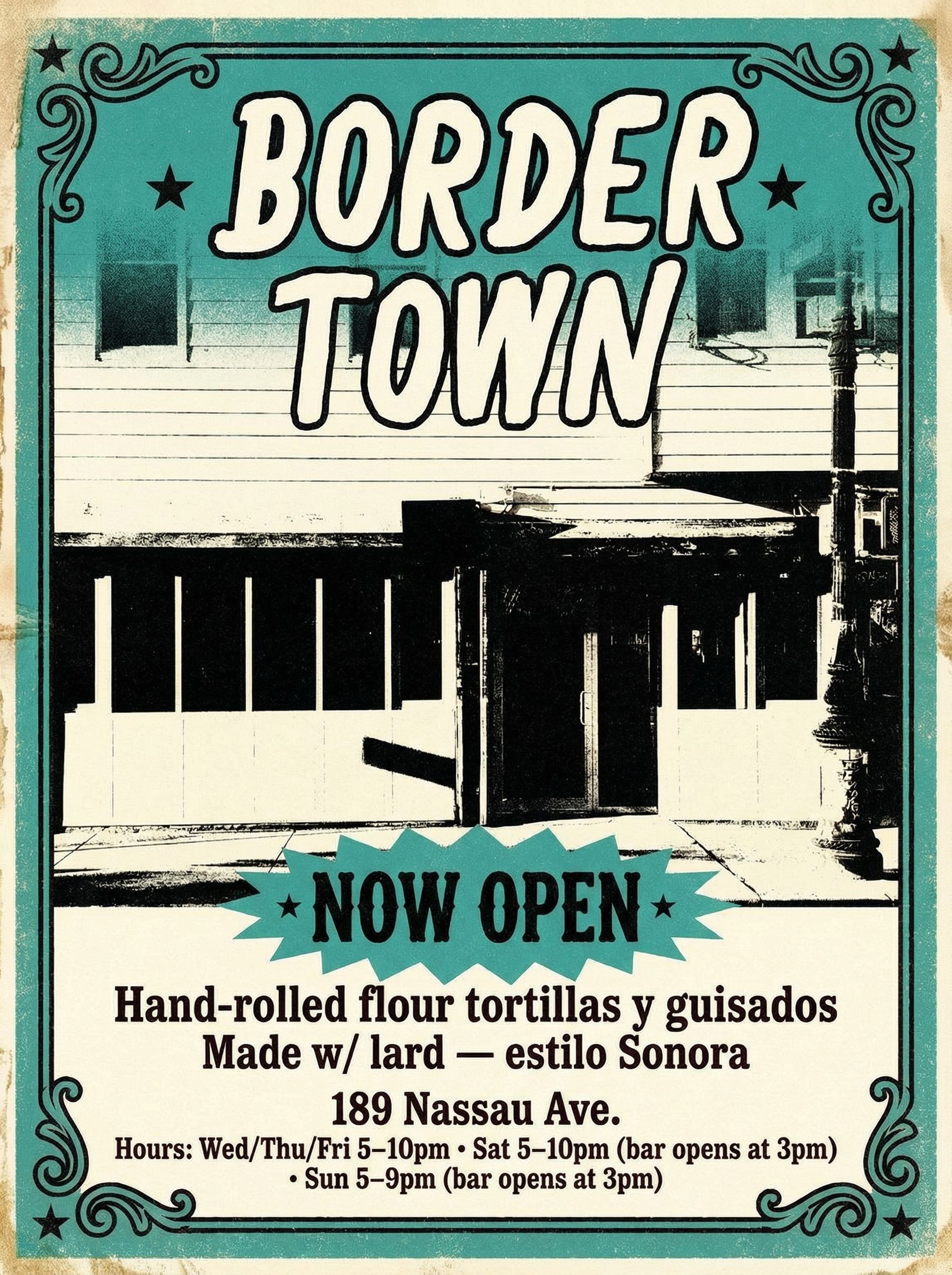
Screenprint Teal
Click for before/after
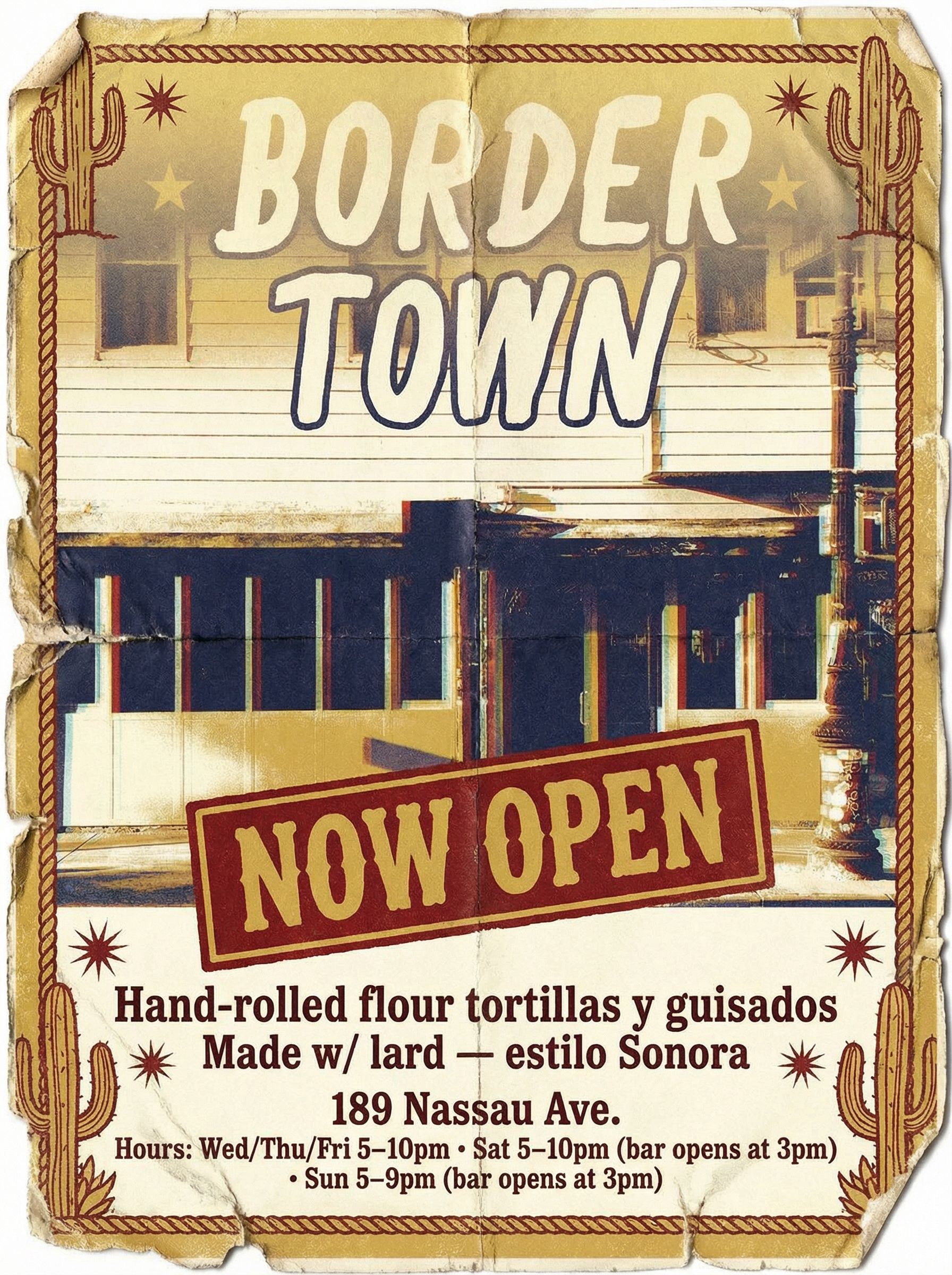
Worn Roadside
Click for before/after
Each variation maintains the same information hierarchy and design elements but transforms the visual style completely. This is the power of using AI for graphic design work.
Step 4: Refine and Edit
AI-generated flyers sometimes need small tweaks. Maybe there's an unwanted gradient, a design element you want to remove, or text that needs adjustment. AI photo editing makes these refinements easy.
Edit Example: Remove Gradient
Before
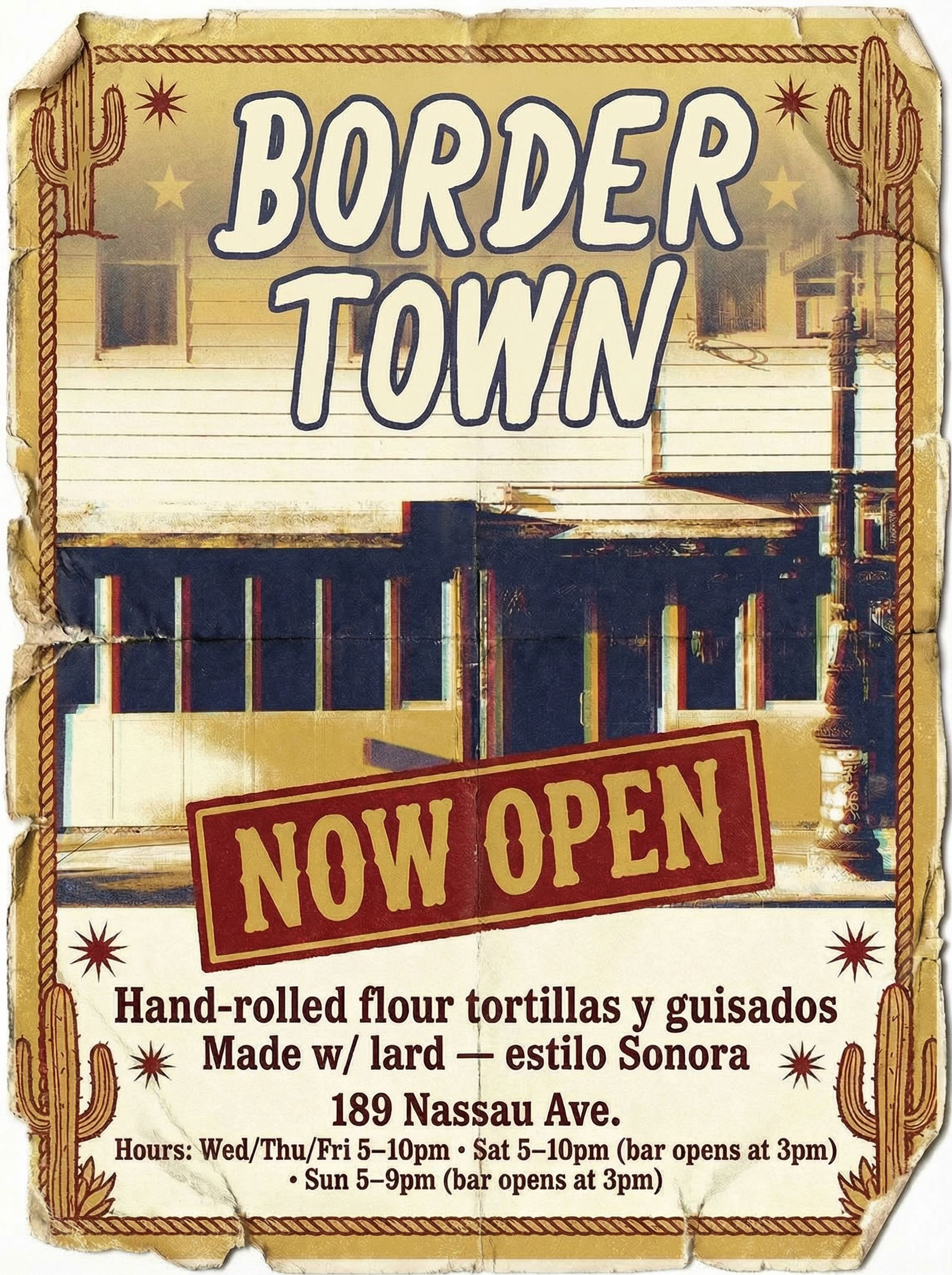
After
Click for before/after
For this edit, we used annotation-based editing to remove the sun-fade gradient from the top of the flyer. The result is a cleaner design that works better for both printed flyers and digital use.
Step 5: Resize for Different Platforms
A single flyer design can be adapted for multiple uses. The standard flyer size works for print, but you'll want different dimensions for social media. AI can intelligently resize and recompose your design to fit Instagram squares, stories, or any custom format while maintaining consistent branding.
Print Ready (3:4)
Standard flyer for printing and posting
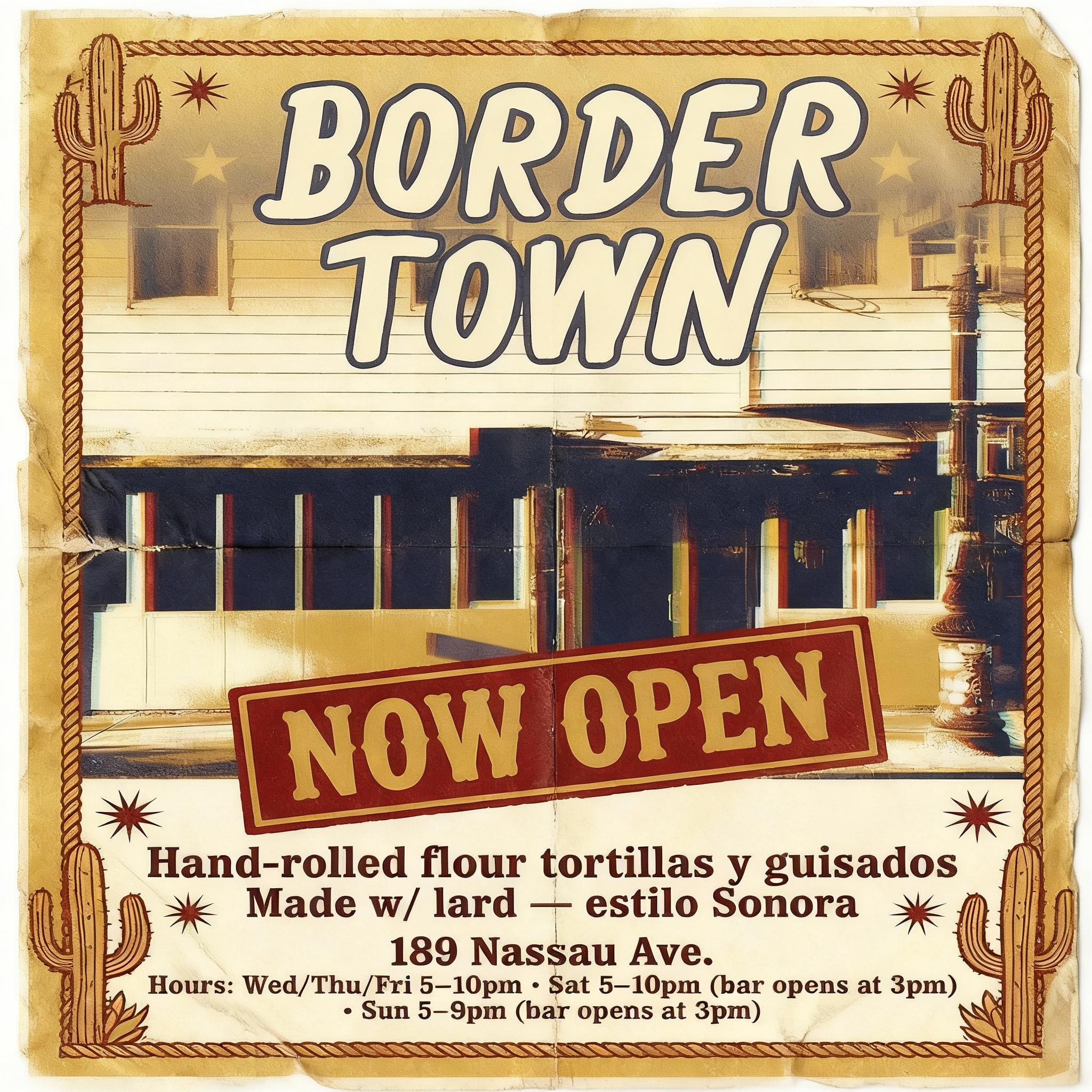
Instagram Feed (1:1)
Square format for feed posts
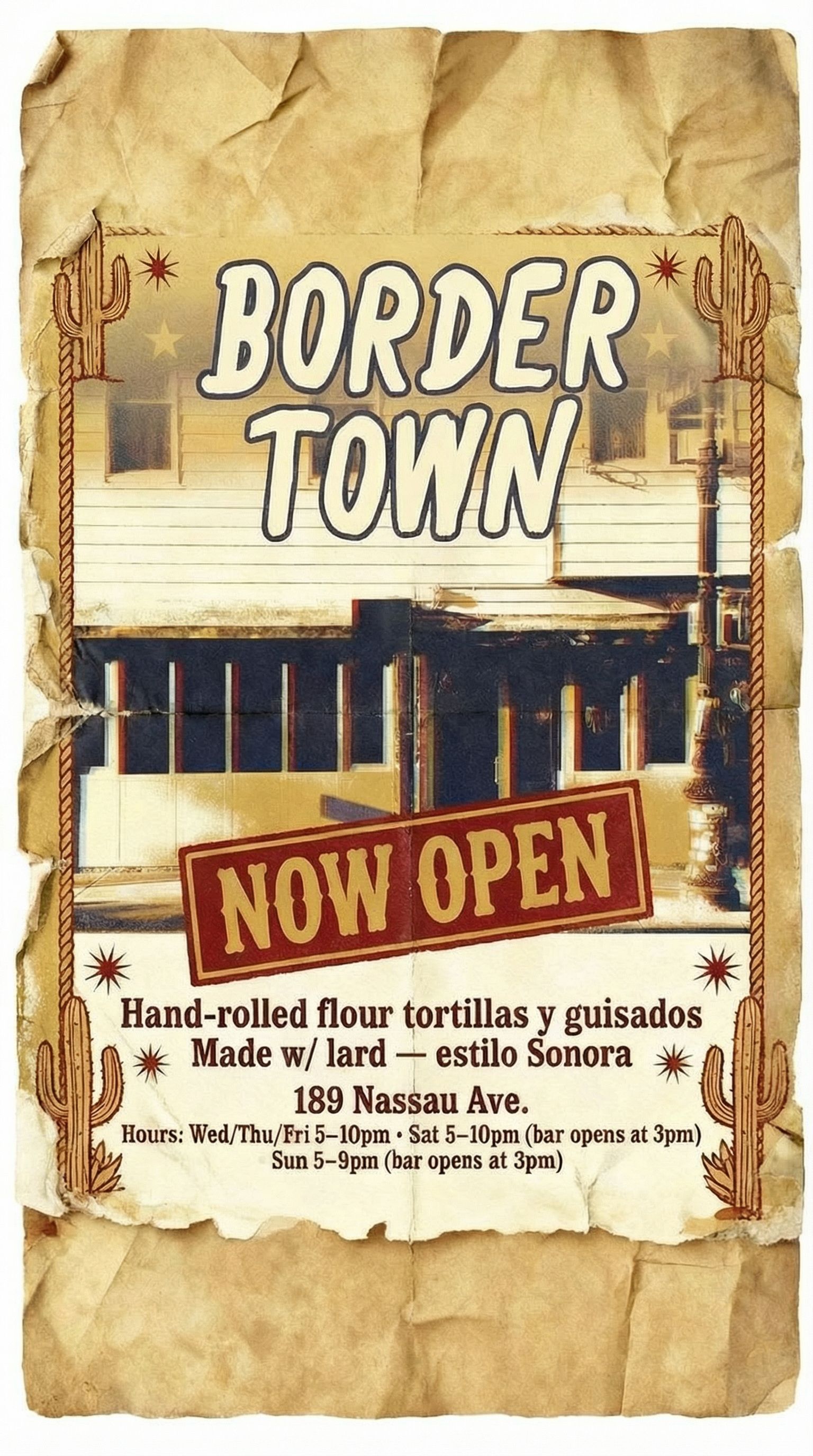
Instagram Story (9:16)
Full-screen vertical for stories and reels
We used Seedream to resize the flyer because it handles canvas extension well. It added matching parchment texture to fill the new dimensions while keeping all text readable.
Step 6: Create Realistic Mockups
Before printing, visualize how your designed flyer will look in the real world. AI mockups help you see the final result and make better decisions. They're also great for marketing presentations when you need to show stakeholders what the campaign will look like.
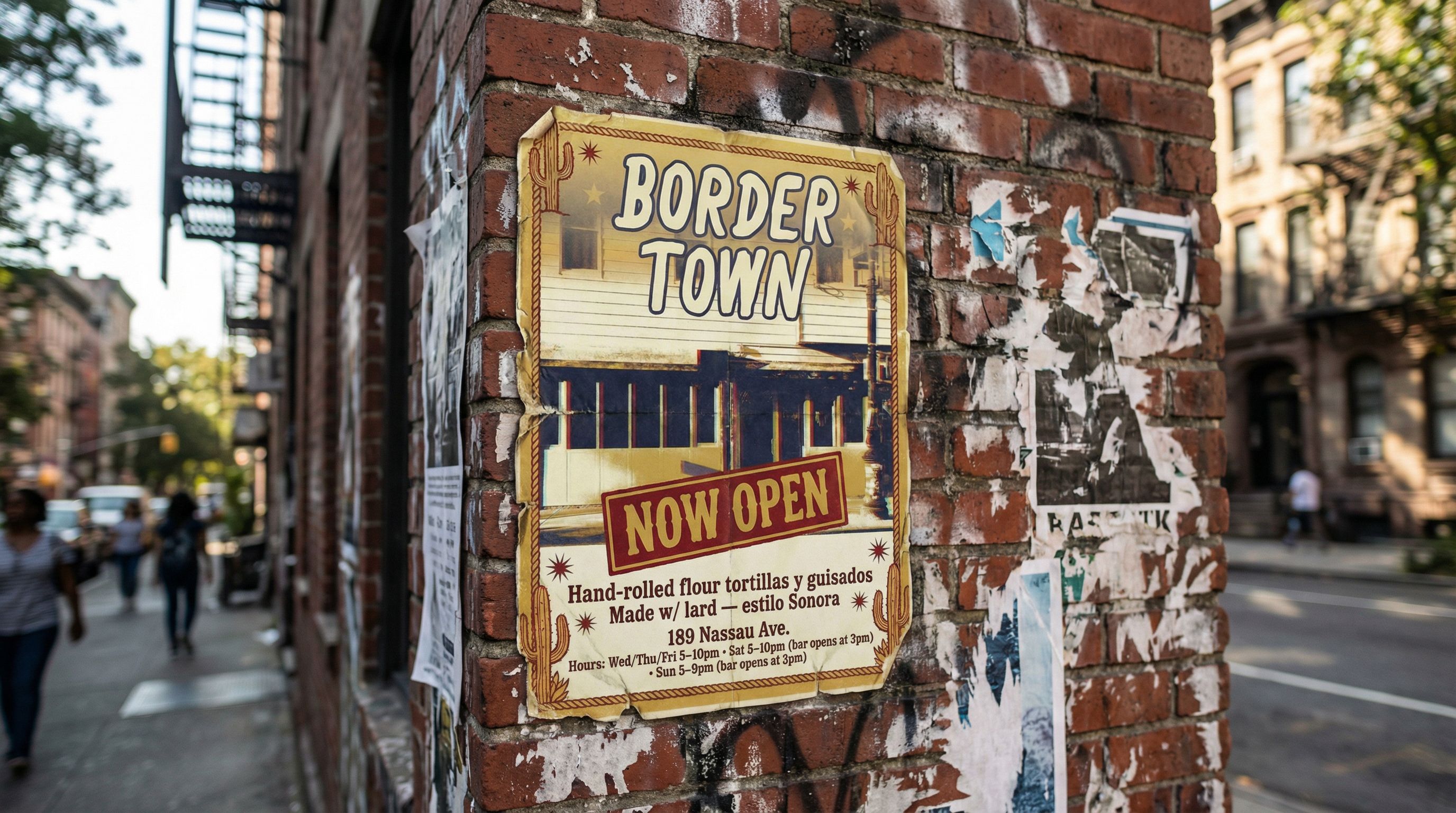
Brick Wall
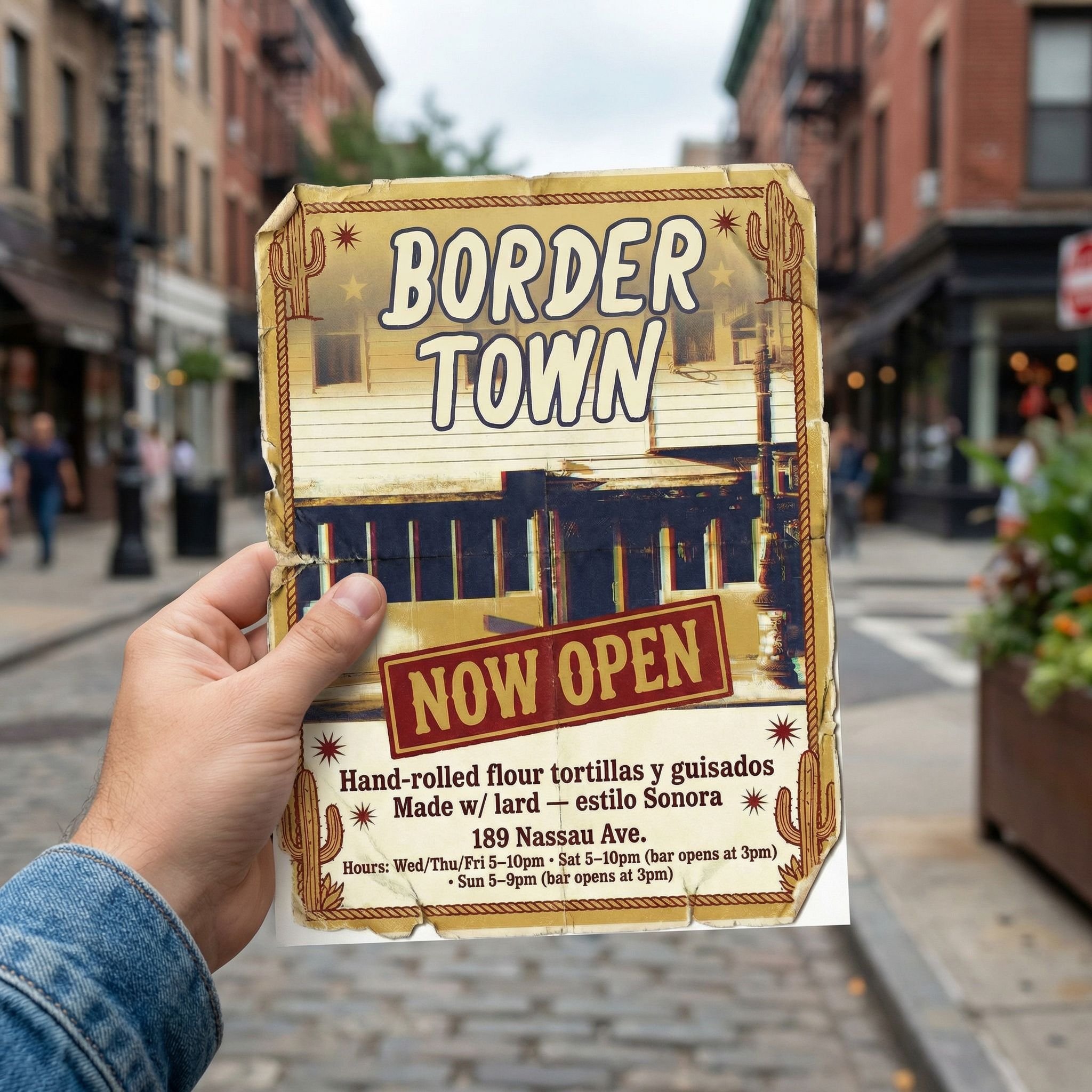
Hand Holding
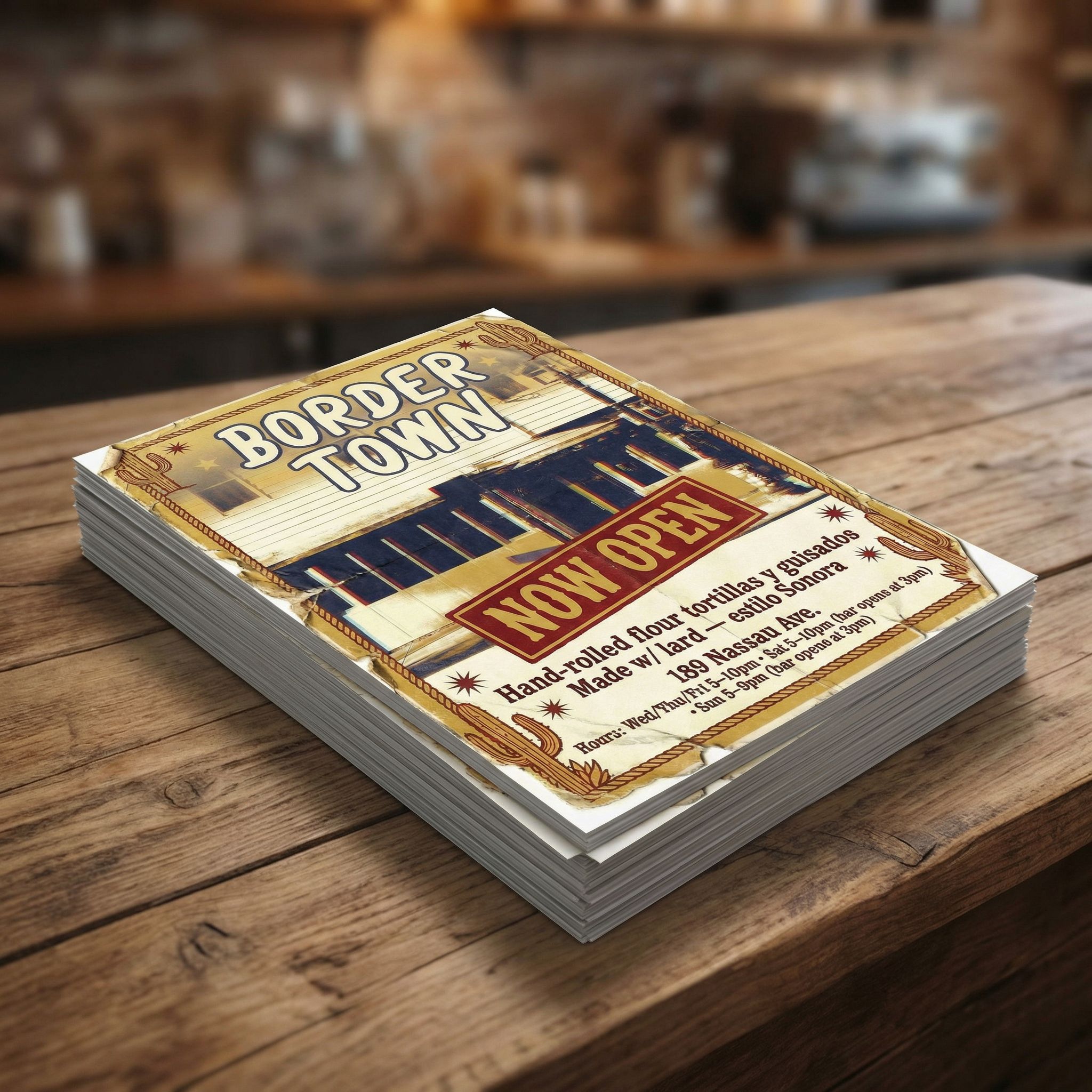
Stack of Flyers
More Mockup Ideas
- • Flyer on a cafe table
- • Posted in a shop window
- • Pinned to a bulletin board
- • On a fridge with magnets
- • In a clear acrylic stand
- • Rolled up in a hand
Step 7: Export and Print
When you're happy with your effective flyer design, export it in the right format. For printed flyers, you want high-quality images at the largest resolution available. For social media, standard web formats work fine.
For Print
- • Export as high-resolution JPG or PNG
- • Request 2K or 4K resolution when generating
- • Standard flyer size is 8.5x11" (letter) or A4
- • Use a professional print shop for business flyers
For Digital
- • Instagram feed: 1080x1080px (1:1)
- • Instagram story: 1080x1920px (9:16)
- • Facebook event: 1920x1080px (16:9)
- • JPG works for most social platforms
Frequently Asked Questions
What types of flyers can I create with AI?
AI can generate virtually any type of flyer: event flyers for parties and concerts, business flyers for grand openings and sales, real estate flyers for open houses, fundraiser flyers, party flyers, and more. The best AI for flyer design can handle any style from minimalist to vintage to bold modern designs.
How does AI compare to Canva or free flyer makers?
Canva and free flyer templates offer drag-and-drop convenience with design templates, but you're limited to their pre-made layouts. AI flyer makers create original designs from scratch based on your description. You get a unique custom flyer instead of something thousands of others might use. For beginners who want professional-looking results without design experience, AI is a powerful tool.
Can I use my own fonts and brand kit?
AI generates typography based on your description, so you can request specific font styles. For exact brand colors and fonts, you can also use AI to generate the design and then make final tweaks in Canva or another editor. Many designers use this hybrid approach: AI for creative exploration, then traditional design tools for final brand kit compliance.
What makes an effective flyer?
The best flyers have a clear visual hierarchy, readable typography, and a strong call-to-action. Your headline should be readable from a distance, and the most important information (date, location, CTA) should be immediately visible. Keep your target audience in mind and use design elements that will resonate with them.

Create Your Flyer with Vondy
All the AI tools used in this guide are available on Vondy. Generate concepts, create variations, and resize for any platform in one workspace.
Start creating
Continue Learning