
Creating a good poster used to require expensive software like Photoshop or Illustrator, plus years of graphic design experience. Even with drag-and-drop poster templates in PowerPoint or free poster maker tools, you're limited to pre-made layouts that thousands of others use. Microsoft and other office tools can work for basic school project posters, but they fall short for professional poster design.
AI changes this completely. Now you can create a custom poster from scratch by describing what you want. Whether you need an event poster, a fundraiser announcement, or promotional material for your business, AI handles the typography, layout, and visual design. This step-by-step tutorial walks through the entire process using a real example: a launch party poster we created for Vondy.
What You'll Learn
- How to write effective prompts for poster design
- Generating multiple poster concepts in different styles
- Creating style variations from minimalist to retro aesthetics
- Resizing posters for social media and web headers
- Creating realistic mockups to visualize your poster in context
Step 1: Gather Your Assets
Before generating any poster design, collect the elements you need. Having clear inputs leads to better results. Think about your target audience and what information must be included. A good poster communicates its message at a glance.
Visual Assets
- • Your logo (PNG with transparent background)
- • Hero image or photo (if applicable)
- • Color scheme or brand colors
- • Reference posters for style inspiration
Content & Copy
- • Headline or event name
- • Date, time, and location
- • Call to action (RSVP, tickets, website)
- • Any required legal text or sponsors
Our Example: Vondy Launch Party
For this tutorial, we created an event poster for a fictional Vondy launch party at Pencil Factory in Greenpoint, Brooklyn. We uploaded the Vondy logo and specified the event details: date, time, venue, and tagline.
Step 2: Generate Multiple Concepts
The power of AI poster design is rapid exploration. Instead of committing to one direction, generate 3-4 different concepts to see what resonates. This is where AI outshines traditional design template approaches. Each concept can explore a completely different aesthetic.
Design a portrait event poster for [event name]. Use the attached logo exactly (do not redraw). Style direction: [aesthetic]. Text (verbatim): [headline], [date/time], [location]. Keep typography sharp and readable. Make it feel like a real printed poster.Here are four concepts we generated for the Vondy launch party, each with distinct typography and visual style:
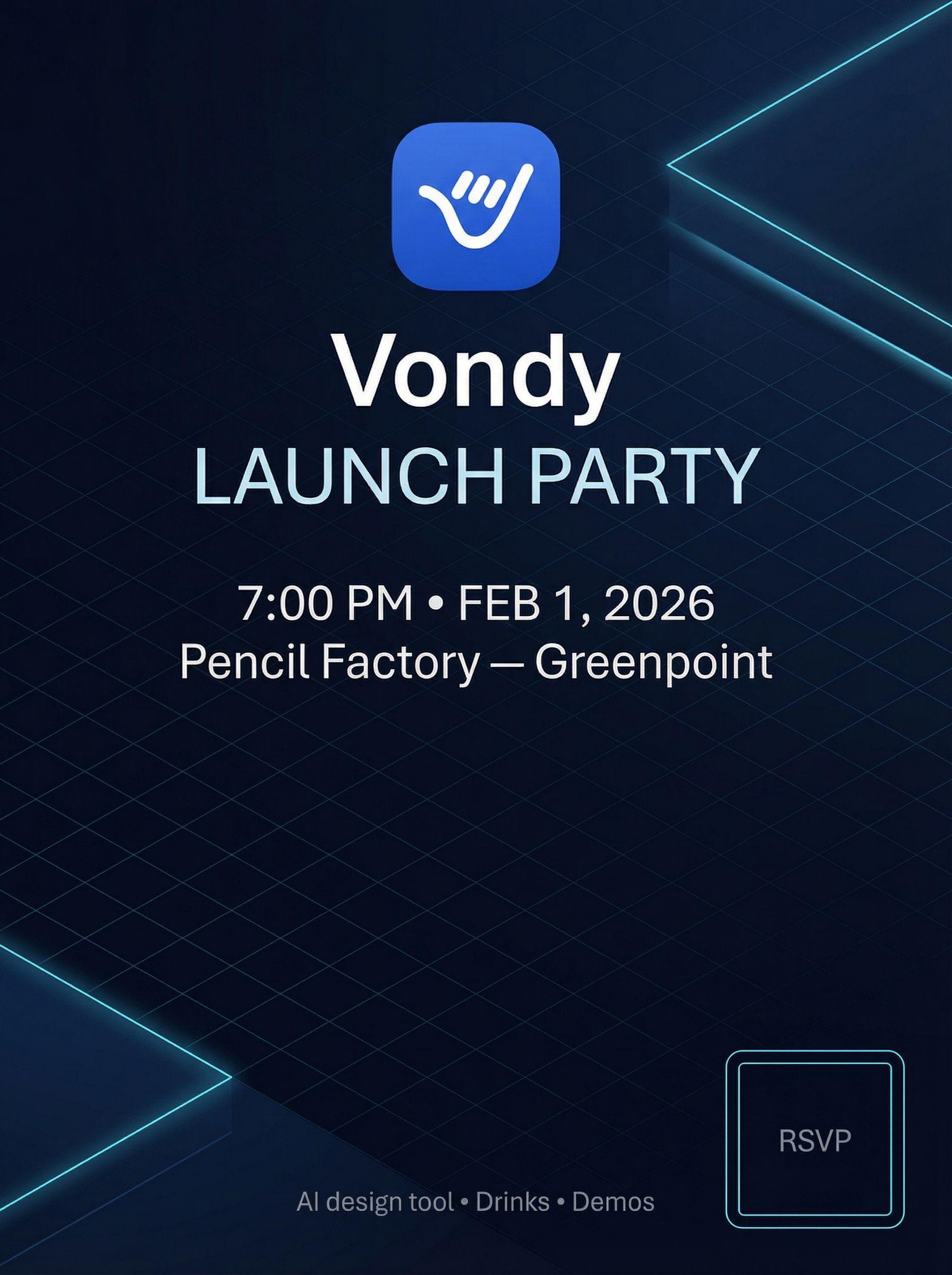
Minimalist Tech
Dark gradient with Swiss typography
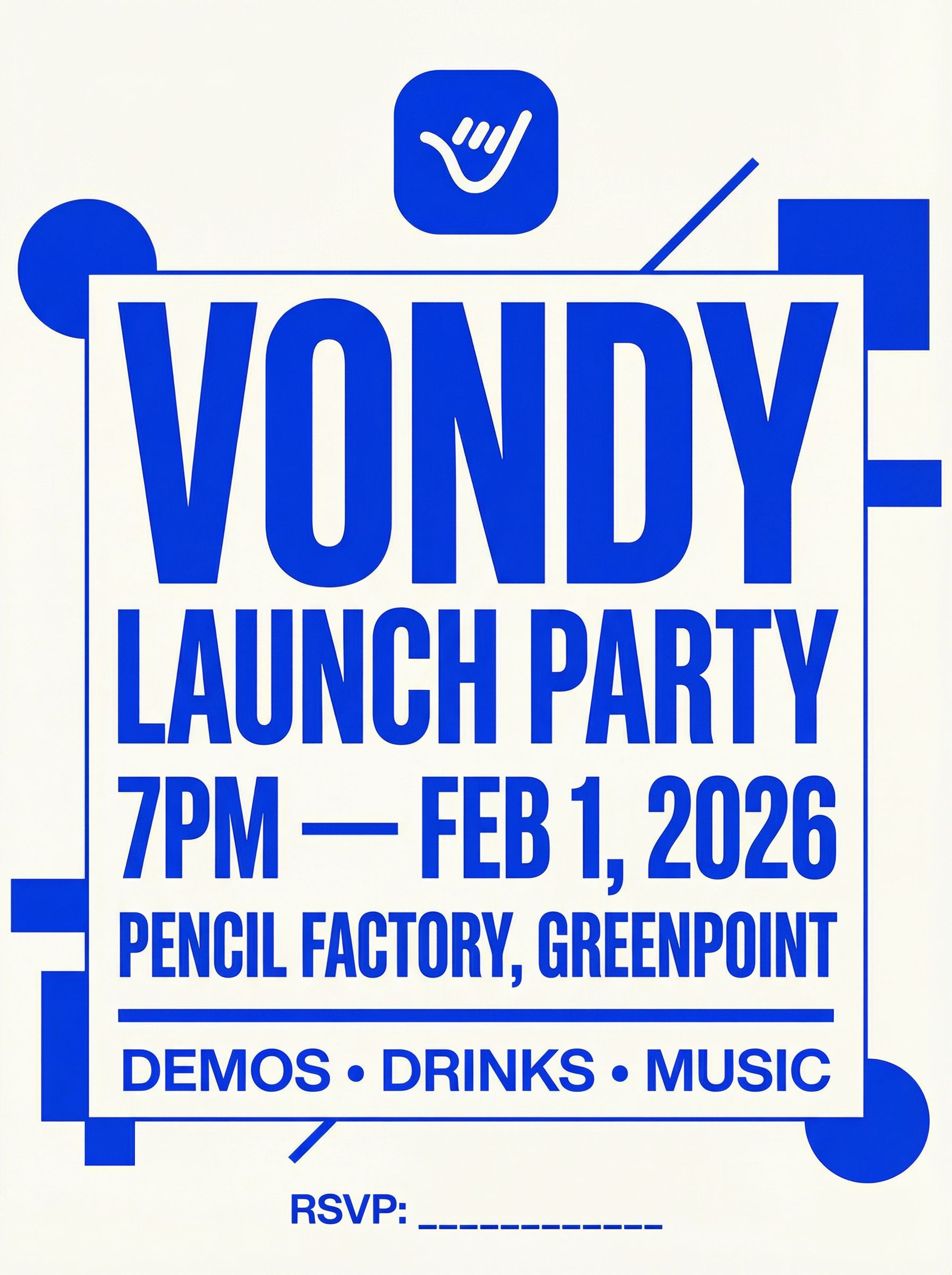
Modern Editorial
Bright editorial with bold type
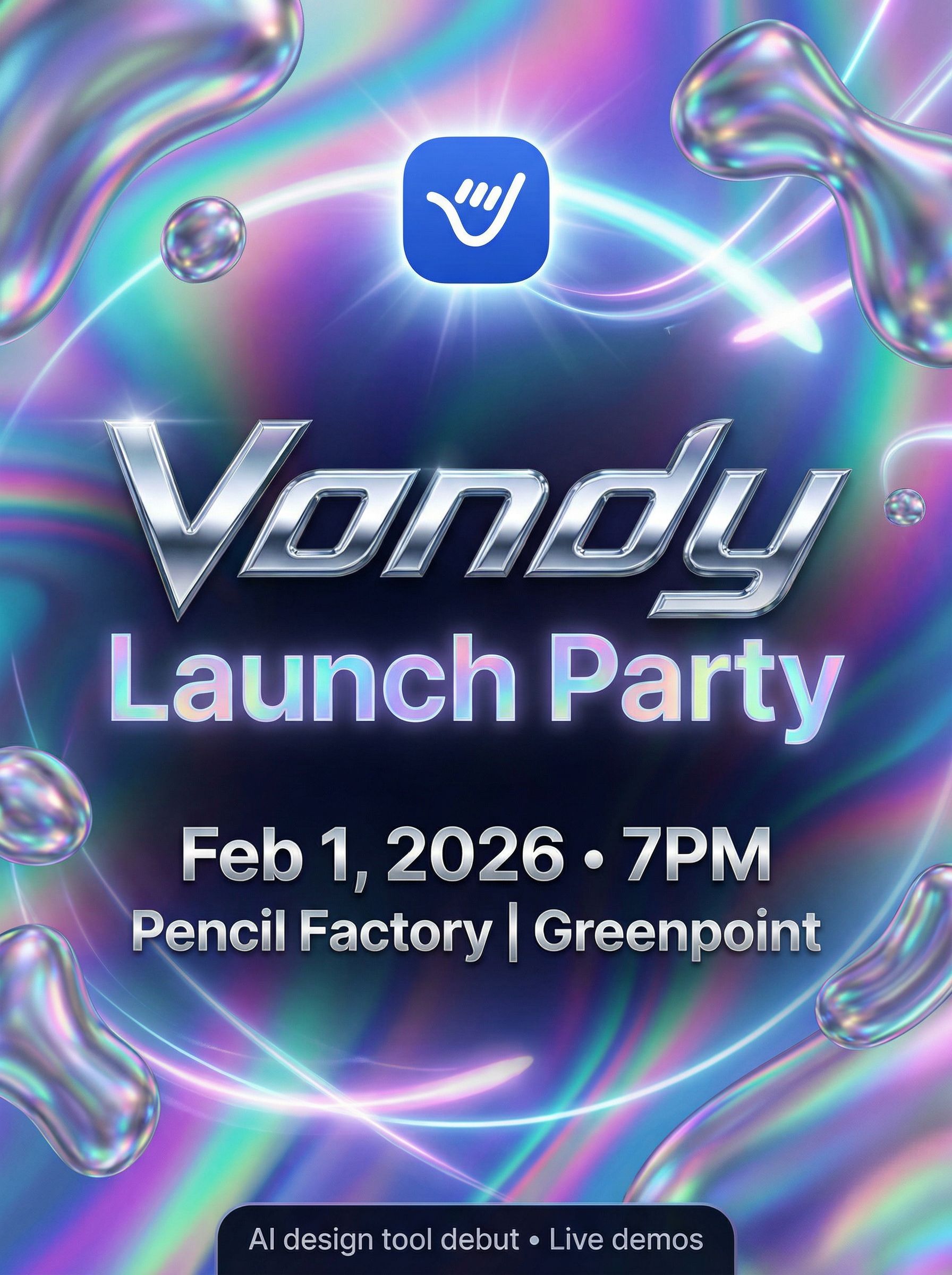
Retro-Futurist Y2K
Chrome gradients and holographic glow
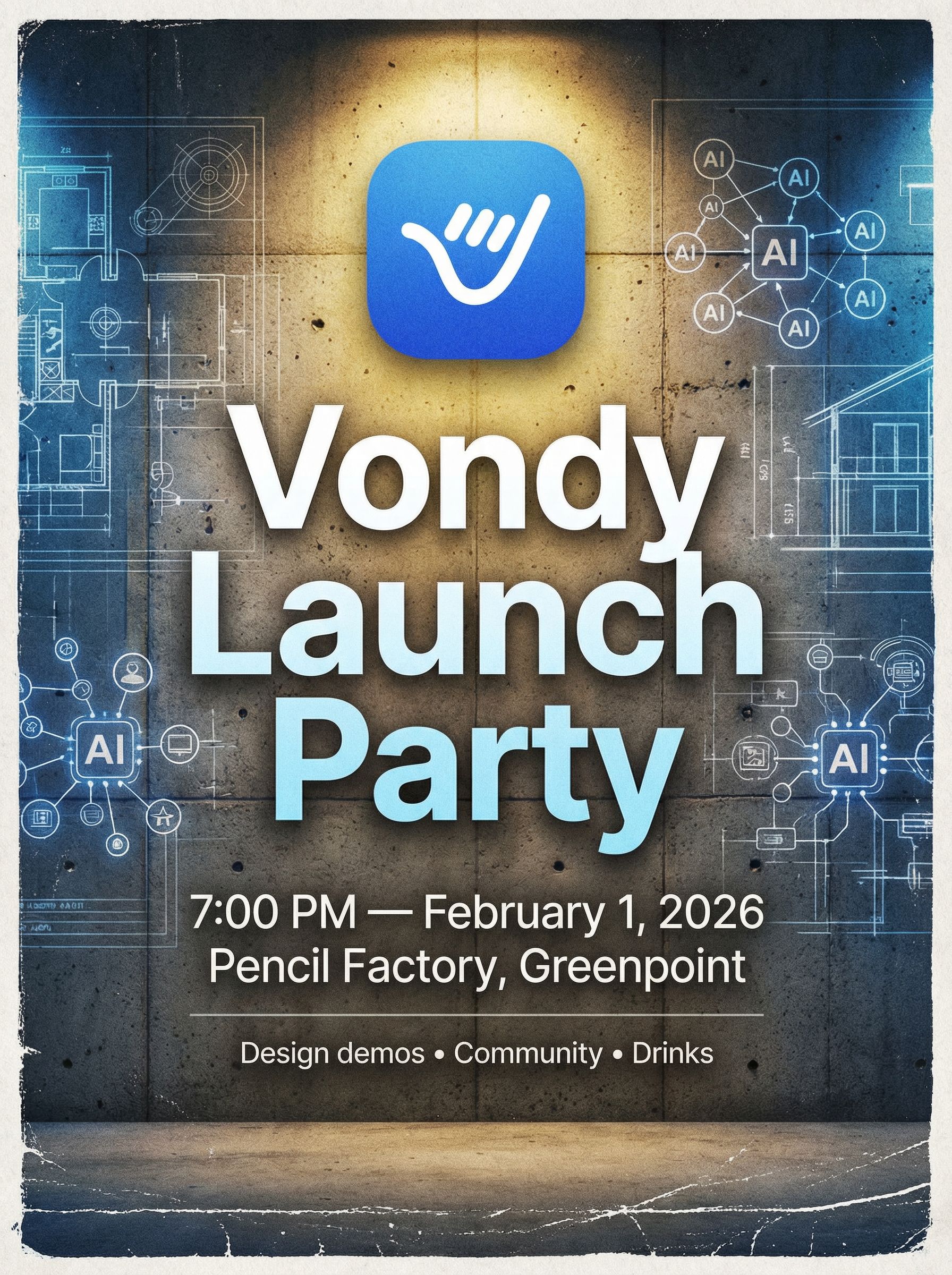
Brooklyn Industrial
Blueprint aesthetic with factory vibes
Design Tips for Better Posters
- • Specify "keep typography sharp and readable" to avoid warped fonts
- • Include your exact text in the prompt to prevent AI from improvising
- • Reference specific aesthetics: "Swiss typography," "minimalist," "retro 1970s"
- • Ask for "lots of white space" if you want a cleaner design
Step 3: Create Style Variations
Once you pick a favorite layout, generate style variations while keeping the same content. This is perfect for A/B testing different color schemes or aesthetics. You can transform a modern poster into vintage letterpress, retro 1970s, or even watercolor illustration style.
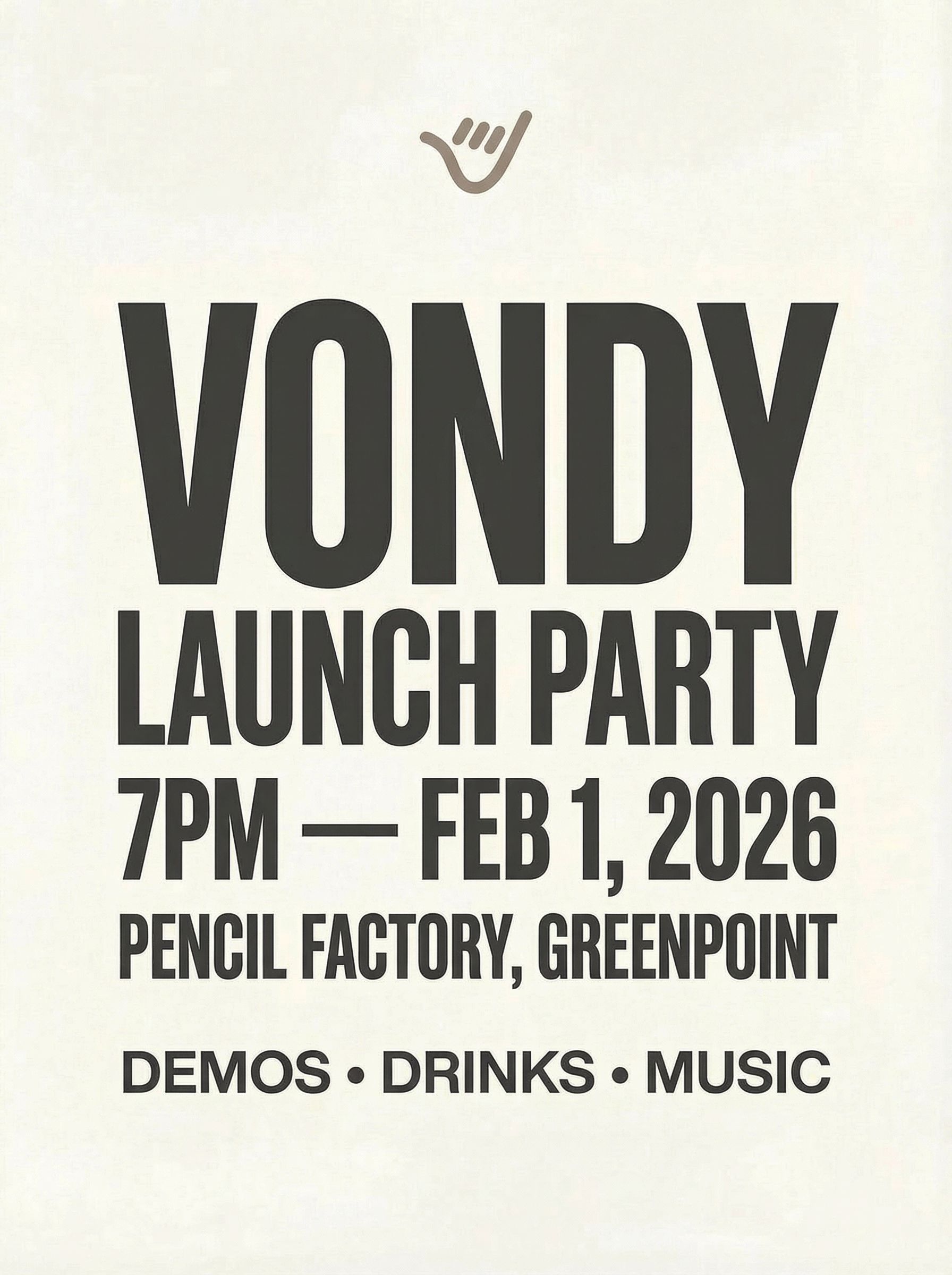
Minimalist Modern
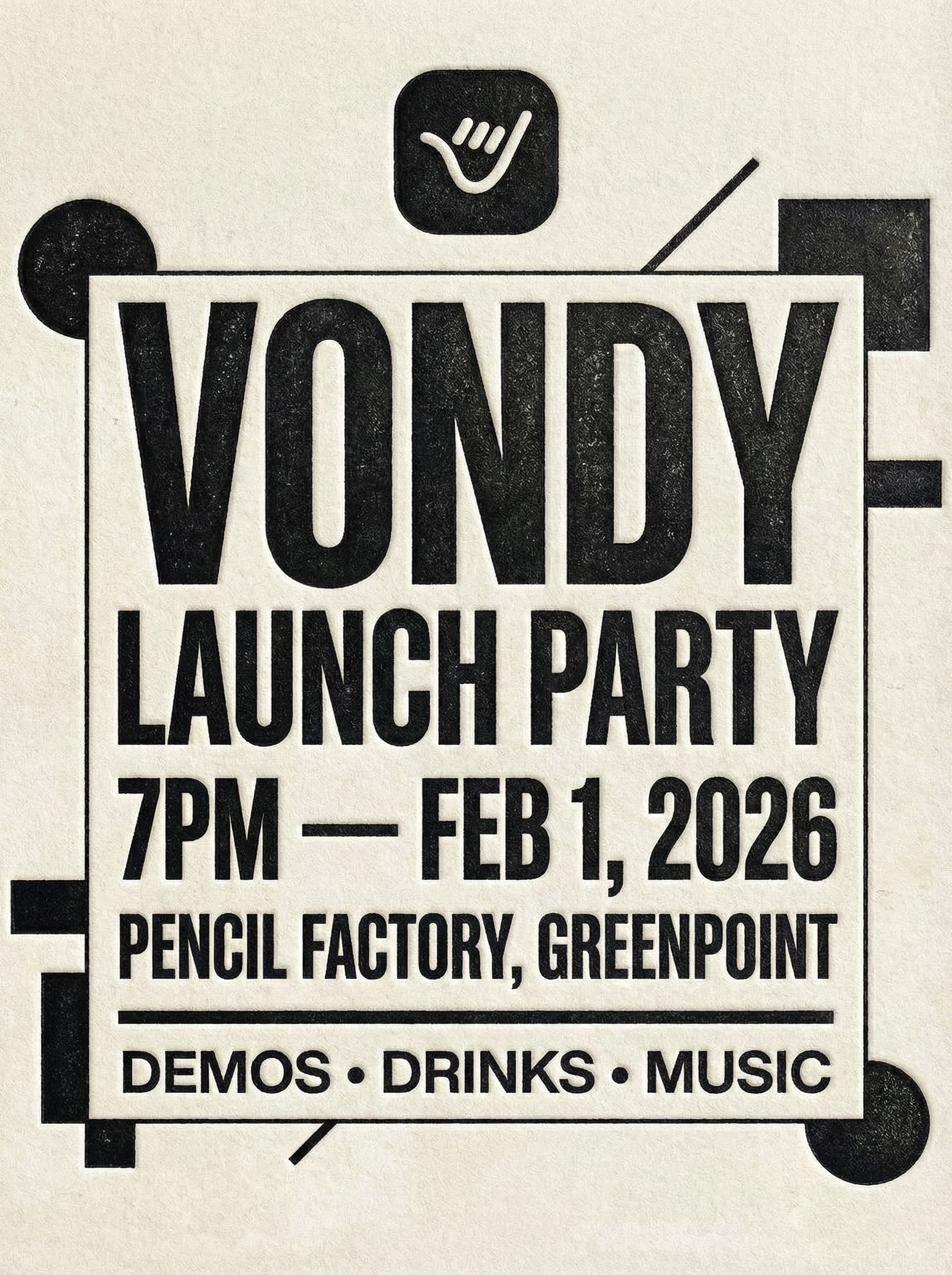
Vintage Letterpress
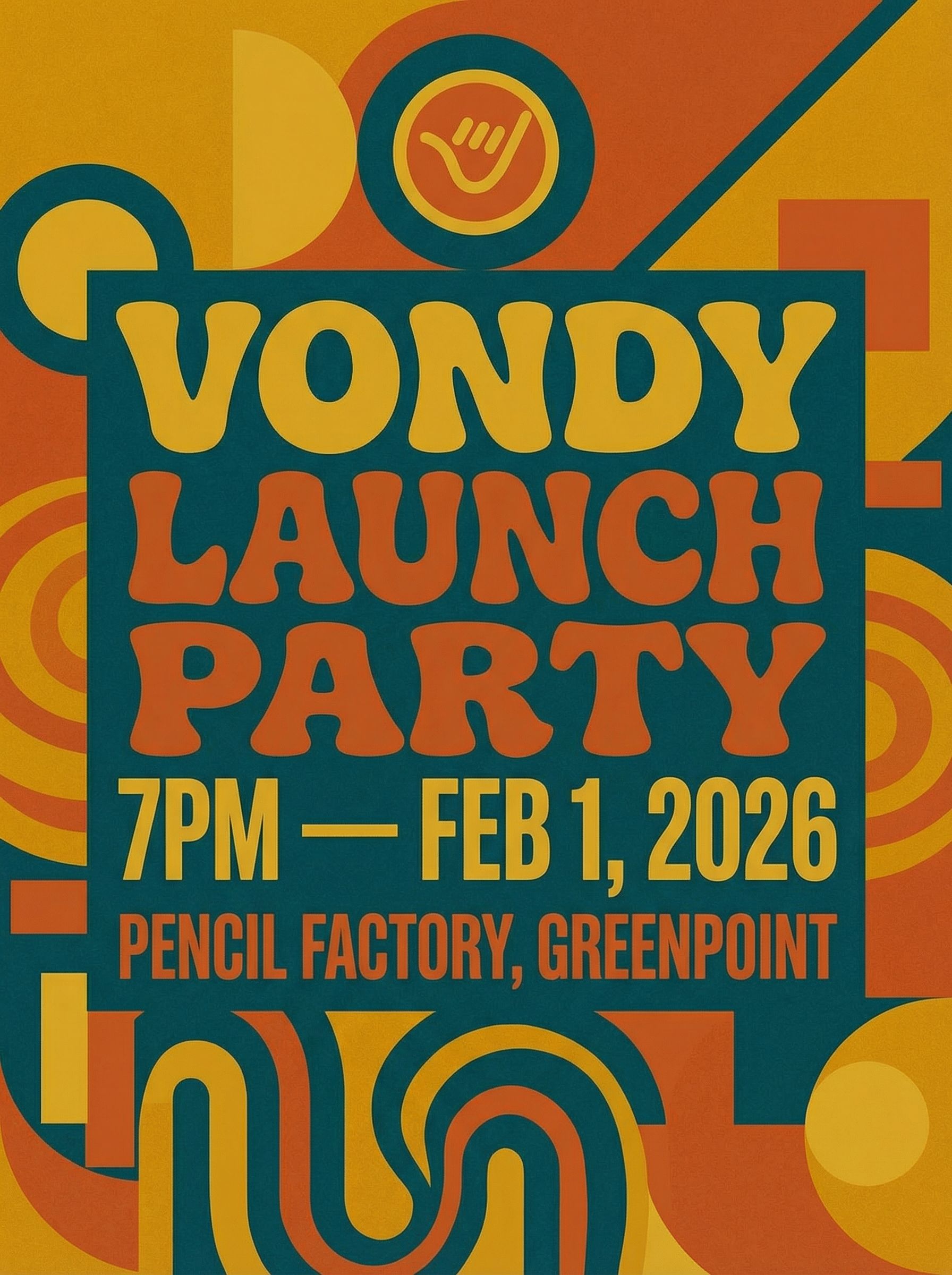
Retro 1970s
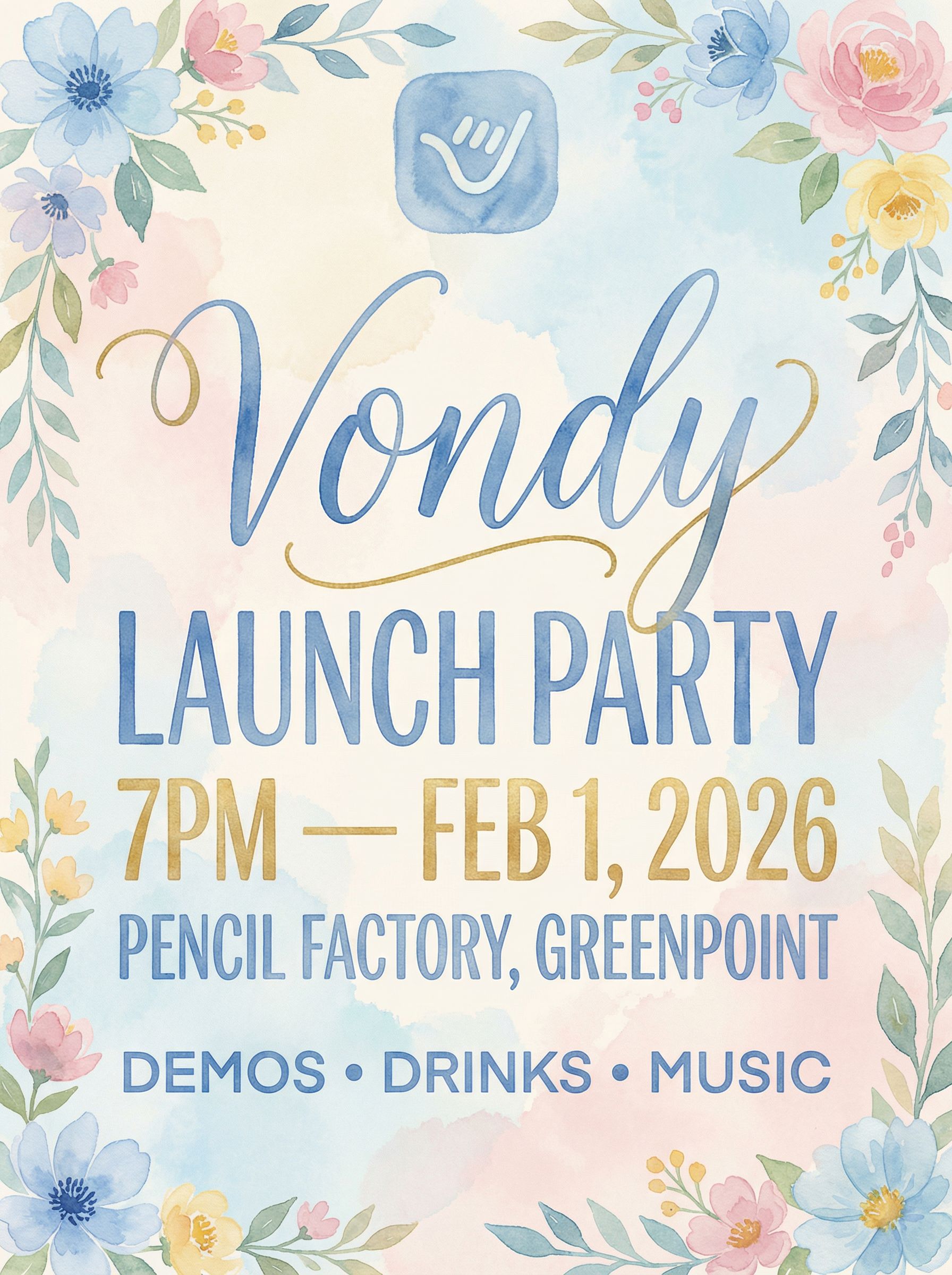
Watercolor Floral
Each variation maintains the same information but transforms the visual language completely. The minimalist version uses white space and muted neutrals. The letterpress version adds textured paper and ink embossing. This is the power of using AI image generators for graphic design work.
Step 4: Refine and Edit
AI-generated posters sometimes need small tweaks. Maybe there's an element you want to remove, text that needs adjustment, or a detail you want to tweak. AI photo editing makes these refinements easy without starting over.
Edit Example: Remove RSVP Line
Before
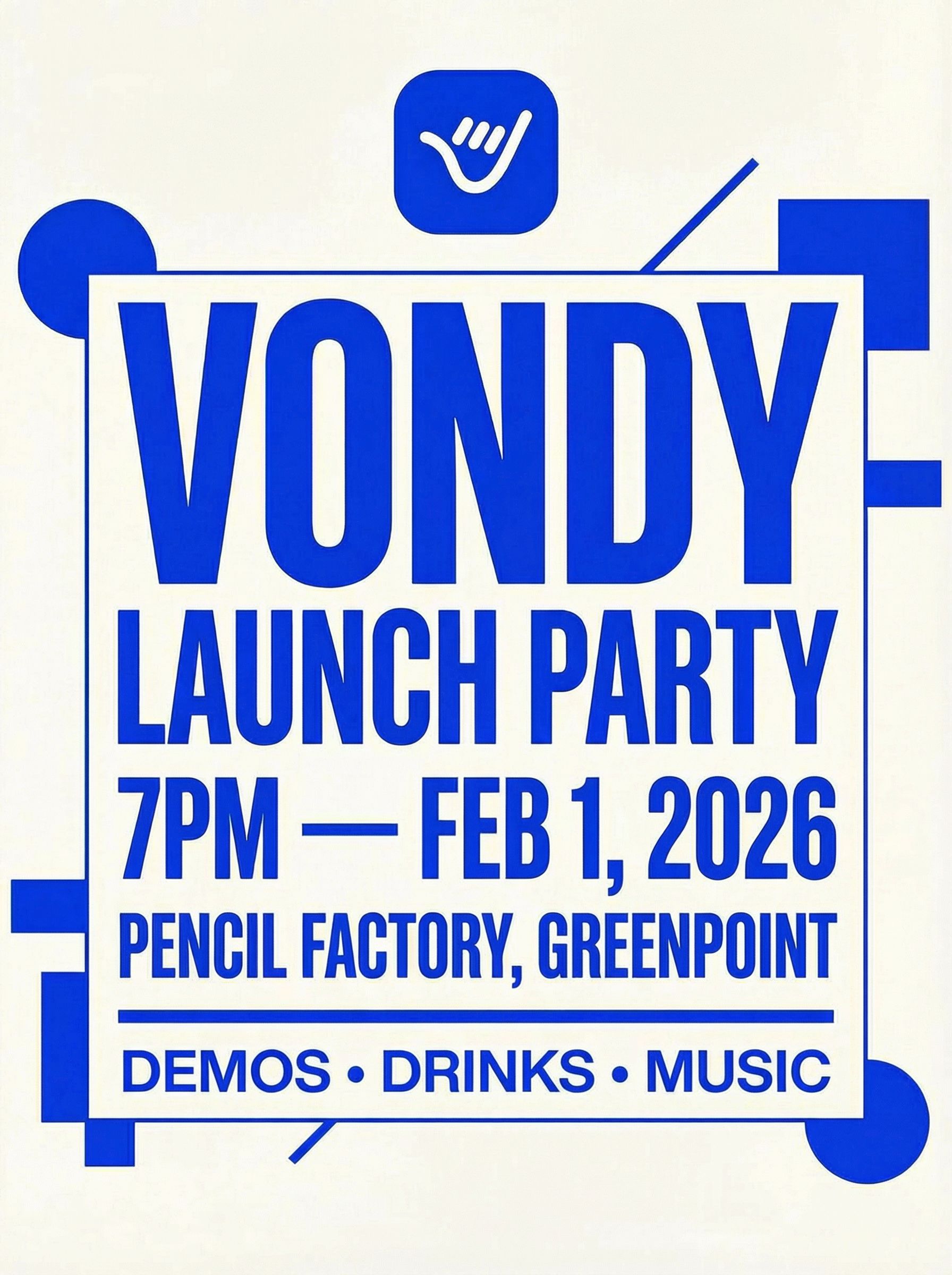
After
Click for before/after
We used annotation-based editing to remove the RSVP placeholder line from the original design. The result is a cleaner poster that works better for general promotion where RSVP isn't needed.
Step 5: Resize for Different Platforms
A single poster design can be adapted for multiple uses. The standard poster size (3:4 or similar portrait ratio) works for poster printing, but you'll want different dimensions for social media and web. AI can intelligently resize and recompose your design to fit any format.
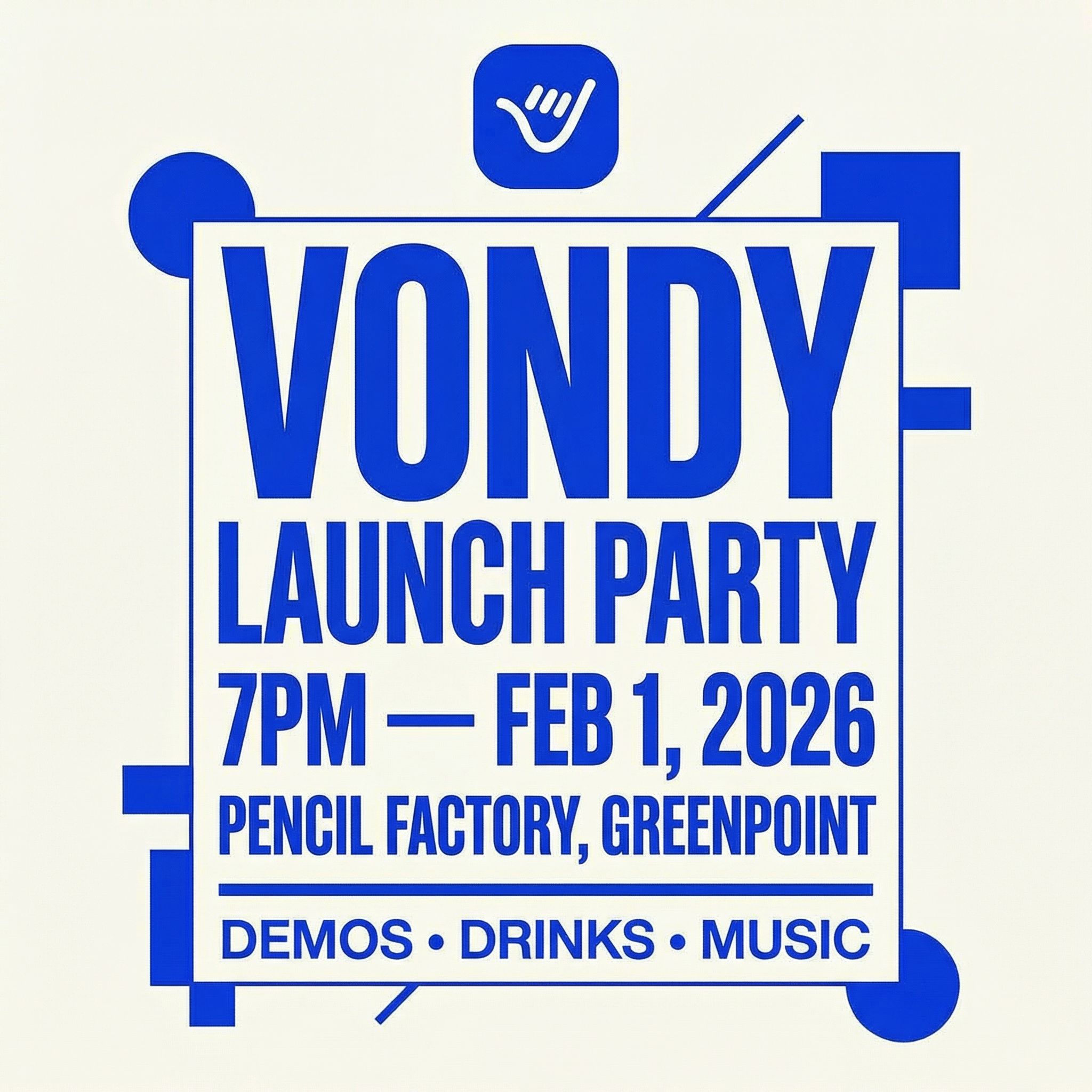
Instagram Square (1:1)
Square format for Instagram feed posts
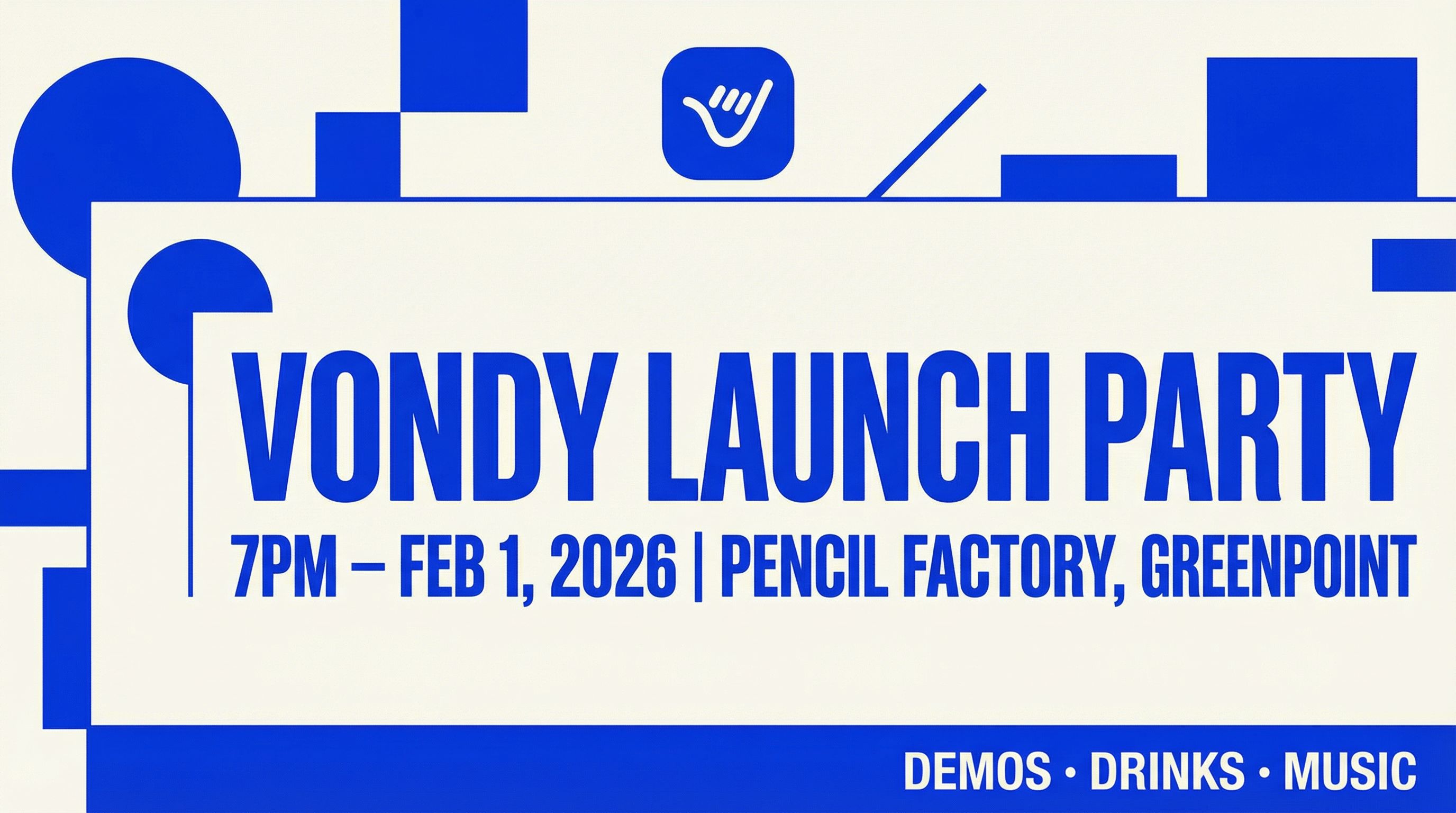
Website Header (16:9)
Perfect for website headers and Facebook event covers
Common Poster Sizes
- • Instagram: 1080x1080 px
- • Instagram Story: 1080x1920 px
- • Web Header: 1920x1080 px
- • Facebook Event: 1920x1080 px
- • Print (18x24"): 5400x7200 px
- • Print (24x36"): 7200x10800 px
Step 6: Create Realistic Mockups
Before printing or sharing, visualize how your poster will look in the real world. AI mockups help you see the final result and make better decisions. They're also great for marketing presentations when you need to show stakeholders what the campaign will look like.
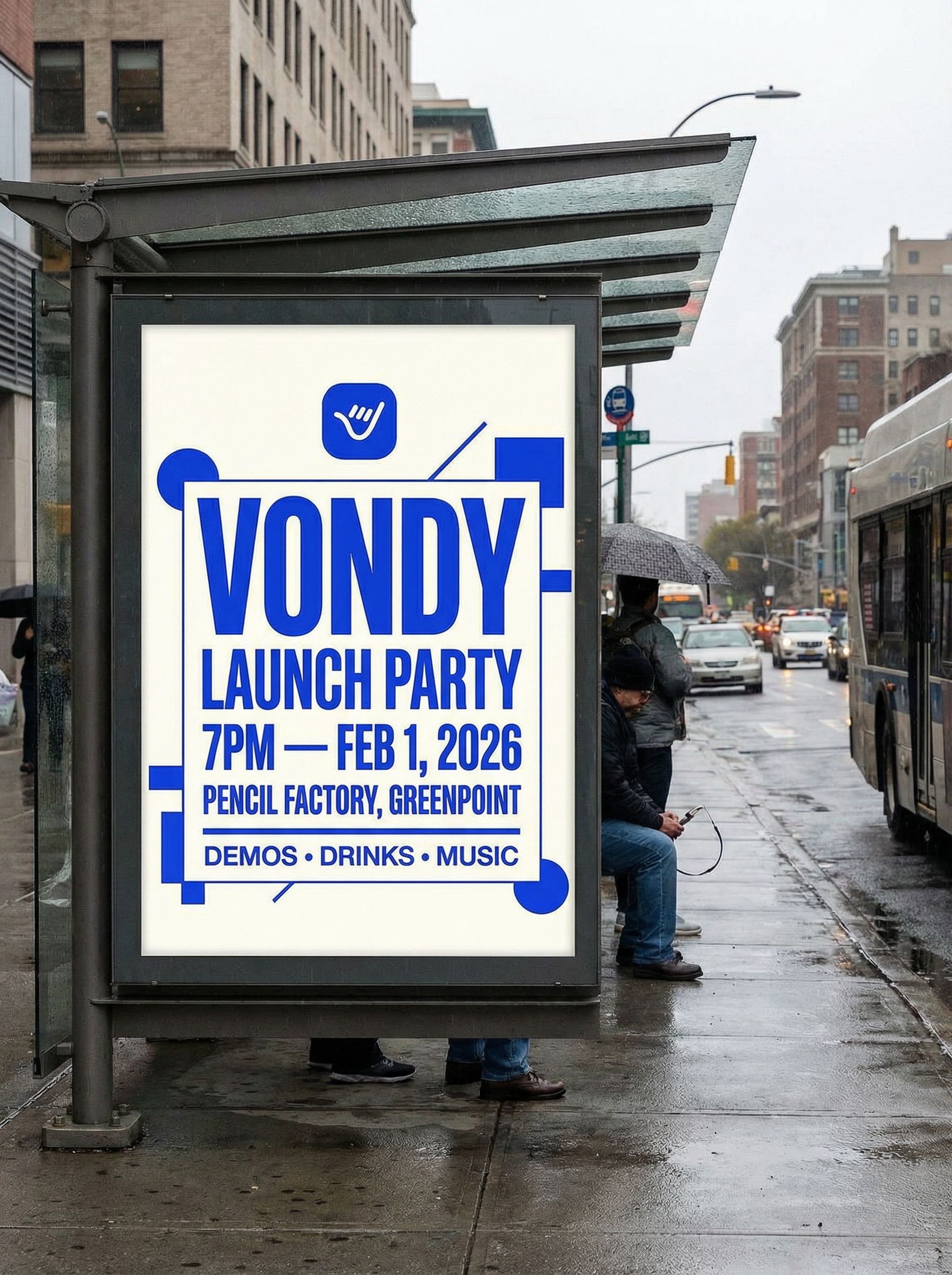
Bus Stop Mockup
More Mockup Ideas
- • Wheat-pasted on a brick wall
- • Framed in a gallery setting
- • On a billboard or street sign
- • Held in someone's hands
- • Rolled up on a desk
- • In a shop window
Frequently Asked Questions
How does AI compare to traditional poster makers?
Traditional poster templates give you fixed layouts where you swap in your own text and images. AI creates original designs from scratch based on your description. You get a truly custom poster instead of something built from the same templates everyone else uses. For small business owners without design budgets, this is a game-changer.
What about scientific posters or academic presentations?
AI works for scientific poster design too, though you may need to tweak results more carefully. Academic posters have specific conventions for layout, charts, and citations. AI can generate the visual framework, but you'll want to export as PNG or JPG and finalize details in a tool that handles precise text placement.
What file format should I use for high-resolution printing?
For high-quality poster printing, generate at the largest resolution available (usually 2048 pixel width or higher). Export as PNG for lossless quality or JPG for smaller file sizes. Professional print shops typically want at least 300 DPI at the final print size. For a standard 18x24 inch poster, that means roughly 5400x7200 pixels.
Can I add stickers or decorative elements after generation?
Yes. You can use AI editing to add stickers, badges, or decorative elements to your poster. Describe what you want to add and where, and AI will integrate it naturally into the existing design. This works well for adding "sold out" badges, sponsor logos, or seasonal decorations.

Create Your Own Poster with Vondy
All the AI tools used in this tutorial are available on Vondy. Generate concepts, create variations, and resize for any platform in one workspace.
Start creating
Continue Learning