
Your YouTube channel banner is the first thing visitors see. It sets expectations for your content creation style and brand personality. Most creators struggle with YouTube banner templates in Canva or Photoshop, fighting with layers and resizing to fit YouTube's unique safe area requirements.
AI changes everything about creating YouTube channel art. Instead of starting with designed templates and swapping elements, you describe your vision and get a perfect YouTube banner in seconds. This tutorial walks through creating a professional YouTube banner using a real example: channel art we designed for Vondy.
What You'll Learn
- Understanding YouTube banner size and the critical safe area
- Generating multiple banner concepts with different styles
- Refining typography, brand colors, and visual elements
- Turning your static banner into an animated intro
Understanding YouTube Banner Size
YouTube banner size is notoriously tricky. The full canvas is 2560 x 1440 pixels, but different devices display different portions. Get this wrong and your channel name or logo gets cropped on mobile. For beginners, this is the most common mistake.
YouTube Channel Art Dimensions
Full Canvas
2560 x 1440 pixels
TV display only
Safe Area (Critical!)
1546 x 423 pixels
Visible on all devices
Desktop View
2560 x 423 pixels
Center horizontal band
Mobile View
~1546 x 423 pixels
Smallest visible area
The Safe Area Rule
Always keep your logo, channel name, and critical text within the center 1546 x 423 pixel safe area. When prompting AI, specify "keep all critical elements inside the YouTube safe area" to ensure your banner works on every device.
Step 1: Gather Your Assets
Before generating your YouTube banner, collect the elements that define your channel's visual identity. Unlike drag and drop YouTube banner maker tools that force you into templates, AI works best when you provide clear creative direction.
Visual Elements
- • Logo (PNG with transparent background)
- • Brand colors or preferred gradient
- • Style references or own images
- • Fonts preference (if any)
Content Direction
- • Channel name and tagline
- • Content niche (gaming, tutorial, vlog, etc.)
- • Desired mood (energetic, minimal, professional)
- • Reference channels you admire
Our Example: Vondy Channel
For this tutorial, we created a YouTube channel banner for Vondy. We uploaded the Vondy logo and specified requirements: keep all elements in the safe area, use on-brand colors (blues and purples), and create a premium tech aesthetic suitable for an AI design tool channel.
Step 2: Generate Multiple Concepts
The power of AI for YouTube banner designs is rapid exploration. Generate 3-4 different concepts to find what resonates with your channel's personality. Unlike YouTube banner templates that all look similar, AI creates unique artwork for each direction.
Design a YouTube channel banner (16:9) for [channel name] using the provided logo. Style: [aesthetic]. Background: [description]. Composition: keep all critical elements inside the YouTube safe area, with generous padding. Place the logo [position], with a tagline: "[tagline]". Keep logo unmodified and crisp. [Additional requirements].Here are four concepts we generated for the Vondy YouTube channel banner. We ultimately selected the "Colorful Moodboard" direction for its creative, editorial feel:
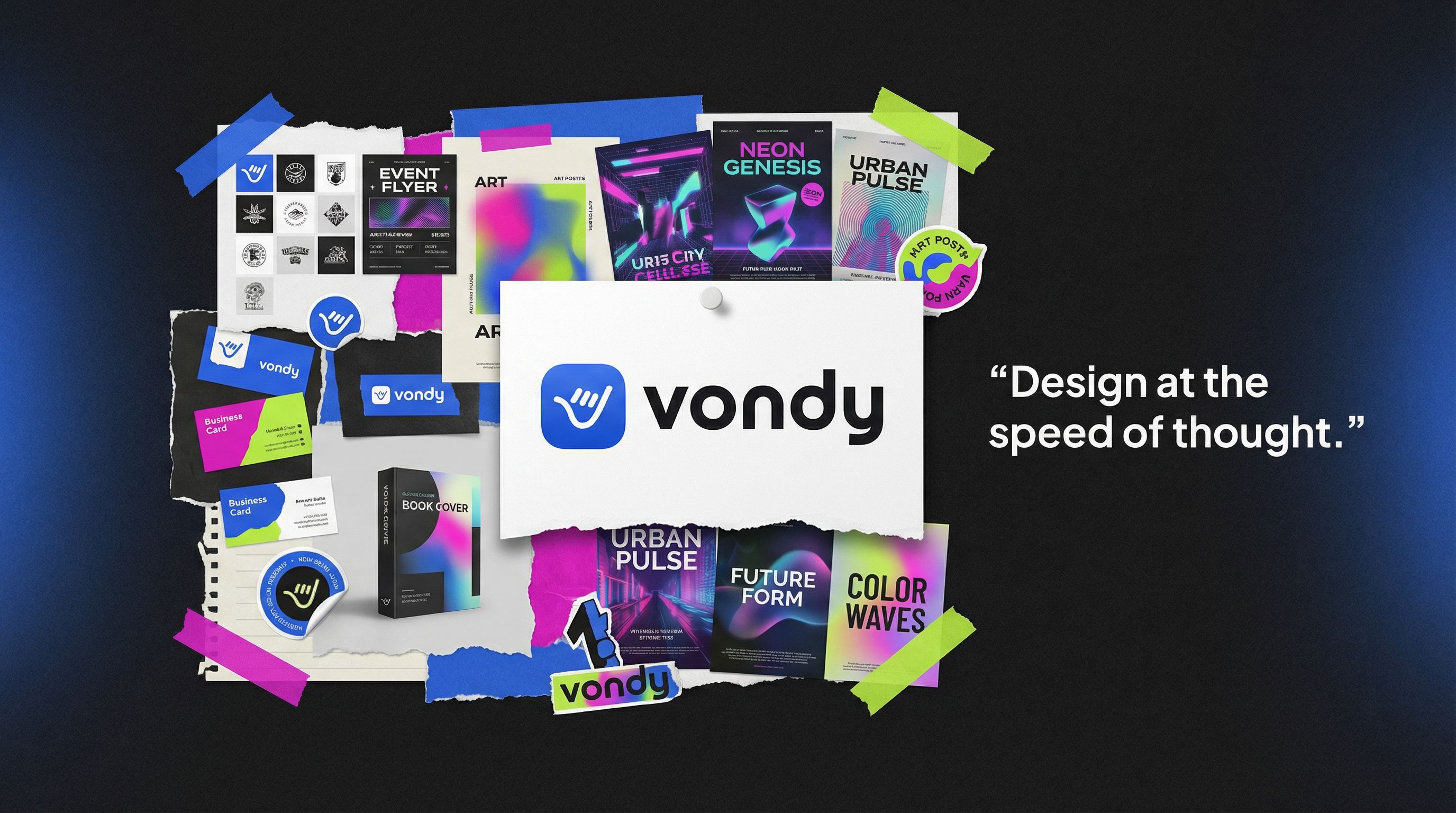
Colorful Moodboard
Creative collage with torn paper layers
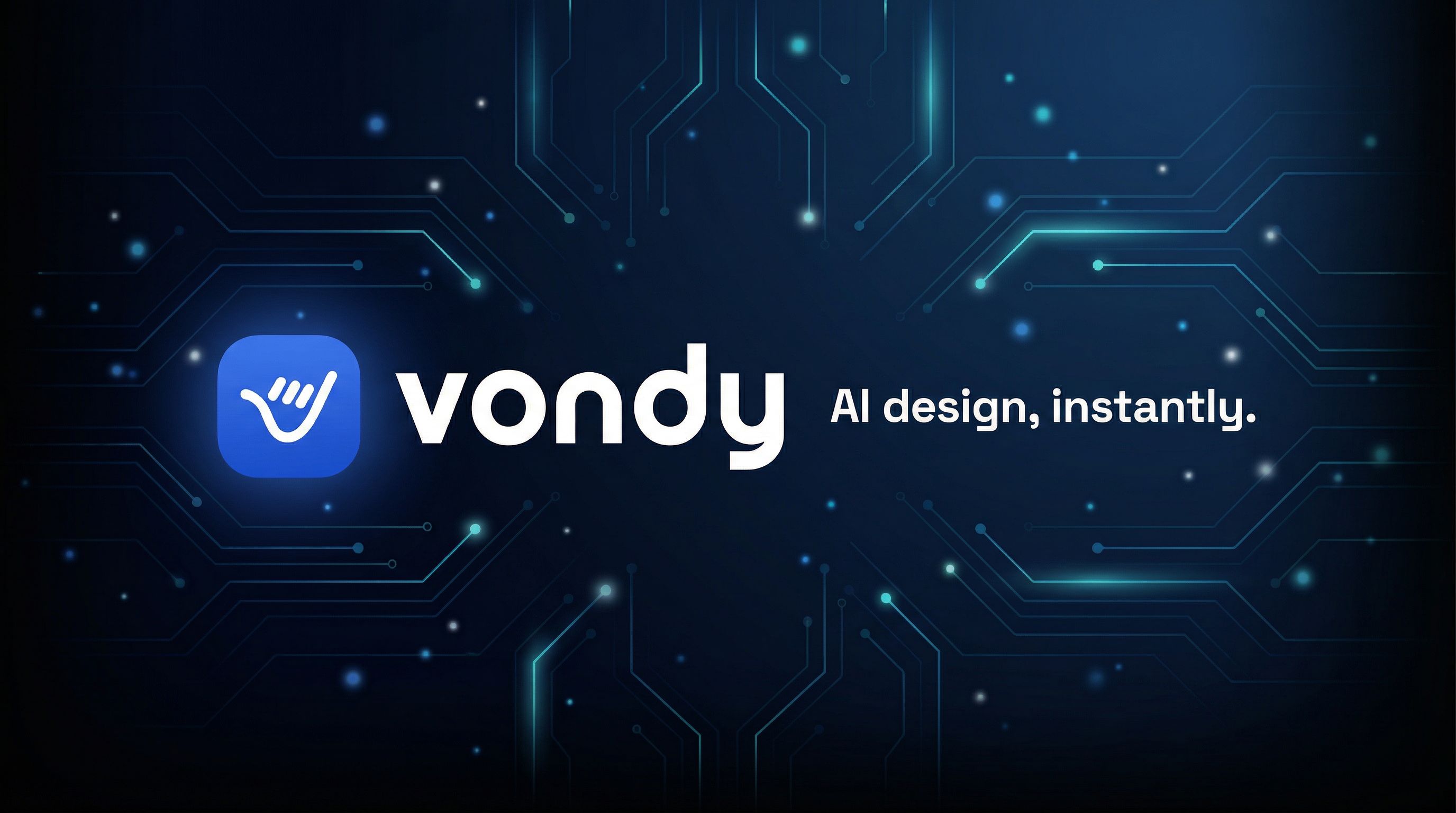
Dark Mode Tech
Navy gradient with circuit lines
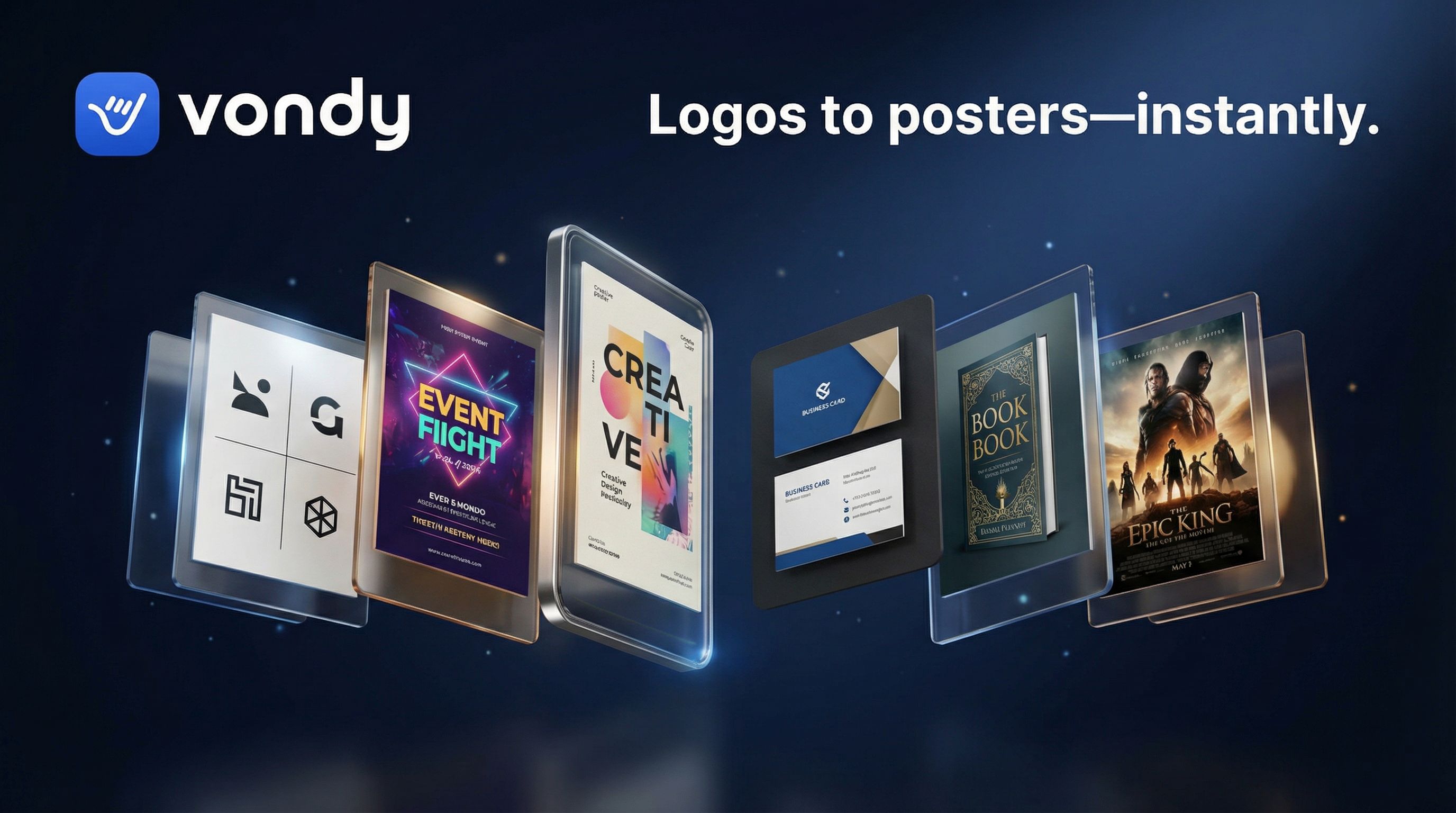
3D Floating Carousel
Deep navy with floating 3D elements
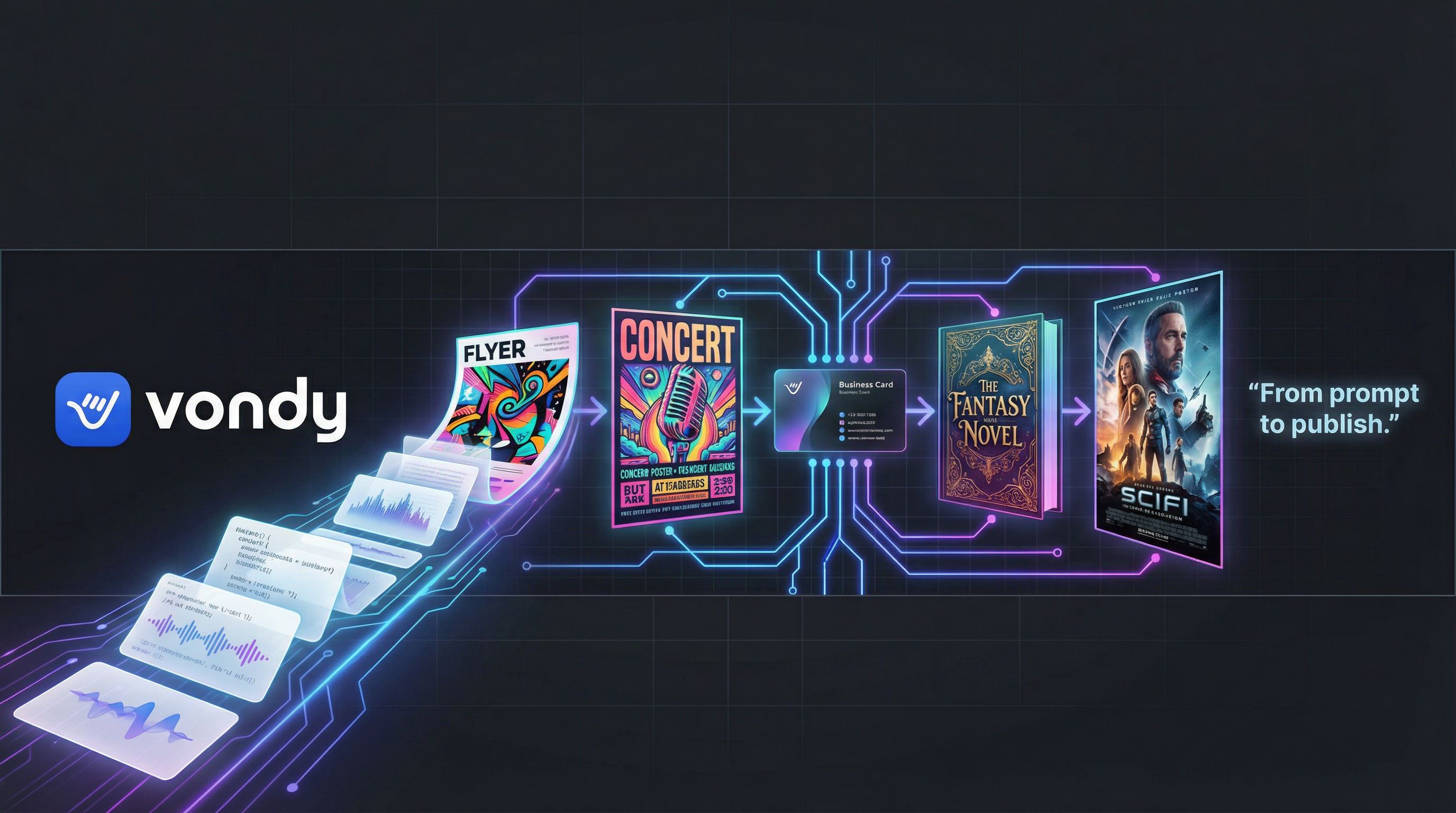
Creative Workflow
Dark graphite with workflow elements
Tips for Perfect YouTube Banners
- • Always specify "keep all critical elements inside the YouTube safe area"
- • Use "16:9 aspect ratio" for proper YouTube banner size
- • Include "Do NOT warp or alter the logo" to preserve your branding
- • Reference specific aesthetics: "dark mode tech," "minimalist bright," "bold energetic"
Step 3: Create Style Variations
With the "Colorful Moodboard" concept selected, we generated four style variations to explore different visual treatments. This is where AI image generators excel. You can transform the same banner into editorial, vintage, neon, or any other style without starting over.
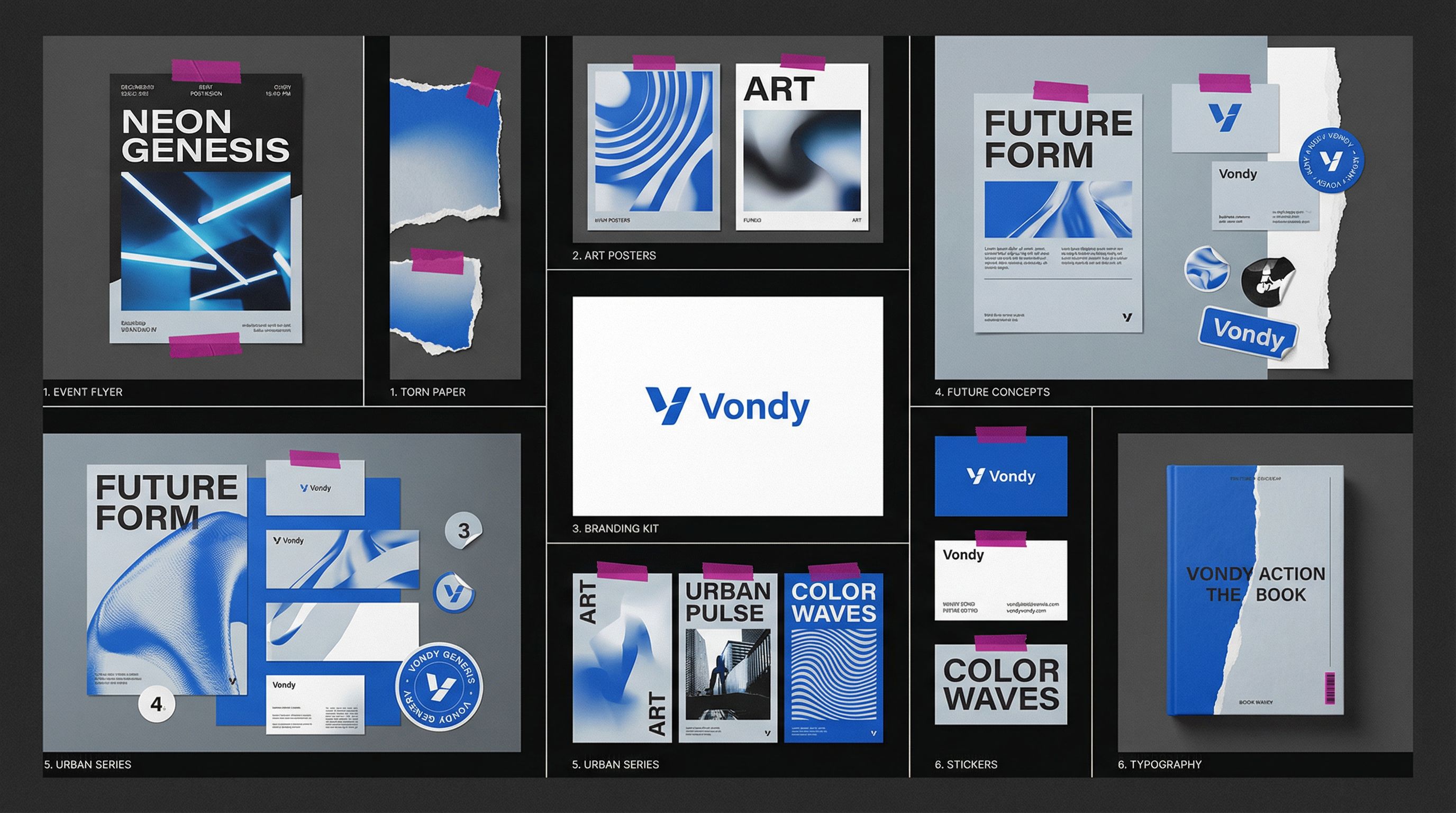
Swiss Editorial Grid
Click for before/after
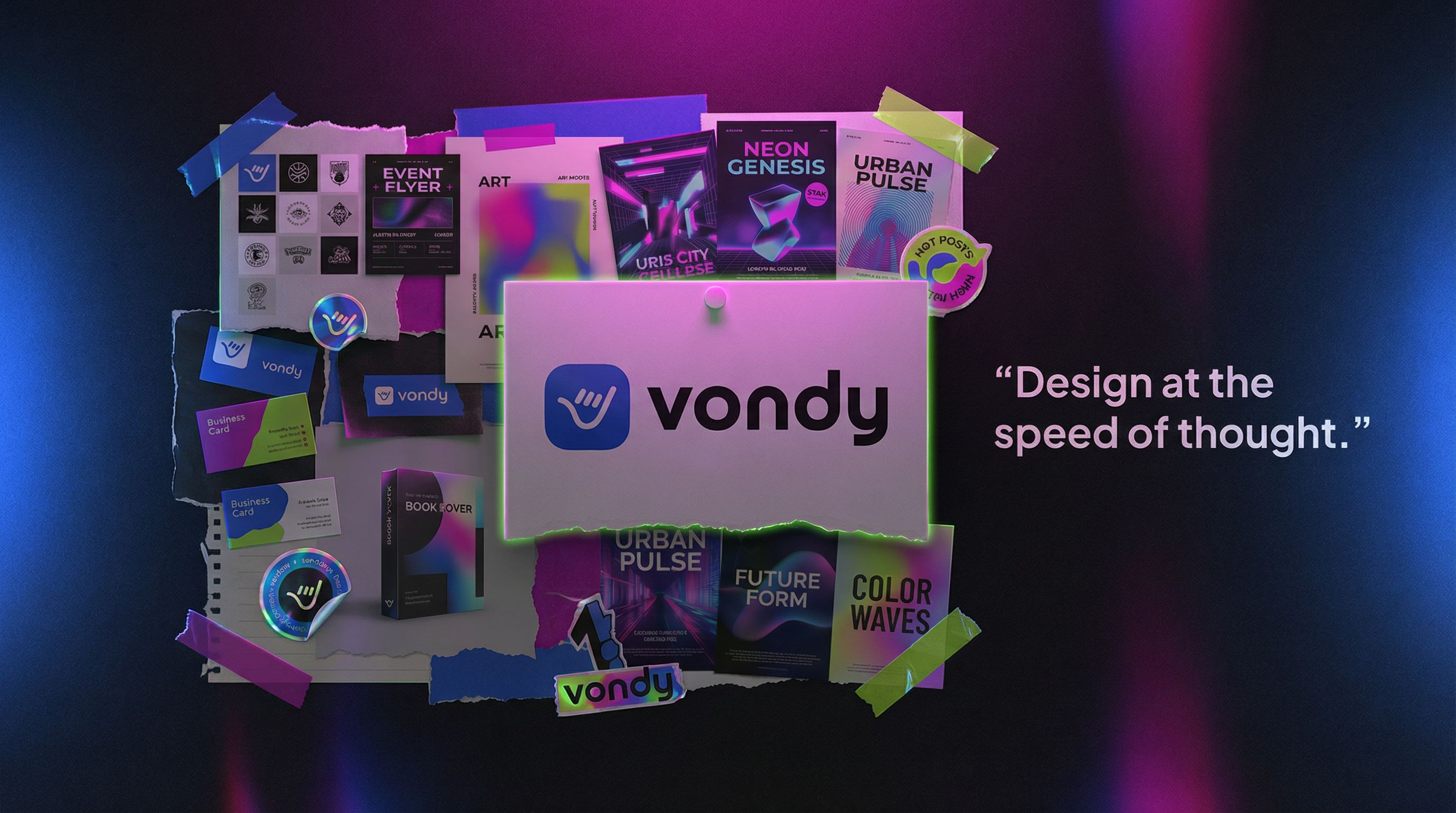
Neon Desk at Night
Click for before/after
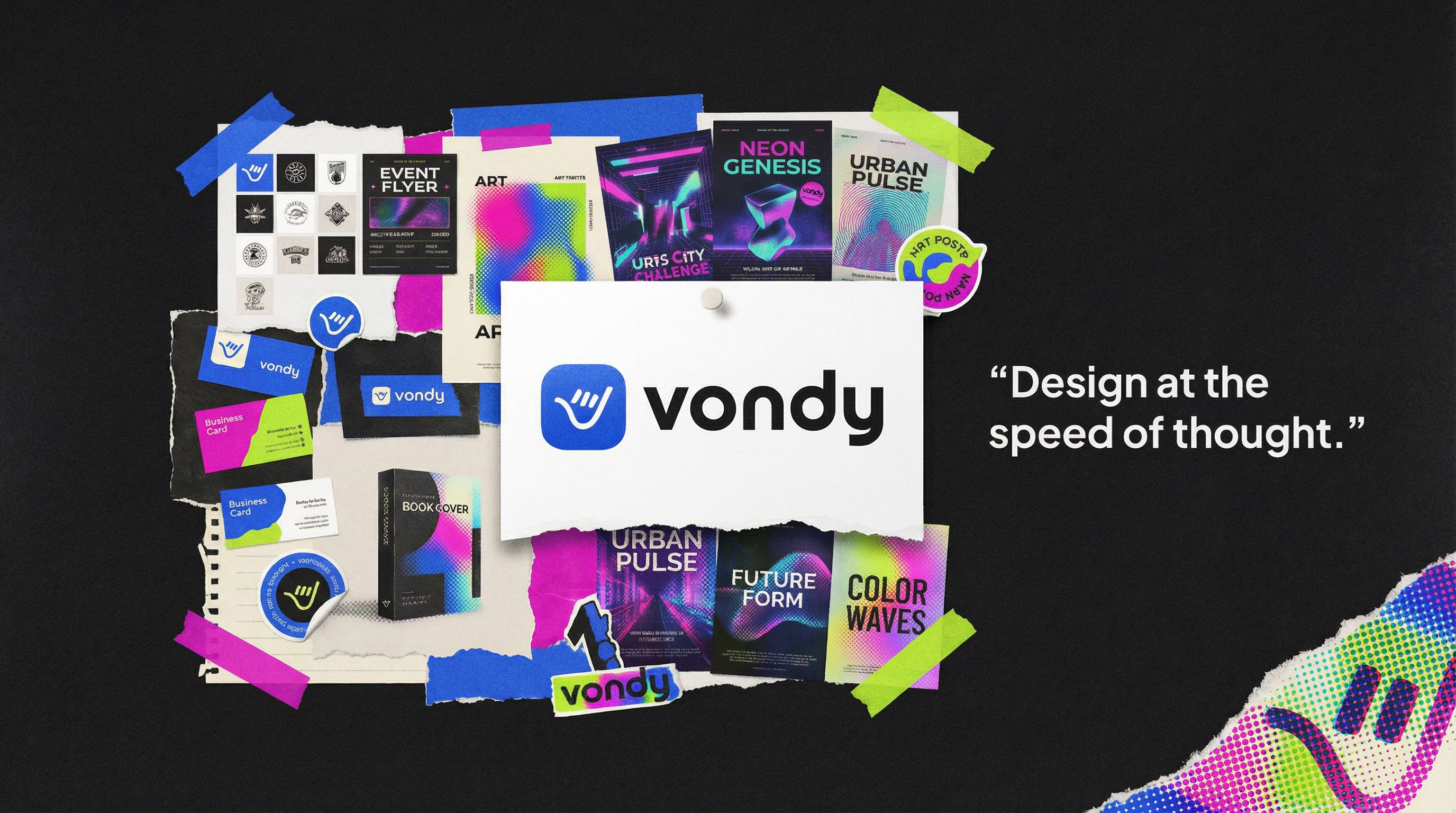
Risograph Print
Click for before/after
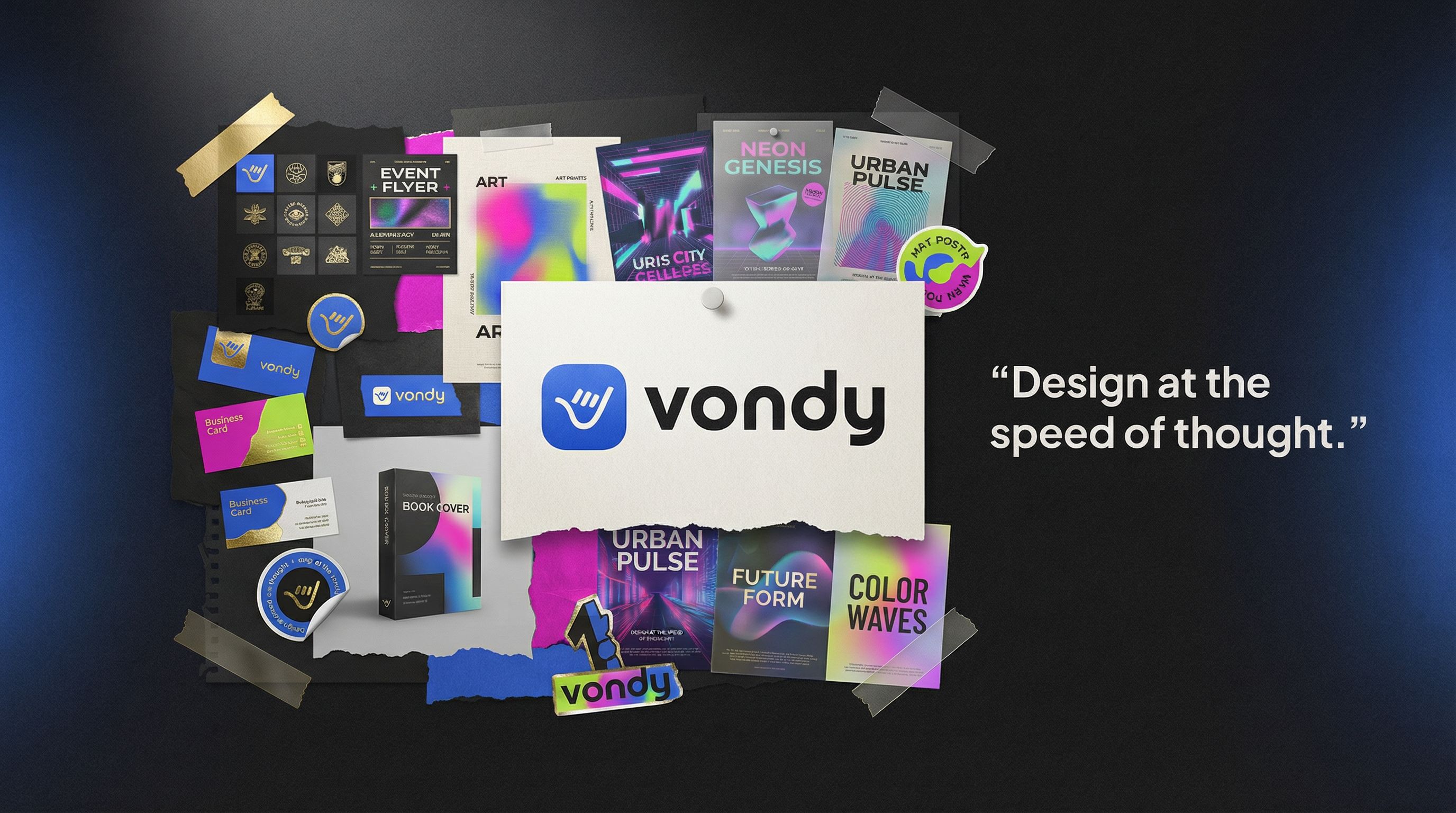
Materials & Craft
Click for before/after
Style variations maintain your core layout while completely changing the visual treatment. This approach is much faster than browsing through YouTube banner templates hoping to find something close to your vision. The result is high quality, on-brand artwork unique to your channel. We decided to proceed with the original moodboard style and move to text refinement.
Step 4: Refine and Edit
AI-generated YouTube banners often need small tweaks. Maybe the tagline needs different wording, text should be white for better contrast, or an element needs resizing. AI photo editing makes these refinements easy without regenerating the entire banner.
Edit Example: Tagline Refinement
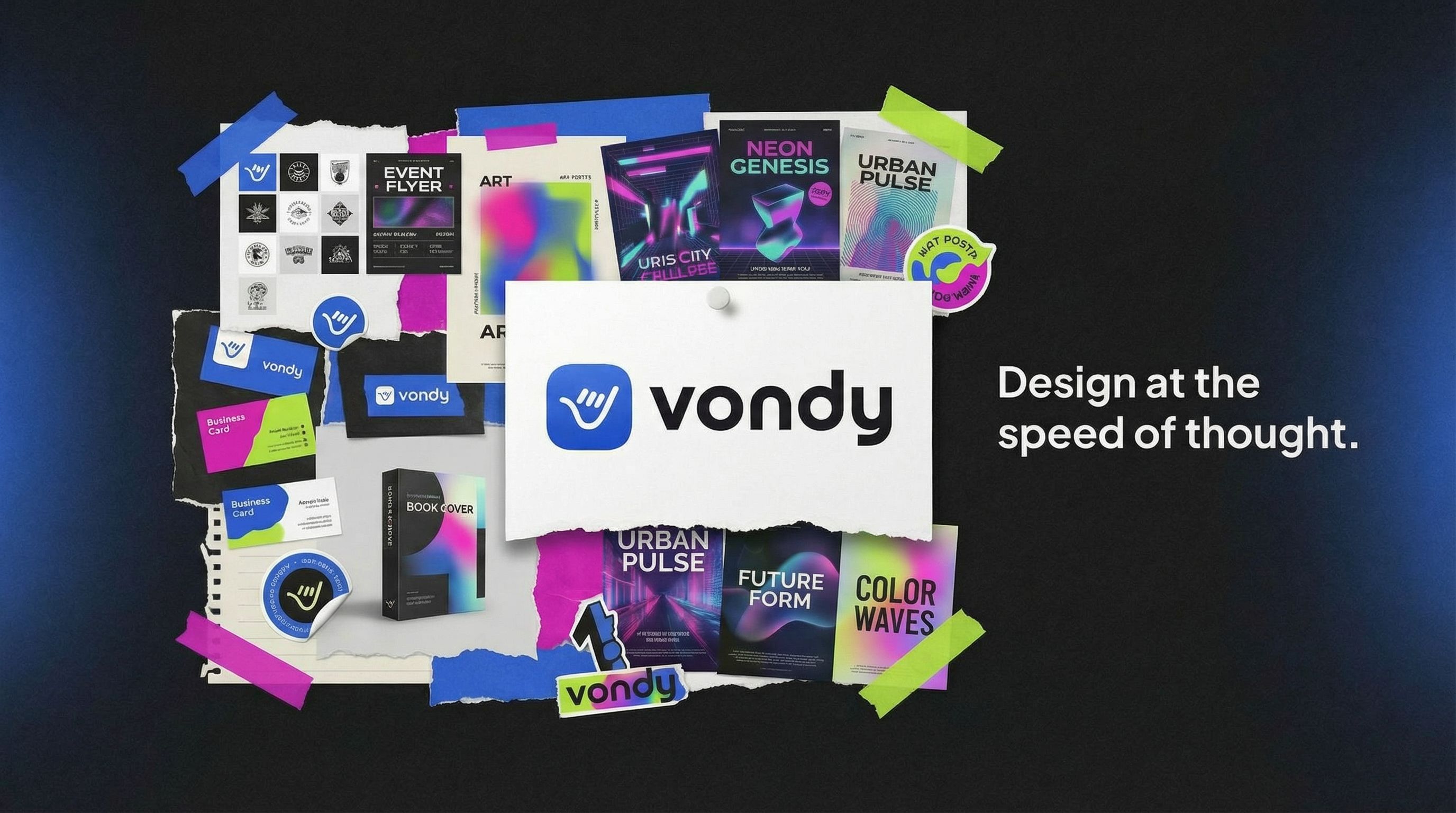
The original moodboard concept looked great, but we wanted to update the tagline to "Design at the speed of thought." Using the annotation tool, we circled the text area and specified the new wording. This refined version became the source for our animation.
Before
After
Click for before/after
The annotation tool lets you circle specific areas and describe changes. This is much more precise than Photoshop layers and faster than trying to match fonts manually. Common refinements include adjusting typography, tweaking brand colors, or repositioning elements within the safe area.
Step 5: Animate Your Banner
Here's where things get exciting. We took the refined banner and used AI video generators to create a premium animated intro. The AI analyzes the layers in the moodboard collage and adds subtle motion, parallax effects, and cinematic lighting to bring the static design to life.
Source Image for Animation:
Animated YouTube Banner Intro
Animate this static YouTube banner into a premium 16:9 intro animation. Keep the exact layout and artwork, but add motion: subtle camera push-in with parallax depth between layers. Cards gently slide/settle into place with realistic easing, add a sleek light sweep across the logo. End on a clean hero frame with everything steady for the last 0.8s. Dark premium cinematic lighting, crisp, no distortions.Animation transforms a static banner into dynamic content creation material. Use it as a YouTube video intro, a channel trailer opener, or for social media promotion. The same artwork now works across multiple formats.
FAQ
How does AI compare to Canva for YouTube banners?
Canva offers designed templates where you swap in your own images and text using drag and drop. AI generates completely original YouTube banner designs from your description. You get unique artwork that matches your exact vision rather than adapting someone else's template. For creators wanting distinctive graphic design, AI is a game-changer.
What file format should I use for YouTube channel art?
YouTube accepts JPG or PNG files under 6MB. AI typically generates high quality images in both formats. For banners with transparency or crisp text, PNG is preferred. For photo-heavy banners, JPG works fine. Most AI-generated banners are 2K+ resolution, well above YouTube's minimum requirements.
Can I use royalty-free stock photos in my banner?
Yes! You can upload your own images or stock photos as reference material when generating your banner. AI will incorporate them into the design. However, AI often creates better results when generating original artwork from scratch. You avoid the generic look of overused stock photos and get something unique to your channel.
How do I make sure my banner looks good on mobile?
Always specify "keep all critical elements inside the YouTube safe area" in your prompt. The safe area (1546 x 423 pixels in the center) is the only portion guaranteed visible on all devices. Place your logo, channel name, and important text within this zone. Test your final banner on YouTube's preview tool before publishing.
Should my YouTube thumbnail match my banner?
Your YouTube banner and YouTube thumbnail serve different purposes but should share brand colors and fonts for consistency. The banner establishes channel identity while thumbnails promote individual videos. Use similar color schemes and typography, but optimize each for its specific use case. A cohesive visual language helps viewers recognize your content instantly.
Create Your Perfect YouTube Banner
All the AI design tools used in this tutorial are available on Vondy. Generate concepts, refine details, and animate your channel art in one workspace.
Start creating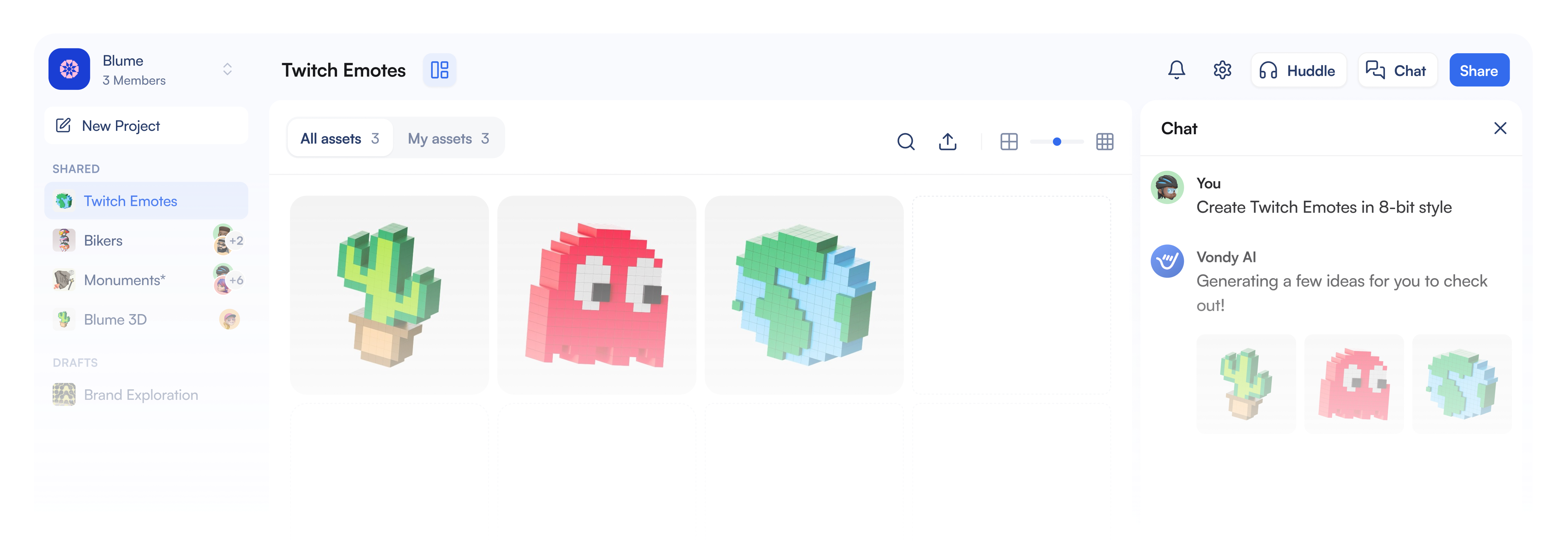
Continue Learning