
Banners are everywhere. LinkedIn profiles, YouTube channels, website headers, event promotions, and social media platforms all need eye-catching banner designs. Traditionally, creating a custom banner meant wrestling with Canva templates or hiring a graphic designer. Free banner templates exist, but they result in generic designs that thousands of others use.
AI changes everything about banner design. Instead of dragging elements around banner templates, you describe what you want and get a stunning banner in seconds. This step-by-step tutorial walks through creating professional banners using a real example: a LinkedIn employee banner we designed for Vondy.
What You'll Learn
- How to write prompts for banner design with proper safe areas
- Generating multiple concepts from dark mode to editorial styles
- Creating on-brand style variations while maintaining composition
- Adapting your own banner design to different banner sizes
- Generating realistic mockups for presentations
Step 1: Gather Your Assets
Before generating any banner designs, collect the elements you need. Unlike drag-and-drop banner maker tools that force you into preset layouts, AI works best when you provide clear creative direction. Think about your brand, target audience, and where the banner will appear.
Visual Assets
- • Logo (PNG with transparent background)
- • Brand colors or color scheme
- • Background image or own images (optional)
- • Style references for inspiration
Content & Context
- • Platform (LinkedIn, YouTube, website, etc.)
- • Target dimensions in pixels
- • Text content: headline, tagline, call-to-action
- • Safe areas for profile photos or cropping
Our Example: LinkedIn Employee Banner
For this tutorial, we designed a LinkedIn banner for Vondy employees. We uploaded the Vondy logo and specified key requirements: keep the left 30% clean for the profile photo overlay, place the logo on the right with generous padding, and maintain a high-quality professional look that works across different screen sizes.
Step 2: Generate Multiple Concepts
The power of AI banner design is rapid exploration. Instead of committing to one direction, generate 3-4 different concepts to see what resonates. Unlike traditional banner templates, each AI concept can be completely unique. This is where AI outshines any banner maker tool.
Design a [platform] banner for [brand/purpose]. Use the provided logo as a brand mark. Style: [aesthetic]. Background: [description]. Keep the left [percentage] calmer for [reason]. Place the logo on the right with generous padding. [Additional requirements]. High-end, minimal, professional.Here are four concepts we generated for the Vondy LinkedIn banner, each with distinct visual styles:
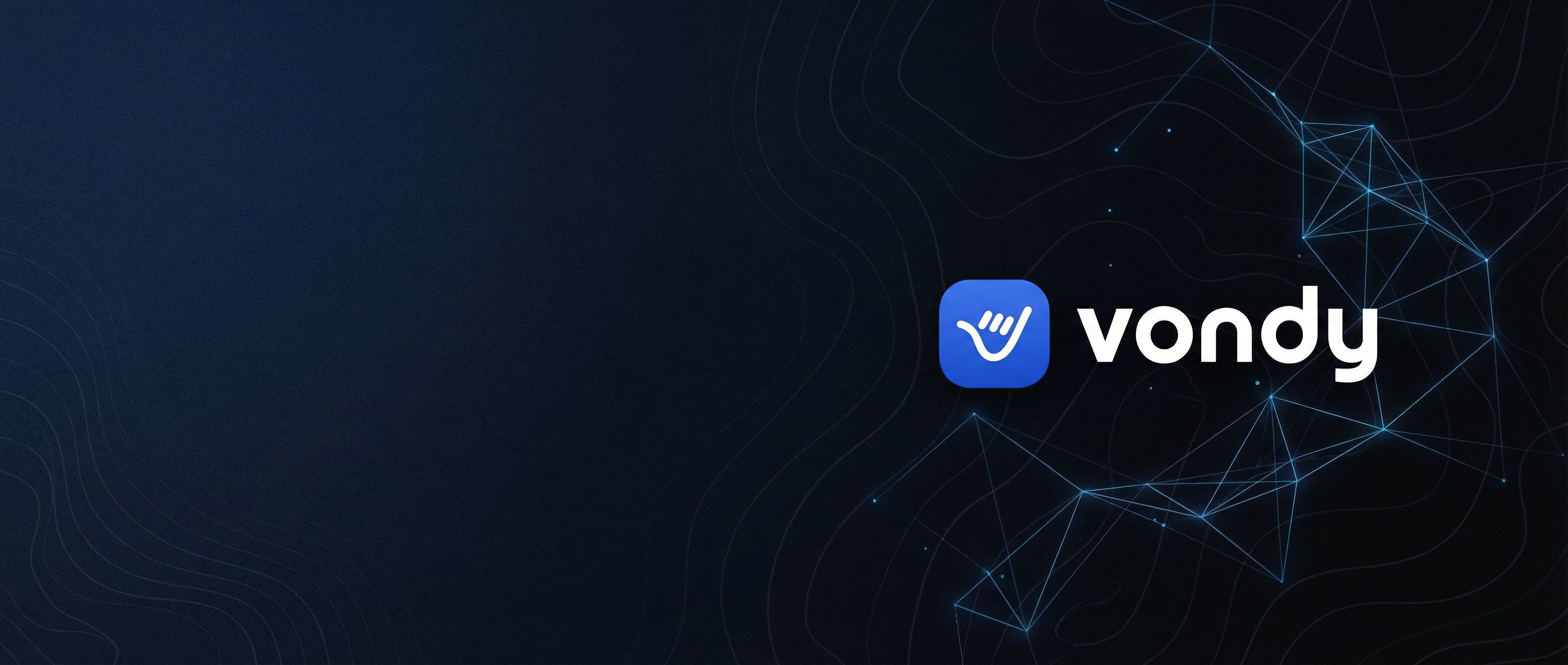
Dark Mode Tech
Navy gradient with neon network lines
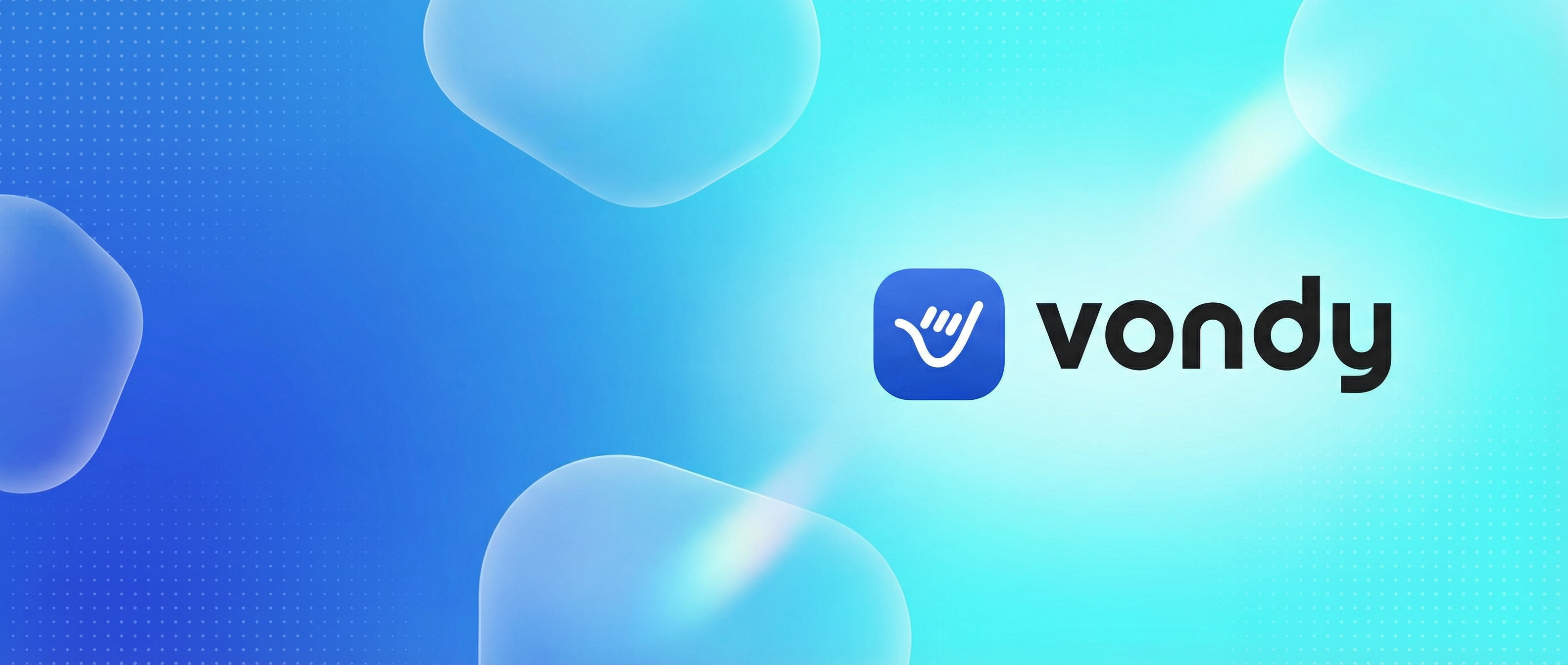
Bright Optimistic
Blue gradient with glassmorphism blobs
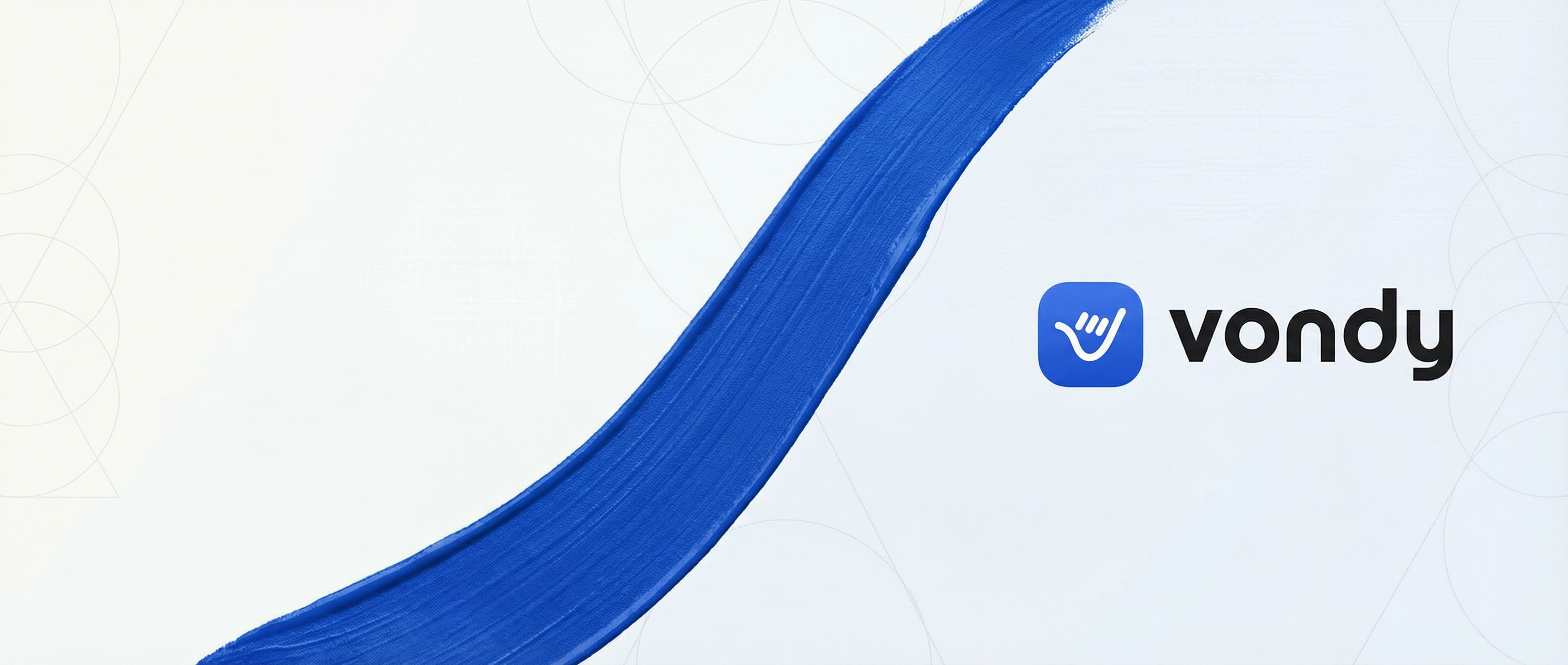
Editorial Minimal
White background with bold blue ribbon
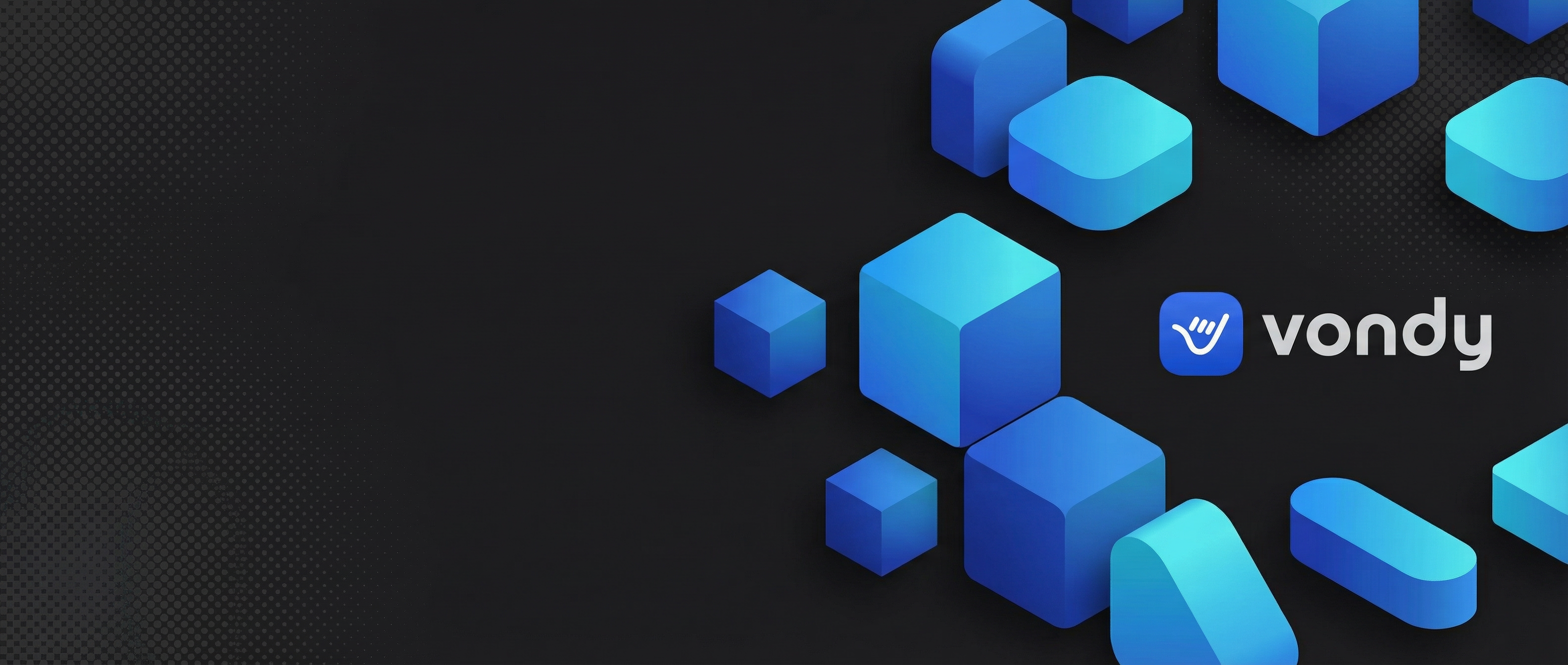
Futuristic 3D
Dark background with 3D isometric shapes
Design Tips for Better Banners
- • Always specify safe areas: "keep left 30% calmer" for profile photo overlays
- • Include your exact banner sizes when relevant: "21:9 aspect ratio for LinkedIn"
- • Reference specific aesthetics: "glassmorphism," "dark mode," "editorial minimal"
- • Specify logo placement and padding for consistent branding
Step 3: Create Style Variations
Once you pick a favorite layout, generate style variations while keeping the same composition. This is perfect for A/B testing or creating personalized banners for different team members. You can transform a minimal editorial banner into Scandinavian, glassmorphism, or dark mode styles.
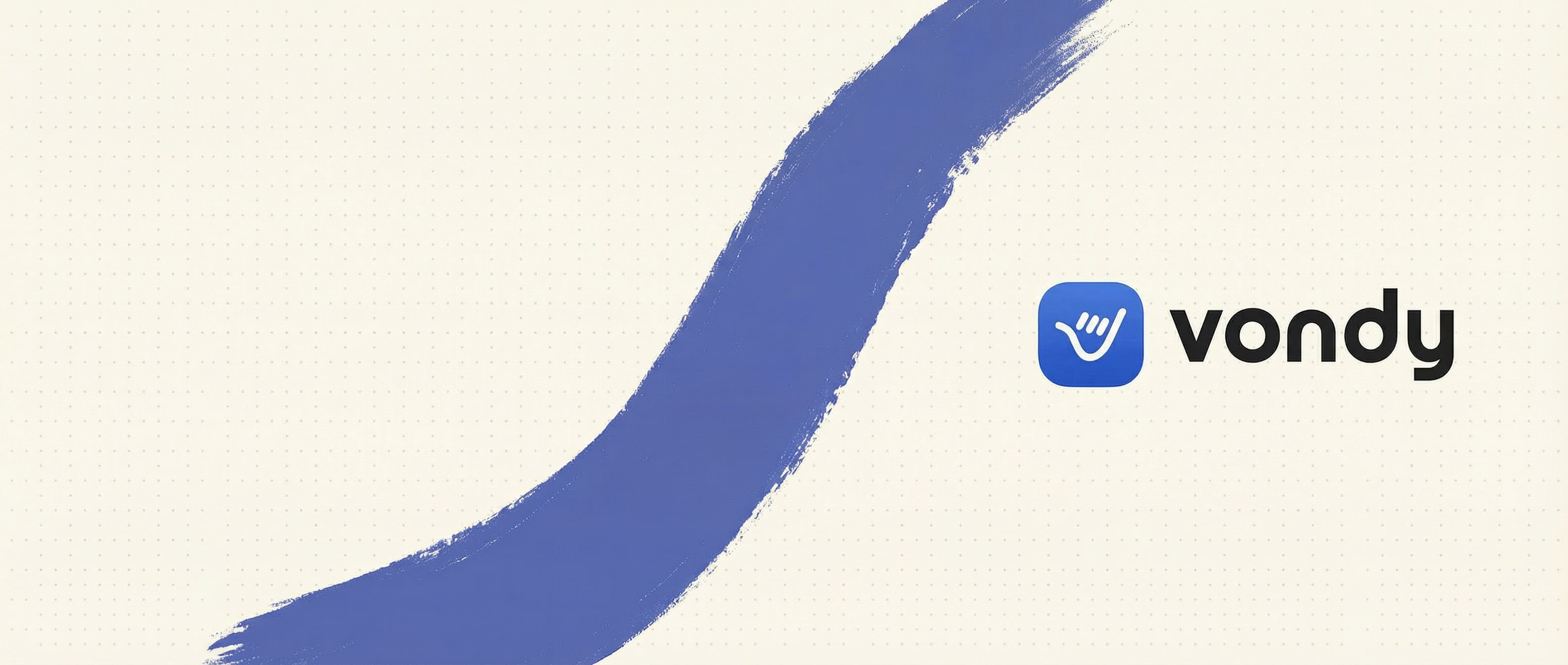
Scandinavian
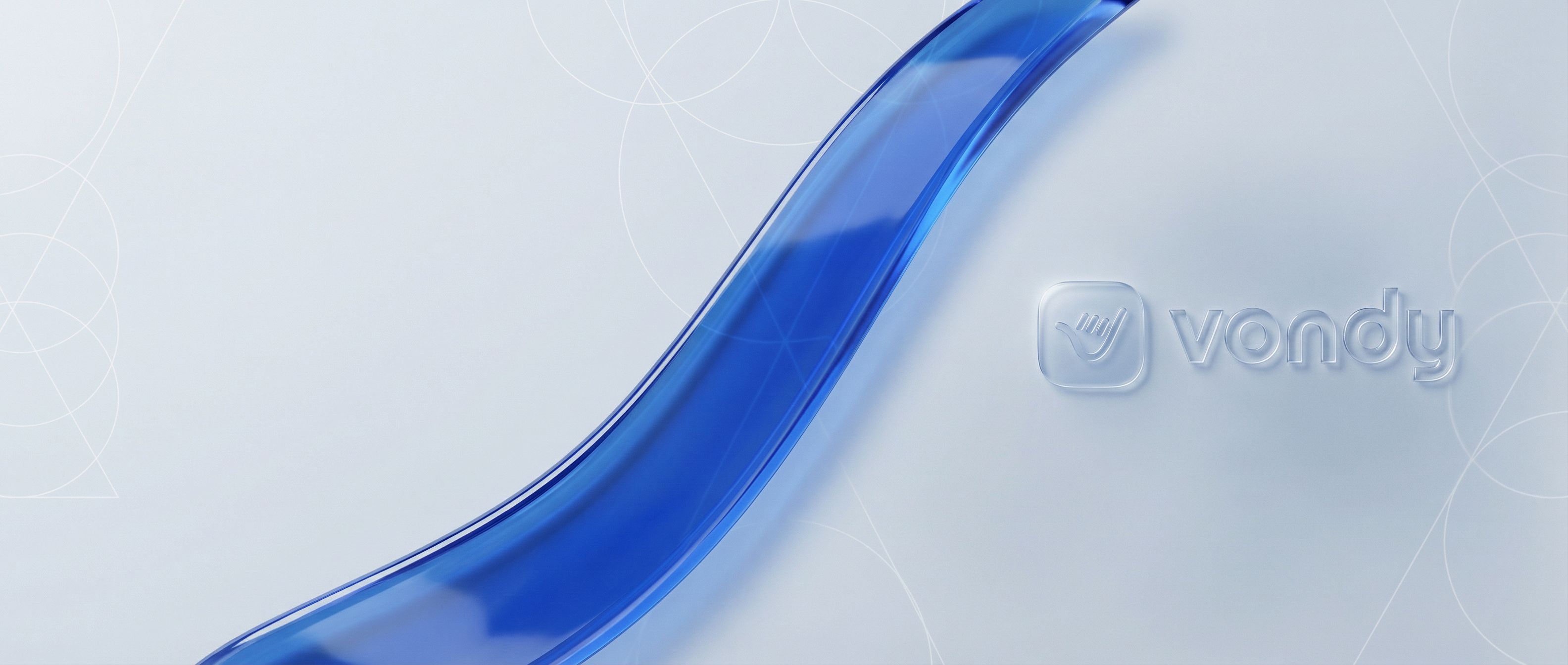
Glassmorphism
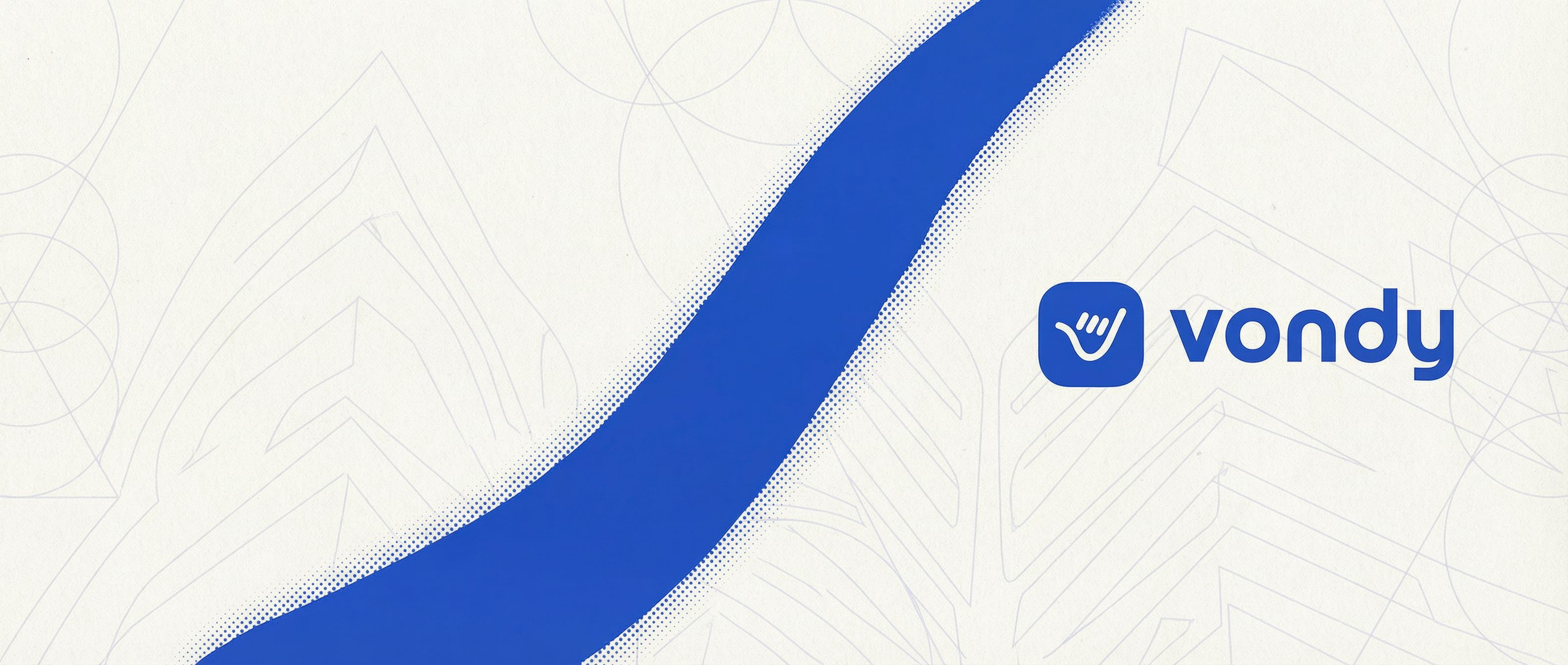
Duotone Print
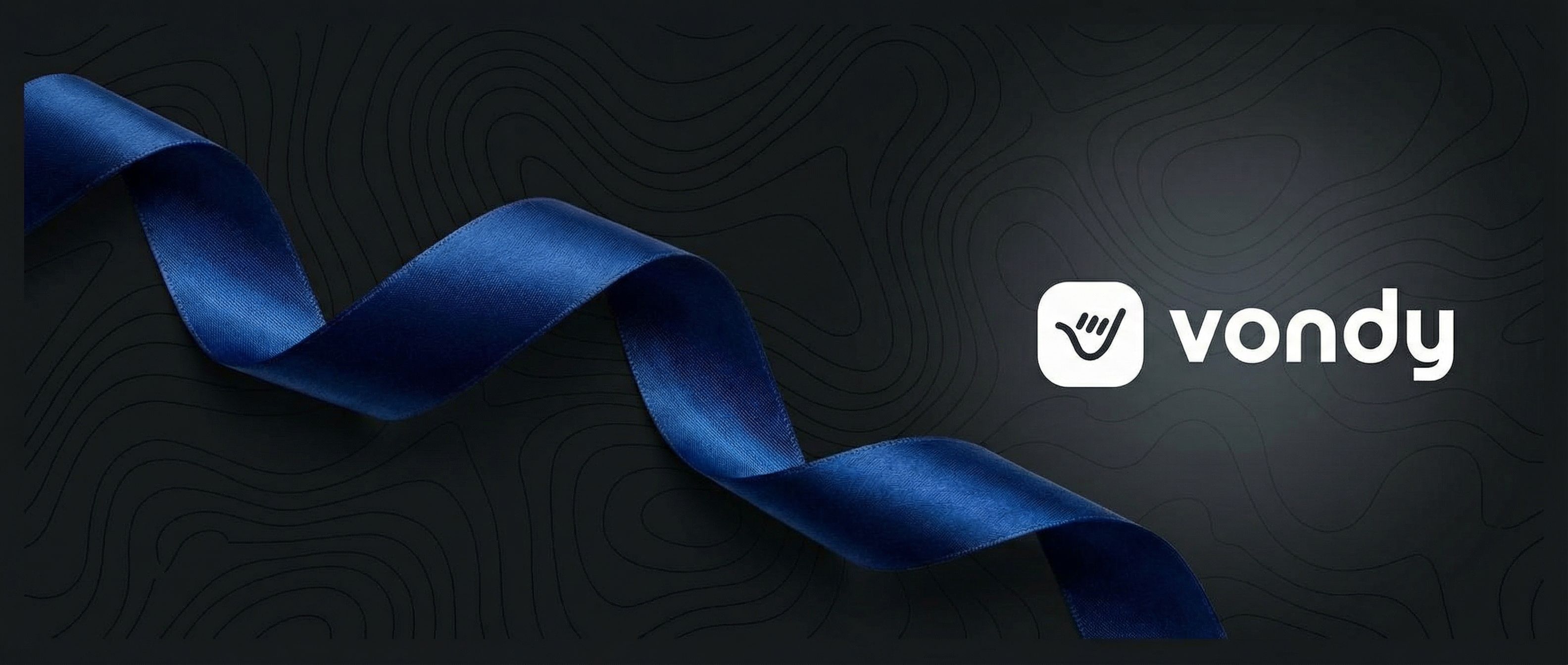
Dark Mode Premium
Each variation maintains the same logo placement and composition but transforms the visual aesthetic completely. The Scandinavian version uses warm ivory and muted colors. The glassmorphism version adds translucent effects. This is the power of using AI image generators for graphic design work.
Step 4: Refine and Edit
AI-generated banners sometimes need small tweaks. Maybe a color needs adjustment, an element should be more prominent, or you want to unify the color scheme. AI photo editing makes these refinements easy without starting over.
Edit Example: Unify Color Scheme
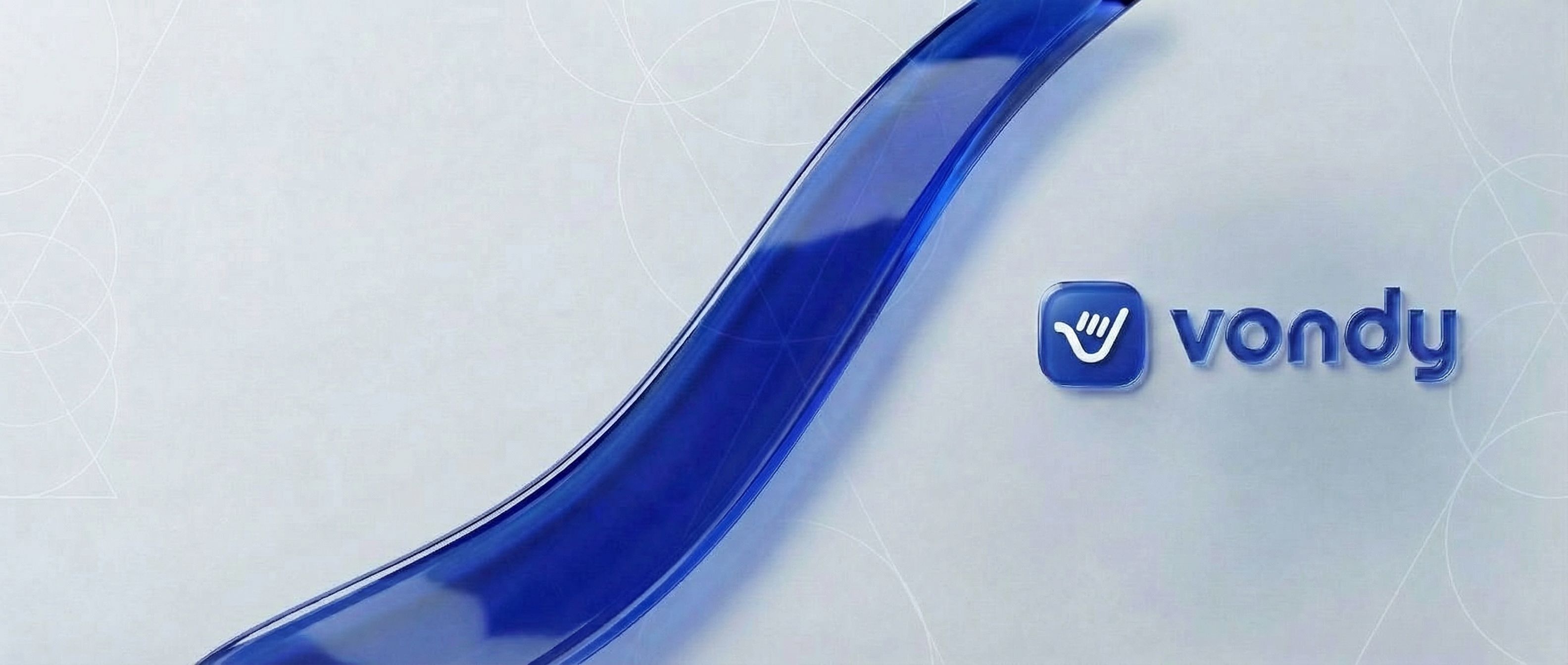
We chose the Glassmorphism variation but wanted to unify the colors and adjust the icon. We used annotation-based editing to change the accent color to match the blue streak and make the hand icon white for better contrast.
Before
After
Click for before/after
The annotation tool lets you circle specific areas and describe what to change. This is much faster than regenerating the entire design and gives you precise control over the final result. Common refinements include adjusting fonts, tweaking the color scheme, or repositioning elements.
Step 5: Understand Banner Sizes
Different social media platforms require different banner sizes. A design that looks great on LinkedIn may get cropped awkwardly on YouTube. Understanding the dimensions helps you create banners that work everywhere. AI can resize intelligently, but knowing the specs upfront leads to better results.
Common Banner Sizes (in pixels)
Social Media Platforms
- • LinkedIn Banner: 1584 x 396 px
- • YouTube Banner: 2560 x 1440 px (safe: 1546 x 423)
- • Facebook Cover: 820 x 312 px
- • Twitter/X Header: 1500 x 500 px
Web & Print
- • Website Hero: 1920 x 600 px
- • Email Header: 600 x 200 px
- • Vinyl Banners: varies by size
- • Retractable Banners: 33 x 81 in
When generating banners, specify the aspect ratio in your prompt. For LinkedIn, use "21:9 aspect ratio" or similar. For YouTube banners, remember that mobile viewers see a much smaller safe area than desktop users. Always test how your banner looks on different devices before publishing.
Pro Tip: YouTube Banner Safe Areas
YouTube banners are tricky because they display differently on TV (full 2560 x 1440), desktop (2560 x 423), tablet, and mobile. Keep your logo and critical text within the center 1546 x 423 pixel safe area to ensure visibility across all devices.
Step 6: Create Realistic Mockups
Before publishing, visualize how your banner will look in real-time contexts. Mockups are essential for marketing presentations and stakeholder approval. They help everyone see the final result and make better decisions.
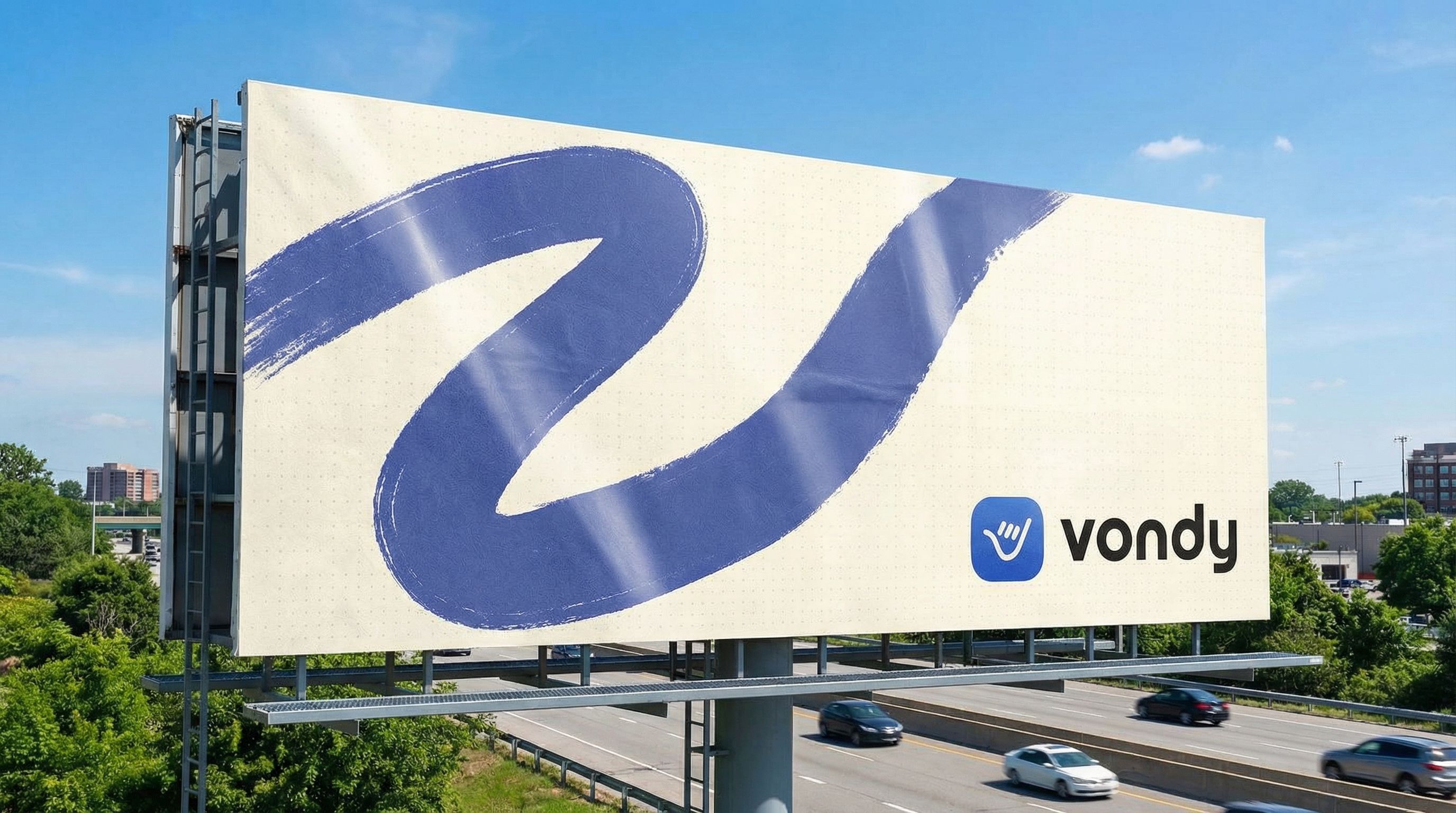
Billboard Mockup
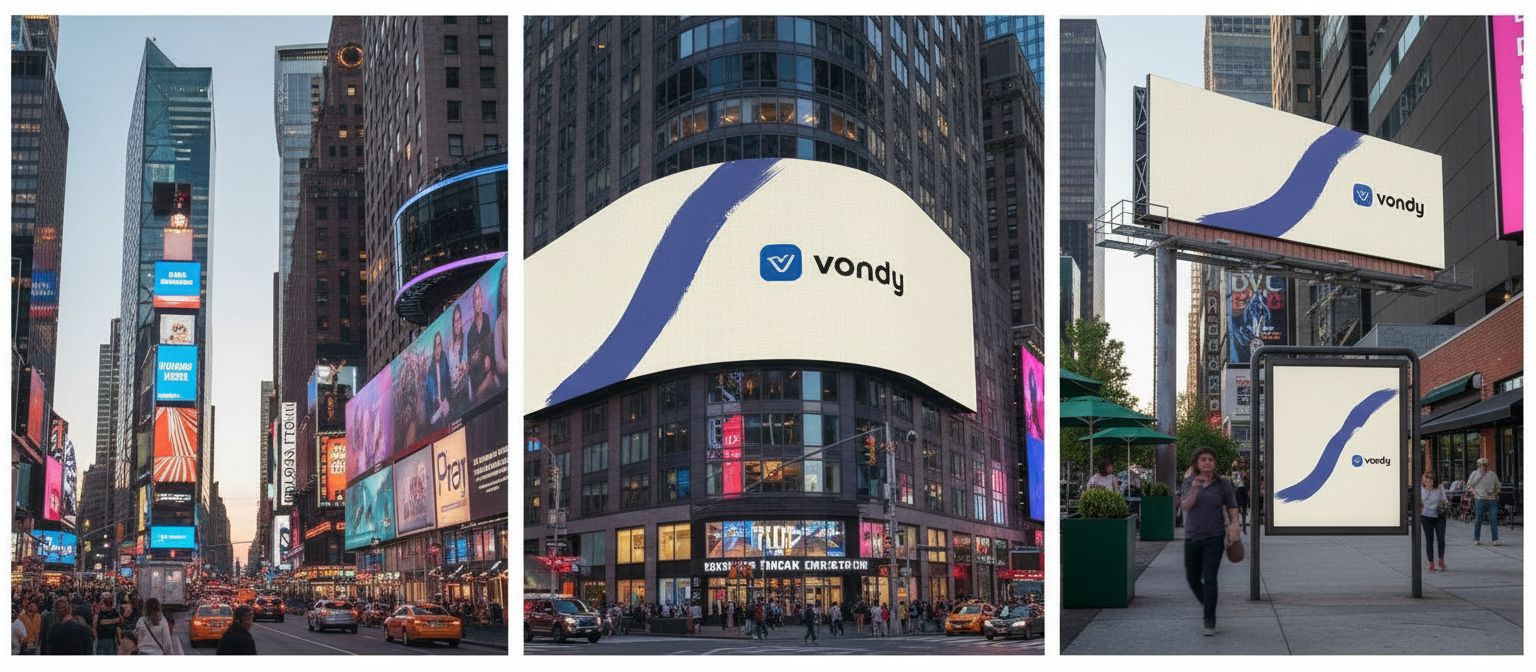
NASDAQ Display Mockup
More Mockup Ideas
- • LinkedIn profile page mockup
- • YouTube channel page mockup
- • Website header in browser window
- • Large banner at conference booth
- • Banner on laptop/monitor screen
- • Retractable banner at trade show
Frequently Asked Questions
How does AI compare to Canva for banner design?
Canva gives you designed templates where you swap in your own text and images using drag-and-drop. AI generates completely original designs from your description. You get unique imagery that no one else has, rather than remixing the same banner templates everyone uses. For small business owners without design budgets, AI is a DIY game-changer.
What file format should I use for banners?
For digital banners, export as PNG for high quality or JPG for smaller file sizes. Most social media platforms accept both. For vinyl banners and large banner printing, you'll need high-resolution files at 150-300 DPI. AI typically generates at 2K or higher resolution, which is sufficient for most digital uses but may need upscaling for large format printing.
Can I resize a banner for different platforms?
Yes. AI can intelligently resize and recompose your banner design to fit different aspect ratios. However, extreme changes (like going from a wide LinkedIn banner to a square Instagram post) may require regenerating with a new prompt. For best results, generate at your largest needed size first, then adapt for smaller formats.
How do I ensure my banner looks professional?
Always include phrases like "high-end," "premium," and "professional" in your prompt. Specify your brand colors and fonts for on-brand consistency. Leave adequate whitespace and don't overcrowd the design. Test your banner at actual size on the target platform before finalizing. The best AI art generators understand these professional design principles.
What about banners for events or next event promotions?
Event banners often need text-heavy layouts with dates, venue info, and a call-to-action like "Register Now." Include all text content in your prompt and specify the hierarchy: "large headline, medium date, small venue address." For physical event banners and retractable banners, remember that viewers see them from a distance, so fonts need to be bolder and larger than digital banners.

Create Your Own Banner with Vondy
All the AI design tools used in this tutorial are available on Vondy. Generate concepts, create variations, and resize for any platform in one workspace.
Start creating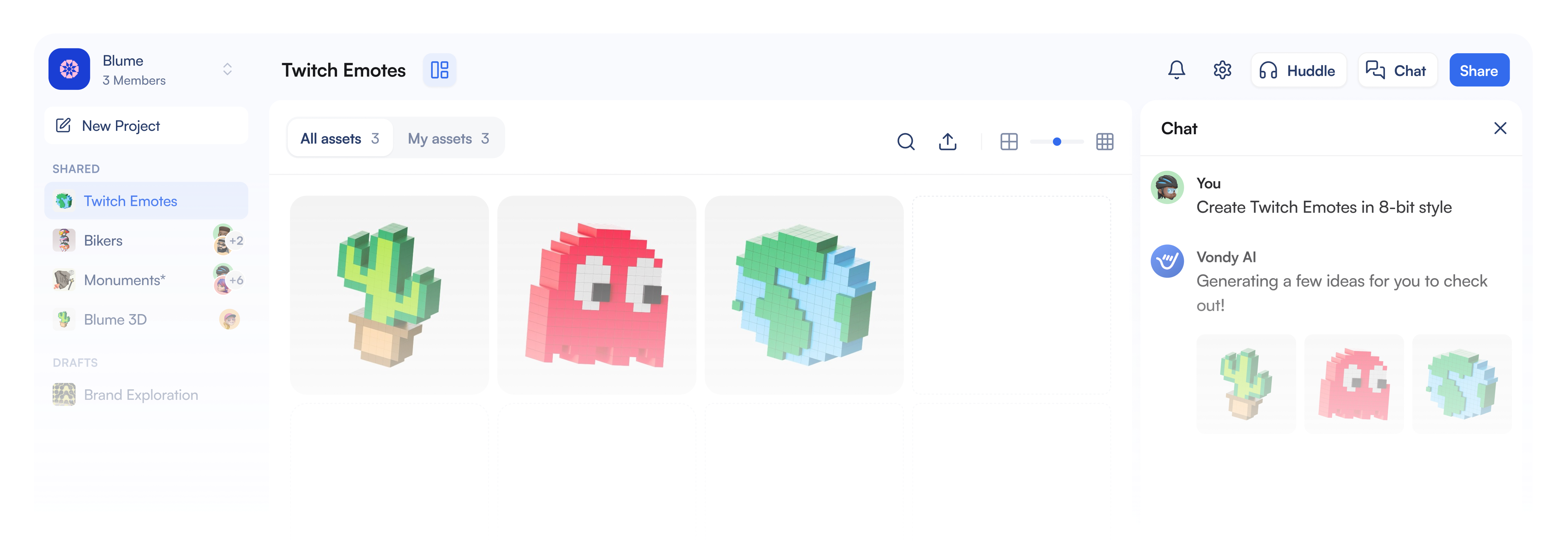
Continue Learning