
A cover page is the first page of any professional document. It sets the tone for portfolios, research papers, business reports, and presentations. Traditional tools like Microsoft Word and Google Docs offer basic cover page templates, but these free templates often look generic.
AI transforms cover page design by generating original artwork from your description. Instead of browsing through cover page templates looking for something close to your vision, you describe exactly what you want. This tutorial walks through creating a professional cover page using a real example: a portfolio cover we designed for Turbo, a fictional design agency. (Note: This is our own exploratory work, not an official project for Turbo.)
What You'll Learn
- How to write prompts for cover page design with proper typography
- Generating multiple concepts from minimal to experimental styles
- Creating style variations while maintaining layout
- Adapting your cover page for presentations and documents
Step 1: Gather Your Assets
Cover pages are typography-heavy designs. Unlike a book cover with full imagery, a professional cover page balances text hierarchy with subtle visual elements. Before generating, collect your content.
Text Content
- • Title or document name
- • Subtitle or description
- • Author's name or company
- • Date, edition, or version
Visual Assets
- • Logo (PNG with transparent background)
- • Brand colors or preferred palette
- • Font preferences (serif, sans-serif, etc.)
- • Style references for inspiration
Our Example: Turbo Portfolio Cover
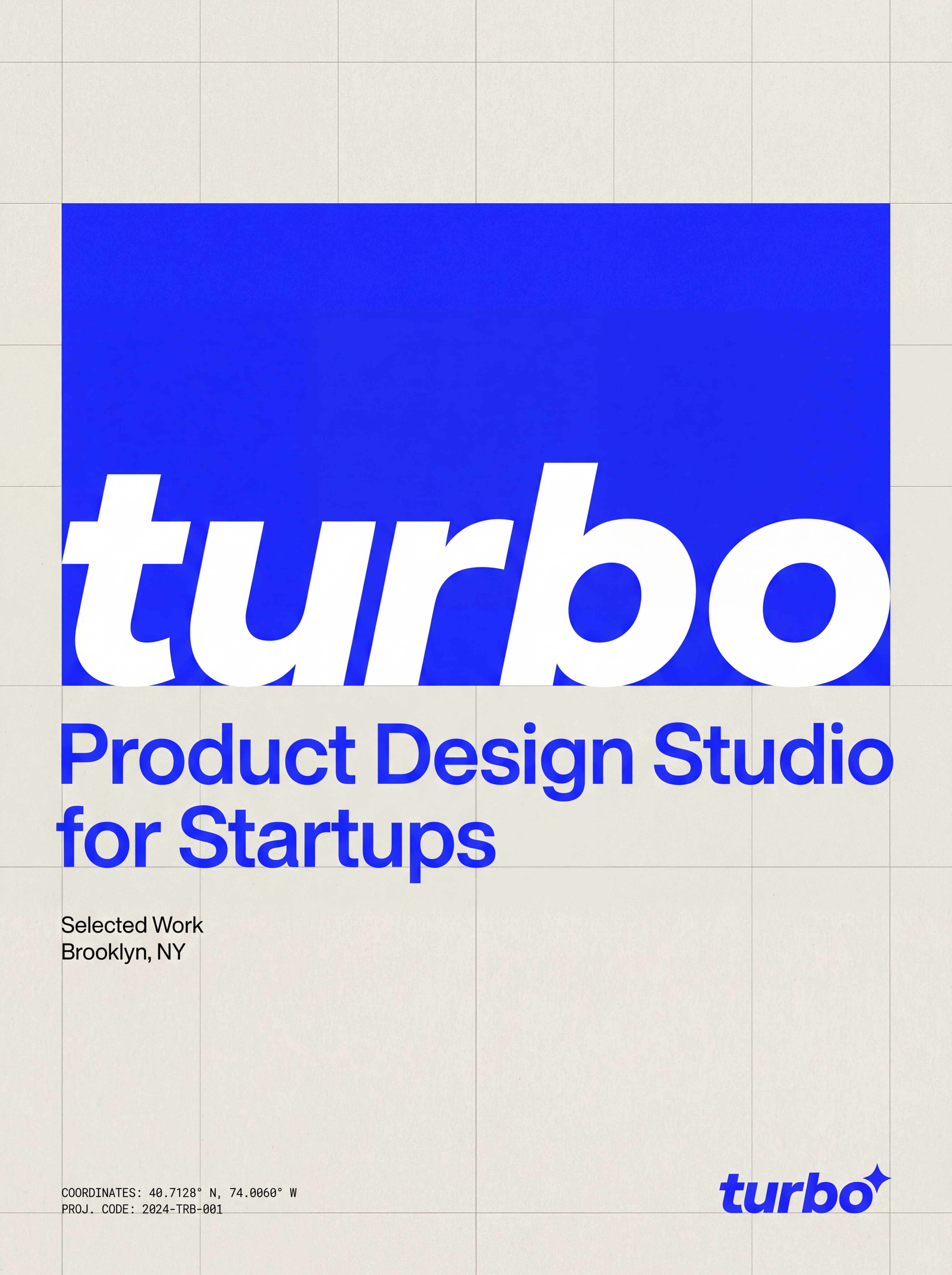
We designed a portfolio cover page for Turbo, a product design studio. Our content included: the Turbo logo, title "Design Portfolio," subtitle "Product design studio for startups," and location "Brooklyn, NY." We wanted a modern, professional look with Swiss typography influences.
Step 2: Generate Multiple Concepts
The best approach is generating 3-4 different cover page design directions. This lets you explore options before committing. Unlike Canva templates that all follow similar structures, AI can generate completely unique layouts for each concept.
Design a [style] cover page (portrait 3:4) for [company/project]. Use the attached logo exactly. Background: [description]. Layout: [placement details]. Add typography: Title: "[title]", Subtitle: "[subtitle]". Set type in [font style]. Add [additional elements]. Keep it [tone]. Flat graphic design only.Here are four concepts we generated for the Turbo portfolio cover page:

Clean Modern
Blue gradient with Swiss typography
Bold Typographic
Paper texture with editorial grid

High-Energy Motion
Dark background with speed lines
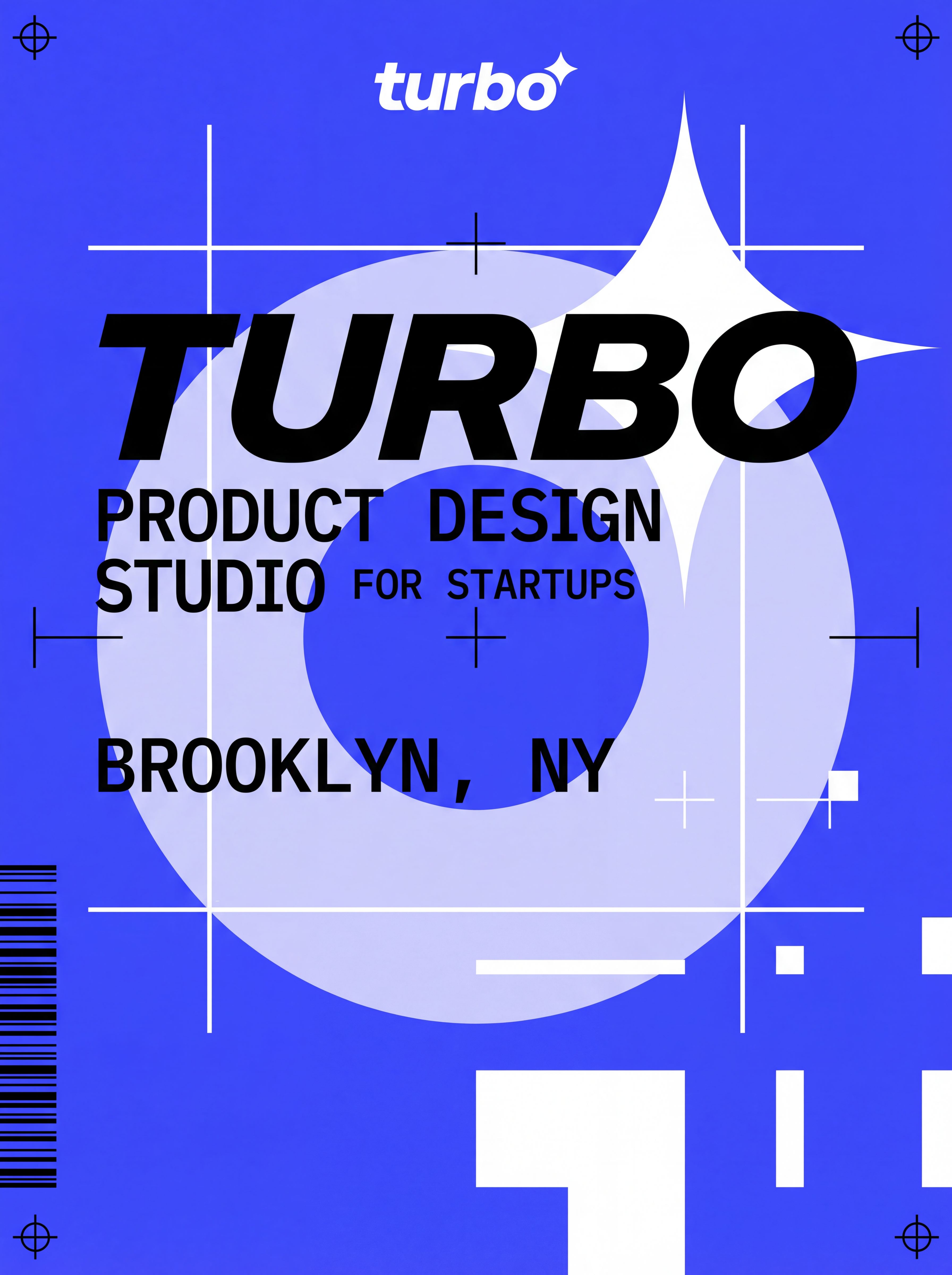
Brutalist Experimental
Cobalt blue with geometric overlays
Cover Page Design Tips
- • Specify "flat graphic design only" to avoid unwanted mockups
- • Include font style preferences: "Swiss style," "grotesk," "serif"
- • Reference specific aesthetics: "brutalist," "editorial," "minimal"
- • Use "keep logo exact" to prevent AI from redrawing your logo
Step 3: Create Style Variations
Once you have a layout you like, generate style variations to explore different visual treatments. This is where AI image generators shine. You can transform the same composition into cinematic, watercolor, vintage, or futuristic styles.

Cinematic
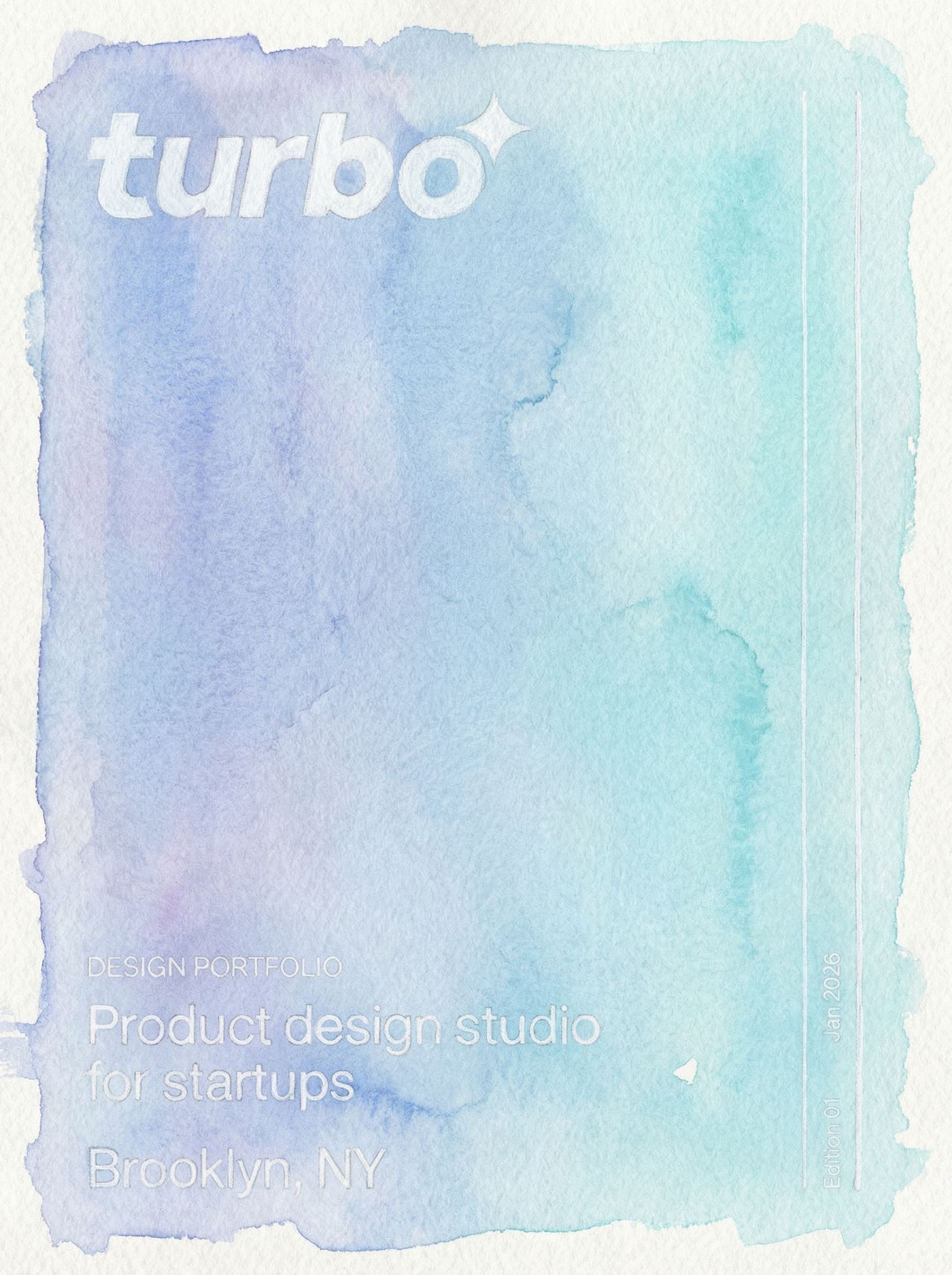
Watercolor

Cyberpunk

Vintage 1970s
Each variation maintains the typography and layout but applies a completely different visual treatment. The cinematic version adds teal-orange color grading. The watercolor version transforms it into a hand-painted look. This approach is much faster than starting from scratch with different graphic design templates.
Step 4: Refine and Edit
AI-generated cover pages often need small tweaks. Maybe the font weight needs adjustment, an accent color should be bolder, or a header element needs repositioning. AI photo editing lets you make precise changes without regenerating.
Edit Example: Enhance Accent Color
We selected the vintage 1970s variation but wanted the accent stripe to be bolder and brighter. Using annotation-based editing, we circled the accent and requested the change.
Before

After
Click for before/after
Step 5: Adapt for Different Formats
A portfolio cover page (3:4 portrait) looks different from a presentation title page (16:9 landscape). AI can intelligently recompose your design for different formats while maintaining the visual identity. This saves time compared to manually rebuilding in Microsoft Word or Google Docs.
Document Cover (3:4)
Presentation Cover (16:9)
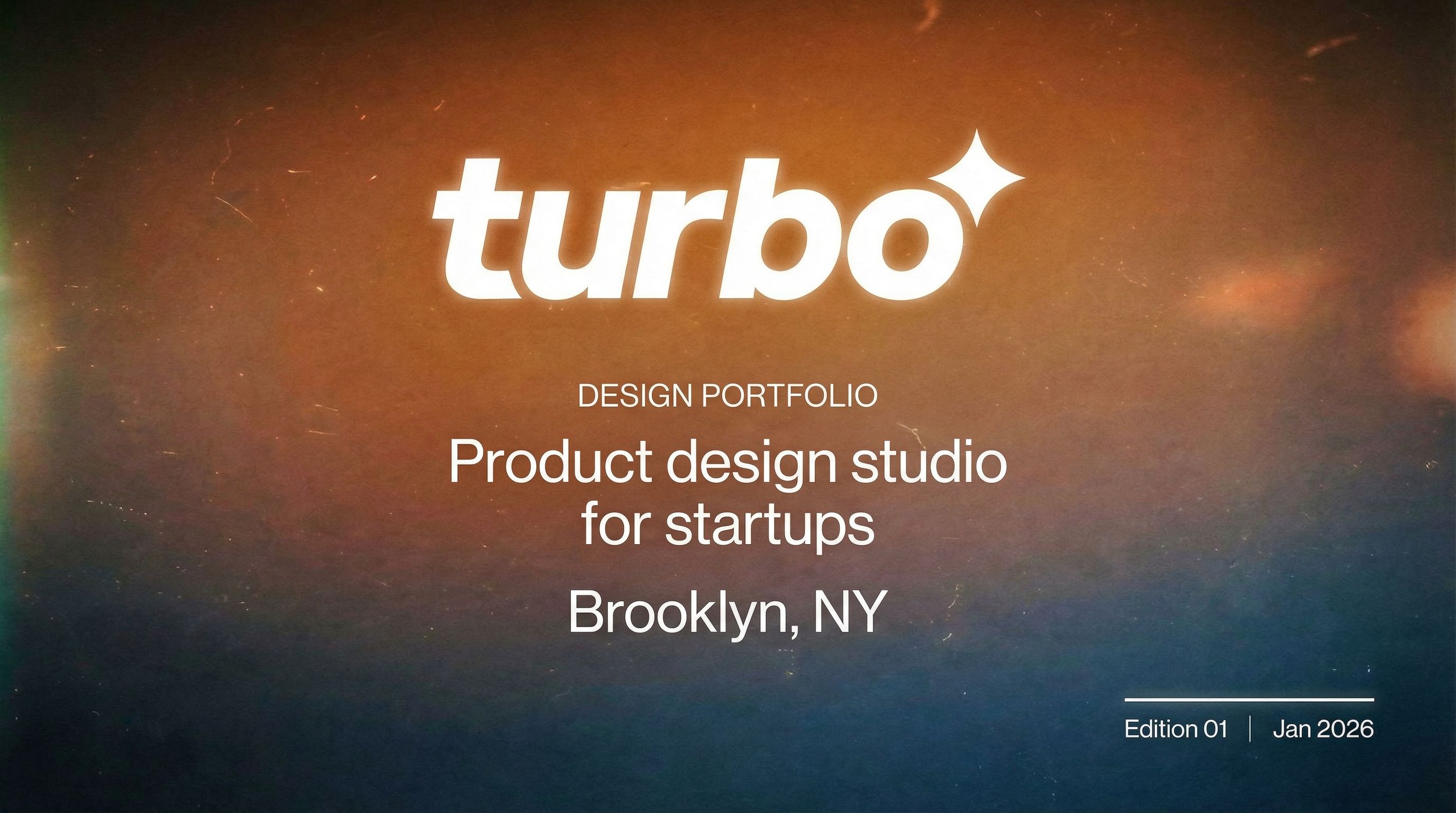
Common Cover Page Formats
- • A4/Letter (3:4): Reports, portfolios, research papers, printable documents
- • 16:9 Landscape: Presentations, slide decks, title pages
- • Square (1:1): Social media posts, notebook covers
- • US Letter with header: Essay cover pages, APA format papers
Step 6: Create Mockups
Mockups help visualize how your cover page will look in context. They're essential for marketing presentations and client approvals. AI can generate realistic mockups showing your cover page on printed documents, in binders, or on screens.
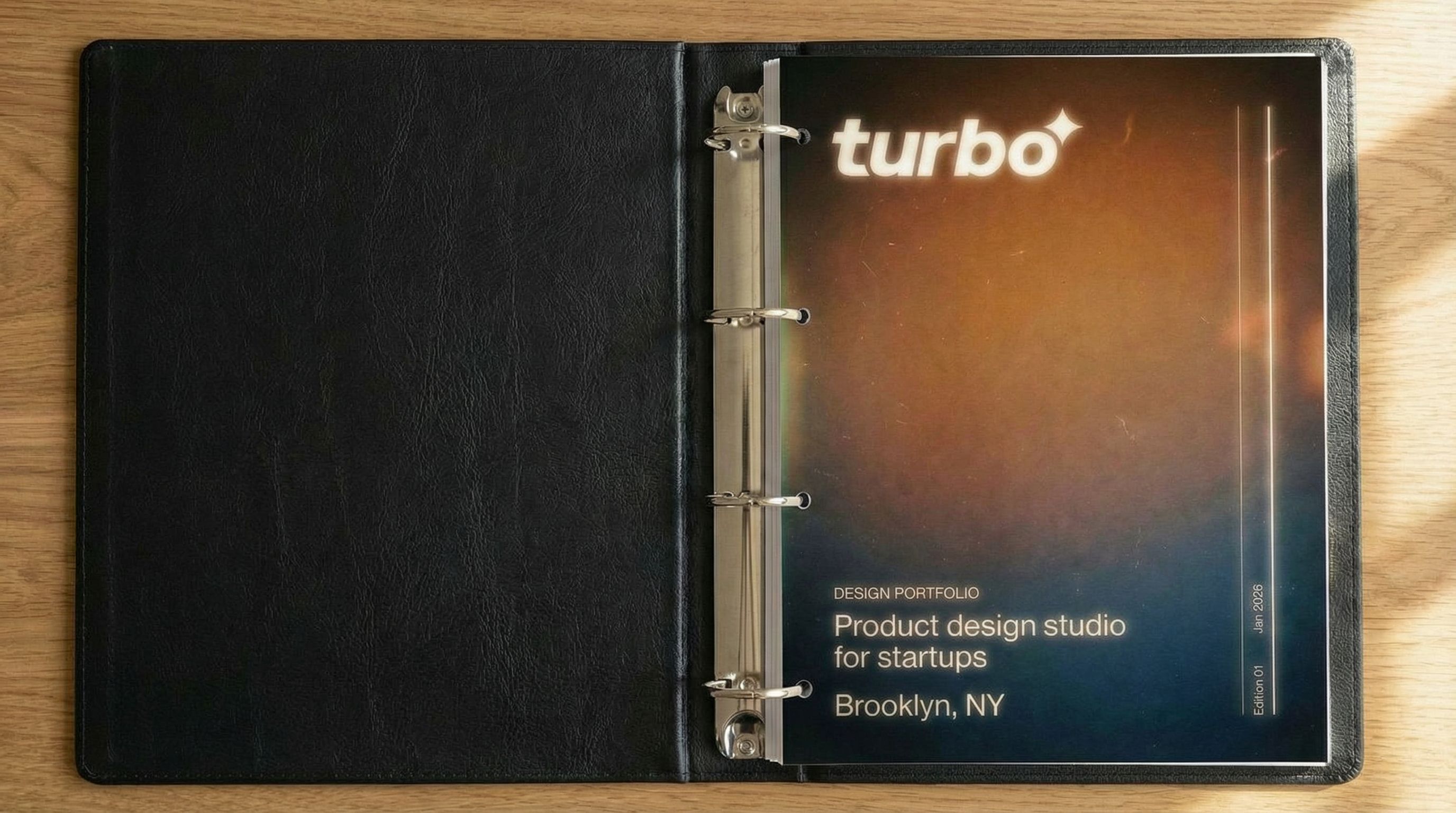
Open Binder Mockup
More Mockup Ideas
- • Printed report on desk
- • Stack of documents with cover visible
- • Presentation on laptop screen
- • Portfolio in hands
- • Report in meeting room setting
- • Spiral-bound notebook cover
FAQ
How does AI compare to cover page templates in Word or Canva?
Microsoft Word and Canva offer pre-designed templates you customize with your text and colors. AI generates completely original designs from scratch based on your description. You get unique cover page examples that match your exact vision rather than adapting someone else's template. For small business owners needing distinctive branding, AI is a game-changer.
What about APA or academic formatting requirements?
Academic title pages like APA format have strict requirements: running head, page numbers, author's name, and institutional affiliation in specific positions. AI can generate these layouts if you specify the requirements in your prompt. Include details like "APA 7th edition format with running head, centered title, author name, and affiliation" for best results.
Can I export in PNG or JPG for different uses?
Yes. AI typically generates high-resolution PNG files. You can download these and convert to JPG if needed for smaller file sizes. For printable documents, PNG maintains better quality. Most generated cover pages are 2K-4K resolution, sufficient for both digital and print use.
What's the difference between a cover page and a title page?
The terms are often used interchangeably. A title page typically refers to the first page of academic papers or books containing title, author, and publication info. A cover page is broader and can include portfolios, reports, and presentations. Both follow similar design principles: clear hierarchy, professional typography, and appropriate branding.

Create Your Own Cover Page with Vondy
All the AI design tools used in this tutorial are available on Vondy. Generate concepts, create variations, and adapt to any format in one workspace.
Start creating
Continue Learning